Payment plans and installments
This post is part of our Curling IO v3 sneak peek series, where we explore some of the new features available in the upcoming version.
A member wants to spread their season fee over a few months. Collecting those payments by e-transfer and tracking them in a spreadsheet can be challenging.
Payment plans let you split selected purchases into scheduled installments. Members choose a plan at checkout, SportsPay schedules the later installments for automatic collection, and every payment stays connected to the member's order in Curling IO.
Offer a payment plan for a registration
You choose which products offer a plan. Members can still pay in full. A plan has a fixed end: once its installments are paid, collection stops.
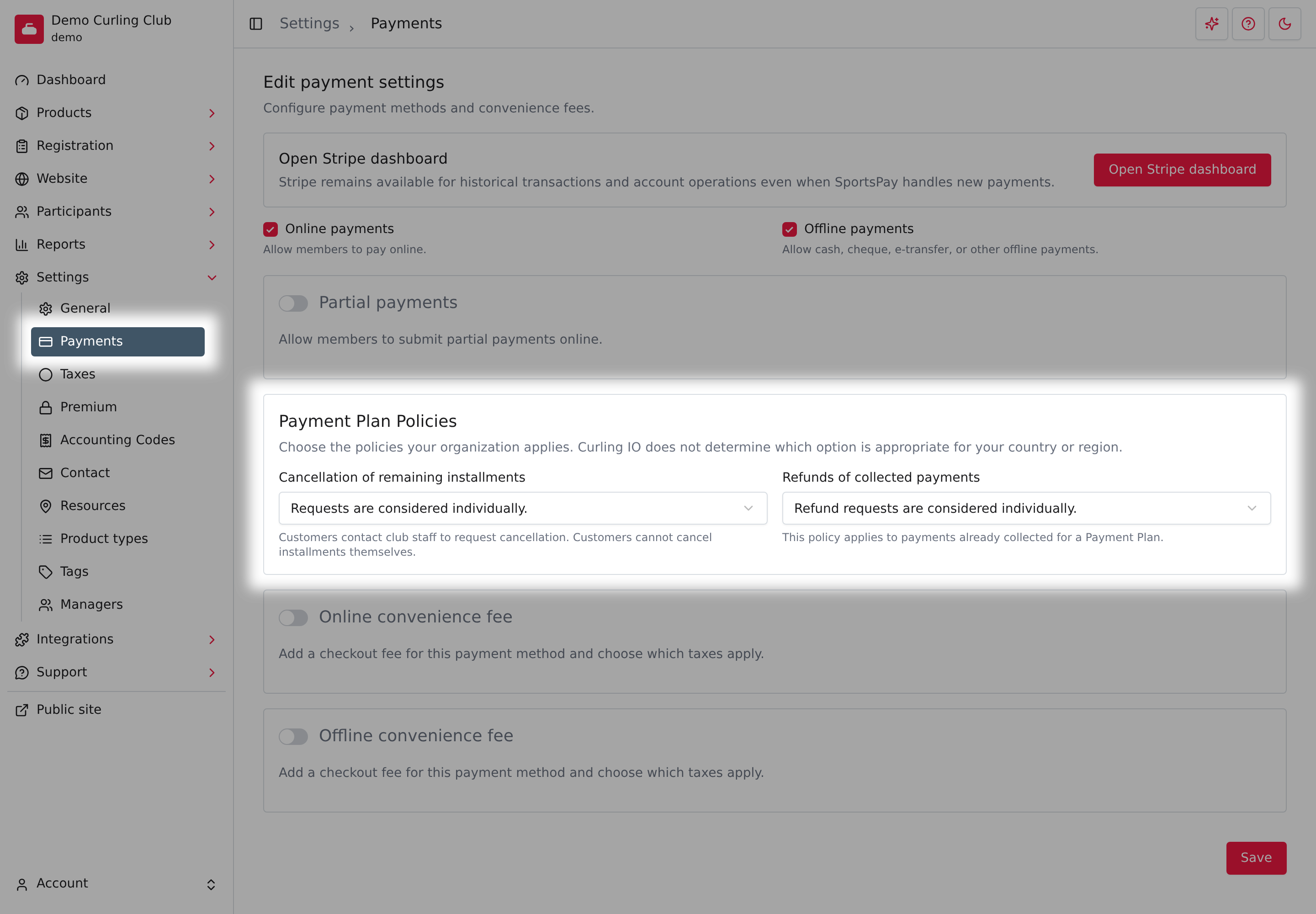
Start in Settings > Payments > Payment Plan Policies. Choose your club's policies for cancelling remaining installments and refunding payments already collected. Both choices are required before you can enable a product's plan. These policies appear in the customer's checkout authorization.
On the product's editing page, turn on Offer a Payment Plan under Pricing. Choose a number of payments or a payment amount, then set the number of months between payments. The preview shows an example schedule for someone purchasing today.
For example, you could offer three monthly payments. If you set a payment amount instead, the last installment may be smaller than the others.
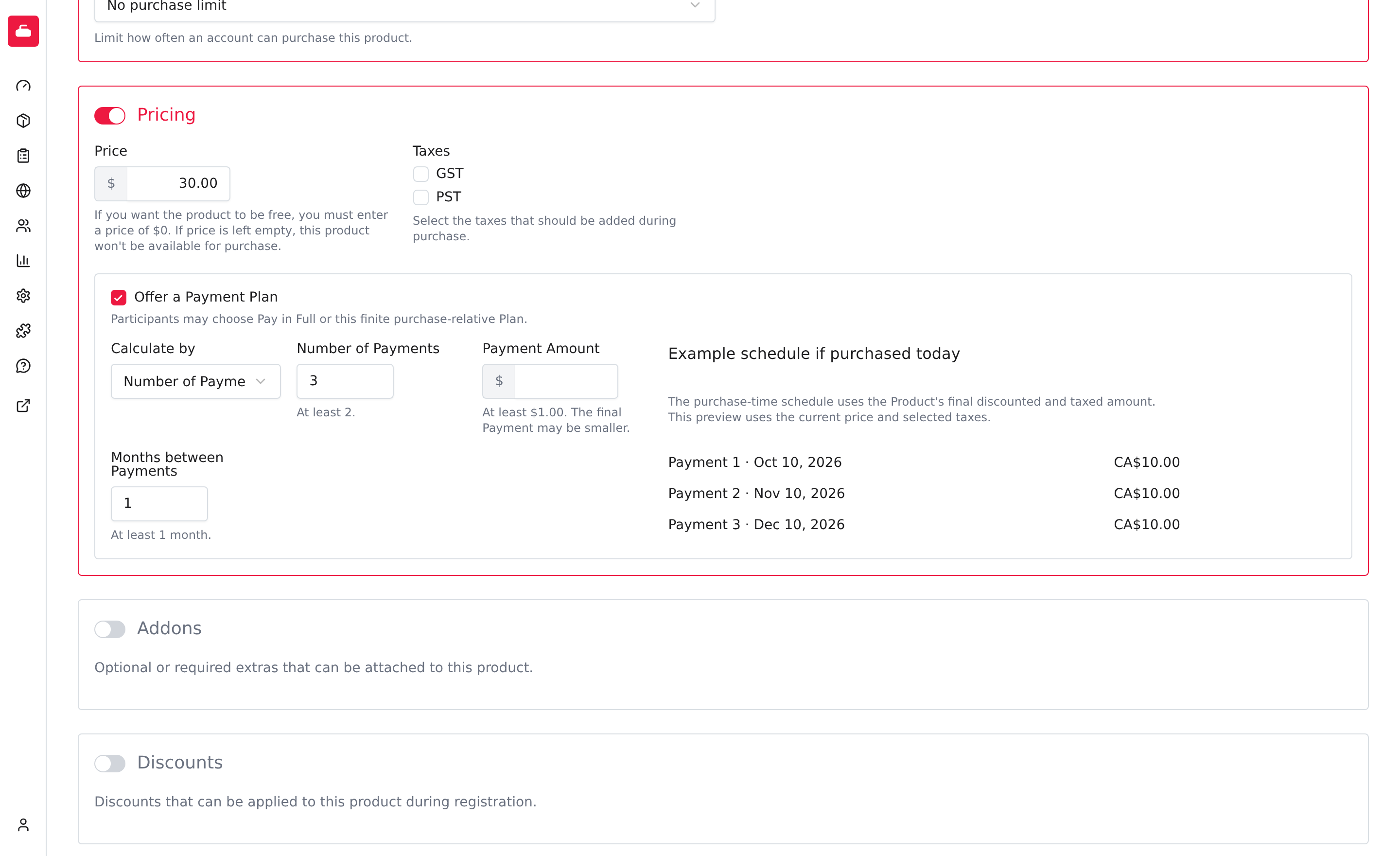
The final schedule uses the product's price after discounts and taxes. Other items in the cart and applicable checkout fees are due alongside the first installment.
Show members what they'll pay
The member chooses the plan in their cart. Checkout shows each installment's amount and due date, the amount due now, and the club's cancellation and refund policies. Completing checkout authorizes the scheduled charges.
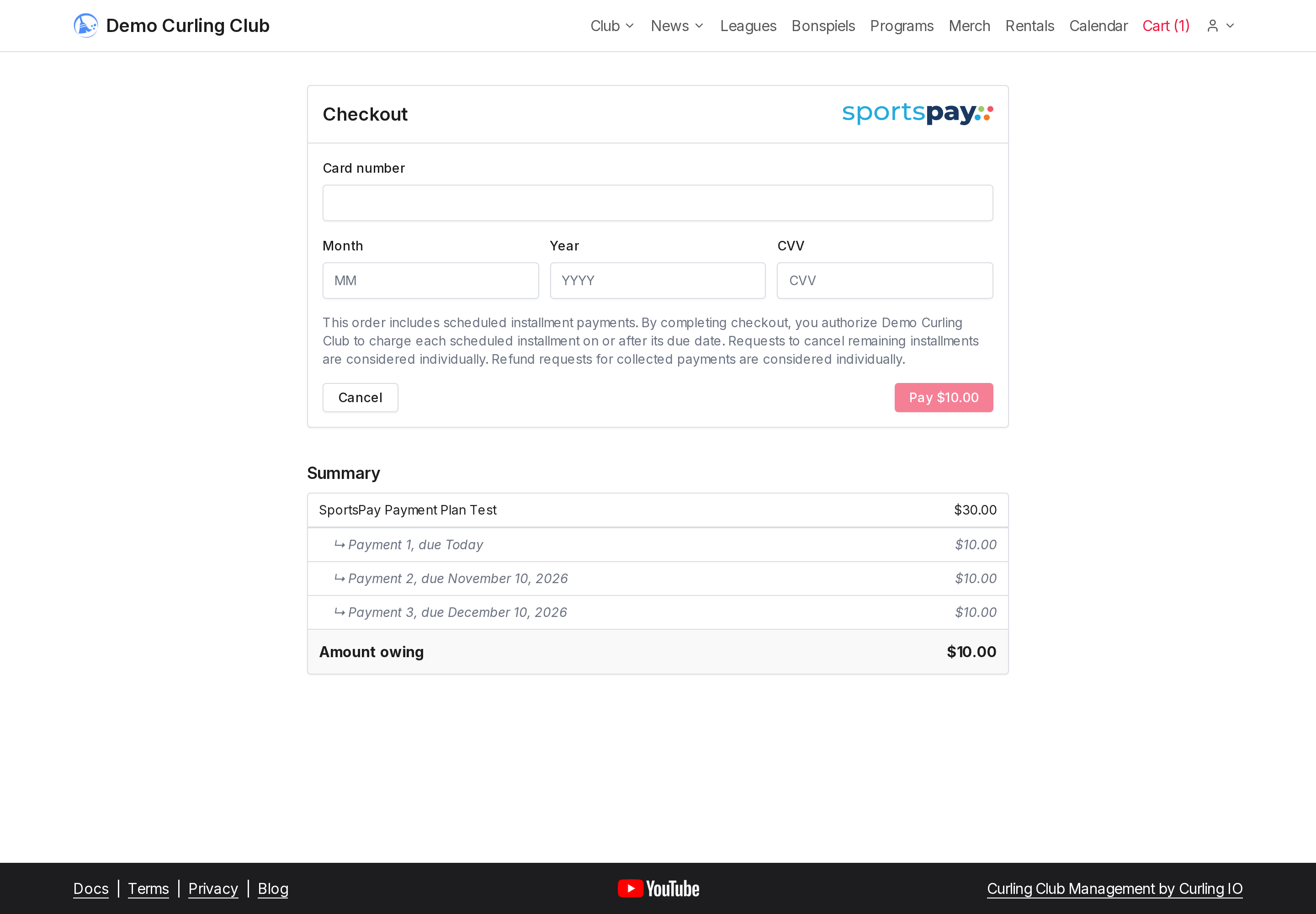
After the first payment succeeds, Curling IO sets up the remaining installments with SportsPay for automatic collection. Curling IO emails reminders before payments are due and notices when an installment succeeds or is declined. Card numbers stay with the payment processor; Curling IO doesn't store them.
If checkout shows Your order is being processed, Curling IO is still confirming the payment. The member can leave the page and return to the order later. They should wait for the result before trying another payment.
If a payment is declined, later installments pause. The member can open Account > Payment plans and update their payment method. Updating the card also retries the oldest declined installment. If several payments are overdue, catching up can mean more than one charge.
Follow up on plans that need attention
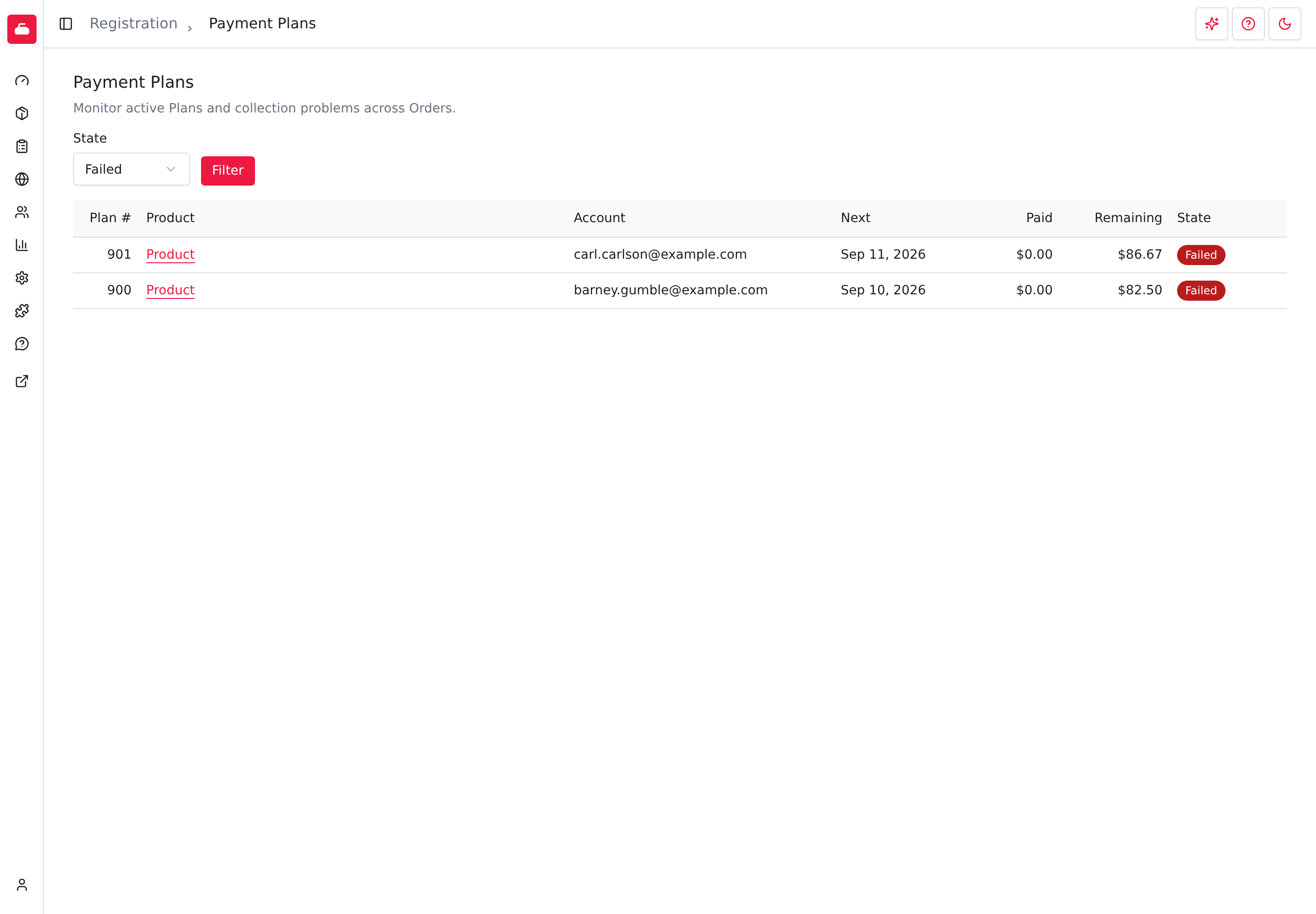
Open Registration > Payment Plans to see plans across your club's orders. Filter for states such as Failed, Uncertain, or Overdue to find the plans that need follow-up. Open a plan's order to review its installments and retry a declined payment.
Each row shows the plan number, product, account, next payment date, amounts paid and remaining, and state. If SportsPay reports an error, a message below the plan explains the problem.
Staff can also cancel remaining installments. That reduces the unpaid amount; it doesn't refund payments already collected or cancel the registration. Read the cancellation result before assuming future charges have stopped. If removal from SportsPay isn't confirmed, a scheduled charge may still occur and needs follow-up.
Where payment plans are available
Payment plans currently use SportsPay. Stripe support for plans isn't available yet. Enabled, configured online payments include Premium access, so a club using SportsPay doesn't need a separate Premium purchase to offer these plans.