Renting Your Ice with Curling IO

This post is part of our Curling IO v3 sneak peek series, where we explore some of the new features available in the upcoming version.
Curling clubs use rentals for practice ice, lounges, meeting rooms, and other bookable resources they define. A rental needs a product and price, but it also needs a schedule, one or more resources, public availability, and a booking record after checkout.
In Curling IO v3, an administrator defines the rental schedule and resources in the admin area. Available time slots appear on the public calendar, where curlers can add one to the cart and complete checkout. This post explains the rental options being added and how they fit into the calendar.
What Changes From v2
Curling IO v2 already lets clubs rent venues. Curling IO v3 vastly improves on this workflow and changes how rentals are configured and managed:
- Rental administration: Create and edit rentals from Products > Rentals, with the schedule, resources, pricing, and booking options together in the admin area.
- Resource management: Resources replace what v2 calls venues. A resource can be a sheet, lounge, meeting room, or anything else the organization defines. A dedicated settings area controls the resources used by rental schedules, reservations, closures, and the calendar.
- Capacity and waitlists: A rental can accept one exclusive booking or several bookings for each time slot. Capacity and waitlists belong to the exact resource, date, and time being booked.
- Grouped resources: Several resources can form one time slot. One booking can reserve two sheets or the complete rink together.
See the Rental Workflow
This tutorial creates and books an exclusive rental, configures a rental with capacity, and finishes with a grouped rental that reserves two sheets together.
How the Rental Schedule Works
A rental starts with one or more resources, a date, at least one start time, and a duration. It can happen once or repeat daily, weekly, monthly, or yearly. An administrator can set an end date and exclude individual dates without creating a separate product for every time slot.
For example, a club can offer two-hour practice ice on sheets A and B at 4:00 PM every day for one week. Each sheet and date becomes its own bookable time slot, while the rental keeps one shared price and set of booking rules.
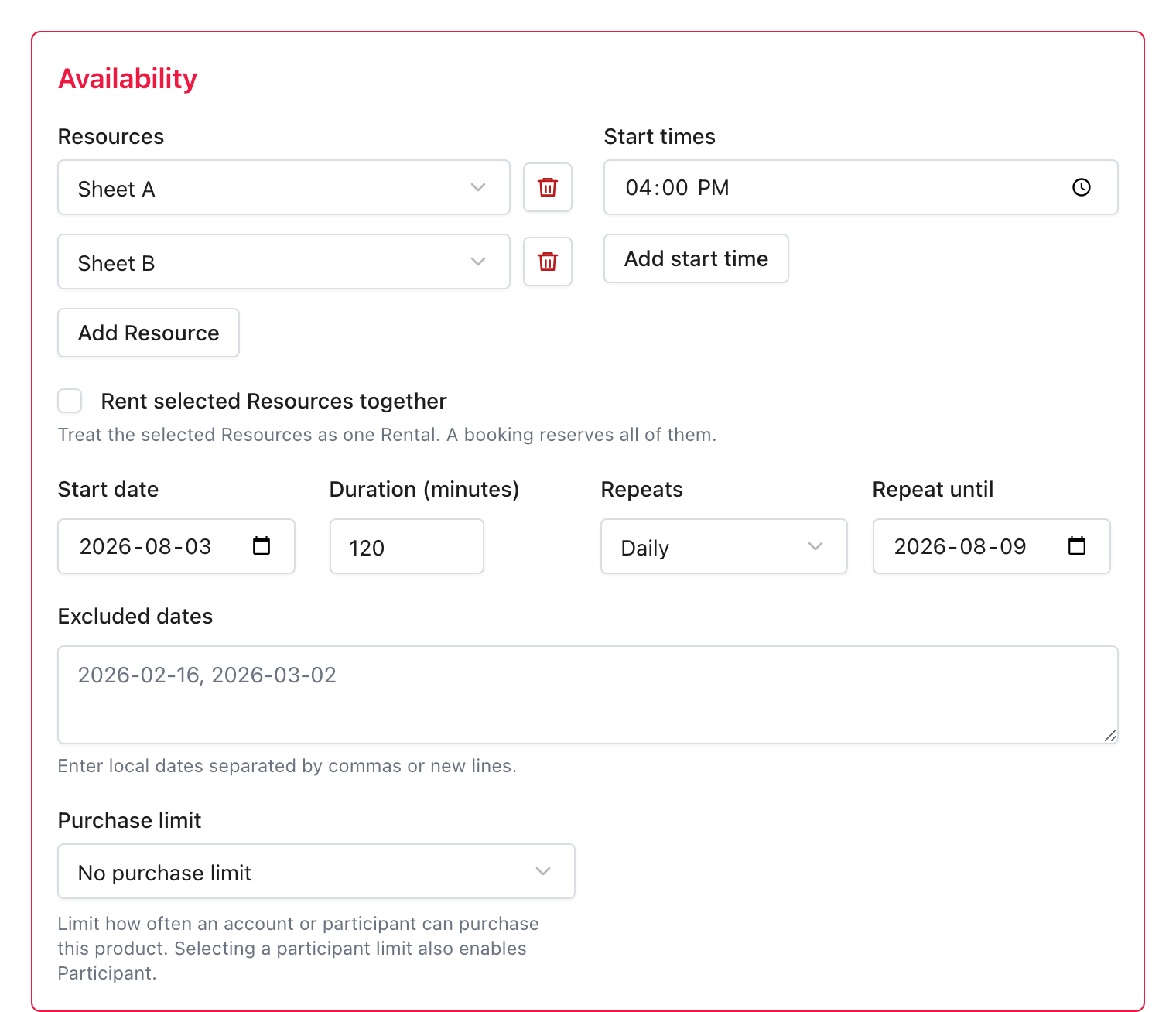
The rental defines the complete offer. A time slot is one resource, date, and start time that a curler can book. If the sheets need different prices or rules, the club creates separate rentals.
How Rentals Appear on the Calendar
Available rentals appear alongside games and other activity on the public calendar. Curlers can filter the calendar to rentals, and a club can link directly to that filtered view when promoting practice ice or room bookings.
The desktop calendar provides day, week, month, and list views. On a phone it becomes a simpler day list, with date controls and each event shown as a card. When viewing the current date, the phone view leaves out events that have already finished.
Selecting an available rental opens its date, time, duration, price, and resource choice. When several equivalent sheets are offered separately, the curler can choose an available sheet before adding the time slot to the cart.
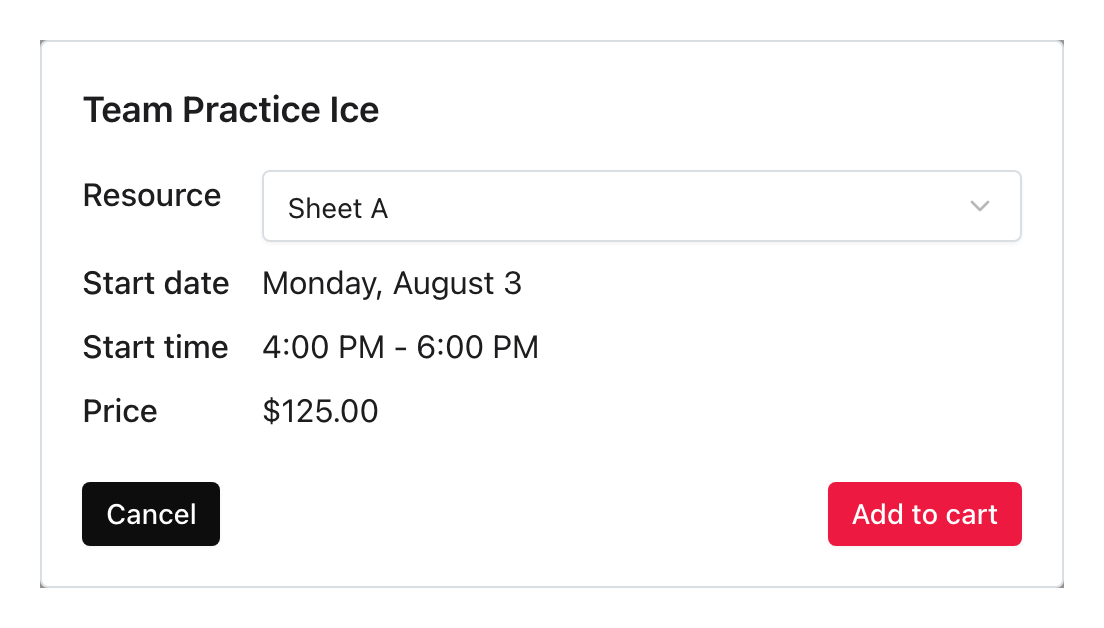
Adding a time slot to the cart does not reserve it. Availability is checked again at checkout, and the resource is allocated only when checkout completes. Abandoned carts do not affect public availability.
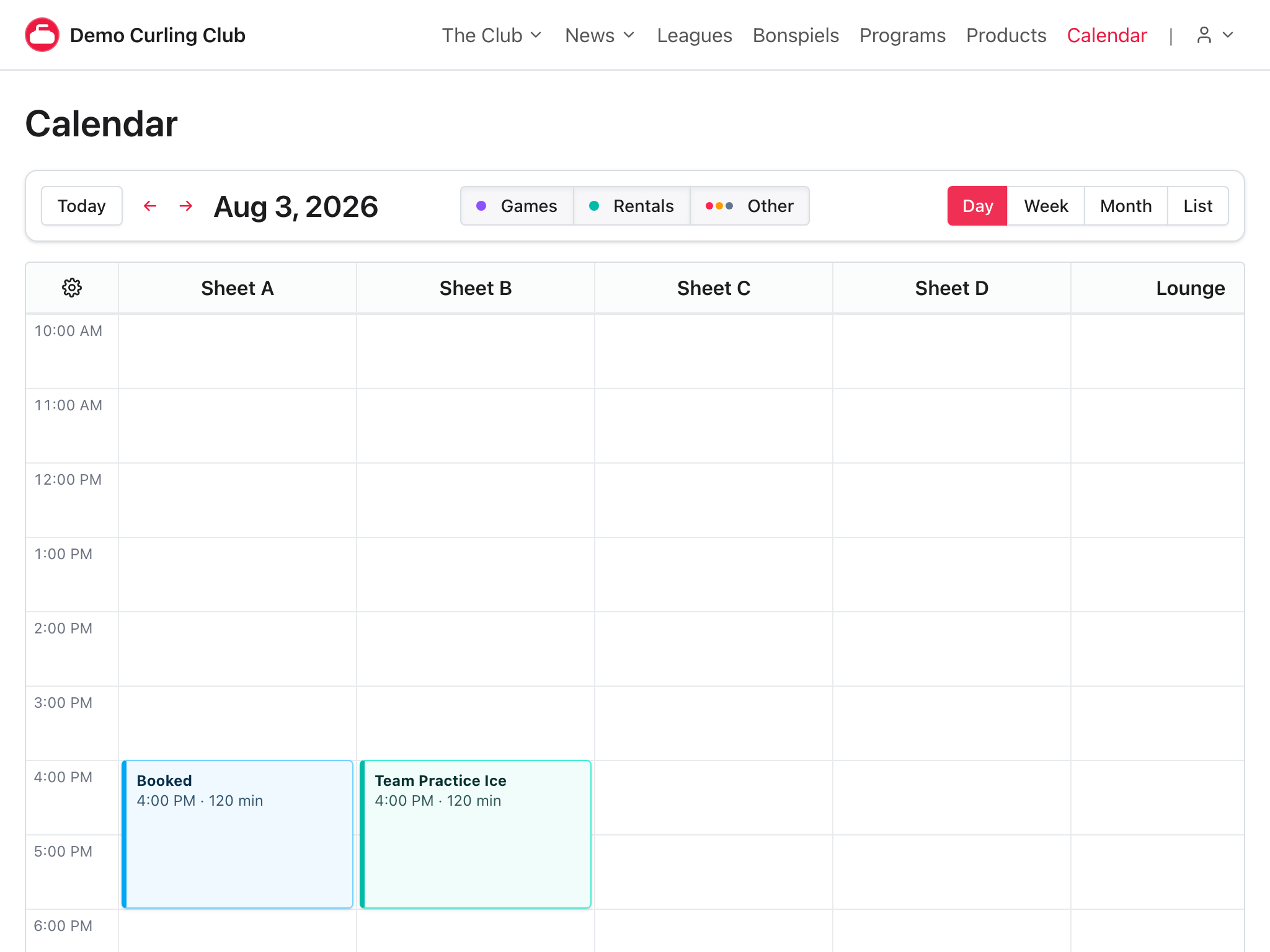
After checkout, the person who made the booking sees Booked. Other curlers see Reserved, without receiving the rental name or order details. Sheet B can remain available at the same time when only sheet A was booked.
Embed Rentals on Your Club Website
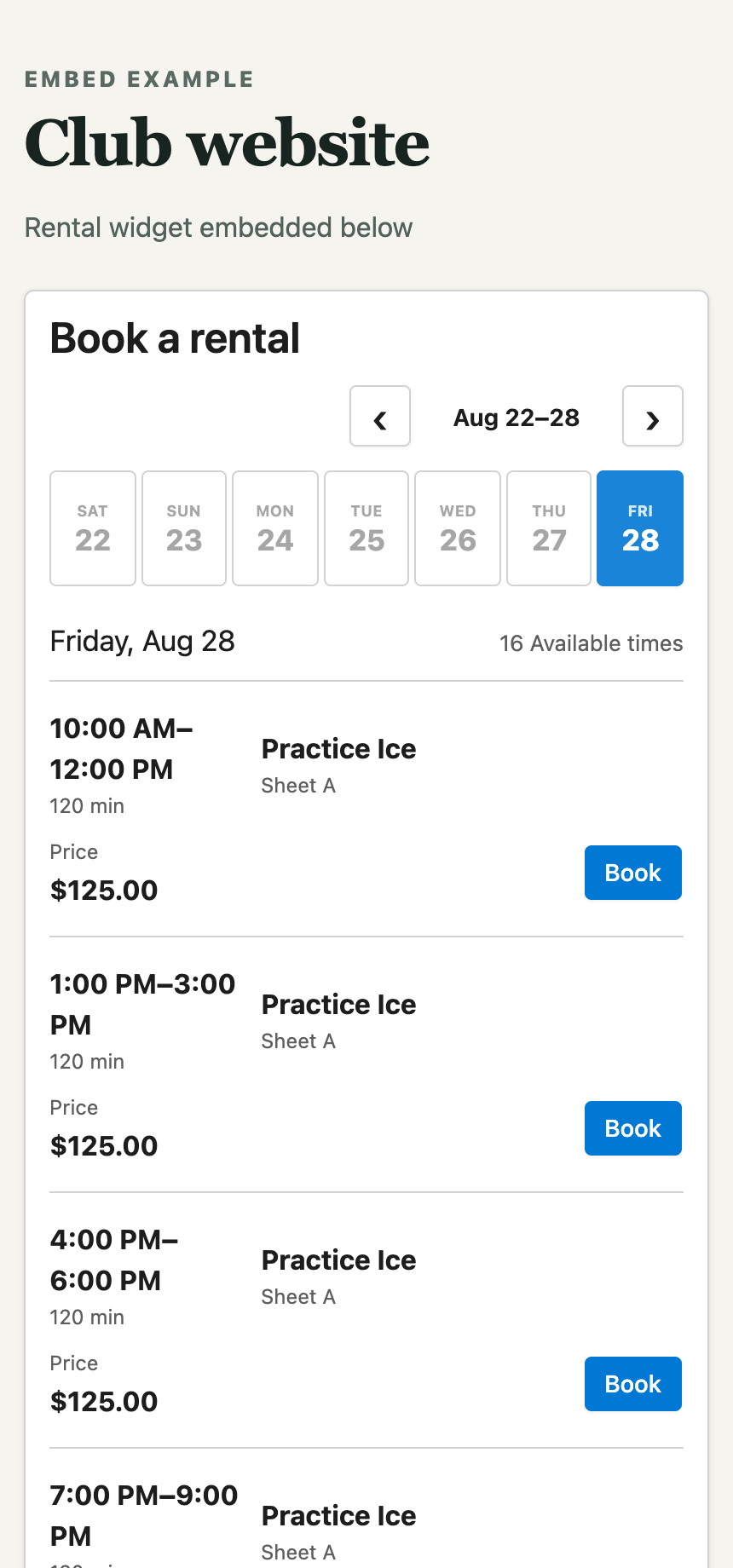
A club does not have to send visitors to a separate calendar before they can find available ice. The rental widget puts a focused seven-day list of bookable times directly on the club's existing website. Visitors can compare dates, times, resources, and prices without leaving the page.
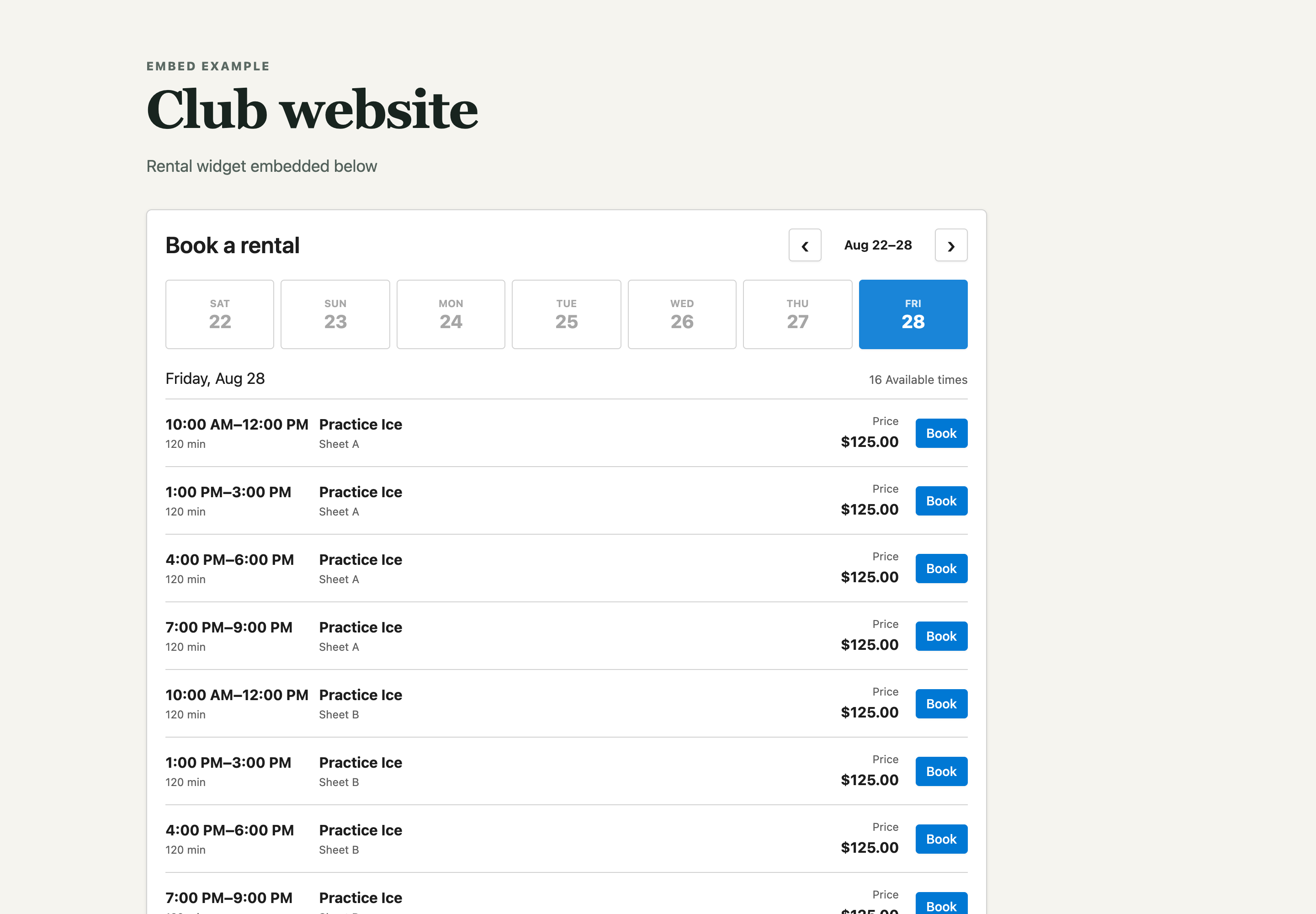
The widget can show every public rental or be limited to selected rental products and resources. A club could use one page for practice ice, another for lounge rentals, or show only the sheets relevant to a particular program. The list stays connected to the same rental schedule and resource conflicts as the full calendar, so the club does not maintain availability in two places.
Selecting Book takes the visitor into the club's normal Curling IO cart and checkout. That is where Curling IO confirms availability again and handles login, participants, questions, waivers, add-ons, discounts, payment, and the final booking. The embedded list is for finding a time, not a stripped-down checkout that skips the club's booking rules.
The layout adapts to the space available on the host page, including narrow website columns and phones. It also carries the club's Curling IO colours and protects its controls from conflicting website styles.
Exclusive Rentals and Rentals With Capacity
Some rentals are exclusive. One booking takes the complete sheet or room for that time. This is the natural setup for practice ice.
Other rentals can accept several bookings for the same resource and time. A drop-in practice might use sheet C at 7:00 PM with capacity for four bookings. After one checkout, the time slot remains available with capacity for three more.
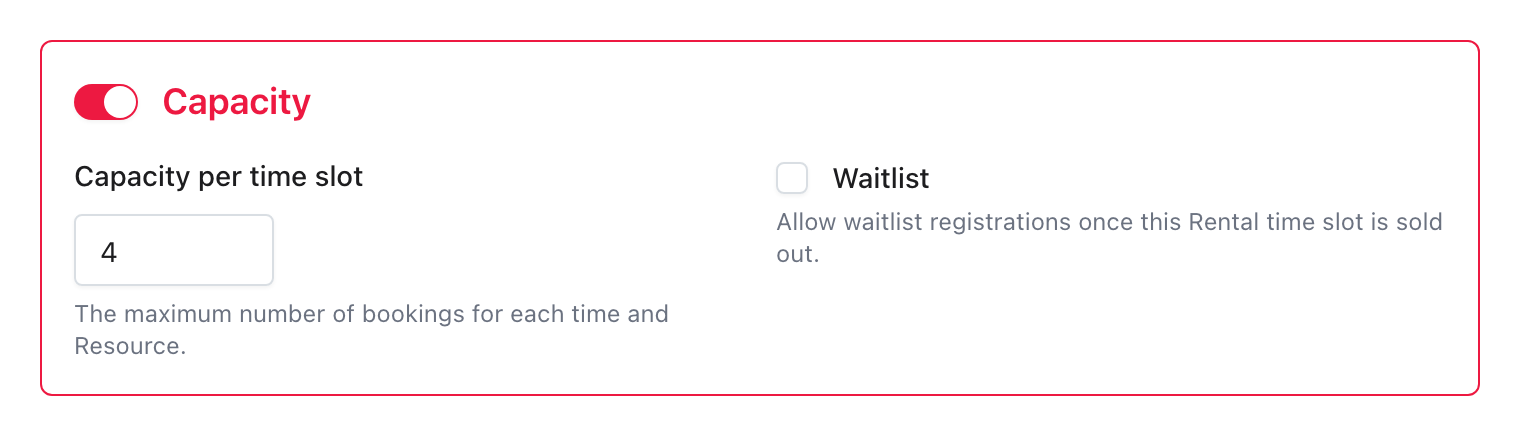
The club can also limit an account or participant to one purchase per time slot. If the time slot sells out, an optional waitlist collects interest for that exact resource, date, and time.
Approving a waitlist entry gives that account one private capacity exception. This lets the approved account book without increasing the capacity available to everyone else.
Group Several Sheets Into One Rental
Sometimes the thing being rented is not one sheet. An instructor may want two adjacent sheets, or a rental league may want the full rink for a block of time.
An administrator can group the selected resources so one booking reserves all of them together. The day calendar shows adjacent grouped resources as one block spanning their columns. Selecting the block shows the complete resource set, and checkout creates one booking for the group.
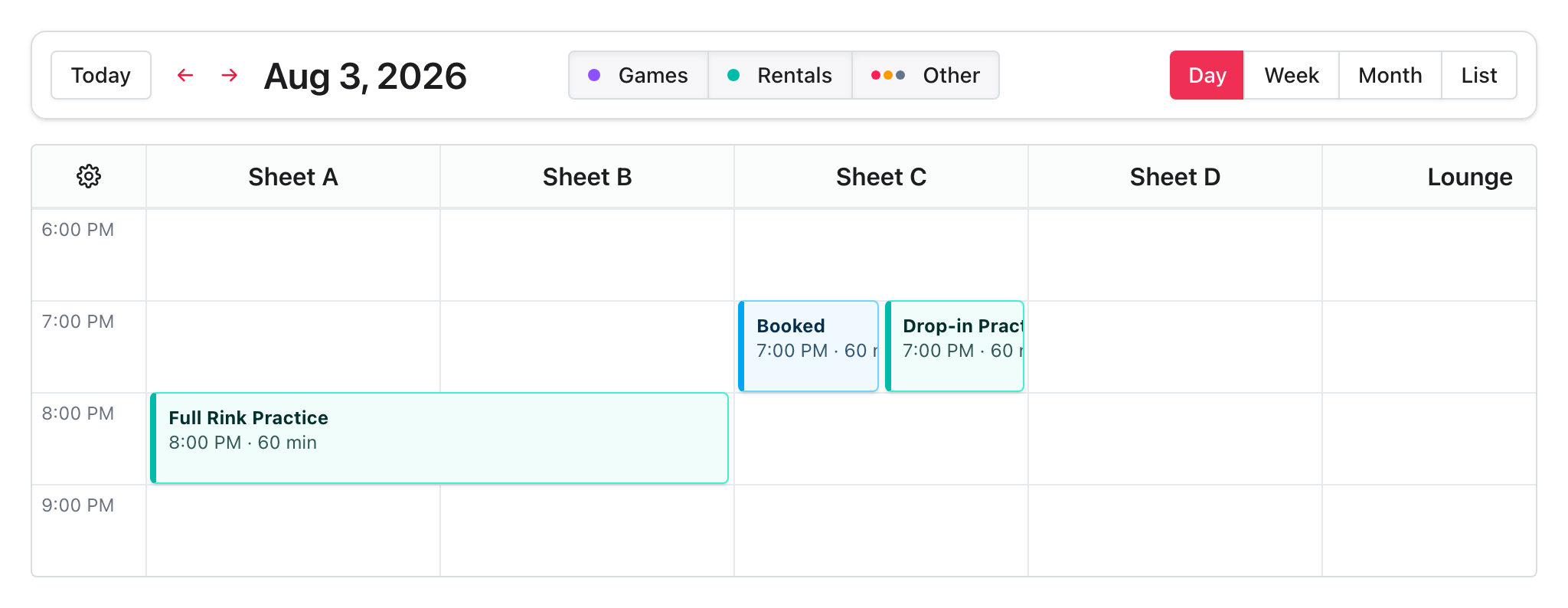
A conflict on any resource makes the complete grouped time slot unavailable. If a scheduled game, closure, reservation, or existing booking uses sheet A, the calendar does not offer a partial version of the rental on sheet B.
Calendar Actions for Administrators
The calendar is not only a public rental list. Administrators can add manual reservations and closures, edit a rental schedule, and reschedule an existing booking from the event itself.
Those records have different jobs:
- A rental is a public product with a price, schedule, cart, order, and payment.
- A reservation holds a resource manually.
- A closure marks a resource as unavailable.
- A booking is the purchased resource and time saved on an order.
The calendar resolves those records together. Removing a closure or reservation exposes the underlying rental time slot again without requiring the administrator to recreate its schedule.
Other Product Features Available to Rentals
Rentals use the same basic commercial tools as other Curling IO products. A club can require a participant, add registration questions, offer add-ons, apply discounts, assign taxes and accounting, and use the normal payment and refund workflow.
For example, a room booking can ask for setup requirements, a practice booking can require a participant, and a full-rink rental can include a related add-on.
Rentals will be a Premium feature in Curling IO v3. A rental schedule will be the shared source used to calculate calendar availability, validate checkout, and create the booking saved with the completed order.