Review the Attention Centre
The Attention Centre collects operational problems that need an administrator's decision. Each item explains what happened, assigns a priority, and links to the screen where you can investigate or fix it.
The Attention Centre does not fix problems automatically. Review the source record before closing an item.
Open the queue
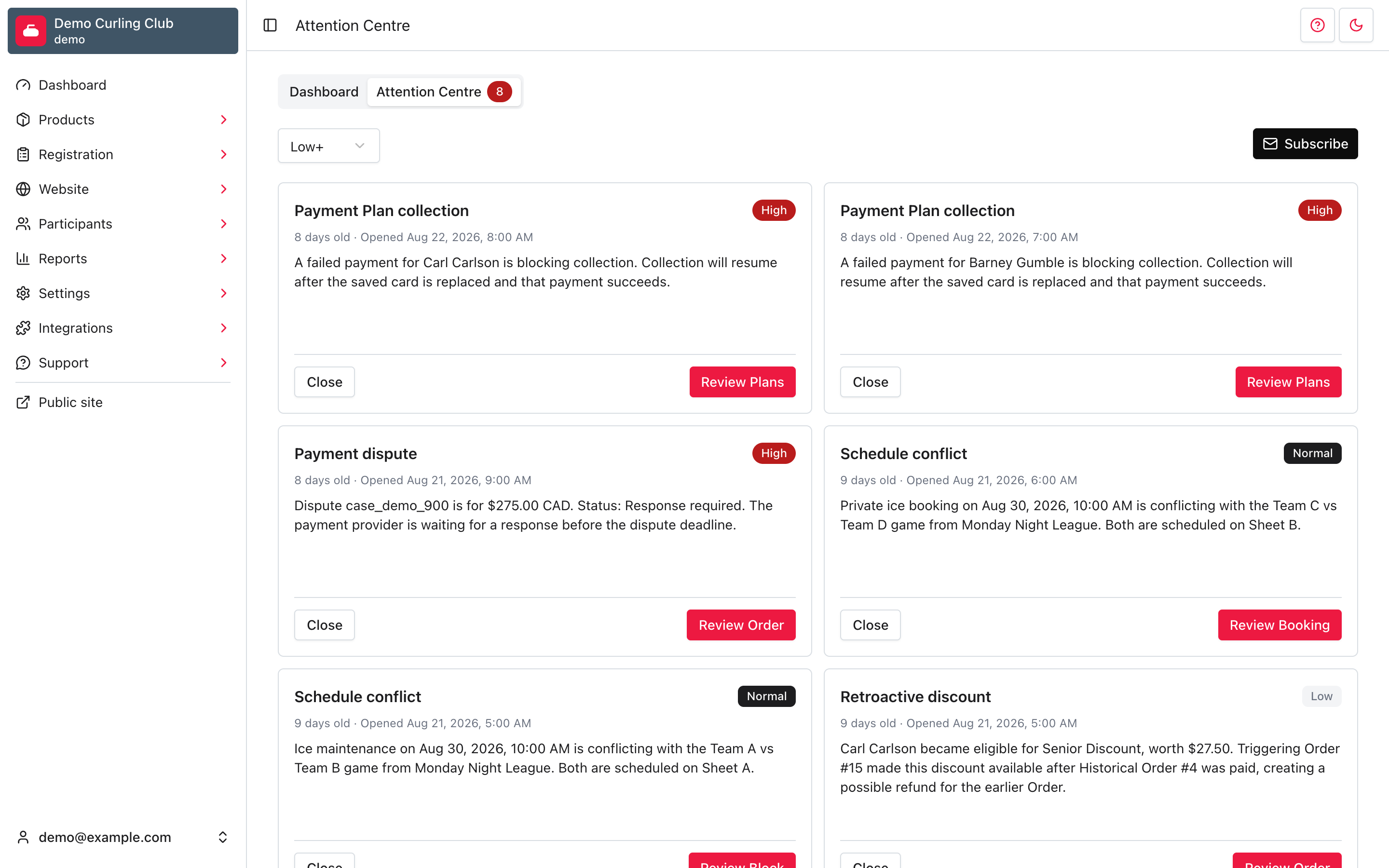
Open the administration Dashboard, then select Attention Centre. The badge is the number of open items.
When there are no open items, the Dashboard still shows the Attention
Centre tab, but the tab is disabled and has no badge. You can also go directly
to /admin/attention, including from a bookmark. Direct access is useful when
you need to review closed items or confirm that the queue is empty.
Open items appear before closed items, with the newest items first. Each card shows its source, priority, age, opening date, explanation, and next action.
Filter by priority
Use the Priority menu to choose the minimum priority shown:
- Low+ shows low, normal, and high items.
- Normal+ shows normal and high items.
- High shows only high items.
The filter changes the queue immediately. It also sets the minimum priority used when you subscribe to email notifications.
Understand the item sources
| Source | What it means | Next action |
|---|---|---|
| Discount exclusions | A chain or circle of discount exclusions needs review. Curling IO has not changed the configuration. | Select Review discounts and check the affected product’s discount setup. |
| Failed refund delivery | A refund could not be delivered. | Select Review Order to inspect the refund and its failure before taking further action. |
| Payment Plan collection | One or more installments were declined or need bank authentication, blocking collection for an account. | Select Review Plans to open the affected plans. Ask the member to confirm the saved card or replace it from their account. A staff retry cannot complete their bank check. |
| Payment Plan Policies | Products cannot offer Payment Plans until the required cancellation and refund policies have been chosen. | Select Configure Policies, then choose the policies under Settings > Payments. |
| Schedule conflict | A game and another booking or block use the same resource at the same time. | Select Review Booking, Review Block, or Review Schedule, depending on the conflicting record. Move or remove one commitment. |
| Payment dispute | A payment provider has opened a dispute and may require a response before its deadline. | Select Review Order when the dispute belongs to an order. Otherwise select Review Dispute to open the Disputes report. Respond through the payment provider when required. |
| Retroactive discount | A later purchase made a participant eligible for a discount on an earlier paid order. | Select Review Order to inspect the historical order and start a prefilled refund when one is appropriate. If an order is unavailable, select Review Opportunity to open the report. |
| Mailchimp synchronization failures | User data could not be synchronized into one or more Mailchimp audience fields. | Select Review Audience Fields, then correct the source data or field mappings. |
An item can omit a direct record link when its source record is no longer available. Use the linked report or settings page in that case.
Review a payment dispute
Select Review Order on the dispute card. The Order shows the dispute directly beneath the payment being disputed, not in a separate order-level summary. The dispute card includes its amount, currency, status, provider, external ID, and opening date.
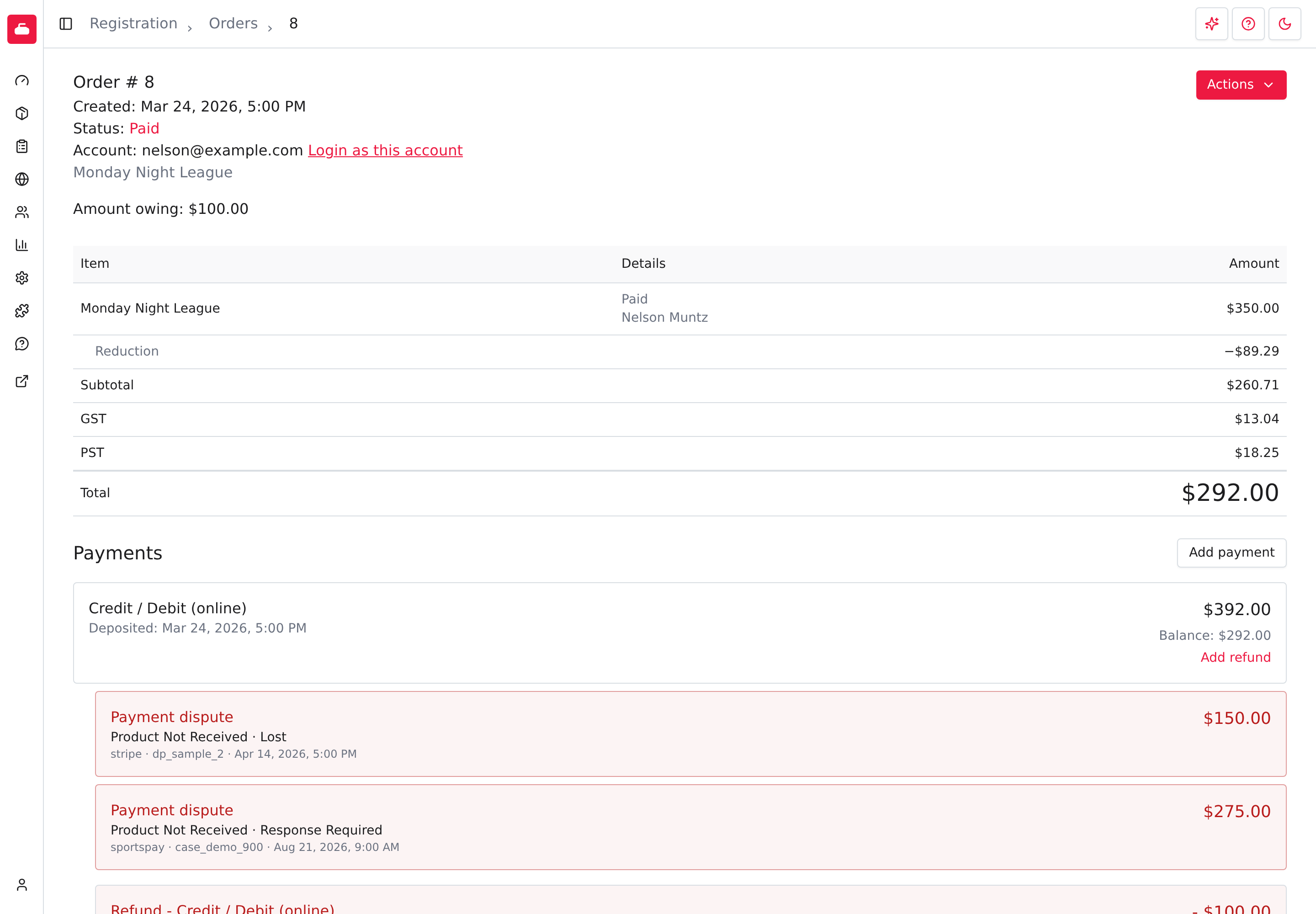
Use the external ID to match the dispute with your payment provider. Curling IO shows the provider's dispute record, but the provider remains the place to submit evidence or accept a dispute. See the Disputes report for organization-wide review.
Review a retroactive discount
A retroactive discount card identifies the participant, discount, eligible amount, triggering order, and historical order. The possible refund belongs to the historical order because that is where the earlier purchase was paid.
To prepare the refund:
- Select Review Order on the Attention item.
- On the historical Order, review Potential retroactive discount, then select Apply discount.
Those two clicks open Add refund with the eligible line item selected and the amount, refund method, and reason prefilled.
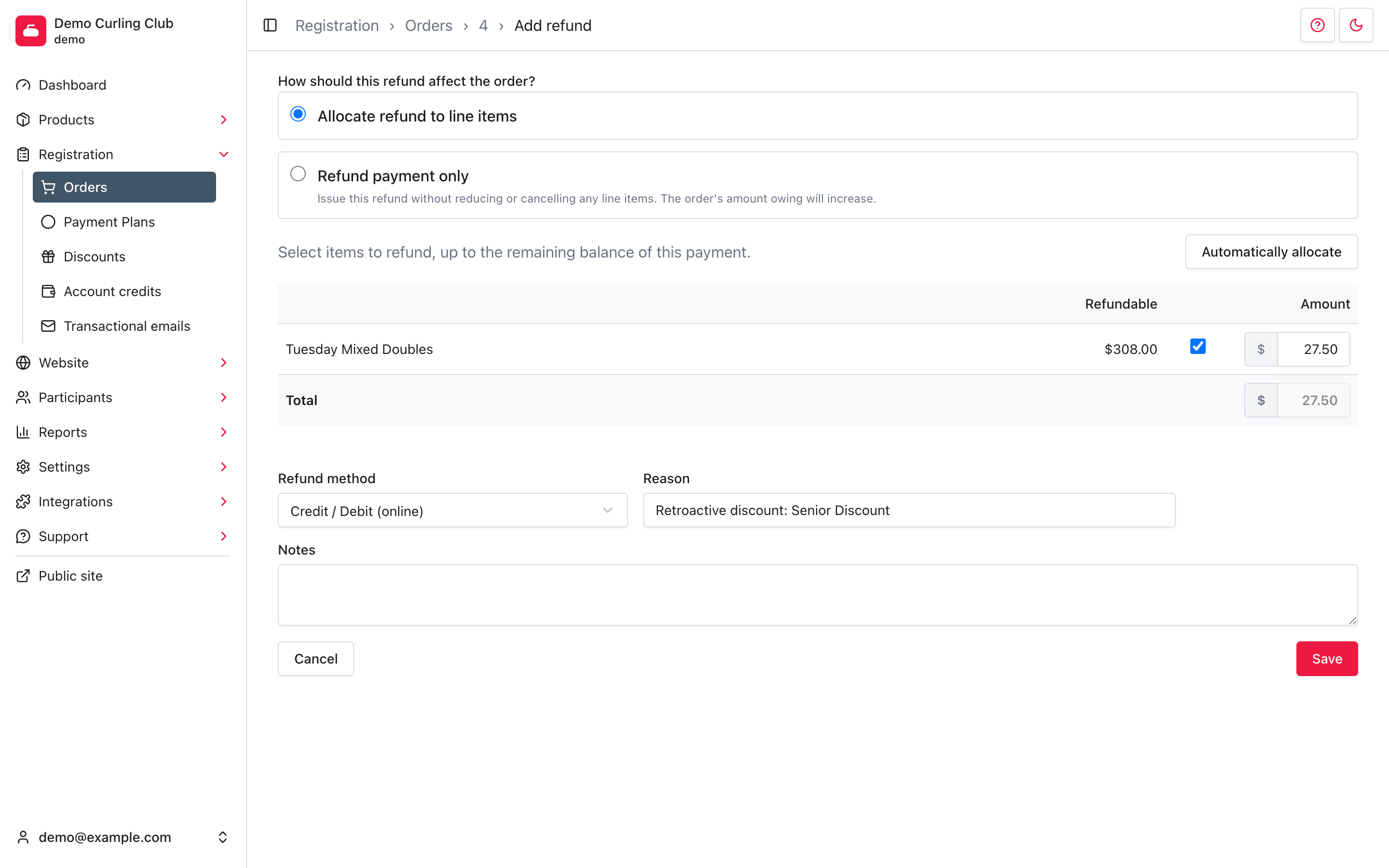
Check the historical payment and the qualifying order before continuing. Edit the refund details if needed, then select Save only when the refund should actually be issued. Opening the prefilled form does not change the order or send money.
See Discounts for the rules that can create a retroactive opportunity and Refunds for reporting after a refund succeeds.
Close an item
Select Close after you have reviewed the source and completed any required work. Closing the item removes it from the open badge count and moves it behind open items. The card remains in the list for 12 months after closing and no longer has a Close action.
Closing an item only acknowledges it in the Attention Centre. It does not retry a payment, resolve a dispute, move a booking, change a policy, issue a refund, or correct Mailchimp data.
Subscribe to email notifications
Email notifications for Attention items are a Premium feature.
- Choose Low+, Normal+, or High in the Priority menu.
- Select Subscribe.
You will receive email notifications for new items at or above that priority. If you change the filter, select Update subscription to use the new threshold. Select Unsubscribe to stop the notifications.
The subscription belongs to your administrator account. It does not subscribe every manager in the organization.