Dashboard
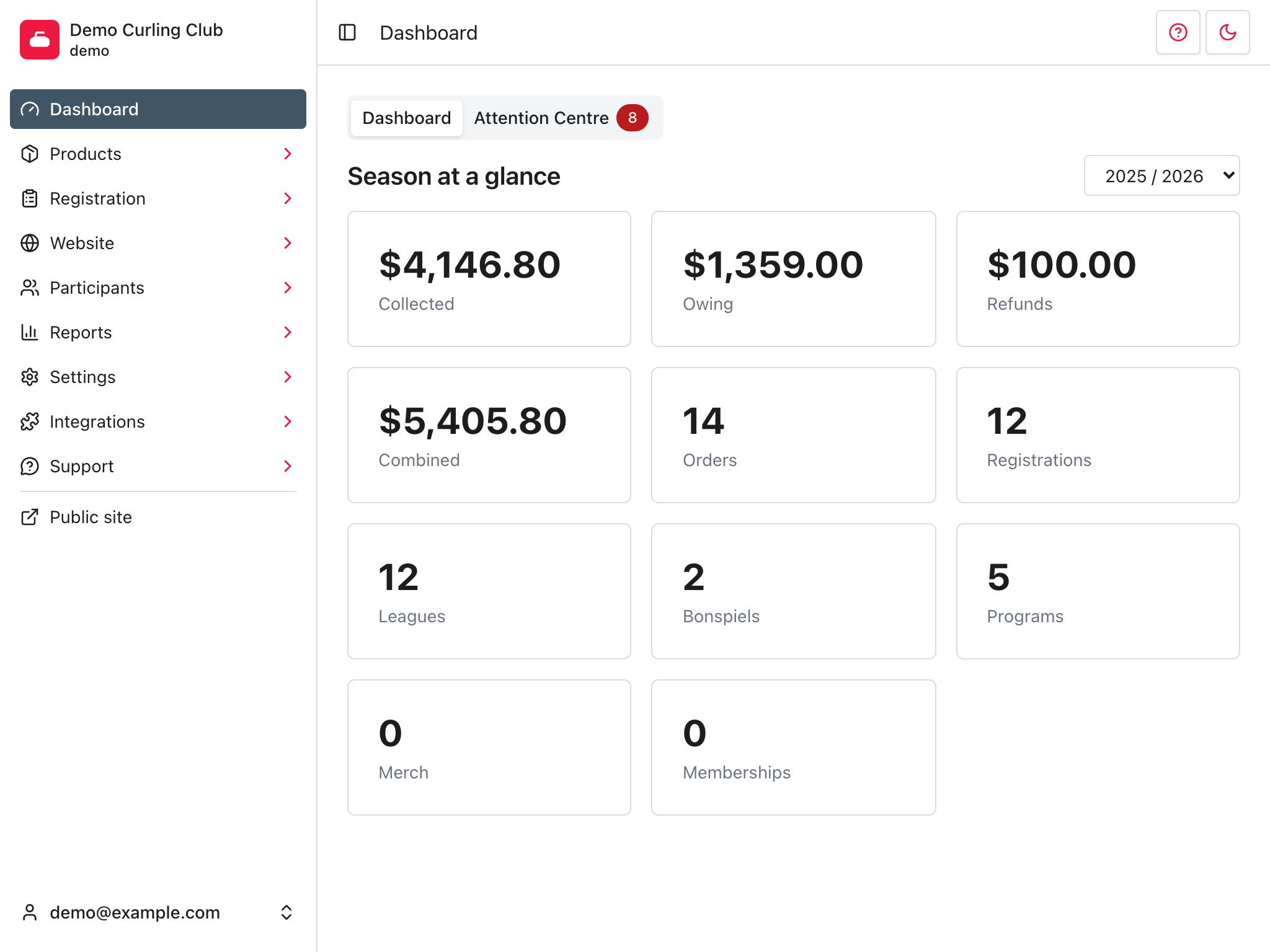
The dashboard gives you a quick view of one season and links each number to the part of Curling IO where you can investigate it. It opens when you enter the administration area. You can also return to it by selecting Dashboard in the main navigation.
Choose a season
Use the season menu beside Season at a glance to switch between the current season and the previous two seasons.
The cards do not all use the season in exactly the same way:
- Financial, order, and registration cards include orders created during the selected season.
- Product cards include products assigned to the selected season.
This distinction matters around a season boundary. For example, a product may belong to the new season while an early order for it was created near the end of the previous season.
Understand the financial cards
- Collected is the total of payments recorded against orders created during the selected season. Select it to open the Payments report.
- Owing is the unpaid balance on submitted and partially paid orders created during the selected season. Select it to open Orders.
- Refunds is the total of successful refunds against orders created during the selected season. Select it to open the Financial reports.
- Combined is collected plus owing, less refunds. Select it to open Orders.
Membership associations also see Fees collected and Fees accrued. Both cards link to association fees.
Understand the activity cards
Orders counts submitted, partially paid, paid, and overpaid orders created during the selected season. Draft and cancelled orders are not included.
Registrations counts distinct participants attached to active purchases on orders created during the selected season. Select it to open Participants.
The remaining cards count enabled products assigned to the selected season. Their labels match the product types enabled for your organization, so your dashboard may not show the same set as the example. Select a product card to open that product type under Products.
Review items that need attention
The Attention Centre tab shows a badge when Curling IO has items for an administrator to review. Select the tab to open the queue. When there are no items, the tab remains visible but cannot be selected.
Read product updates
Select What's new beside Attention Centre to read release notes. A dot means an applicable update is unread. Opening the updates marks the displayed entries and older entries as read for your account. The archive remains available under Support > What's new too.
The dashboard is an overview, not an accounting statement. Use the linked orders and reports when you need individual transactions, filters, exports, or reconciliation details.