Add rental booking to your website
Add the rental widget to show available times on a website you manage outside Curling IO. Visitors select Book to continue on your club's Curling IO site. They review their rental in the cart and finish checkout there.
Rental availability requires Premium. Set up public rental products and schedules first. The widget uses their current availability, resources, prices and booking limits.
Add the snippet
Replace yourclub.curling.io with your club's Curling IO address, then add this
HTML where you want rental times to appear:
<cio-rentals styling="curling-io"></cio-rentals>
<script src="https://yourclub.curling.io/widgets/rentals.js" defer></script>
Your website editor must allow HTML and JavaScript. Preview the actual page after saving, including its Book action. The snippet displays the current booking period; visitors can choose a day or move between weeks.
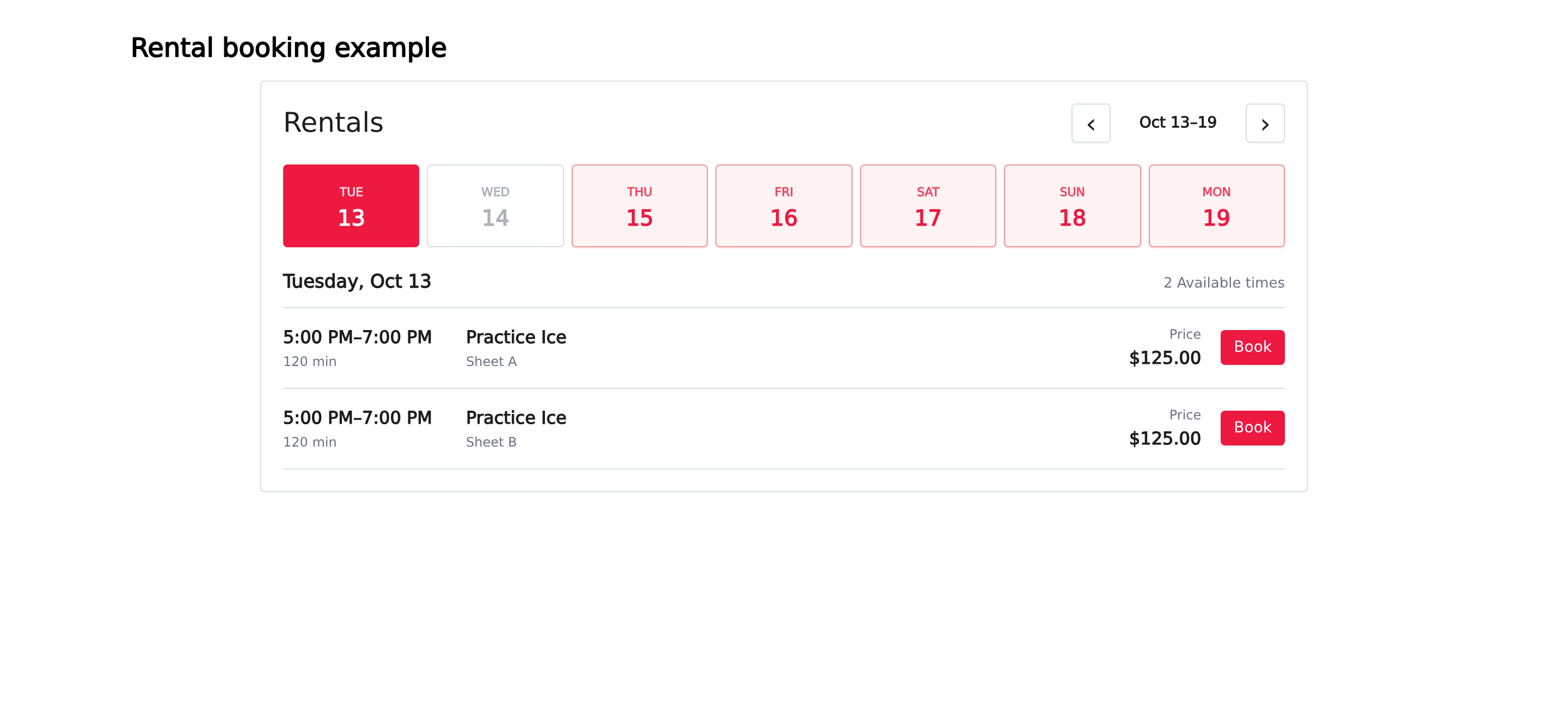
Choose what the widget shows
Add these optional attributes to <cio-rentals>:
| Attribute | What it changes |
|---|---|
product-ids="35" | Show selected rental products only. Use the number in each product's administration-page address. |
resource-ids="1" | Include rental schedules that use a selected resource. A matching schedule can also offer its other resources. Use resource numbers from Settings > Resources. |
date="2026-10-20" | Start the seven-day availability range on a chosen date, written as year-month-day. |
language="fr" | Request French labels. English is the default. |
color-mode="dark" | Request the dark colour scheme. |
subdomain="yourclub" | Select a club subdomain explicitly. Usually you can omit this and load the script from your club's address. |
styling="curling-io" | Keep the widget's Curling IO presentation separate from your page's styles. Keep this in the snippet unless you intend to style it yourself. |
For several product or resource numbers, use a comma-separated list in
ascending order, with no duplicates, such as product-ids="35,36". Each list
supports up to 50 numbers. Omit a filter to include all eligible rentals or
resources. Use public rental products and resources belonging to your club.
Check the booking handoff
Book opens your club's Curling IO site in the current browser tab. Visitors can reach the cart before signing in. Follow any required sign-in or registration steps before finishing checkout.
Check the selected rental, resource, date, time and price in the cart. Adding the rental isn't a completed booking. See the curler booking instructions for checkout and help when a time is unavailable.
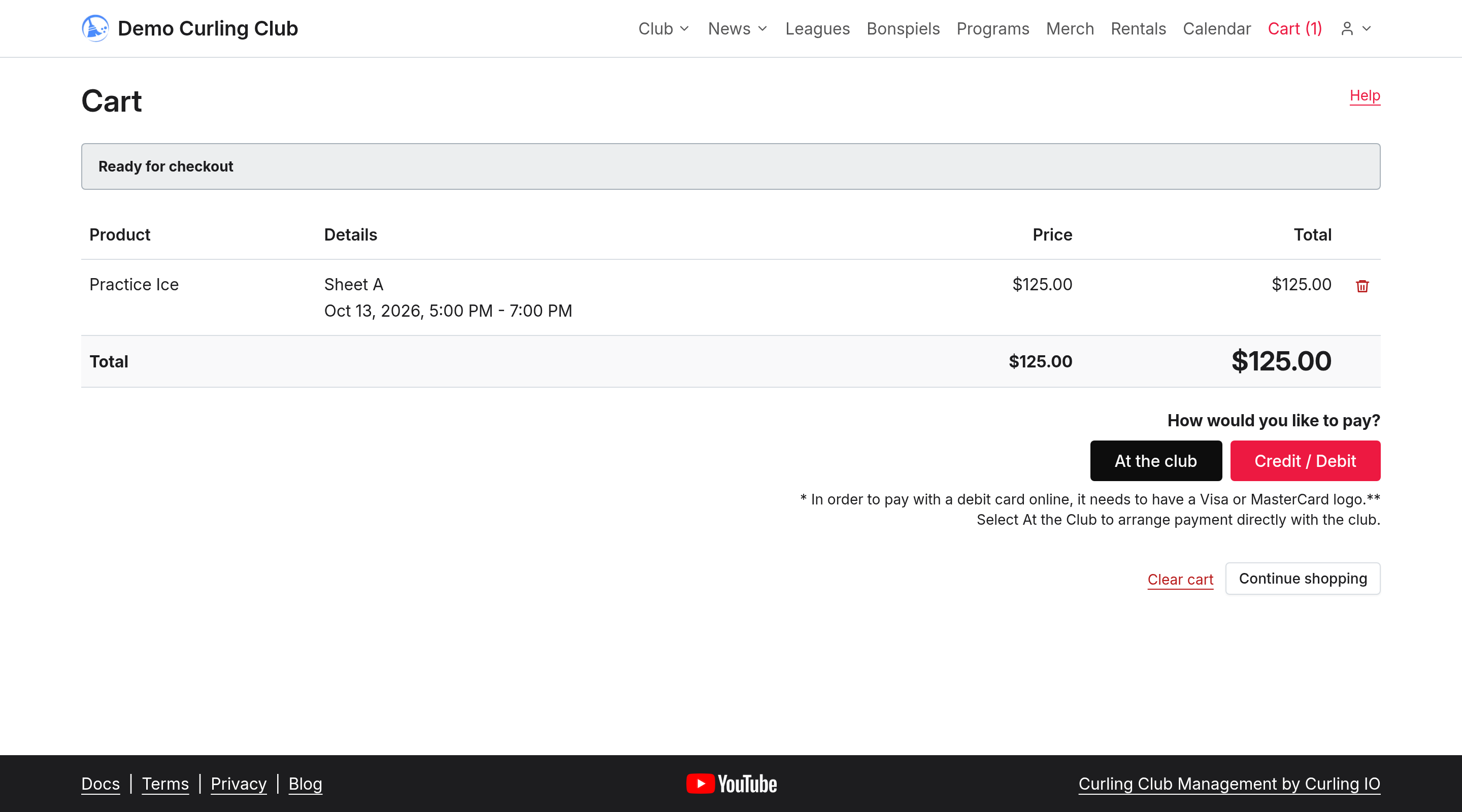
If Curling IO hosts your website
Use Website Studio to place rental availability in a managed website section. You don't need the external script on a hosted site. You can also use the rental availability component in a page or article.
- Go to Website > Studio and select Edit.
- In Source, choose the part of the website to change. For a managed
homepage, choose
landing.jsonand Managed landing page under Homepage. - Expand What can these components do? for the supported sections. Add a
rental availability component to the selected section's
componentslist. This is an advanced editor; keep the existing sections you want to retain. - Select Save, then check the preview. Check both languages if your club uses English and French.
- Select Publish when the saved preview is ready, then Release lock.
For example, this component shows schedules for rental product 35 that use resource 1. Replace these numbers with your own, or omit the filters:
{
  "type": "cio-rentals",
  "version": 1,
  "productIds": [35],
  "resourceIds": [1]
}
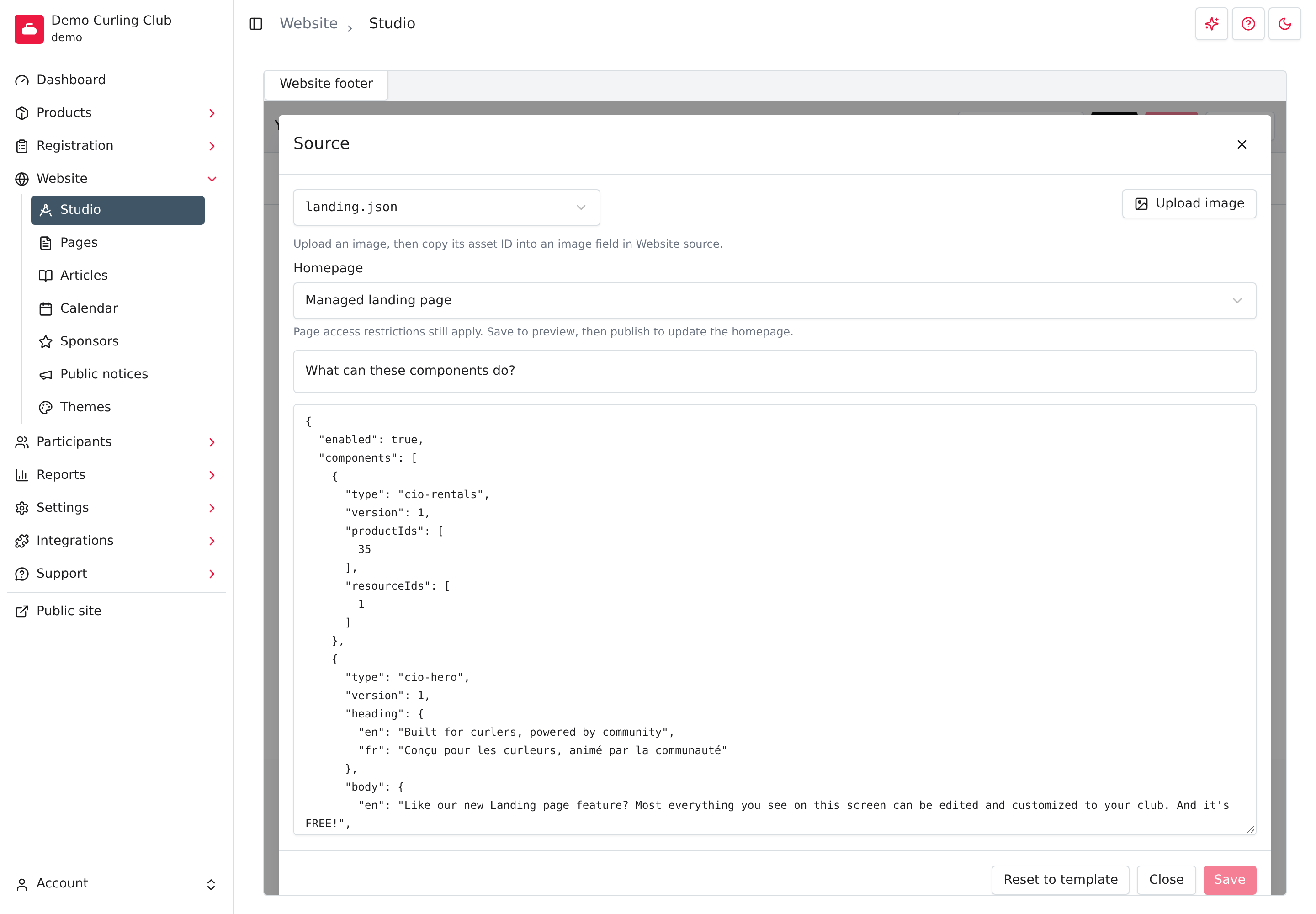
The resource filter has the same schedule-selection behaviour described above. Saving keeps a private draft; visitors see it only after you publish.
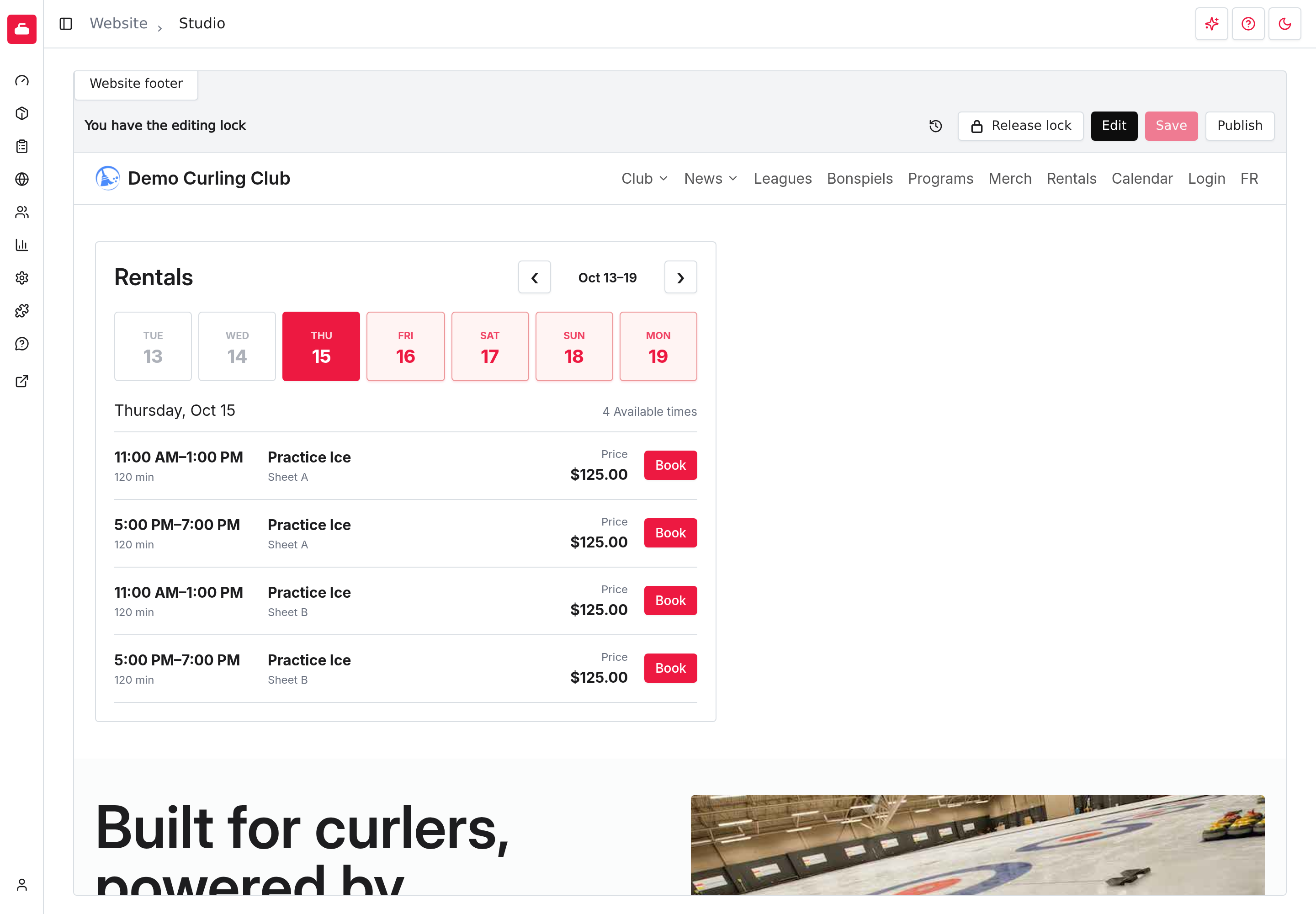
If times don't load or aren't available
Check your club address, Premium access and any product or resource filters. Use Try again if the widget reports a loading failure. Your website editor may block JavaScript, and a filter can exclude every available time.
Availability can change while a visitor is choosing. If a time is refused, return to the widget and select an available time. Don't promise that a time shown on your website is already booked or reserved for the visitor.