Other account tools
Subscribe to your event calendar
Open Events to see the events your participants are registered for. Select Create calendar feed when you want to subscribe from another calendar. The subscription link is private and is revealed only when created. Follow Events and calendar subscriptions for adding, replacing or revoking it.
Answer an available survey
Open Surveys, or select Take Survey in an account notice. The list shows the survey's name, author, response window and your status. The list includes available surveys and surveys you've answered or dismissed.
- Select the survey's name.
- Read its instructions and response window.
- Complete the questions and review your answers.
- Select Submit response while the response window is open.
Review carefully before submitting: you can't change a submitted response. The saved answers become read-only, even if the closing date hasn't passed.
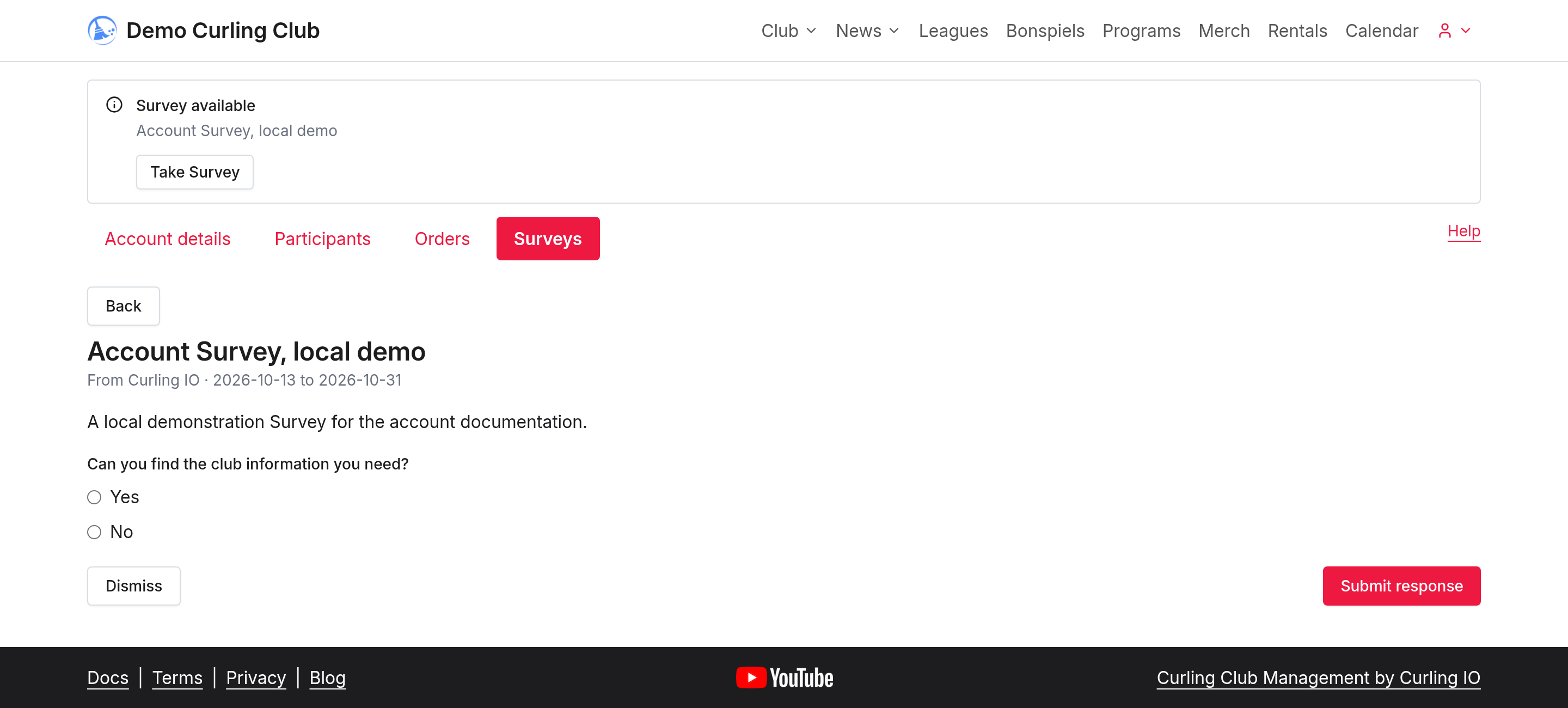
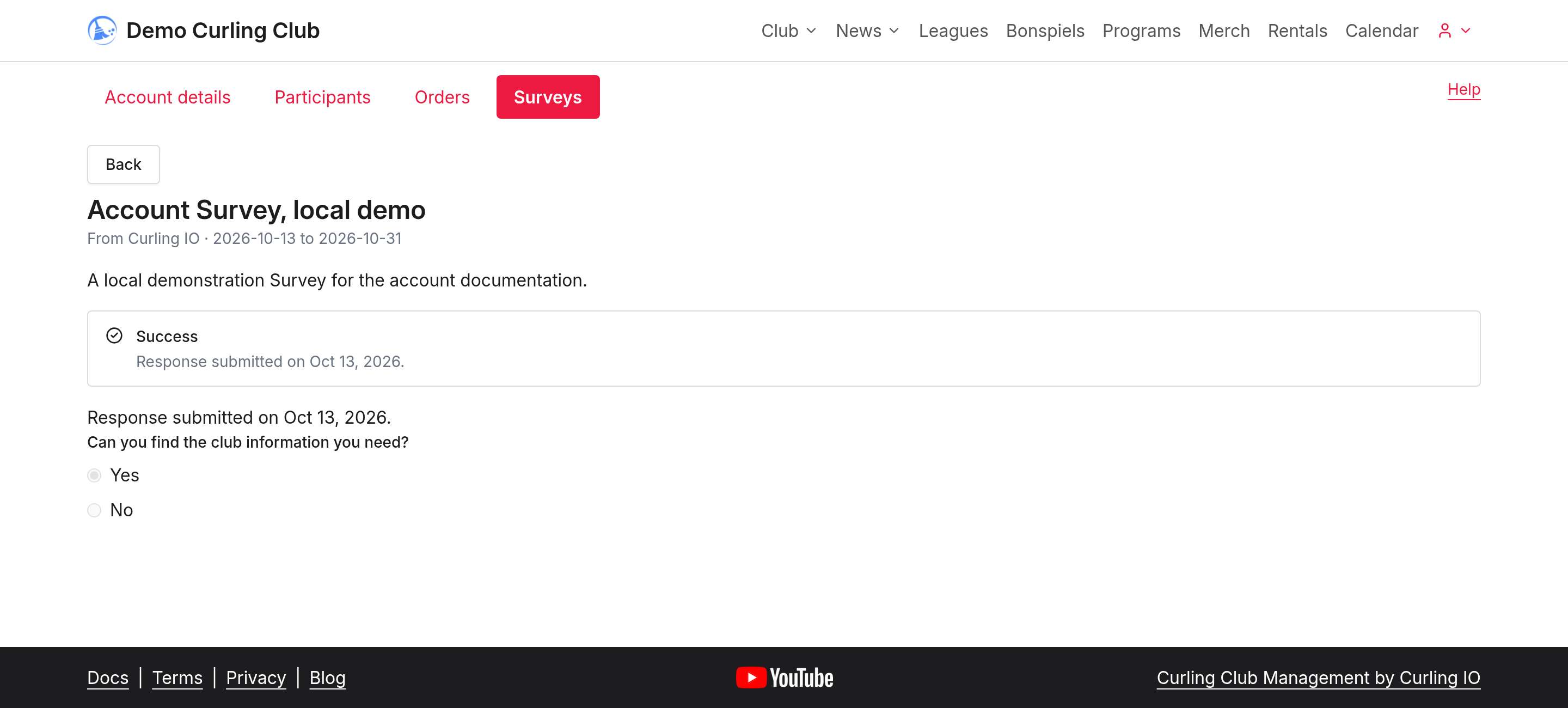
Use Dismiss if you don't want the available-survey notice. Member surveys show a privacy notice explaining that your club won't see your individual response. Surveys for organization managers have a different audience; read the survey's introduction before responding.
If a survey is missing or unavailable, ask your club to check its audience, response window and your eligibility. Don't create another account to try to answer it again.
Book a rental
Open your club's Rentals page to choose an available date, time and resource. Book takes your selection to the cart. Review its details before continuing to checkout. See Book a rental for the steps and what to do when a time isn't available.
Choose which club notifications you receive
Open Account details > Notifications. Check or clear Receive notifications from {organization name}, then save. This choice applies to that organization only. Order receipts and account emails are always sent. Managers can't change this preference while using Sign in as.