Merges and transfers
Add or change an email address
You can use several verified email addresses to sign in to one account. Only combine accounts that belong to you. If another person manages a profile you need, request a transfer.
Anyone who can read either address can sign in to the combined account. Don’t add a shared inbox.
- Sign in to the account you want to keep and open Account details.
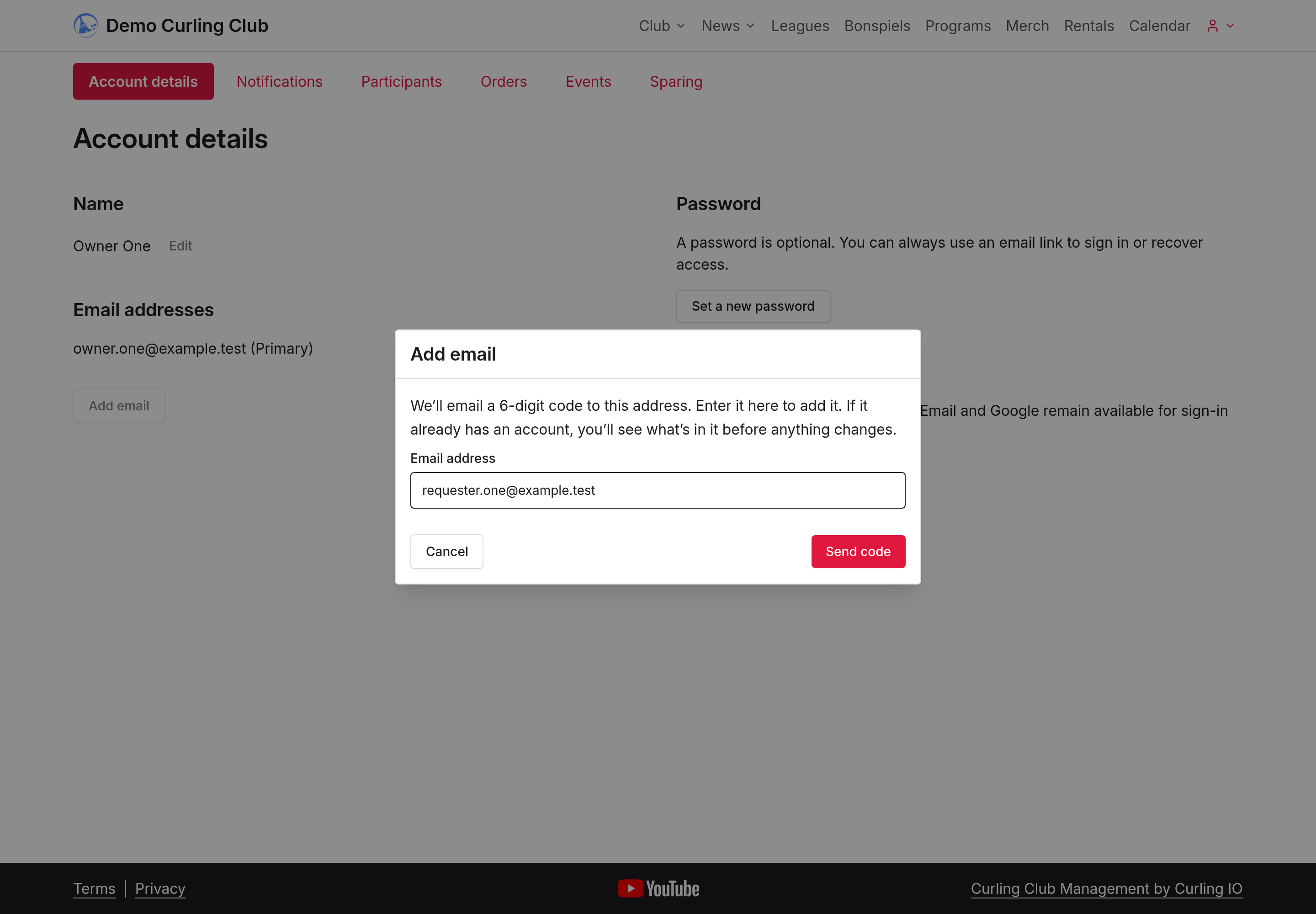
- Under Email addresses, select Add email. Enter an address you own, then select Send code.
- Open the email sent to that address. If it is missing, check spam or junk. You can select Resend email on the card under Action items. The code works for 30 minutes.
- Enter the code on your card. If the address has no separate account, it is added to yours. If it already has an account, the code opens a preview. Nothing has moved yet.
- Review the profiles and the account’s contents. To combine the whole account with yours, select the action the preview shows. Combine accounts moves the account now. Send for review asks Curling IO to check the request, and nothing moves while it waits. Add this email appears for an account with no records and only adds the address. If some profiles are not yours, select Don’t combine and request the profile you need.
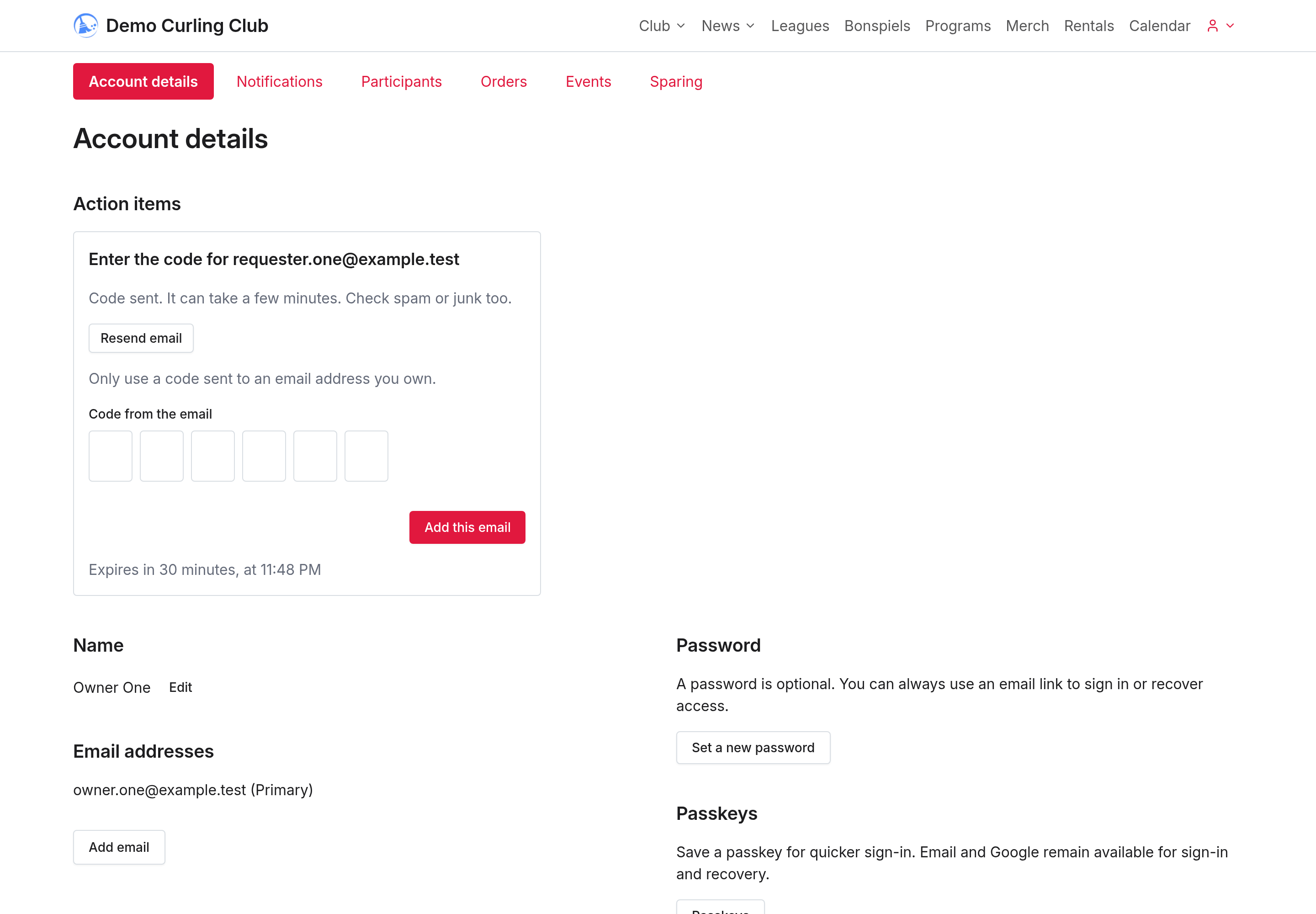
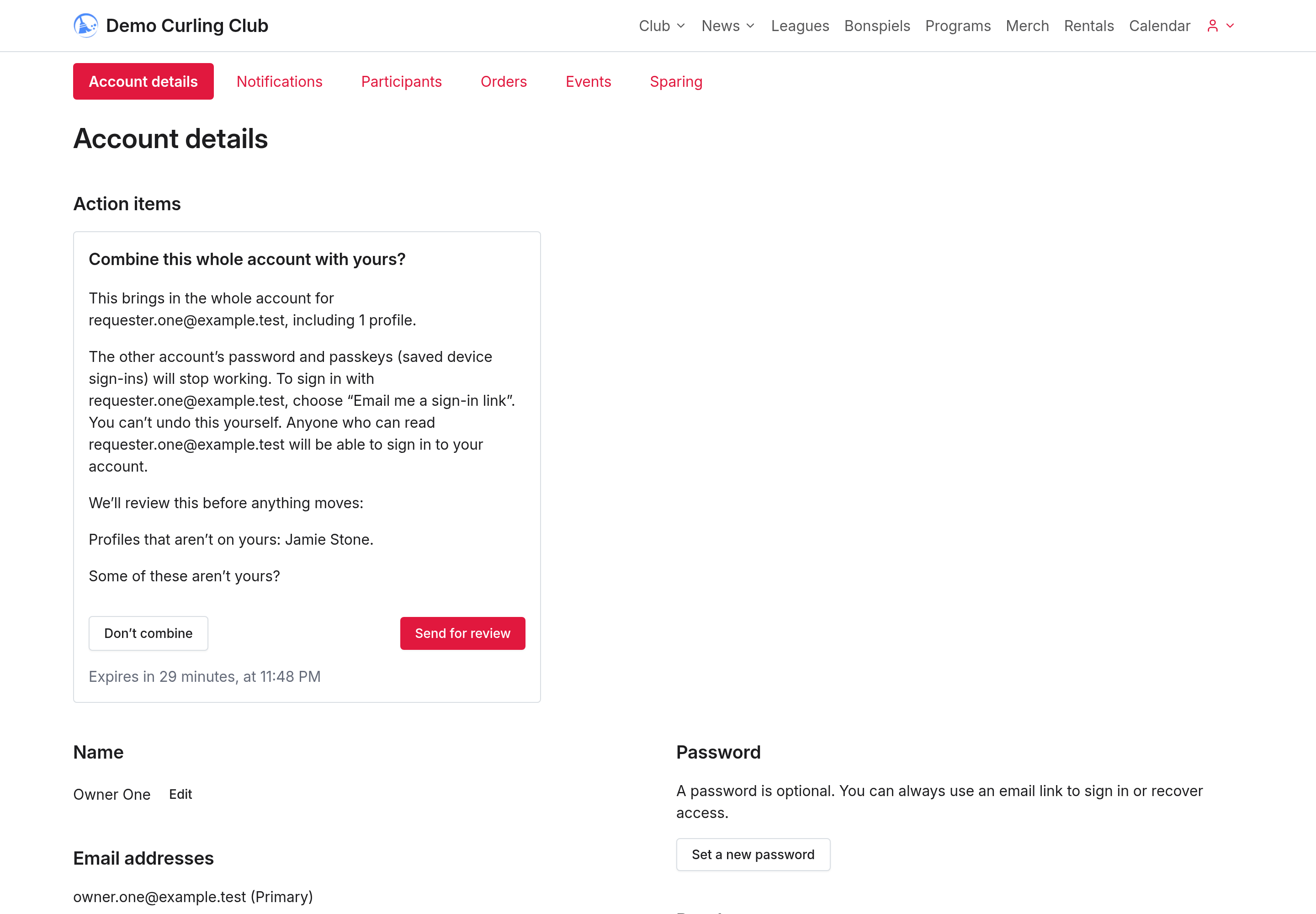
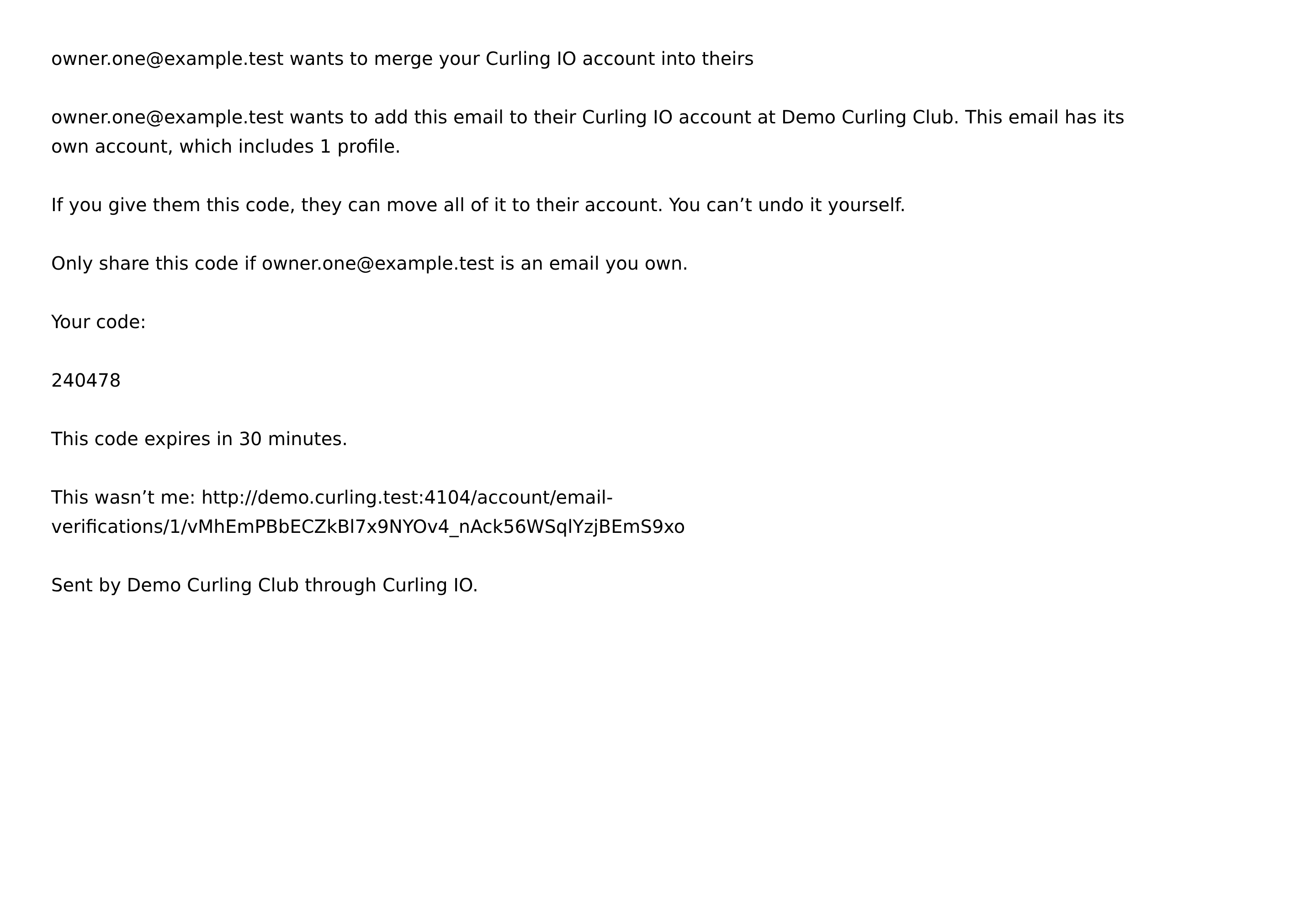
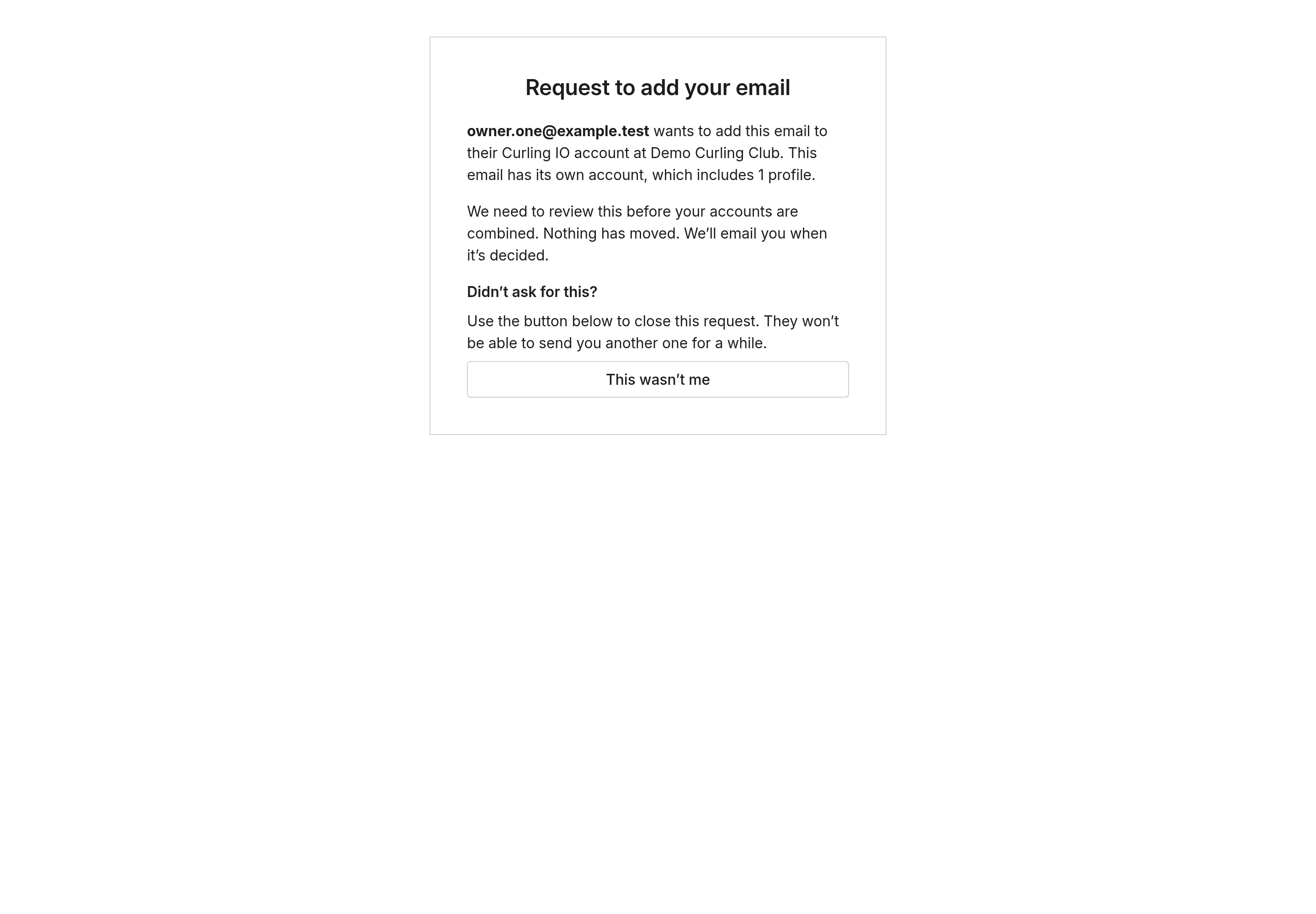
Only use a code sent to an address you own. Don’t ask someone else for their code. The email names the requester and warns you to share the code only if that requester’s address is also yours. Its This wasn’t me link opens a page where you can close an unexpected request.
If the preview offers Send for review, nothing moves while Curling IO checks the request. The waiting card explains why. Curling IO emails you when a decision is made. Select Withdraw request if you change your mind.
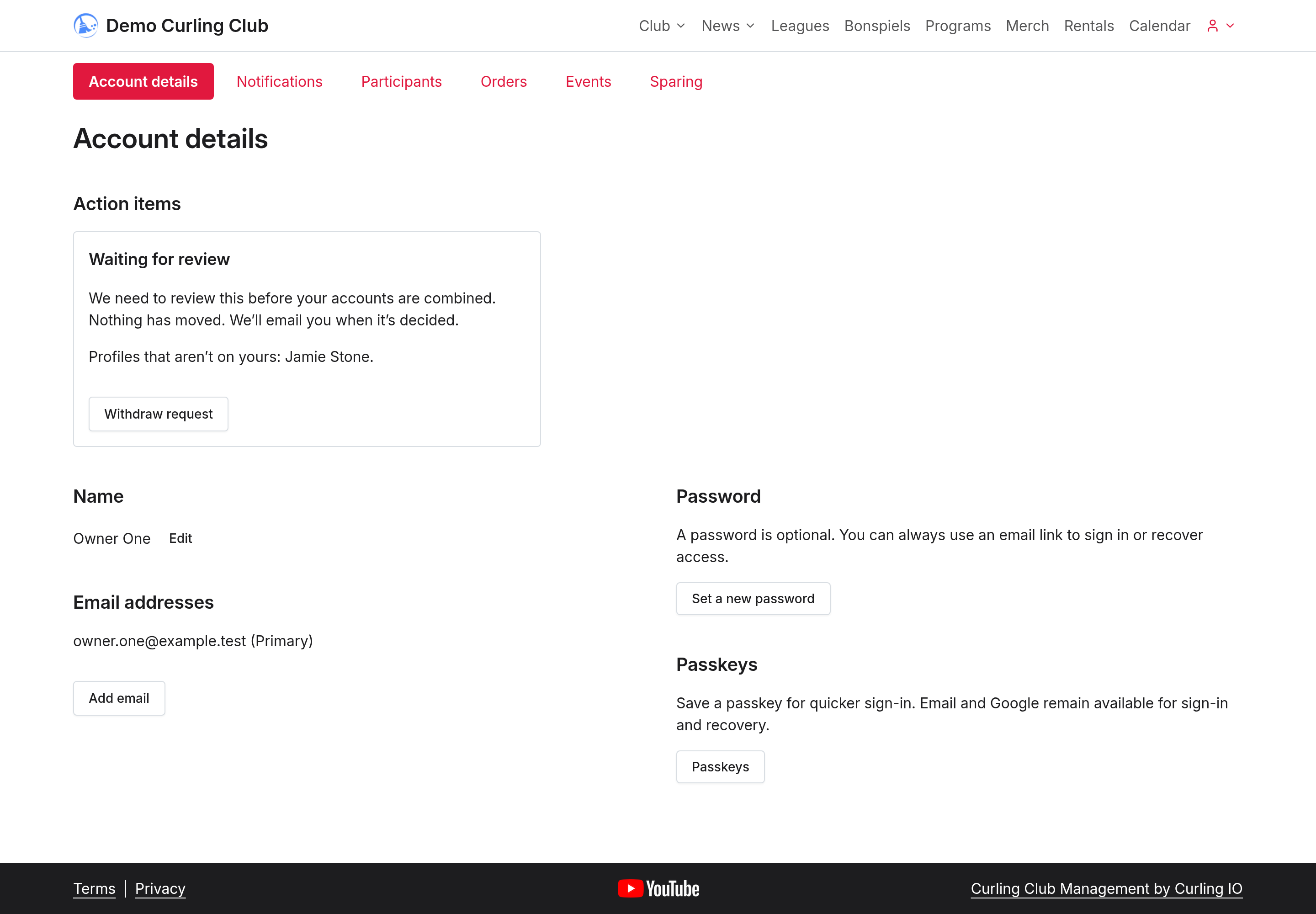
Signing out doesn't cancel a pending account-combination request. Requests waiting for Curling IO review expire after 14 days. If yours expires, sign in and request the combination again. The 30-minute email-code deadline is separate.
You have five tries per code. For a typed address, add it again if its code expires or runs out of tries. There are also limits on repeated requests. Follow the form’s retry instructions. If adding emails is paused, use your club’s Contact Us page.
Combining accounts moves the other account’s profiles, orders, registrations, payment plans, club credits and access to the account you keep. Its password, passkeys and calendar subscriptions stop working. To sign in with either email, you can choose Email me a sign-in link. The password and passkeys of the account you kept still work. You cannot undo the combination yourself.
If both accounts have items in a cart at the same club, the account you keep keeps its cart, and the other account's pending cart is not carried over. If only the other account has items in its cart, they can move to the account you keep. Check your carts first. Your paid orders, payments and club credits are not lost.
If you now see two profiles for the same person, combine the duplicate profiles.
Use Make primary beside a verified address to change your primary email. Adding an address does not make it primary. Each pending request has its own card, and only the requester can enter its code. Curling IO sends outcome notices to both accounts’ verified addresses. Use your club’s Contact Us page if you did not expect a change. Identity changes are unavailable in accounts set up for multiple carts or while a Manager uses Sign in as.
Request a profile on another account
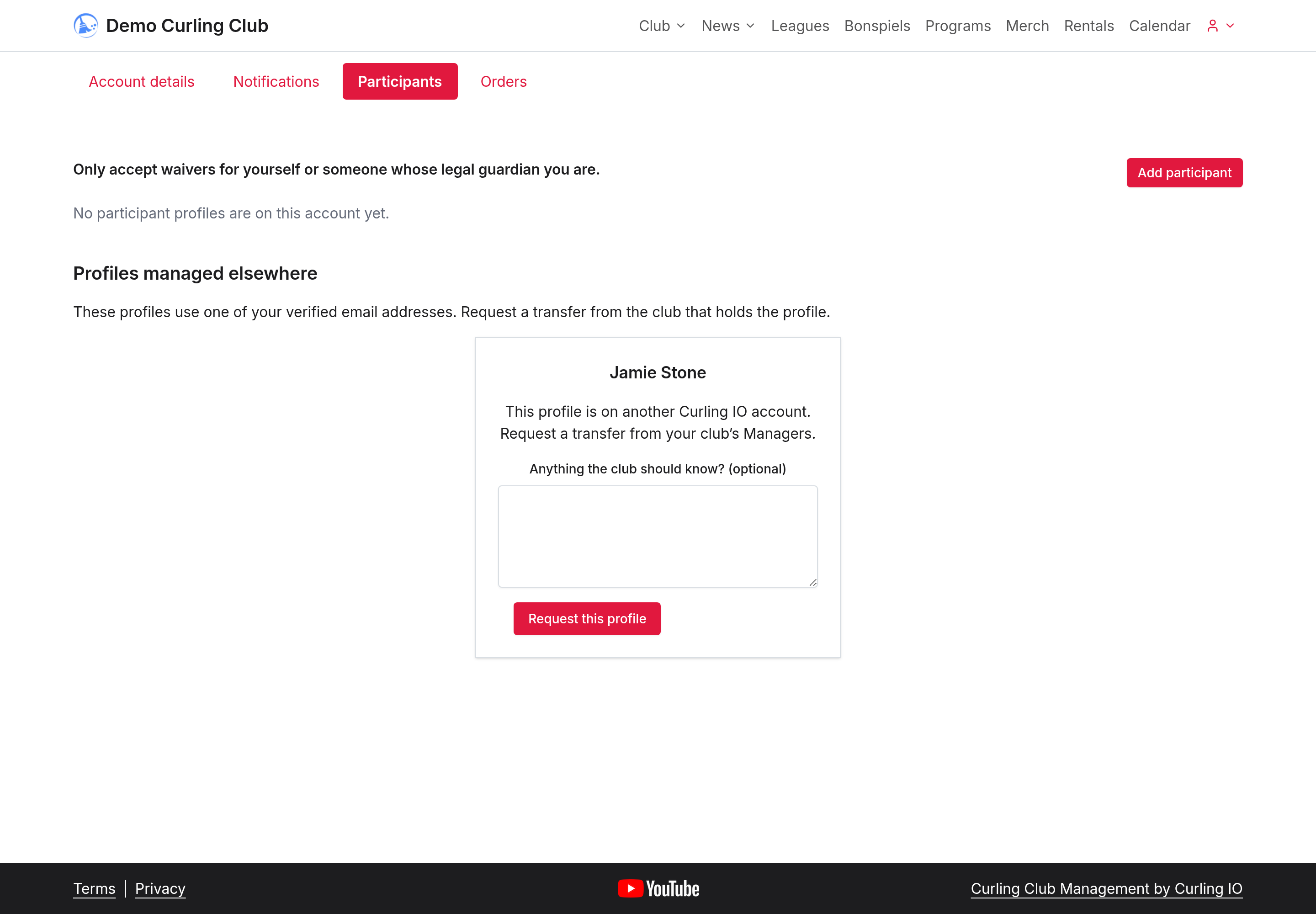
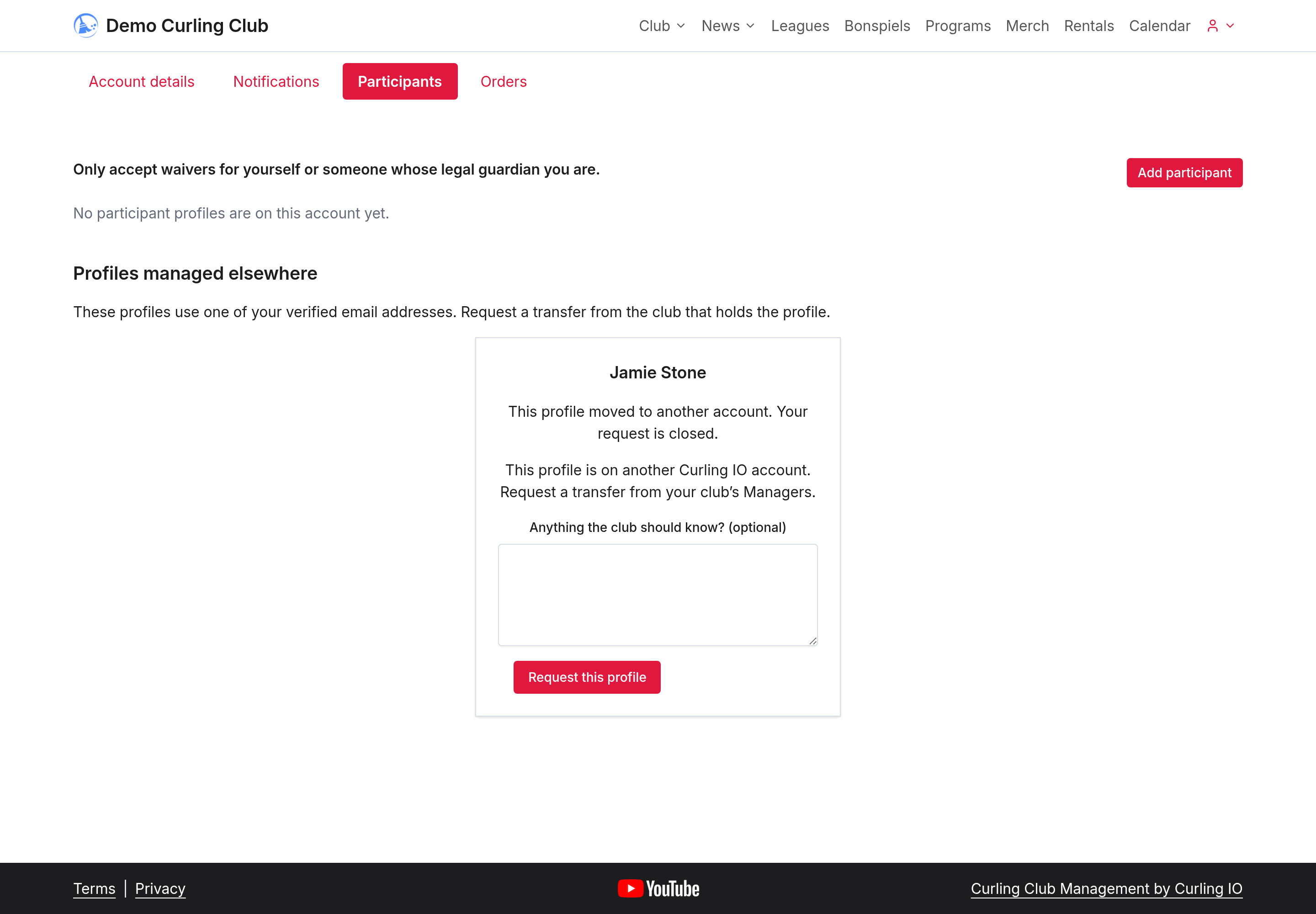
- Open Account > Participants and find the profile under Profiles managed elsewhere.
- Add a message for the club if needed, up to 500 characters. The current owner won't see this message.
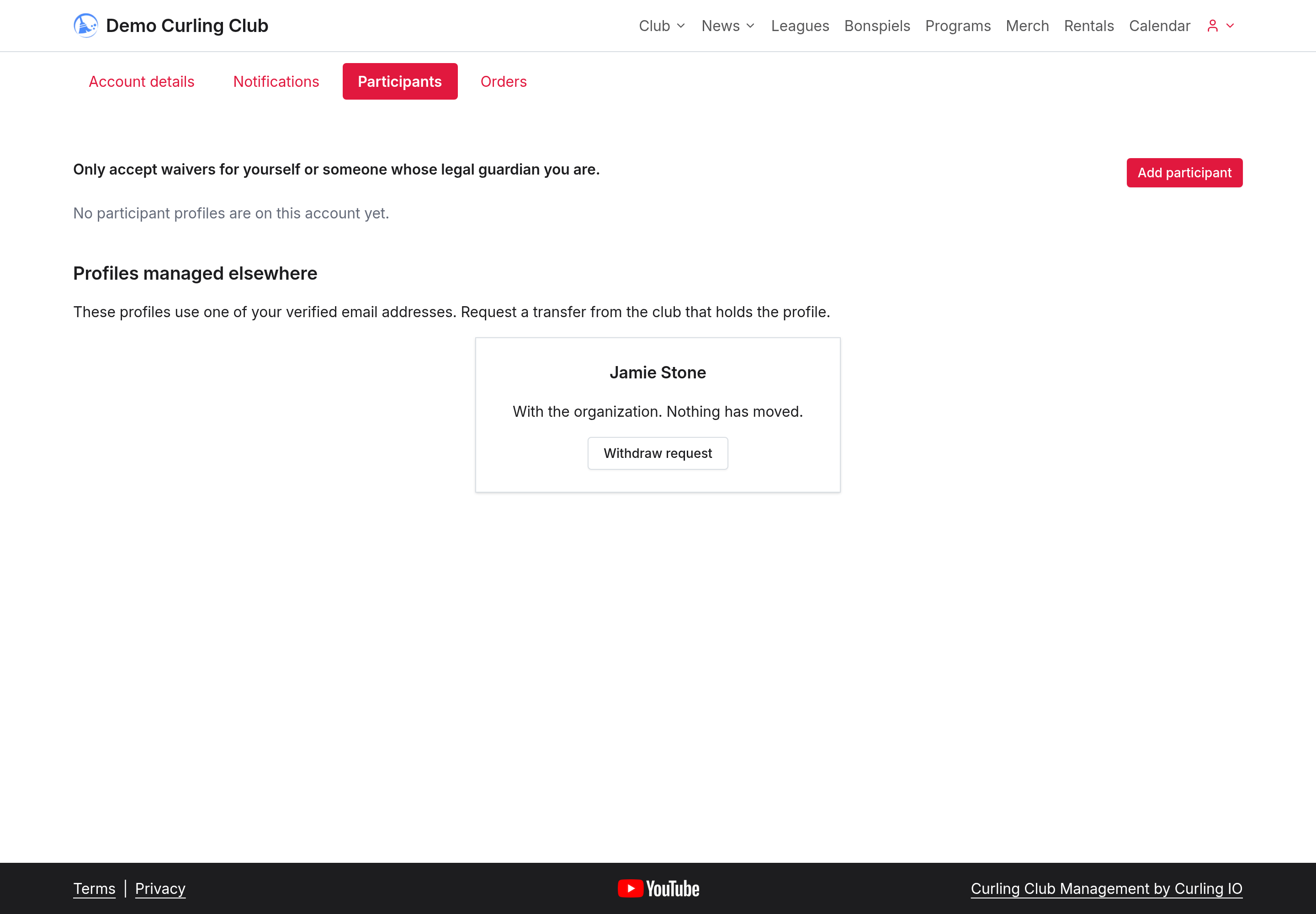
- Select Request this profile. Check the status on the profile’s card. More requests shows older requests when there is another page.
The club reviews your request. It can move the profile to your account, ask the current owner to share a code, or reject the request. Submitting a request gives you no access to the profile and doesn't reveal the owner's name or email.
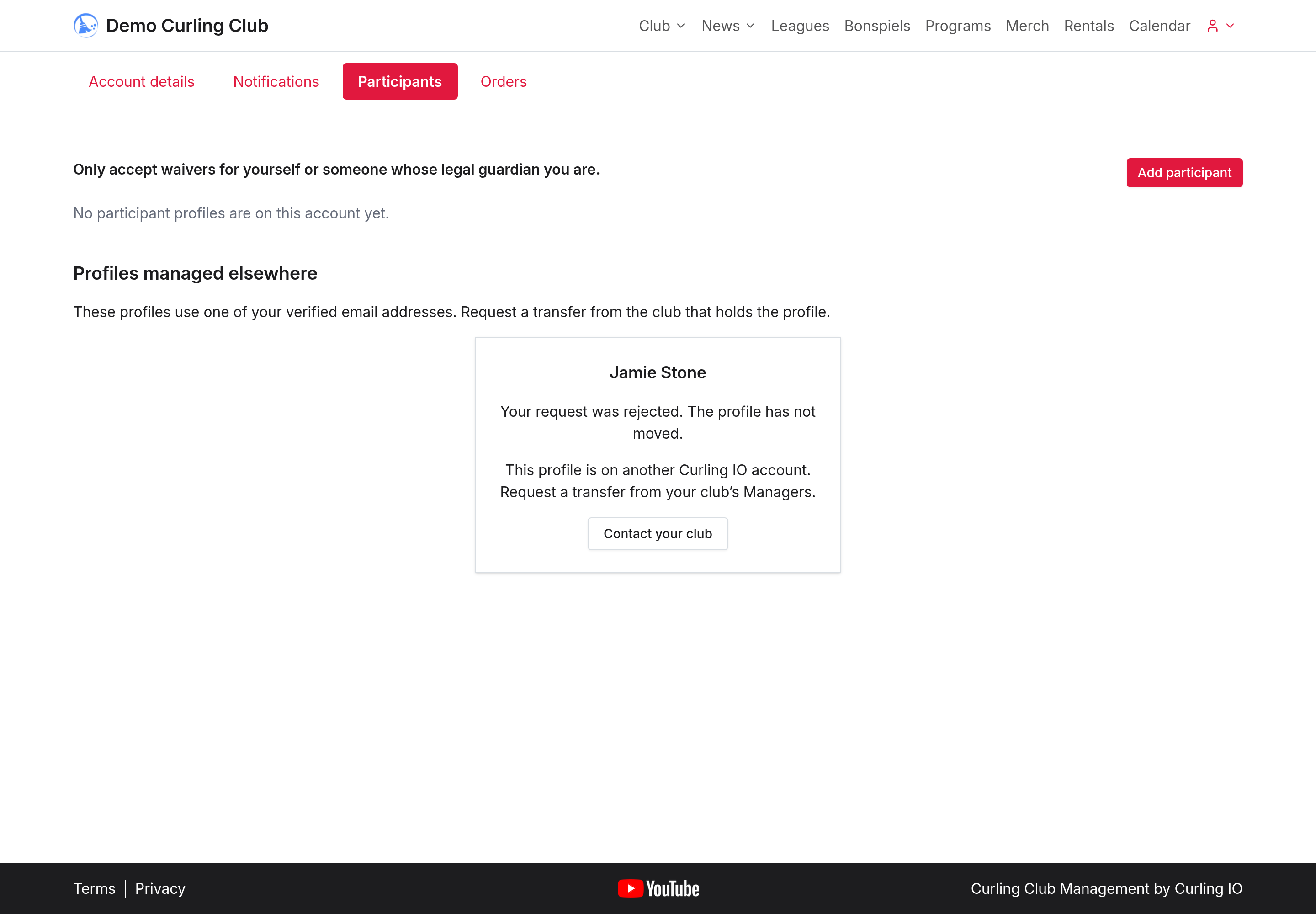
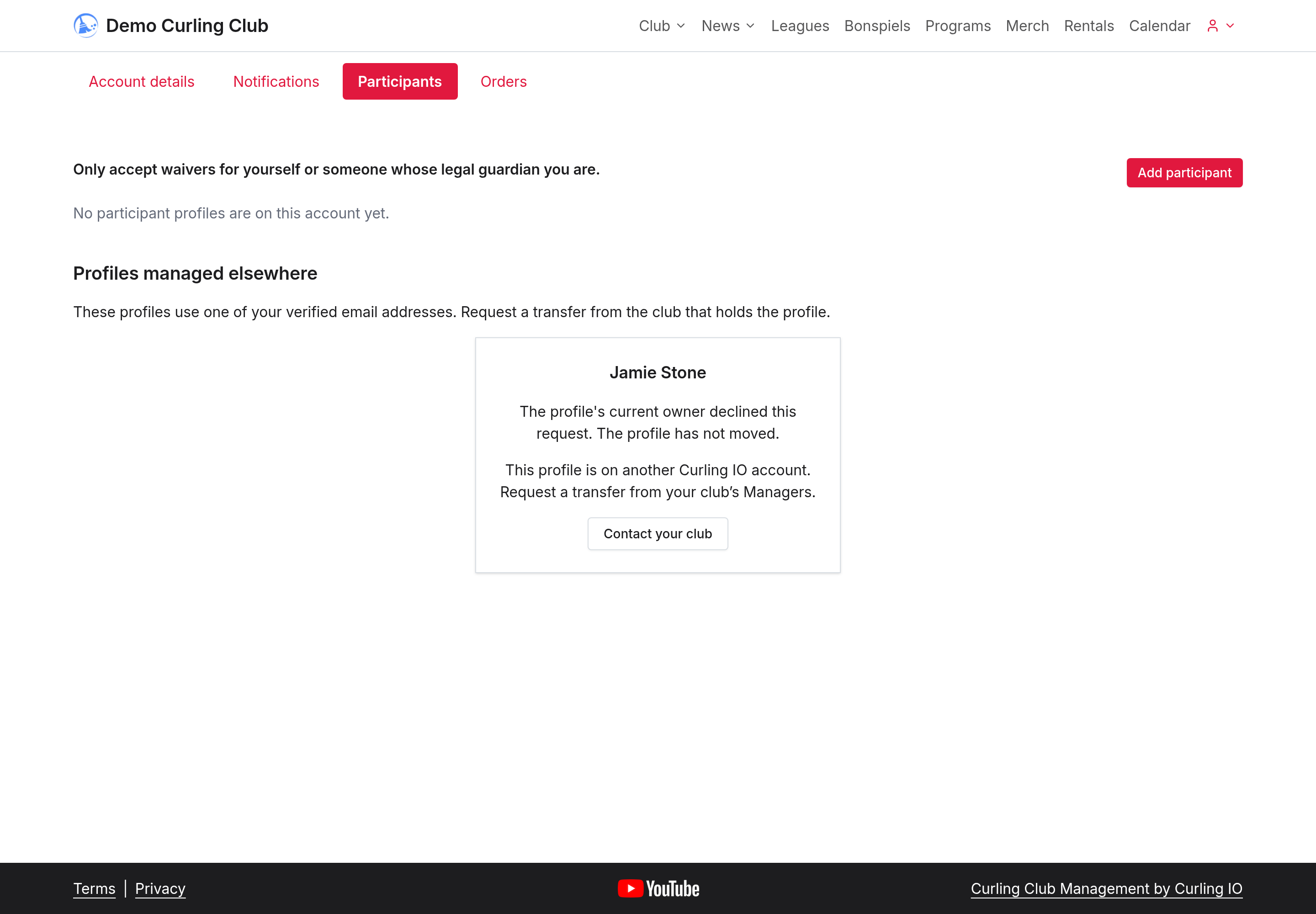
Select Withdraw request if you change your mind, including while waiting for the owner. You can request again immediately after withdrawing. After a rejection, wait seven days. An owner who stops a request blocks further requests from you for that profile for at least 90 days.
If Request this profile isn't available, use Contact your club. If both accounts belong to you, combine them from Account details > Email addresses > Add email instead.
If you receive an owner's code
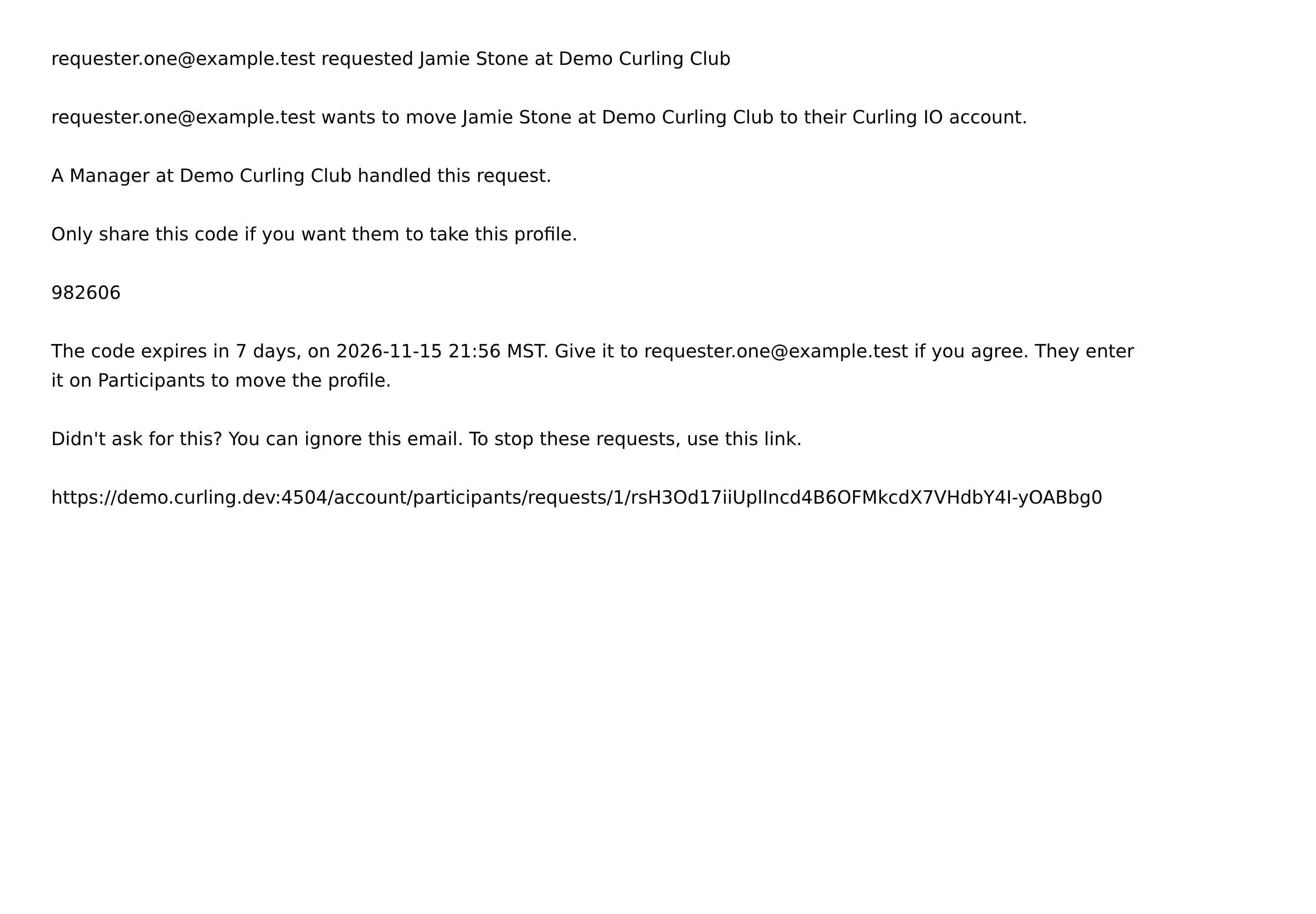
The email names the club, the profile and the verified address of the person requesting it. Only share the six-digit code if you want that person to take over the profile. Giving them the code lets them move it immediately. It doesn't give them your account or your orders.
The code lasts seven days. You may receive up to three separate code emails for the same profile, each naming a different requester. Check which person each email names before sharing its code.
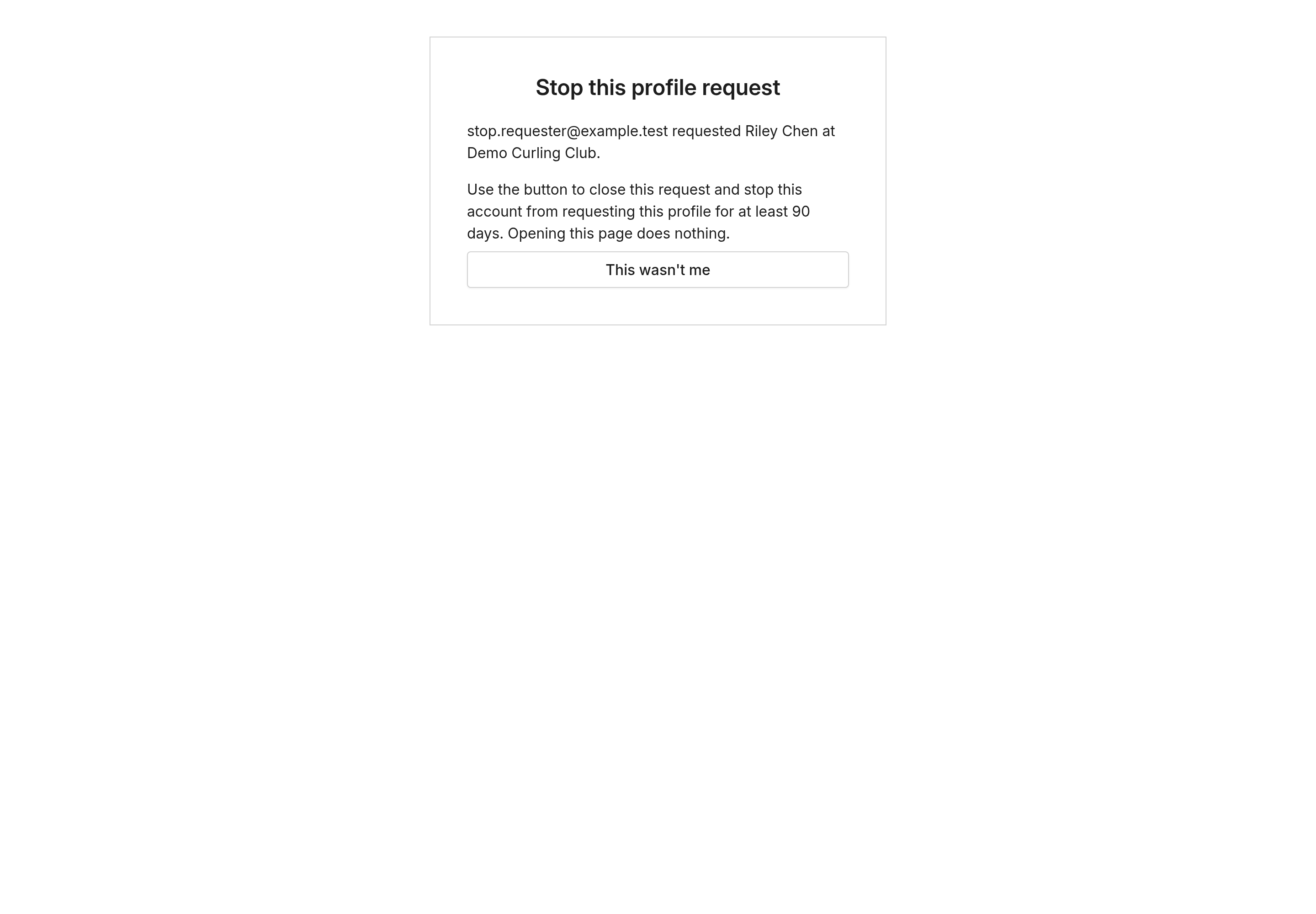
If you didn't expect the request, open the stop link at the bottom of the email. On the page that opens, select This wasn't me to stop it. Opening the link alone does nothing. Stopping closes that request and prevents that requester from requesting the profile for 90 days. A repeated stop blocks them indefinitely. After two stops from different addresses within 30 days, the person may be unable to request profiles or add email addresses until a Sysadmin reviews the stops.

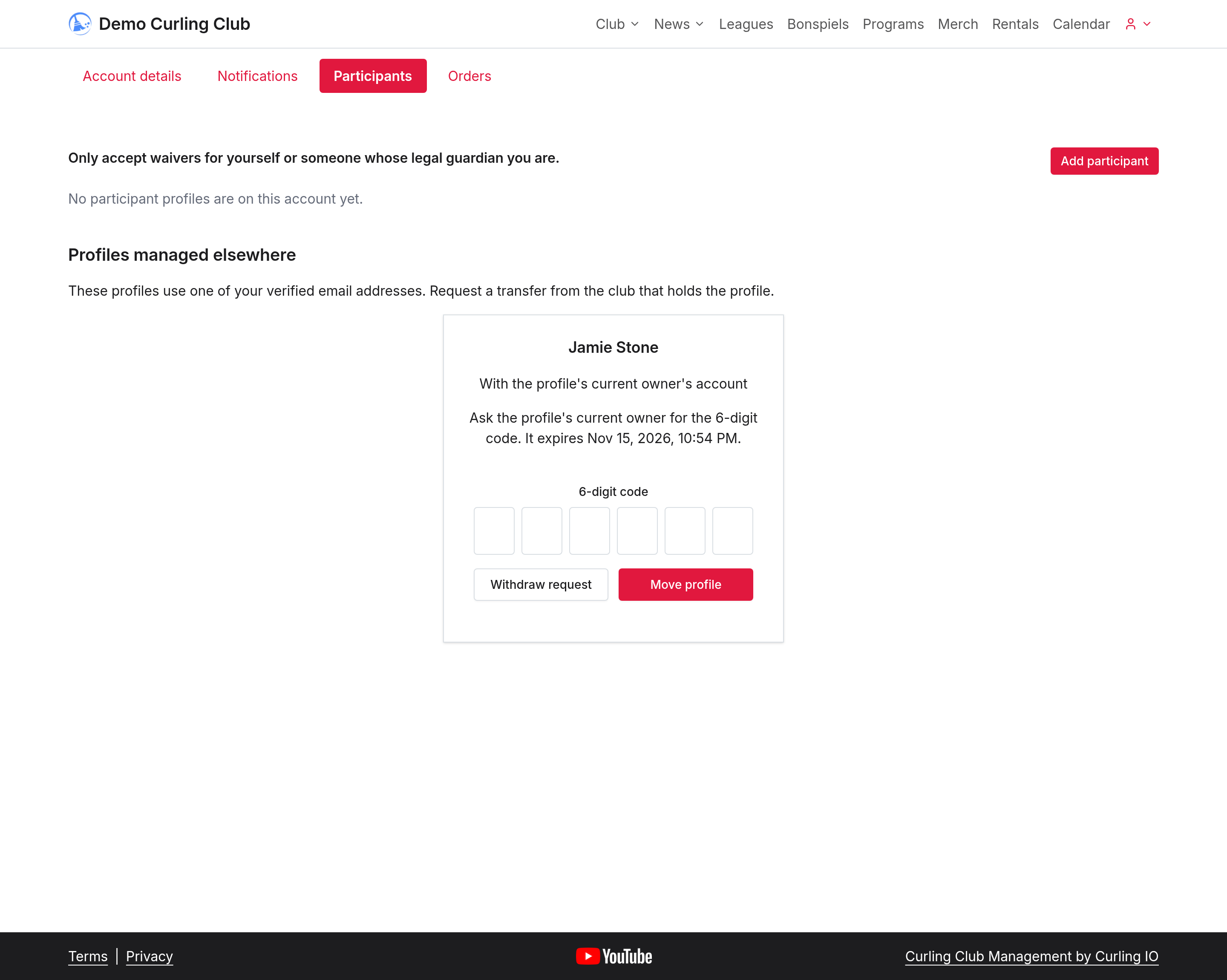
Enter the owner's code
- Ask the current owner for the code sent to them.
- Sign in to the account that made the request and open Account > Participants.
- Find your request, which is With the profile's current owner's account. Check the expiry shown.
- Enter the 6-digit code, then select Move profile.
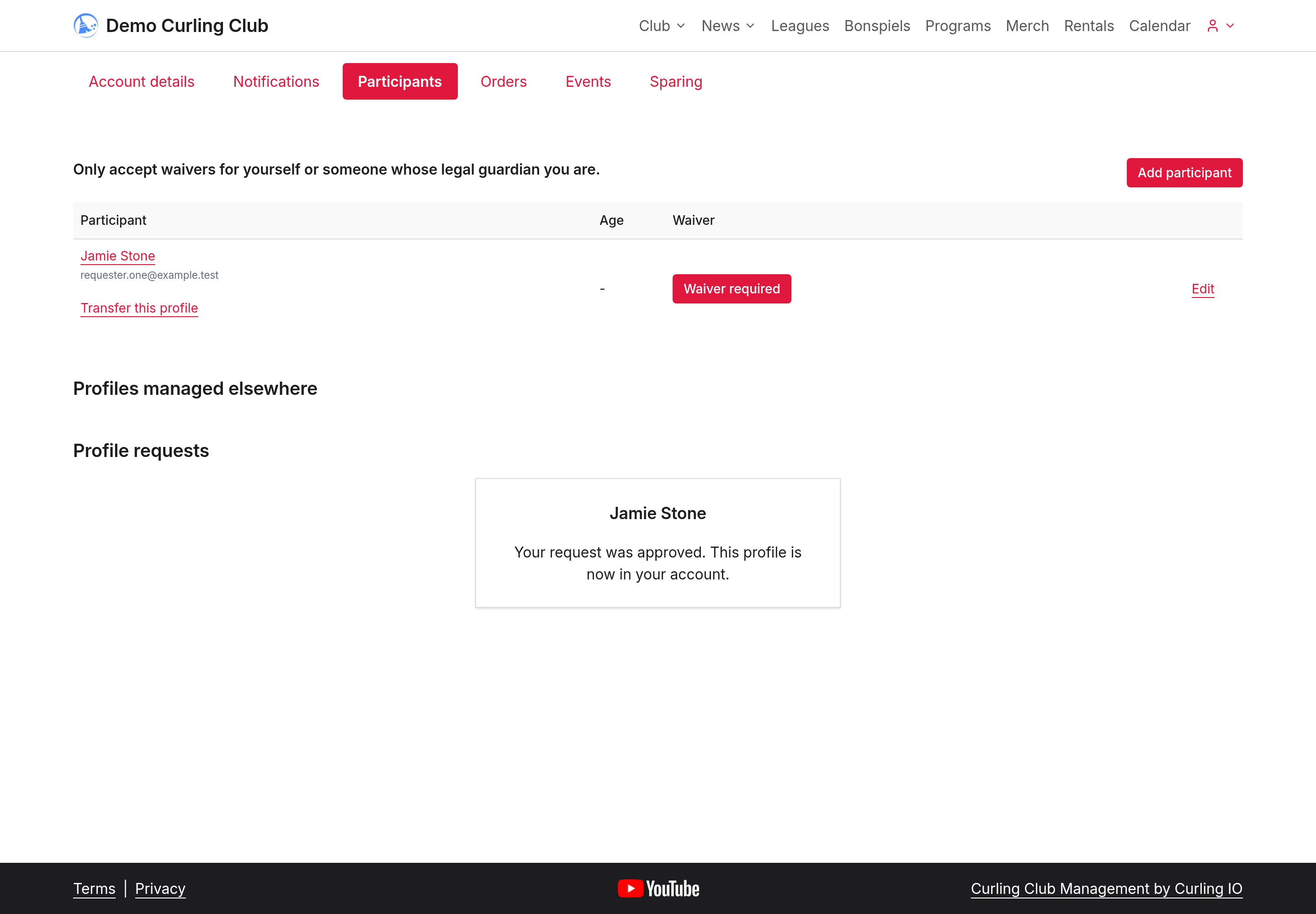
A correct code moves the profile immediately. There is no further acceptance. The owner and you receive a confirmation email. Orders, payments, receipts and credits keep their current owners. The profile keeps its registrations and waivers.
You have five wrong tries. If the code expires or those tries run out, the request returns to the club for another decision. Follow any retry time shown if code entry is paused. Only the account that made the request can enter its code; it isn't available while a Manager uses Sign in as.
If the club already sent you an invitation, open the email and accept it.
Check the outcome
Check the status on the profile’s card or under Profile requests. It shows whether the request is with the club, waiting for the owner's account, or finished. A moved profile appears in your Participants. If another request moves it to a different account, your request closes without naming that account. A rejection email includes the club's reason if it supplied one. If the owner stops the request, the card says they declined; it doesn't identify them or give a reason.
Transfer a profile you manage
Use a transfer when one profile should move to another person's account.
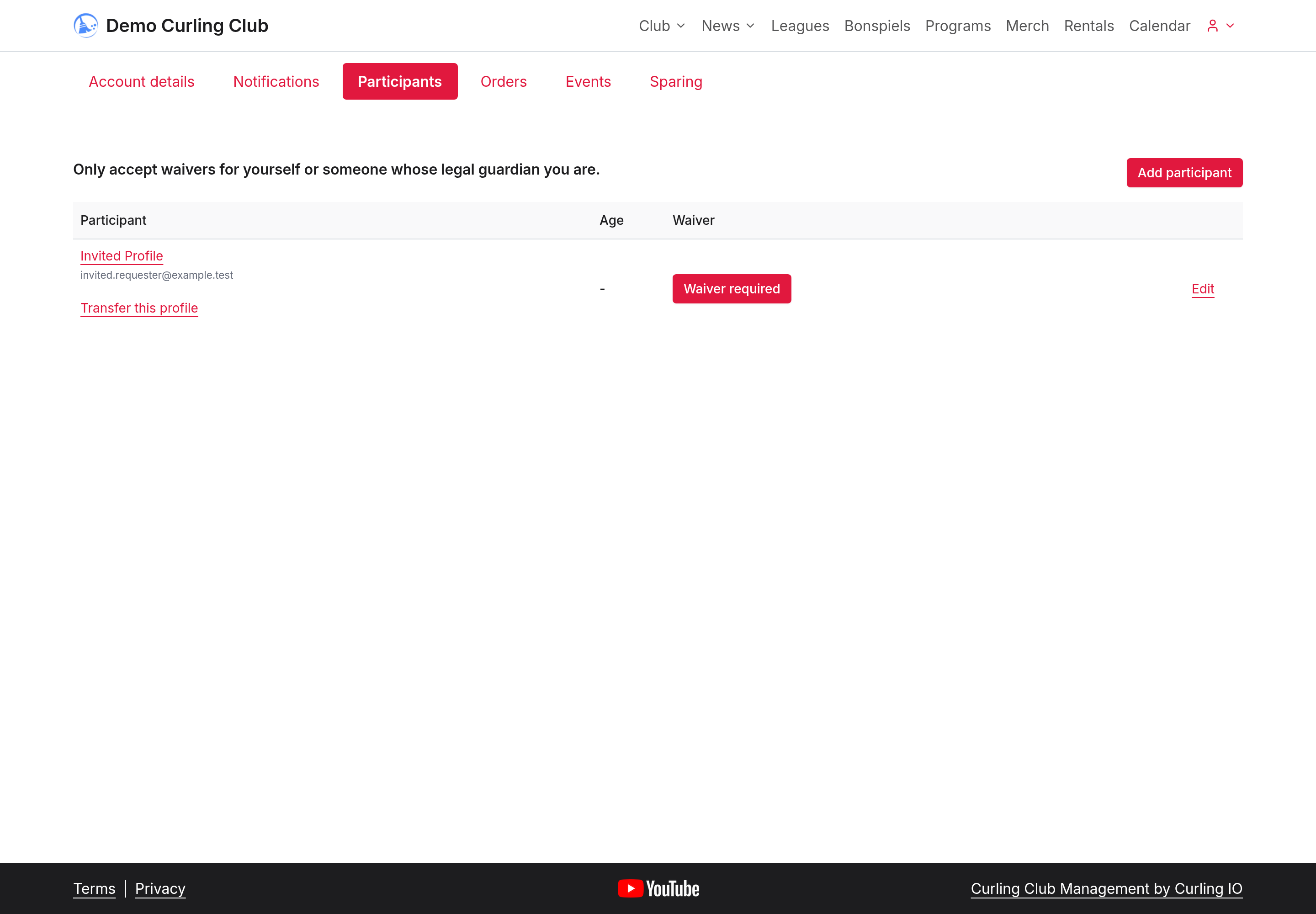
- Sign in to the account that manages the profile and open Account > Participants.
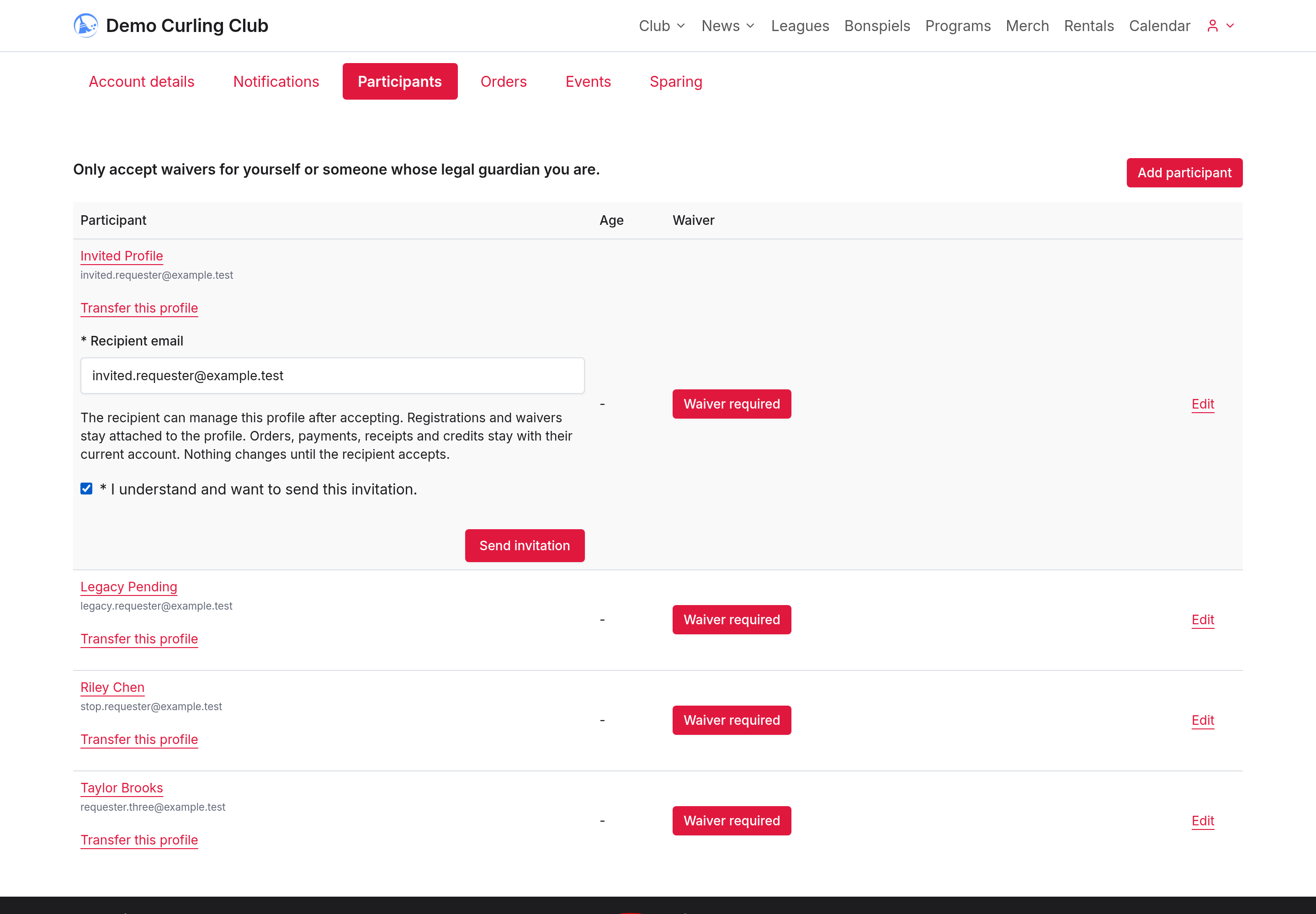
- Select Transfer this profile beside the person's name.
- Enter the Recipient email, read the consequences and check the confirmation.
- Select Send invitation.
Nothing changes until the recipient accepts. The profile keeps its registrations and waivers. Orders, payments, receipts and credits stay with their current account. Active registrations don't prevent a transfer. Unarchive an archived profile before transferring it.
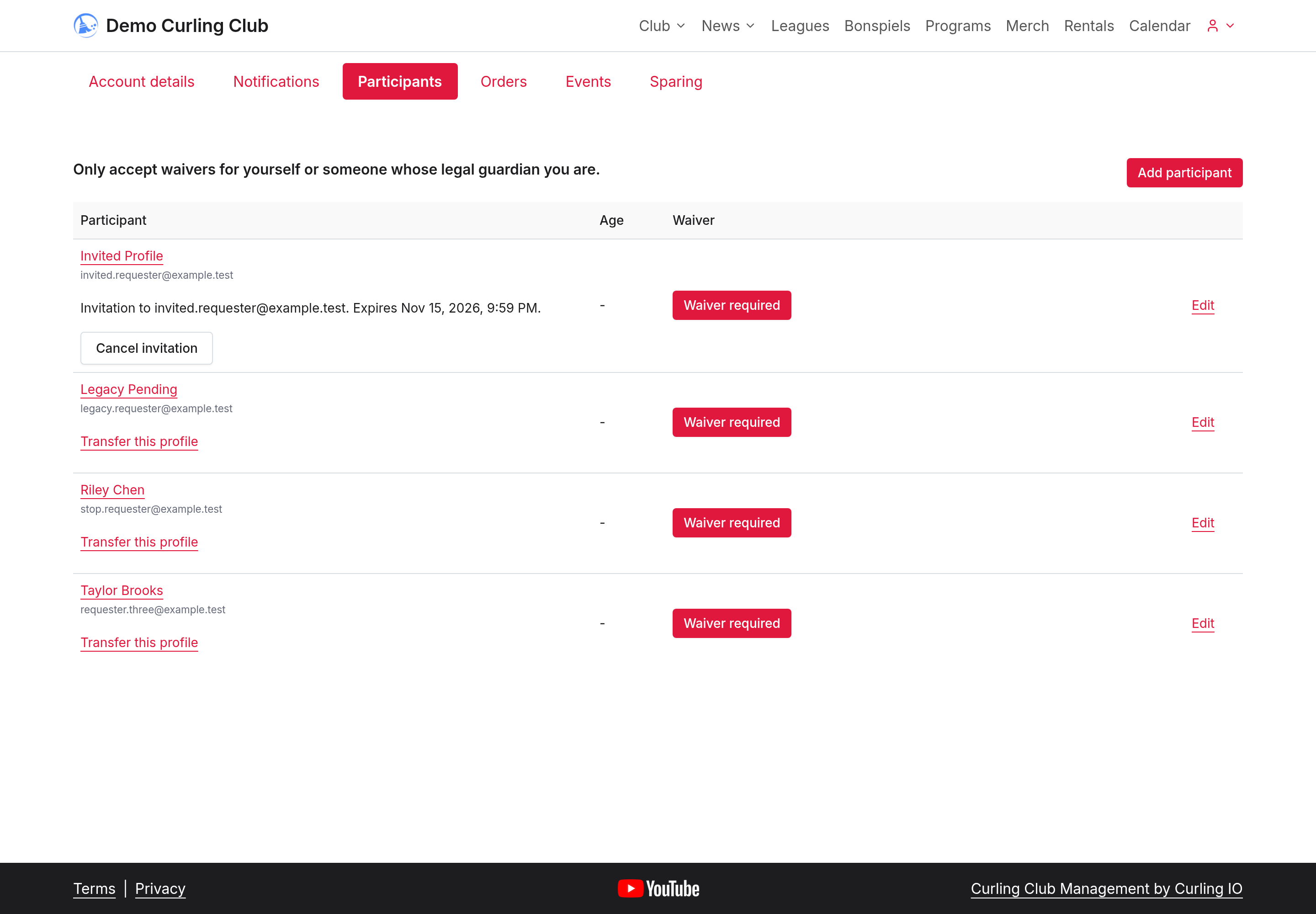
Participants shows the pending invitation and its expiry in your club’s local time. Select Cancel invitation to invalidate the link. The recipient has seven days to accept. See Accept a profile transfer for the recipient's steps.
Accept a profile transfer
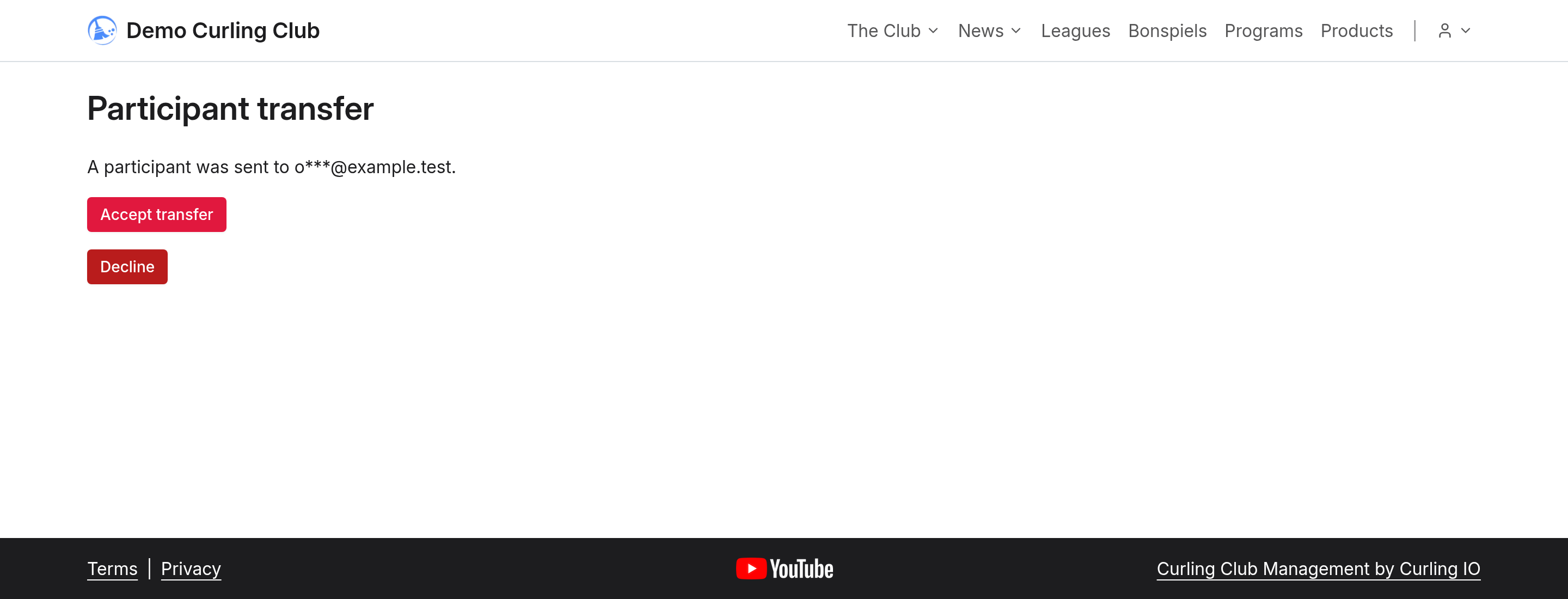
- Open the transfer link in the invitation email.
- Sign in using the invited email, or an account where that address is verified.
- Select Accept transfer.
- Open Participants to find the profile.
Only accept a profile you should manage, such as your own or your child’s when you are their legal guardian. Select Decline if it should not belong to you. The invitation lasts seven days. If it has expired or been cancelled, ask the sender to check it. Opening the link alone moves nothing.