Find your events and calendar subscription
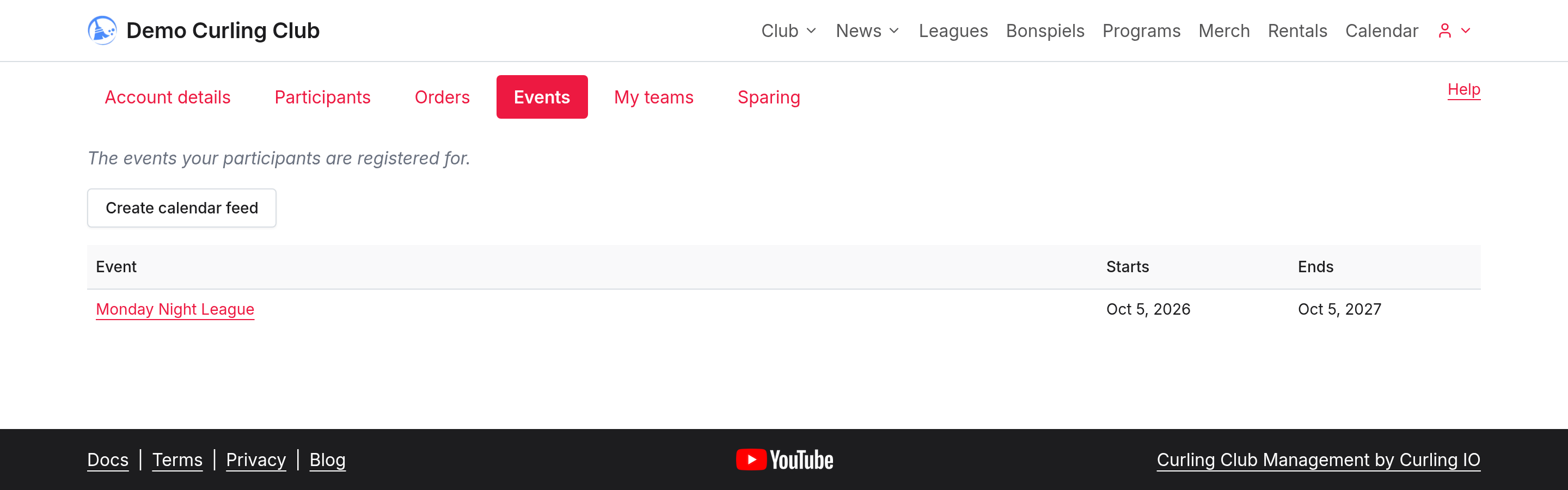
Open Account > Events to find the events your participants are registered for or have joined. Select an event's name to open its public details, schedule or results when those are available.
- Sign in with the account used for registration.
- Open Account, then select Events.
- Use the season or participant filters when they appear.
- Select the event you want to view.
Subscribe from another calendar
Select Create calendar feed to make a private subscription link. Save the link when it is shown: Curling IO won't display that same link again.
Choose Apple Calendar / iPhone, Google Calendar or Outlook, or use Copy calendar feed link to add the subscription manually. A subscription lets your calendar fetch updates. Download .ics file gives you a file to import instead; it isn't a continuing subscription.
Keep the feed link private. It grants access to the account's event calendar. Don't post it on your club's website or share it in a public message.
Replace or stop a subscription
Open the existing calendar feed controls under Events.
- Replace calendar feed creates a new link and stops the old one immediately. Update every calendar that used the old link.
- Revoke calendar feed stops access through the existing link.
Your calendar application controls how often it refreshes a subscription. If an event is missing, first check that the correct participant is registered or has joined and that you signed in to the right account. See Your account for the other account sections.