Participant profiles
Use an existing participant profile
Select Add participant in Account > Participants, or New participant while registering. Enter the person's name and birthdate. If your account already has a matching profile, select Use this profile to open it. Check its saved details and the changes you entered, then save. During registration, finish Review participant when it appears.
If several profiles match, choose one. If a birthdate is missing, This is a different person lets you continue adding someone else. You can't create another profile with the same matching name and birthdate. Cancel keeps your new draft; saving checks for matches again.
If a profile cannot register, follow the reason shown on screen. Reusing it doesn’t remove registration limits.
Restore an archived profile
A club Manager can archive a profile that is no longer in use. An archived profile disappears from Account > Participants, and from the registration participant list while you have another profile, but its registrations, waivers and history are kept.
If you have archived profiles, Account > Participants shows Archived profiles (N) under the list. Select it, then select Unarchive beside the profile and confirm with Yes, unarchive. The profile returns to your list and to registration right away. Only you, the account that owns the profile, can unarchive it; your club can't. Unarchiving doesn't change anything else on the profile.
If Archived profiles doesn't appear, none of your profiles is archived.
Combine duplicate profiles
After you combine accounts, their profiles are in one account. You still choose which duplicate profiles to combine. Curling IO suggests pairs you own with matching first names, last names and birthdates. Both profiles need a birthdate filled in. Accents count in name matching; capitalization and spaces at the start or end are ignored.
- Open Account > Participants and select Compare profiles under Possible duplicates. The same action appears in the duplicate prompt.
- Check that both profiles describe the same person and choose the details to keep. Only differing details are shown. Profile email doesn’t change how you sign in.
- Select Continue, review your choices, then select Combine profiles.
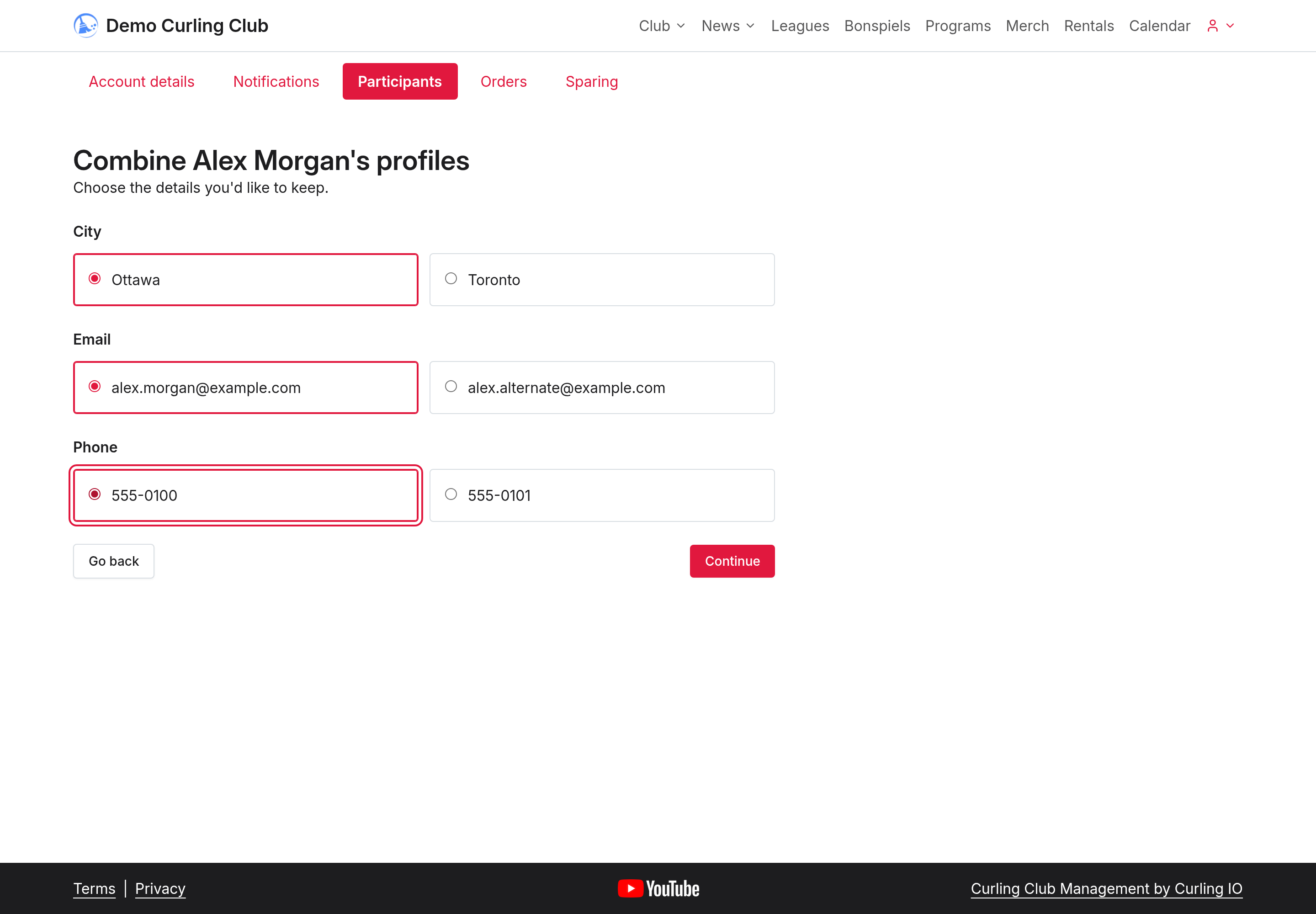
The profile marked Profile to keep remains. Your selected details are saved to it. Registrations, teams, waivers and history stay together, including association fee records, so a fee paid on either profile can be recognized. Past receipts and payments don't change. Use your club’s Contact Us page to ask about fees already paid twice or a missed discount.
Later keeps the pair under Possible duplicates. These are different people stops suggestions for that pair, including after later edits. Combining removes the other profile. You can’t undo it.
Find a missing profile
A participant’s contact email doesn’t grant access to their profile.
- If the profile is archived, restore it.
- If it is in another account you own, combine your accounts.
- If someone else manages it, request a transfer when offered. Otherwise, use your club’s Contact Us page.