Book a rental
Open your club's Rentals page, choose an available time, and select Book. Then check the date, time, resource and price in your cart before continuing to checkout. Adding a rental to the cart isn't a completed booking.
Choose an available time
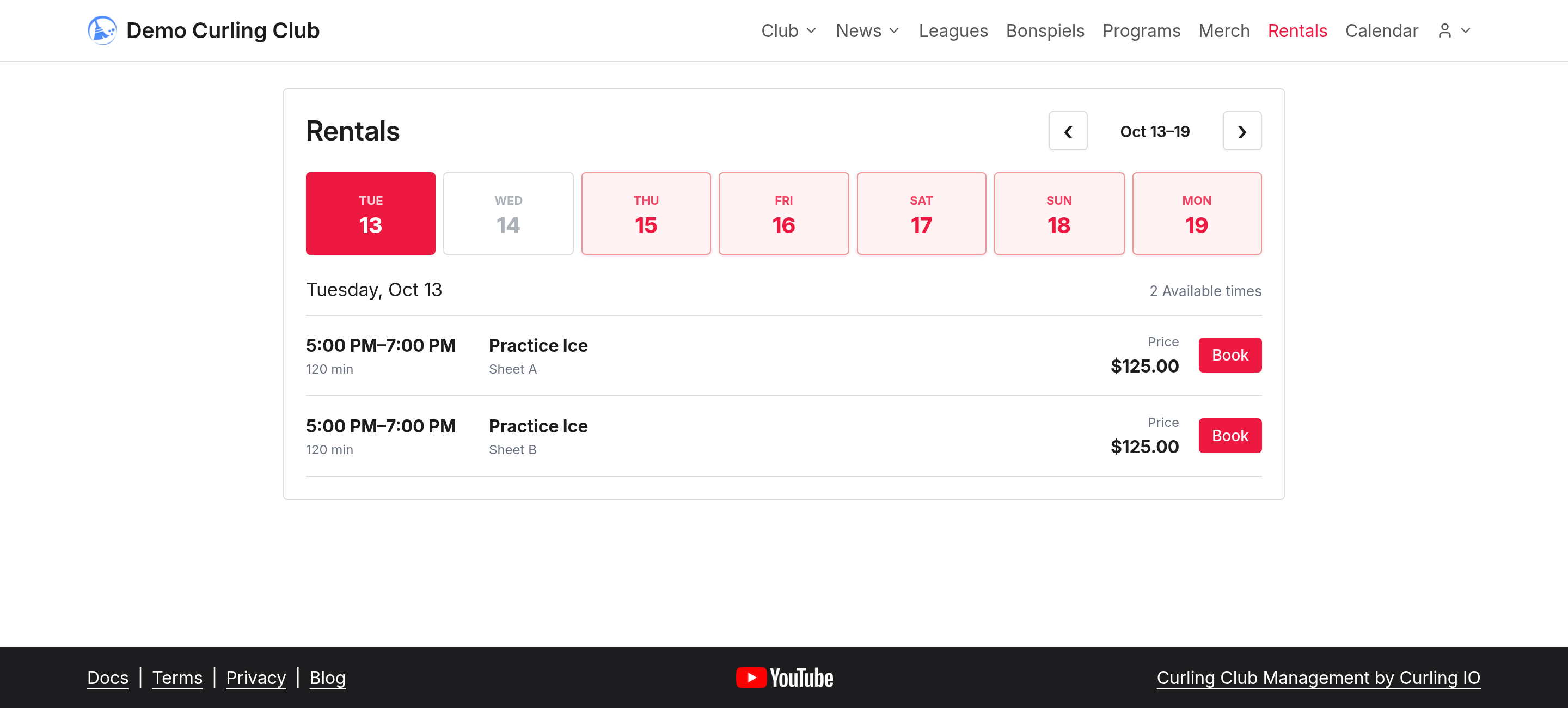
- Open Rentals on your club's public site or its rental booking widget.
- Select the day you need from the date strip. Use the left and right arrows to move between weeks.
- Find an available time and check the rental name, start and end time, duration, resource and price. In this example, Practice Ice on Sheet A runs from 5:00 p.m. to 7:00 p.m. for $125.00.
- Select Book beside that time.
- Sign in if requested, and complete any required registration details.
The club controls which resources and times are offered. If the date or time you need isn't listed, ask the club about availability.
Review the cart
Check the rental's details in your cart:
- the correct product and resource;
- the full date, start and end time;
- the price and current total.
The example reaches Ready for checkout with Sheet A, October 13, 2026, 5:00 p.m. to 7:00 p.m., and a $125.00 total.
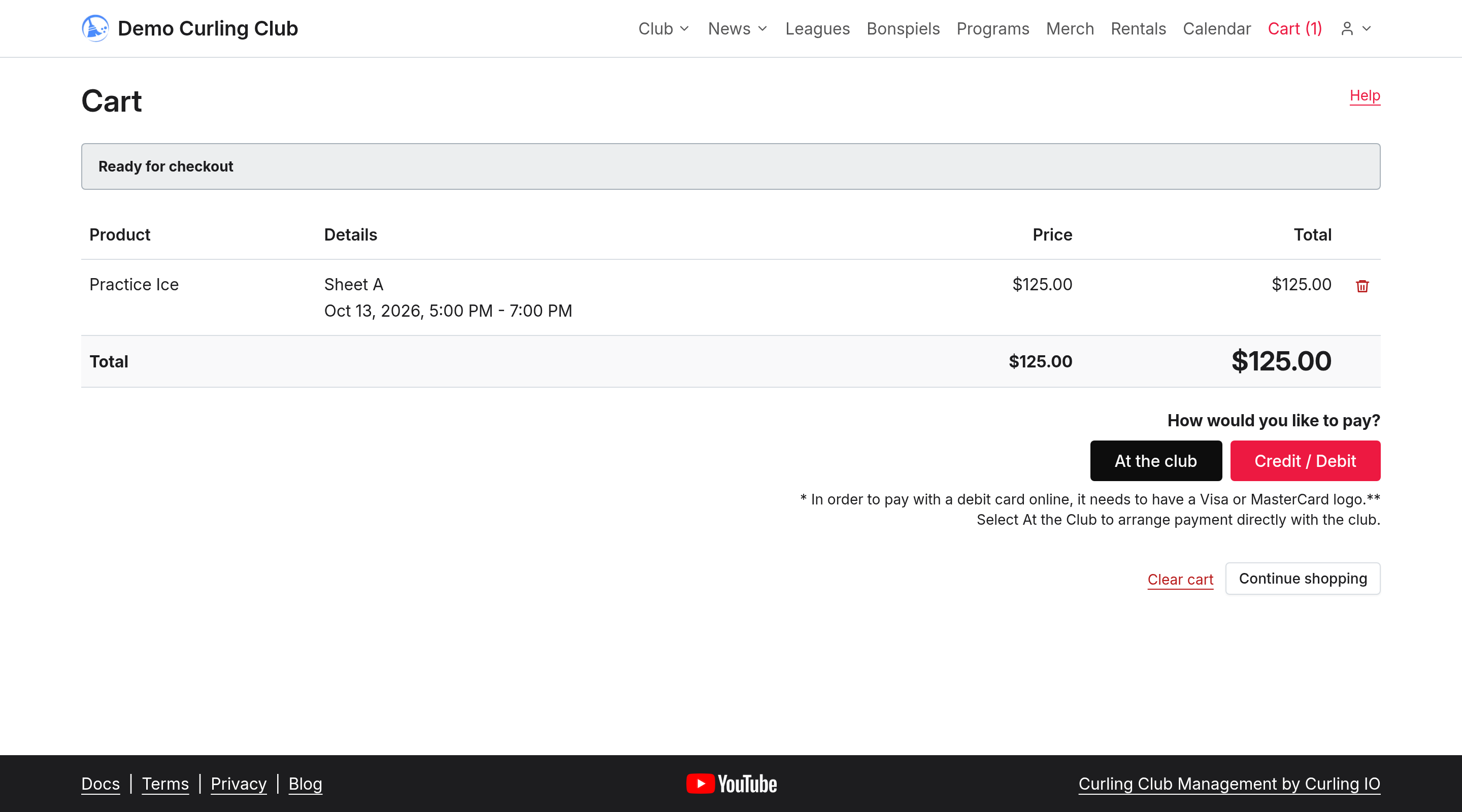
If the selection is wrong, remove that item with its trash action and choose the correct time. Use the payment choices your club offers when you're ready to finish checkout. Read the total and instructions before confirming.
After checkout, use Orders to review the purchase. Contact the club if you need to change a completed booking.
If booking doesn't continue
A time can become unavailable before you finish. Return to Rentals and choose another available time. Your club may also limit how far ahead you can book or how close to the start time a booking can be made.
If signing in or checking out is the problem, ask the club for help. Don't repeat a payment when you aren't sure whether the first attempt completed; check Orders first.