Use your Curling IO account
Sign in to your club's Curling IO site and open Account to manage your contact details, review purchases and find your registrations. Use the same account you used when registering.
The account sections depend on your registrations and activity. For example, Payment plans appears when you have a plan, and Events appears when you have event registrations.
Sign in to your account
Open your club's Curling IO site and select Sign in. Use the email address associated with your existing account so you can find your participants, registrations and orders.
- Password: Enter your email address and select Sign in. On the next screen, enter your password and select Sign in again.
- Email link: Enter your email address and select Sign in, then select Email me a sign-in link. Open the email and follow its link. You can also enter the code from the email on the sign-in screen. Use this option if you haven't set a password or have forgotten it.
- Passkey: Select Continue with passkey when it is available, then follow your browser's instructions to use a saved passkey.
- Google: Select Continue with Google and choose the Google account associated with your Curling IO email address. A Google account can use a non-Gmail address; see Google sign-in without Gmail.
A password is optional. Setting one doesn't stop you from using an email link, a passkey or Google.
Change your name
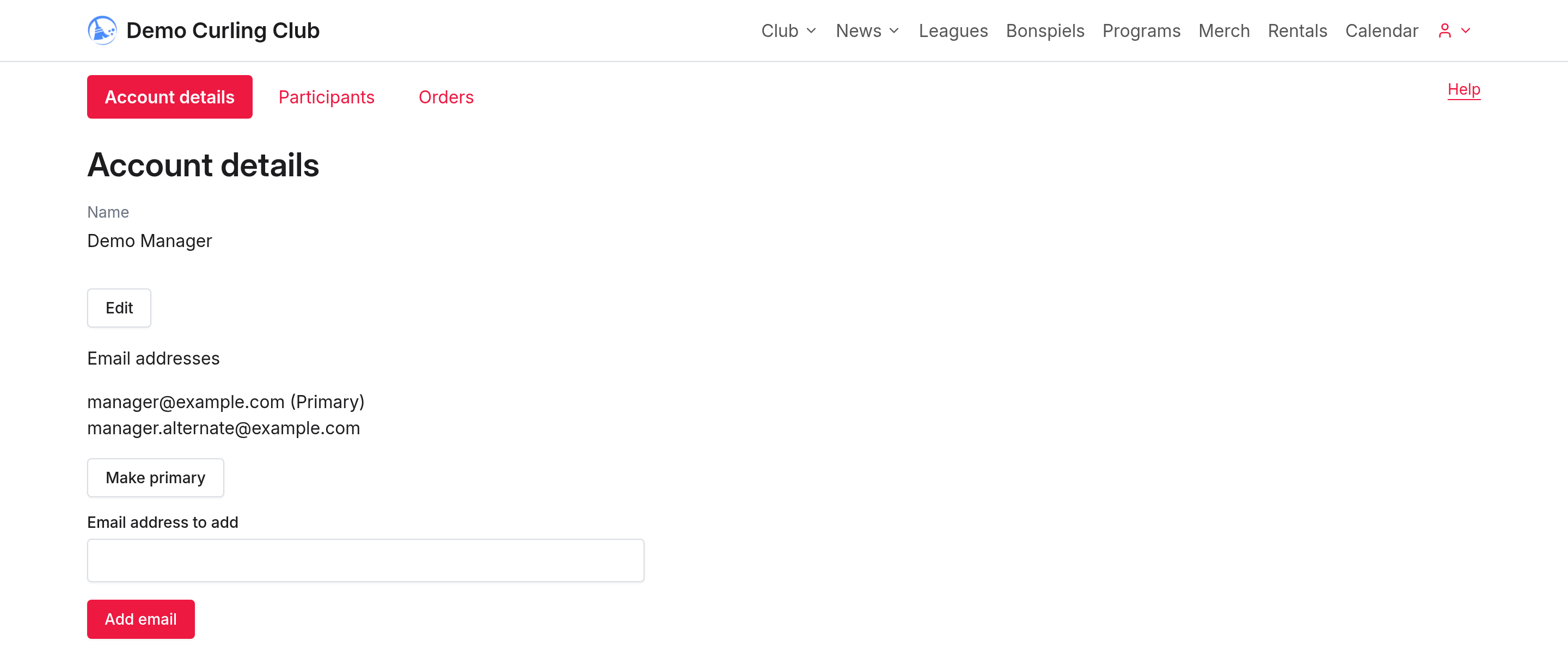
- Open Account details.
- Select Edit beside your name.
- Enter the name you want to use and select Save.
Your account name is separate from your participants' names. Open Account > Participants and select Edit to change a participant's information.
Set or change a password
Passwords are optional. In Account details, select Set a new password or Change password. Enter the new password twice and select Save password. If Current password appears, enter it too. Use at least 15 characters. Spaces, non-English characters and pasting from a password manager are supported.
If you've forgotten your password, sign out and sign in again with an email link. The link or code signs you in immediately. You can then set a new password, add a passkey, or select Continue without password. If a password setup screen offers Verify with an email link instead, use it to verify your account first. An existing password stays unchanged when you skip setup. After saving a password, Continue returns you to the page you came from.
You can keep using email links even after setting a password. Google sign-in also remains available.
Add a passkey
- Open Account details, then find Passkeys.
- Select Add a passkey and follow your browser's instructions.
- Check that the saved passkey appears in the list. You can Rename it to make it easier to recognize.
If Curling IO asks you to verify your account again, select Verify with email or Google, complete verification, then return and add the passkey.
You can remove a saved key with Remove, then Confirm removal. This removes its access to your Curling IO account, but doesn't delete the key from your password manager. Email and Google remain available.
Add or change an email address
You can attach more than one verified email address to the same account. To add one:
- In Account details, enter it in Email address to add.
- Select Add email and keep the code shown on the page.
- Open the verification email at the new address. Enter that code and select Confirm email ownership within 30 minutes.
- Reload Account details to see the verified address.
Only confirm a request you recognize and started yourself. Reloading account details hides the code, so finish verification before reloading.
To change your primary address, select Make primary beside an address already verified on your account. Adding an address alone doesn't make it primary.
Sign in to your own regular account to make these changes. Identity changes are unavailable for a shared Multicart account or while club staff use Sign in as.
Review an order or pay an amount owing
Open Orders, then select the order's summary. Review the receipt, payments and any amount still owing. The available actions depend on the order's status and your club's payment settings.
See Orders for receipts, registration changes and payment choices. Contact your club if the amount or registration is wrong.
Manage payment-plan installments
Open Payment plans to see your plans, amounts and next due date. Select the order number to review what you bought.
Your saved card pays later installments automatically. If a payment is declined or your bank asks for confirmation, open Update payment method. Stripe lets you choose Confirm the saved card or Use a different card, then Confirm payment. When replacing a card, you may be offered the choice to use it for one plan or all affected plans at this club. Follow the Payment plans instructions before retrying. You can't pay a future installment early. Contact your club if you need to discuss cancelling remaining payments.
Review a payment request
Open the request's email link, select Review requests in an account notice, or open Payment Requests. Sign in using an address verified on the account that received the request.
Review the description and current total before deciding to pay. Opening the request doesn't charge you. See Payment requests for adding it to your cart, rejecting it or paying through checkout.
Pay association fees
When your club offers the Curling Development Fee through your account, open Fees and choose the participant. Review the fees and the available Pay action. Only review or pay for yourself or someone under your legal guardianship. If their profile is missing, open Account > Participants and select Add participant.
If you have already paid elsewhere, follow the page's instructions for reporting that payment. Ask your club if you are unsure which fees apply or whether a previous payment has been recognized.
Subscribe to your event calendar
Open Events to see the events your participants are registered for. Select Create calendar feed when you want to subscribe from another calendar. The subscription link is private and is revealed only when created. Follow Events and calendar subscriptions for adding, replacing or revoking it.
Answer an available survey
Open Surveys, or select Take Survey in an account notice. The list shows the survey's name, author, response window and your status. The list includes available surveys and surveys you've answered or dismissed.
- Select the survey's name.
- Read its instructions and response window.
- Complete the questions and review your answers.
- Select Submit response while the response window is open.
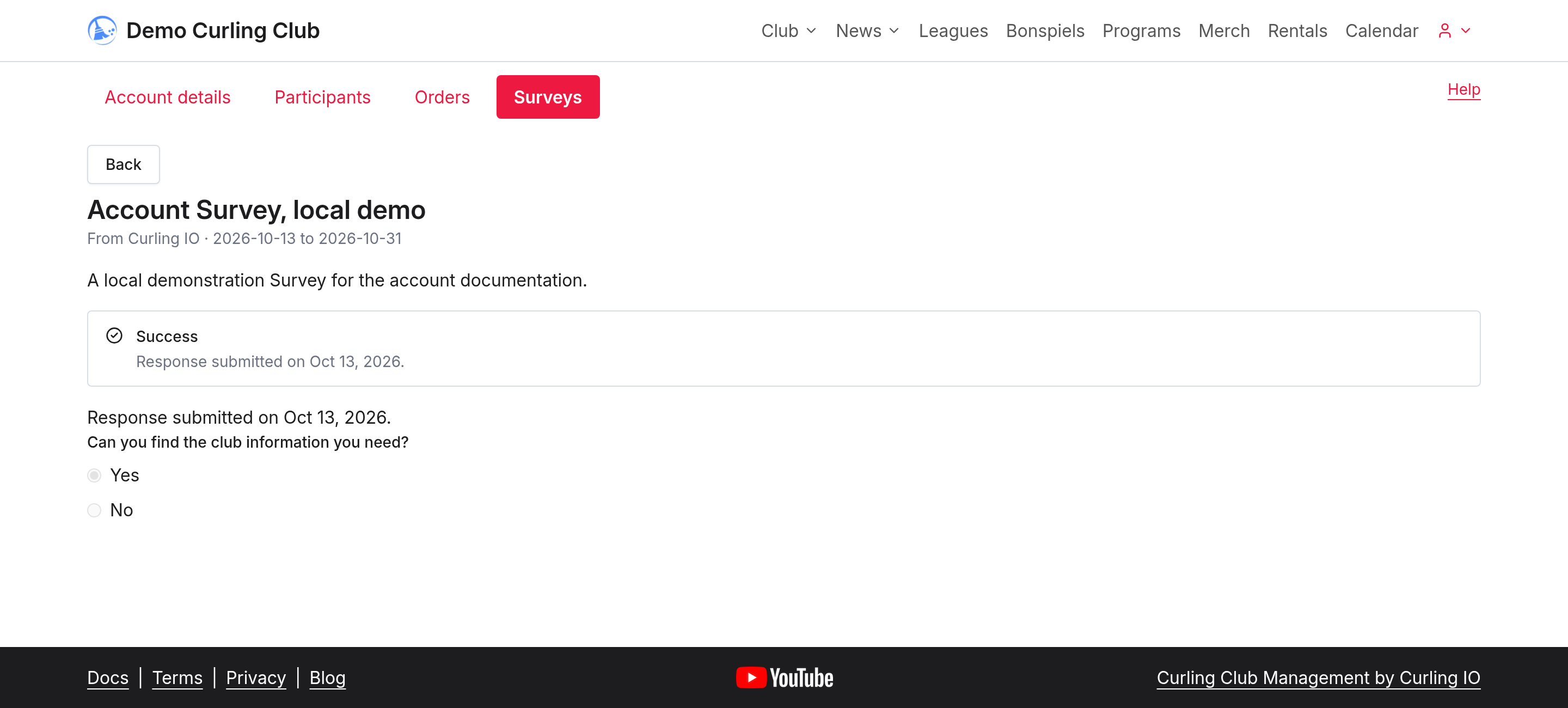
Review carefully before submitting: you can't change a submitted response. The saved answers become read-only, even if the closing date hasn't passed.
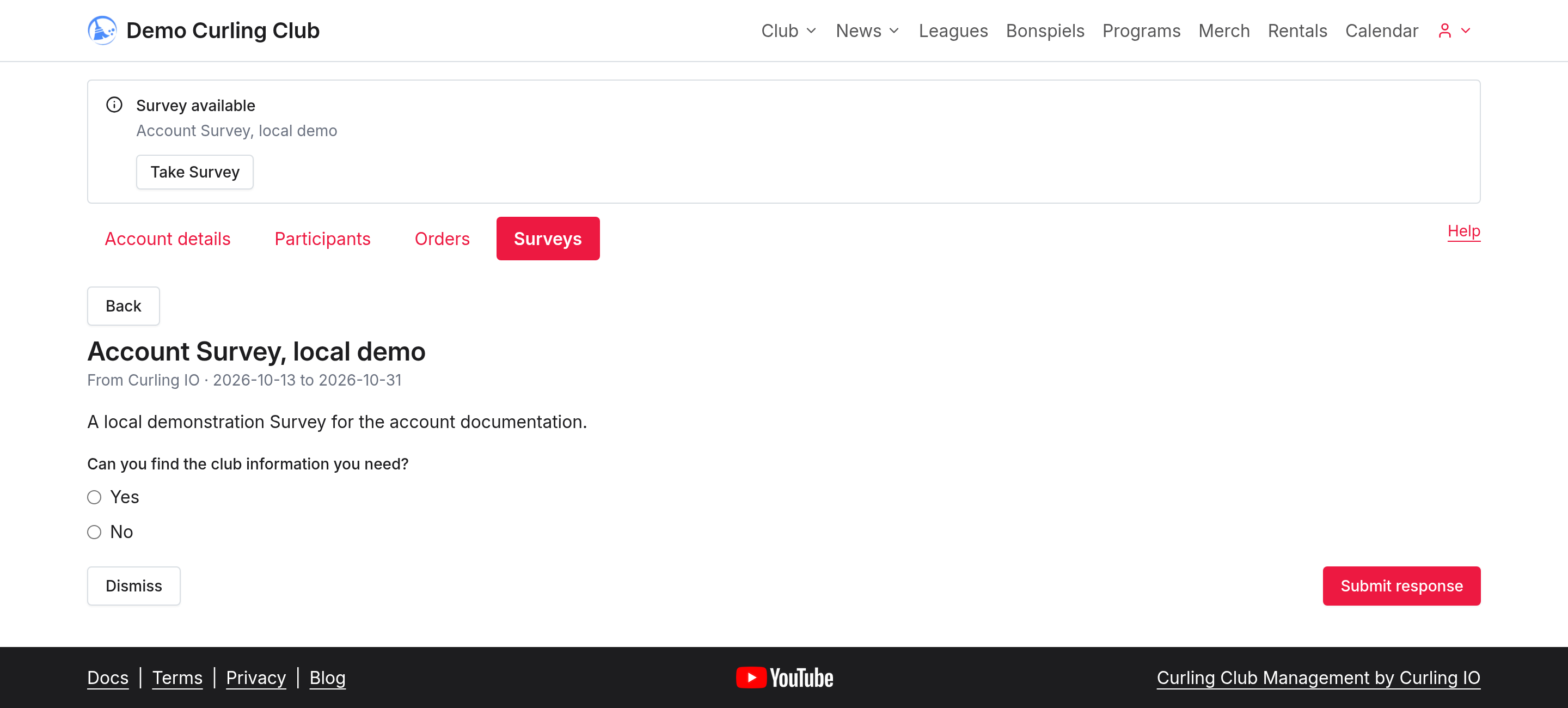
Use Dismiss if you don't want the available-survey notice. Member surveys show a privacy notice explaining that your club won't see your individual response. Surveys for organization managers have a different audience; read the survey's introduction before responding.
If a survey is missing or unavailable, ask your club to check its audience, response window and your eligibility. Don't create another account to try to answer it again.
Book a rental
Open your club's Rentals page to choose an available date, time and resource. Book takes your selection to the cart. Review its details before continuing to checkout. See Book a rental for the steps and what to do when a time isn't available.