Mailchimp
The Mailchimp integration keeps one Mailchimp audience up to date with the people in your club. Curling IO adds contacts, fills in the profile fields you choose, tags people by the products they registered for, and records unsubscribes made in Mailchimp. Mailchimp is a Premium feature.
Go to Integrations > Mailchimp in the administration area. Only managers can use this page. A treasurer cannot connect or change Mailchimp.
Before you start
- Your organization needs Premium. If Premium ends, Curling IO keeps your connection and mappings, but the page asks you to upgrade and syncing stops. Everything resumes when Premium returns.
- You need a Mailchimp account and an audience (Mailchimp's name for a mailing list). Curling IO connects to one audience at a time.
- Create any custom fields you want in Mailchimp first. Curling IO fills in the fields that exist in your audience. It never creates fields for you.
- If a field in your audience is marked required in Mailchimp, it must be one Curling IO can fill. Audiences with a required field of another type are refused.
Who is synced
Curling IO syncs accounts, not participants. Each purchasing Curling IO account becomes one Mailchimp contact, even when it buys for several family members. A purchase needs no participant. If staff buy for someone else, the staff account qualifies, subject to its email preferences. The contact's email address is the account's verified default email. A participant's own email address is never used.
An account is synced when all of these are true:
- It has a verified default email address.
- It purchased an active membership for the current season or made an active purchase within the last two years.
- It has not turned off email from your organization, or from all organizations.
- Its email address is not blocked because of bounces or complaints.
New contacts are added to Mailchimp as subscribed. Curling IO treats the relationship above as permission to send club email, the same rule it uses for Email Broadcasts. If you need a different consent rule, review it before you turn syncing on.
When syncing is on, Curling IO rechecks accounts after a registration is removed or cancelled and every night. Contacts whose accounts no longer qualify, or have opted out in Curling IO, are set to unsubscribed. They're kept in Mailchimp.
Managers and treasurers start opted out when they're added to your club, including through a club claim. They can opt back in through Notification Preferences. Product managers keep their existing preferences.
A bounce or complaint that blocks broadcast delivery queues an immediate Mailchimp update to unsubscribe the matching contact. You don't need to wait for the nightly recheck.
Unsubscribes
If someone unsubscribes in Mailchimp, Curling IO checks their status with Mailchimp and records an opt-out from your organization's email. It does not turn off receipts or other account email, and it does not affect other organizations. This continues while syncing is paused, including unsubscribes received just before you pause.
Curling IO never resubscribes a contact that Mailchimp shows as unsubscribed, cleaned, or archived, even if you remove the opt-out in Curling IO.
Connect Mailchimp
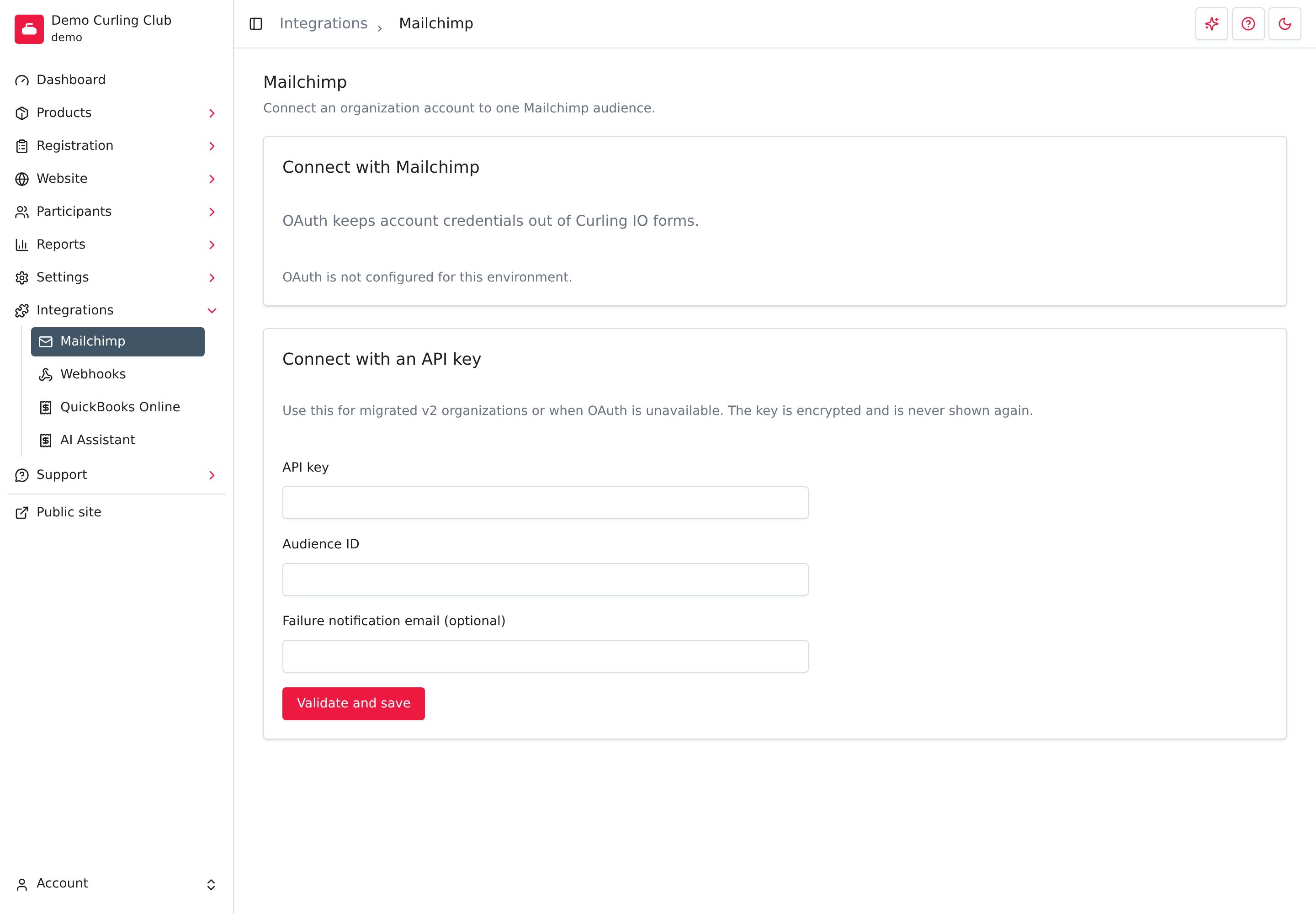
Use Connect with Mailchimp when the page offers it, or connect with an API key. Syncing stays off after you connect, so nothing reaches Mailchimp until you finish the steps below.
Connect with Mailchimp
- Select Connect with Mailchimp.
- Sign in to Mailchimp and approve access.
- You return to the Mailchimp page in Curling IO. Under Audience, select the audience to use.
This is the recommended method. You never type a password or key into Curling IO. If you cancel, or the link has expired, a message says so and you can start again with Return to Mailchimp settings.
Connect with an API key
Use this for organizations moved from the previous version of Curling IO, or if Connect with Mailchimp is not available.
- In Mailchimp, create an API key and find the ID of the audience to use.
- In Curling IO, enter the API key and Audience ID.
- Optionally enter a Failure notification email (optional). Curling IO emails this address if it has to stop syncing after repeated failures.
- Select Validate and save.
Curling IO checks the key and audience with Mailchimp before saving. The key is stored encrypted and is never shown again. With an API key you choose the audience by its ID. To use a different audience later, enter its ID and save again.
Choose an audience
After connecting with Mailchimp, pick the audience in the Audience list. Review its fields next, before syncing starts.
To change audience later, pick another one and select Confirm audience change. This turns syncing off. Contacts already in the old audience stay there, and its saved mappings are kept. If you switch back, those mappings return. The new audience gets nothing until you save its mappings and turn syncing on.
Choose which product types add tags
Under Tag registrations for these product types, check the types whose purchases should add Mailchimp tags, then select Save product types. You can save this selection while syncing is on or off.
New integrations start with nothing checked. Rentals and your club's custom types are available. Association fees and club affiliation are never listed. The choice controls tags only; a purchaser can still qualify for the audience through a purchase of an unchecked type.
Saving a changed selection resyncs the club when syncing is on. Unchecking a type removes only tags Curling IO manages that no other checked purchase earns. Tags you added separately in Mailchimp stay. With syncing off, the choice is saved without sending any contact updates.
Map profile fields
Audience fields lists every field in your Mailchimp audience. For each one, choose the Curling IO value that fills it:
- User: The account's verified default email.
- Marketing Profile Participant: Participant details such as first name, last name, gender, phone, birthdate, postal code, and full address.
- Participant questions: Answers to your custom participant questions.
On French pages, the groups are Utilisateur, Participant du profil marketing and Questions des participants.
Each list shows only values that fit the Mailchimp field type. For example, a date field offers dates, and a drop-down field offers a question only when every one of its answers exists in Mailchimp.
A contact has one source participant for these details. Curling IO first matches a participant's primary email to the account's verified default email, then a participant's secondary email. Next it considers matches to other verified addresses on the account, followed by unverified addresses.
Within each match group, or when no email matches, the participant with the earliest recorded birthdate comes first. Profiles without a birthdate follow those with a known birthdate. If birthdates are the same or missing, the lowest participant number breaks the tie. Details never vary by registration.
The first time, Curling IO suggests matches for the standard Mailchimp fields
(FNAME, LNAME, EMAIL, PHONE, DOB, PCODE, ADDRESS, GENDER, and
ID). Review them. They are not saved until you select Save mappings.
- Required fields show Required and must be mapped. Save mappings is refused until they are.
- Choose Not mapped for any optional field you don't want filled. Removing a mapping stops Curling IO from updating that field. It does not clear what is already in Mailchimp.
- If you leave a mapped optional field empty in Curling IO, Curling IO clears it in Mailchimp the next time that person syncs.
- If you delete a field in Mailchimp, it shows Deleted in Mailchimp. Choose Not mapped and save. If you rename a field, its mapping is kept.
If syncing is on, Save mappings also starts a new sync of everyone. If it is off, the mappings are only saved.
Turn syncing on
- Make sure the connection shows an audience and you have saved mappings. Until then, a note reminds you to save them first.
- Select Turn syncing on.
Curling IO registers an unsubscribe webhook with Mailchimp so it can receive unsubscribe updates, then starts the first sync. If Mailchimp can't be reached, syncing stays off and you can try again later.
Keep it up to date
After the first sync, Curling IO updates Mailchimp when:
- Someone completes a purchase or registration.
- An account's verified default email changes.
- You save mappings while syncing is on.
- You select Sync now.
- The nightly sync checks for changed contacts and eligibility.
Sync now adds qualifying accounts that have not synced yet and updates contacts whose mapped profile details or verified default email changed. The nightly sync makes the same check. Unchanged contacts are skipped.
Tags
Each contact is tagged with the name of the product they registered for. For event-type products, the product type name (for example, Leagues) is added too, so you can target everyone in a type. Tags come from products registered and not cancelled. When a registration is cancelled or removed, Curling IO removes only the tags it manages for that contact and that no other registration still earns. Shared tags and unrelated tags you add in Mailchimp are left alone.
Check the sync status
The Account synchronization section shows the latest sync, its Phase, how many accounts and registration tags were queued, and when it started and finished. Syncing runs in the background, so large clubs take a while.
Pause and resume
Select Turn syncing off, then Confirm turn off, to pause. Curling IO stops sending contact updates to Mailchimp but keeps your connection and mappings. It still checks unsubscribes from Mailchimp and records them, so pausing does not let your club's email broadcasts reach someone who opted out. Select Turn syncing on to resume. Resuming starts a fresh sync that picks up changed profile details, verified default emails and registrations from the pause.
When something goes wrong
The Status line shows whether the connection is working. Problems fall into two groups.
Problems with one person. A required field has no value, or Mailchimp rejects an address or value (for example, a malformed postal code). Syncing continues for everyone else. The page shows Mapping failures under Audience fields, listing each person, field, and reason. The same problem appears in the Attention Centre. Fix the mapping or the person's details, and the next sync clears it.
Problems with the connection. After repeated failures, Curling IO stops syncing and shows Blocked, needs attention with the last failure. What to do depends on the cause:
- Credential: Replace the Mailchimp credential. Reconnect, or enter a new API key.
- Audience: Select a different valid audience.
- Mappings: Change the audience field mappings. A Mailchimp field change is reported as, for example, "Mailchimp field FNAME changed". Review the mappings, save them, then turn syncing on.
- Mailchimp is temporarily unavailable or limiting requests: Status shows Blocked, retry scheduled. Wait about five minutes. Then select Retry connection.
Controls only appear when they can help. Retry sync appears when the last sync was interrupted or failed. Curling IO also emails your Failure notification email, if you entered one, when it stops syncing.
Disconnect
Select Disconnect, read the warning, then select Confirm disconnect. After disconnection completes, Curling IO has permanently deleted its saved connection, unsubscribe webhook configuration, sync progress and all saved mappings. It also tries to remove its webhook from Mailchimp. It does not delete contacts or change any field values in Mailchimp, and the opt-outs recorded in Curling IO stay. If Mailchimp can't be reached to remove the webhook right away, the page shows that disconnecting is pending. Check back for the final result.
If you reconnect later, you must save mappings and turn syncing on again. Contacts already in Mailchimp are matched by email address.
Merged accounts
If two accounts are merged, the Mailchimp contact for the account being merged away is archived. The remaining account is used for the contact. Unsubscribe choices are kept.