QuickBooks Online
QuickBooks Online connects your Curling IO accounting to your QuickBooks Online company. After you set it up, Curling IO sends each accounting event to QuickBooks as a journal entry, so you don't have to download and import files.
Go to Integrations > QuickBooks Online in the administration area.
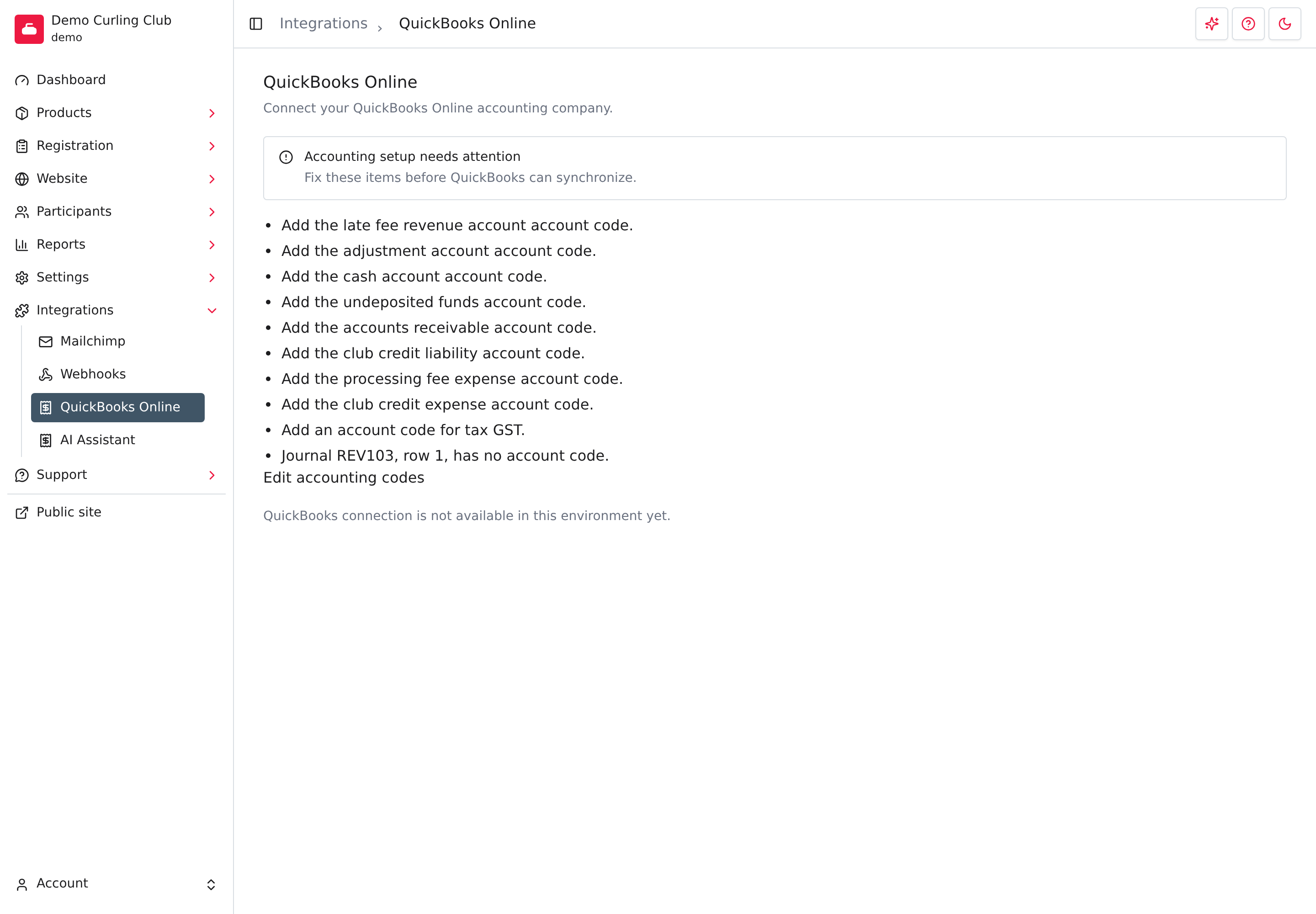
Ask your bookkeeper or accountant to help with the first setup. You will choose accounts in your QuickBooks chart of accounts, and a wrong choice puts money in the wrong place in your books.
QuickBooks Online or the QuickBooks Desktop export
These are two different tools. Pick one for each date range.
| QuickBooks Online (this page) | QuickBooks Desktop export | |
|---|---|---|
| For | QuickBooks Online | QuickBooks Desktop |
| How entries arrive | Curling IO sends them automatically, in the background | You download an IIF file and import it yourself |
| Where it lives | Integrations > QuickBooks Online | Reports > Accounting > QuickBooks |
| Duplicate protection | Curling IO is built not to send the same entry twice | None. You must track the dates you exported |
Curling IO can't see anything you imported by hand. If you already imported Curling IO entries into QuickBooks from an IIF or CSV file, choose a start date for the live connection that comes after them. Otherwise the same activity is entered twice.
Before you start
You need three things.
- Manager or treasurer access. Only managers and treasurers see QuickBooks Online under Integrations. Product managers don't.
- Accounting codes that are complete. Turn on and fill in Settings > Accounting Codes, and add a code for each tax in Settings > Taxes. Curling IO only asks for the codes your club actually uses. For example, it asks for a club credit code only if someone holds club credit.
- A QuickBooks Online company whose home currency matches your club's currency.
QuickBooks Online doesn't check for a Premium subscription.
If any code is missing, the page shows Accounting setup needs attention and lists what to fix, such as "Add an account code for tax GST." Select Edit accounting codes, fix each item, and come back. The Connect QuickBooks button doesn't appear until the list is empty. A posted accounting entry with no code also blocks setup. To fill those in, use the accounting ledger report.
If the page says QuickBooks connection is not available in this environment yet., QuickBooks Online isn't switched on for your site. Contact support.
Connect QuickBooks
- Select Connect QuickBooks.
- Sign in to Intuit and choose your QuickBooks Online company.
- Allow Curling IO to access its accounting data.
You return to Curling IO with QuickBooks connected. Journal synchronization remains off. Connecting doesn't send anything. You turn sending on yourself in a later step.
If you cancel at Intuit, Curling IO shows Connection cancelled and nothing is connected. If it shows Different QuickBooks company, you signed in to a company other than the one already connected. Curling IO won't switch companies quietly.
The page now shows Connected to QuickBooks company with your company's number.
Map your accounts
Curling IO account codes and QuickBooks accounts are separate things. A code
such as 4000 in Curling IO doesn't automatically point to account 4000 in
QuickBooks, even if the numbers match. You tell Curling IO which QuickBooks
account each code means.
In Account mapping, each Curling code you use has its own row.
- Open QuickBooks account and choose the account.
- Select Save mapping.
The list only offers active accounts of a suitable type. A revenue code lists income accounts. A receivables code lists Accounts Receivable accounts. A processing fee code lists expense accounts. Tax codes list liability or current-asset accounts. Cash and undeposited funds codes list bank or current-asset accounts.
A row shows Account needs attention when no account is chosen, when the chosen account was deleted or made inactive in QuickBooks, or when its type no longer fits. Fix these before sending. Sending stays paused until every row is valid.
Saving a change to a mapping pauses synchronization if it was running. You then preview and turn it back on. This protects you from sending entries with an account you didn't mean.
Taxes arrive in QuickBooks as ordinary lines to the account you mapped. They keep your totals right, but they don't fill in QuickBooks' own sales tax reports. Ask your bookkeeper how to handle that.
Choose how customers appear
QuickBooks needs a customer on the receivable lines. In QuickBooks customers, choose one of two options.
- One collective customer. Every purchase appears under one customer name, such as your club's name. Enter the name and select Save collective choice. This is the simplest option.
- Individual purchaser accounts. Each person who placed an order gets their own QuickBooks customer, identified by their sign-in email. The customer is the person who paid, not the participant. A parent who registers a child is the customer. Select Save individual choice.
Saving a choice doesn't create anything in QuickBooks. When you're ready, select Authorize customer creation and confirm. Curling IO then creates missing customers as it needs them while sending journals.
Curling IO never matches a customer by name. If your QuickBooks company already has the customer, enter its exact ID under Link an existing QuickBooks customer, select Link this customer, and confirm. If a customer with the same name already exists and you haven't linked it, Curling IO stops and asks you to link it or choose another name. This prevents a mix-up with the wrong customer.
Once the first journal has been sent, the choice is locked so earlier entries stay consistent.
Preview and turn on synchronization
In Journal synchronization:
- Under Choose the start date, pick Synchronization start date. There is no default date.
- Select Preview journals.
Curling IO sends every complete journal entry from that date onward, using your club's time zone. It then keeps sending new ones. There is no end date.
The preview shows how many groups of entries are ready, blocked or already sent, plus the debit and credit totals. The totals should match each other. Compare them with the Ledger report for the same dates. A preview doesn't send anything or create any customers.
If the preview lists blockers, such as a missing mapping, an inactive customer or an entry that doesn't balance, fix them and preview again. You can't turn sync on until the list is clear. Read the Check for existing imports warning on this page before you continue.
When the preview is clean, select Activate synchronization, read the confirmation and select Confirm activation. The page shows Synchronization activated.
What gets sent and when
Curling IO sends one QuickBooks journal entry for each accounting event. That includes sales and taxes, payments, deposits, refunds, club credit, payment plan price reductions, and premium purchases. A refund or reversal is sent as its own journal entry. It doesn't change the original.
New entries go out in the background shortly after they're posted. You don't need to do anything.
Journals contain account, amount, date and the Curling IO reference. They don't contain participant names, emails or product descriptions. Each journal's reference is also kept in QuickBooks so it can be found later.
Journal synchronization shows counts for Pending, Sending, Sent, Failed and Unknown, and the Last successful send.
When something goes wrong
Curling IO is built not to send the same journal entry twice. When it isn't sure what happened, it stops and checks QuickBooks instead of sending again.
- QuickBooks is temporarily unavailable. Sending waits and tries again on its own, with longer waits between attempts. The page shows Next check. You don't need to act.
- Authorization expired or was revoked. Select Reconnect QuickBooks, using the same company. Your start date is kept, but sending stays paused. Preview again, then select Resume synchronization.
- A mapping or account code is broken. The page tells you which. Fix it, preview, then resume.
- A customer problem. The page says whether the customer is inactive, uses a different currency or has an unknown creation result. Use Check customer status or link the correct customer.
- Unknown result. If QuickBooks doesn't answer, Curling IO checks for the entry before doing anything else. If automatic checks run out, the page asks you to contact support. Don't create the entry by hand in QuickBooks first, because it could be a duplicate.
Recovery never turns sending back on. After any pause caused by a problem, you preview and confirm the resume yourself.
Pause or disconnect
To stop sending for a while, select Pause synchronization. Entries wait, and you can resume later. Pause before you change the start date.
To disconnect, select Disconnect and then Yes, disconnect. Curling IO revokes its access at Intuit and stops synchronizing. It keeps the entries already in QuickBooks and its own delivery history. If Intuit doesn't confirm, the page shows Disconnect was not confirmed, the connection stays and you can try again.
If you later connect a different QuickBooks company, your old account mappings are cleared and you choose a new start date.
Check your first entries
After the first entries are sent, open them in QuickBooks. Confirm the date, accounts, amounts, customer and tax lines with your bookkeeper before you rely on the connection.