Webhooks
Webhooks send product purchases from Curling IO to Zapier, n8n, or another public HTTPS endpoint. Webhooks are a Premium feature.
Go to Integrations > Webhooks in the administration area, then select New webhook.
Create a webhook
Enter a name and the receiver's HTTPS URL. Leave Enabled off until you have sent a test and confirmed that the receiver handled it correctly.
Each webhook has its own notification, product scope, destination, and field selection. Create another webhook when a receiver needs a different notification, product scope, destination, or payload.
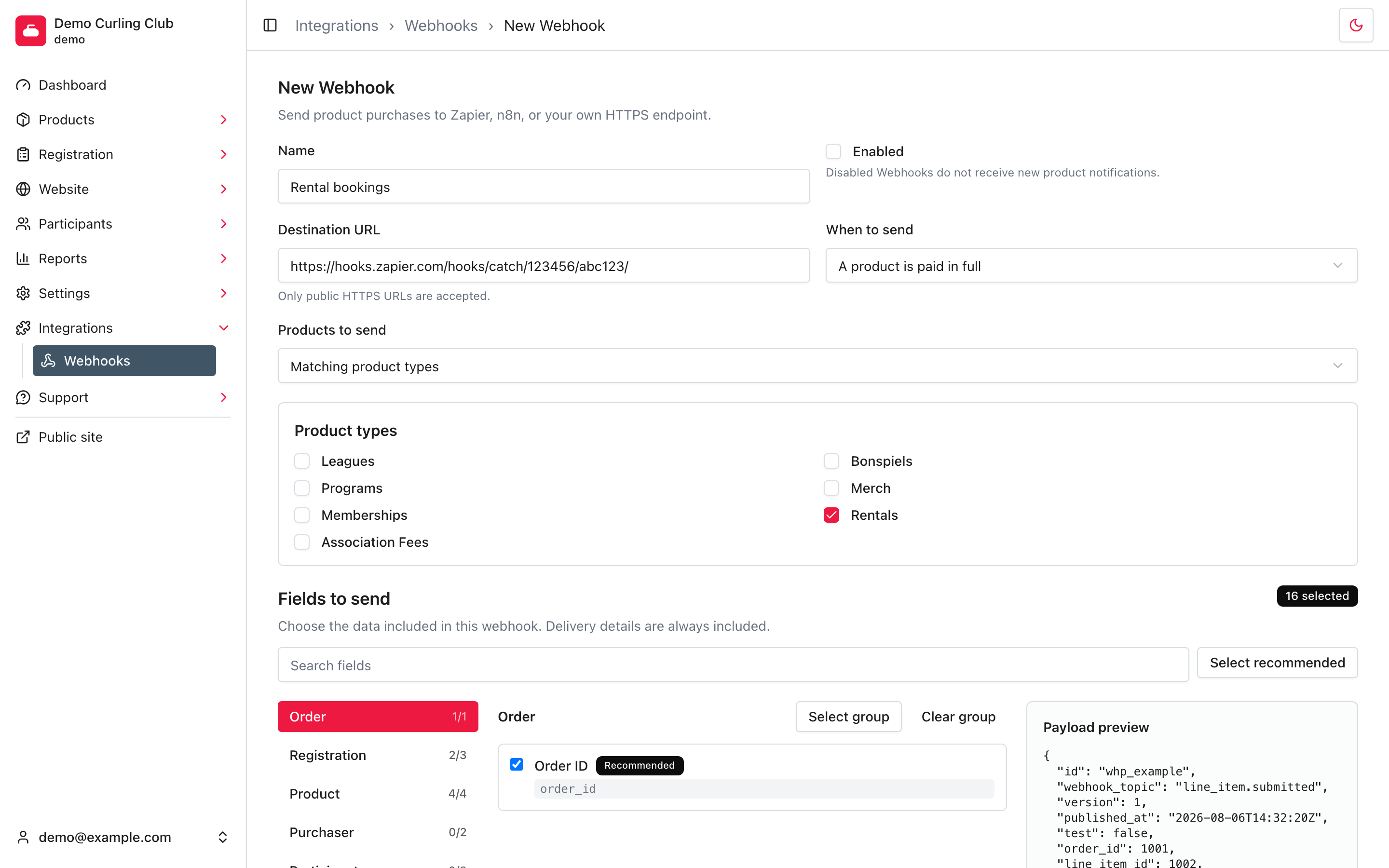
Choose when to send
Choose one When to send option:
- A product is submitted: Sends after checkout finishes, including free and immediately paid products.
- A product is paid in full: Sends the first time the product line item is fully paid.
- A product is cancelled: Sends when a refund allocation cancels the product line item. A reduction does not send this notification.
- A product is rescheduled: Sends when an administrator changes a purchased product's start time in the calendar.
If the receiver needs more than one notification, create a webhook for each one. They can use the same destination URL.
Choose which products can send
Choose one Products to send scope:
- Every product
- Matching product types
- Any selected products
Several selected product types or products mean any of them may match. Rentals and add-ons work like other products. For example, select the Rentals product type to send every rental purchase, or select four individual rental products to send only those four.
Choose fields to send
Fields to send controls which purchase data is stored with the delivery and sent to the destination. New webhooks start with 16 recommended fields covering the order, registration, product, pricing, and schedule. Purchaser and participant information is not selected by default.
Use the groups or search box to find a field. Select group adds every field in the open group, Clear group removes them, and Select recommended restores the default selection. The payload preview updates immediately. You must select at least one field.
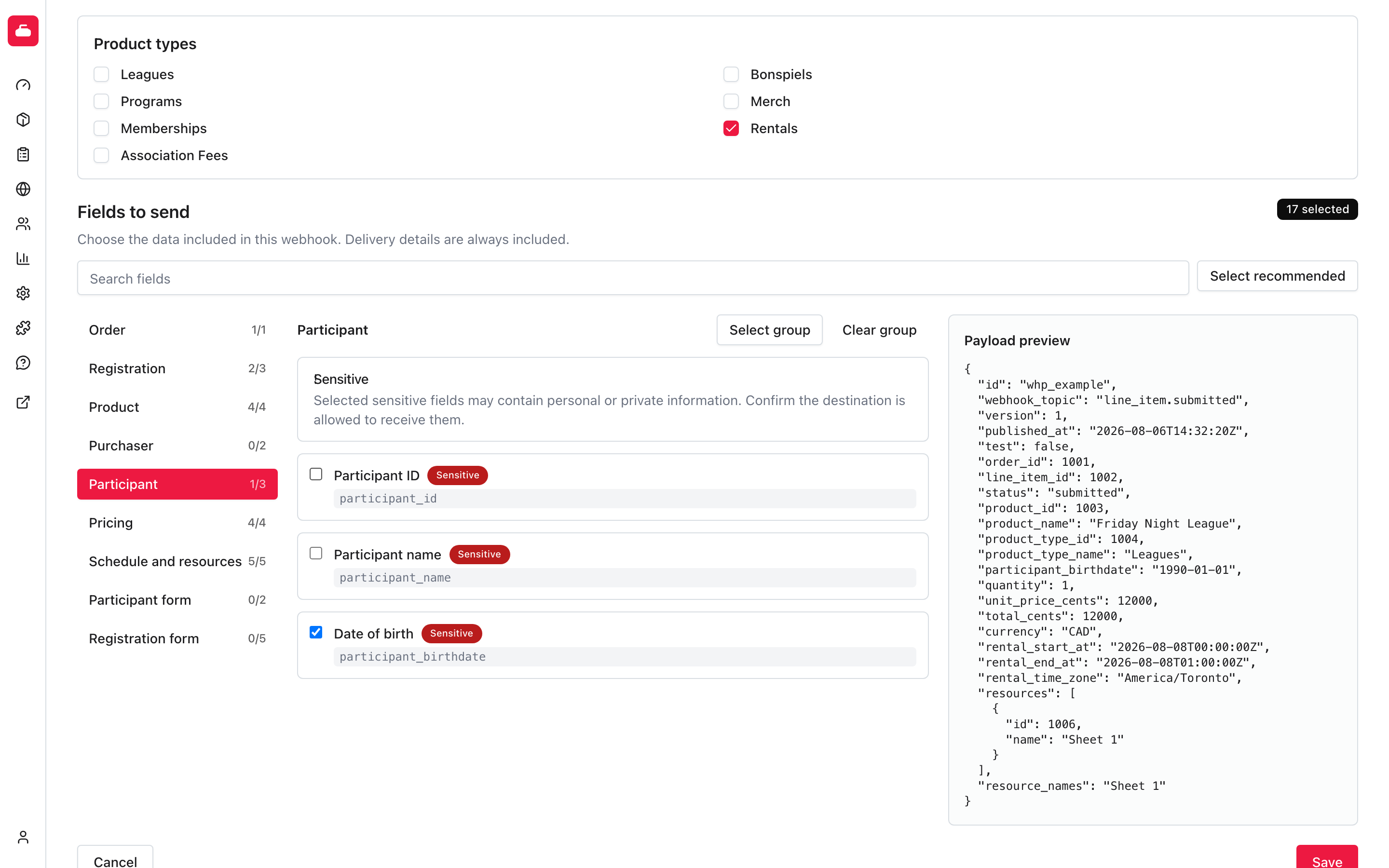
The available groups are:
- Order: Order ID.
- Registration: Registration ID, parent registration ID, and status.
- Product: Product ID, name, product type ID, and product type name.
- Purchaser: Purchaser name and email.
- Participant: Participant ID, name, and date of birth.
- Pricing: Quantity, unit price, total, and currency.
- Schedule and resources: Start, end, time zone, resources, and resource names.
- Participant form: The participant fields and custom participant questions configured by the organization.
- Registration form: The custom registration questions used by the organization's products.
Purchaser and participant fields are marked Sensitive. Custom participant and registration questions are marked May be sensitive because their contents depend on the question. Selecting either type displays a warning but does not prevent saving. Your organization is responsible for confirming that the destination is allowed to receive the selected information.
Curling IO accepts only public HTTPS destination URLs, so the request is encrypted while it travels from Curling IO to the receiver. HTTPS does not control what happens after delivery. Curling IO has no control over how Zapier, n8n, or another receiving service stores, uses, retains, or shares the data, and is not responsible for that third-party handling. Your organization is responsible for choosing the service and deciding which fields to send to it.
Passwords, authentication tokens, payment card data, payment-provider secrets, internal notes, attachments, unrelated registrations, and unrelated customer records are not selectable. Curling IO does not store account passwords.
If a saved custom question is later removed from the organization, the webhook editor shows that selected field as unavailable instead of silently replacing the selection.
Set up Zapier
Webhooks by Zapier is a Premium Zapier app and requires a paid Zapier plan.
- Create a Zap and choose Webhooks by Zapier as the trigger.
- Choose Catch Hook. Curling IO sends parsed JSON, so Catch Raw Hook is not normally needed.
- Copy the webhook URL shown by Zapier.
- In Curling IO, create a disabled webhook and paste the URL into Destination URL.
- Choose the fields the Zap needs, save the webhook, then select Send test.
- Return to Zapier and select Test trigger. Review the received record and map its fields into later steps.
- Publish the Zap, then enable the webhook in Curling IO.
The recommended selection includes resources, an array containing resource
IDs and names, and resource_names, the same names as comma-separated text.
The test delivery includes two resources so Zapier can discover the repeated
resource fields.
Zapier gives every Catch Hook a hard-to-guess URL. Treat that URL like a
password. Anyone who has it can trigger the Zap. Zapier may return 404 after
the receiving Zap is turned off or deleted. See Zapier's
webhook documentation.
Set up n8n
- Add an n8n Webhook node to a workflow and set its HTTP method to
POST. - Select Listen for test event, then copy the HTTPS Test URL.
- Create a disabled webhook in Curling IO with that URL and choose the fields the workflow needs.
- Save the webhook and select Send test while n8n is listening.
- Confirm that n8n received one JSON object, then map its fields into the next nodes.
- Copy the webhook node's Production URL into Curling IO and save the change.
- Activate the n8n workflow, then enable the Curling IO webhook.
The n8n Test URL only works while the editor is listening. The Production URL works when the workflow is active. A self-hosted n8n endpoint must be reachable from the public internet over HTTPS. See the official n8n Webhook node documentation.
Test before enabling
Send test sends a representative rental purchase through the same payload
builder, queue, HTTP request, retry, and signature path as a real notification.
It uses the webhook's saved field selection, ignores the product filter, and
can run while the webhook is disabled, as long as it hasn't been deleted. A
queued test is suppressed if you delete the webhook before it runs. The payload
has test: true, so a custom receiver can keep test work separate.
Changing the field selection requires saving the webhook before sending another test.
Delivery and retries
Curling IO sends one JSON object with Content-Type: application/json. Any
2xx response succeeds. Network failures, timeouts, 408, 429, and 5xx
responses are tried up to five times. Other 4xx responses fail immediately.
Each delivery has a lifetime limit of 20 attempts, including manual retries.
When fewer than five attempts remain, a retry uses only those remaining calls.
At 20 attempts, you can't retry that delivery again.
Delivery is at least once. A receiver can accept a request before Curling IO
sees its response, so the same webhook publication may arrive more than once.
Deduplicate with the payload's id field. Do not depend on delivery order.
Every delivery stores its exact request body. A retry sends that same body even if the webhook selection, registration, participant, product, or schedule has changed since the original delivery.
Reschedule notifications wait ten seconds before delivery. If the same product
is rescheduled again during that window, Curling IO sends only the latest
schedule to that webhook. Each destination is handled independently. A call
that has already started cannot be replaced, so receivers must still tolerate
duplicate or out-of-order calls. Select Registration ID and use
line_item_id when the receiver needs a stable product-purchase key.
The administration page shows the last 50 webhook deliveries. A failed retained delivery can be queued again manually while its webhook is enabled, its payload is retained, and fewer than 20 attempts have been made. Payloads and detailed delivery data are removed after 30 days.
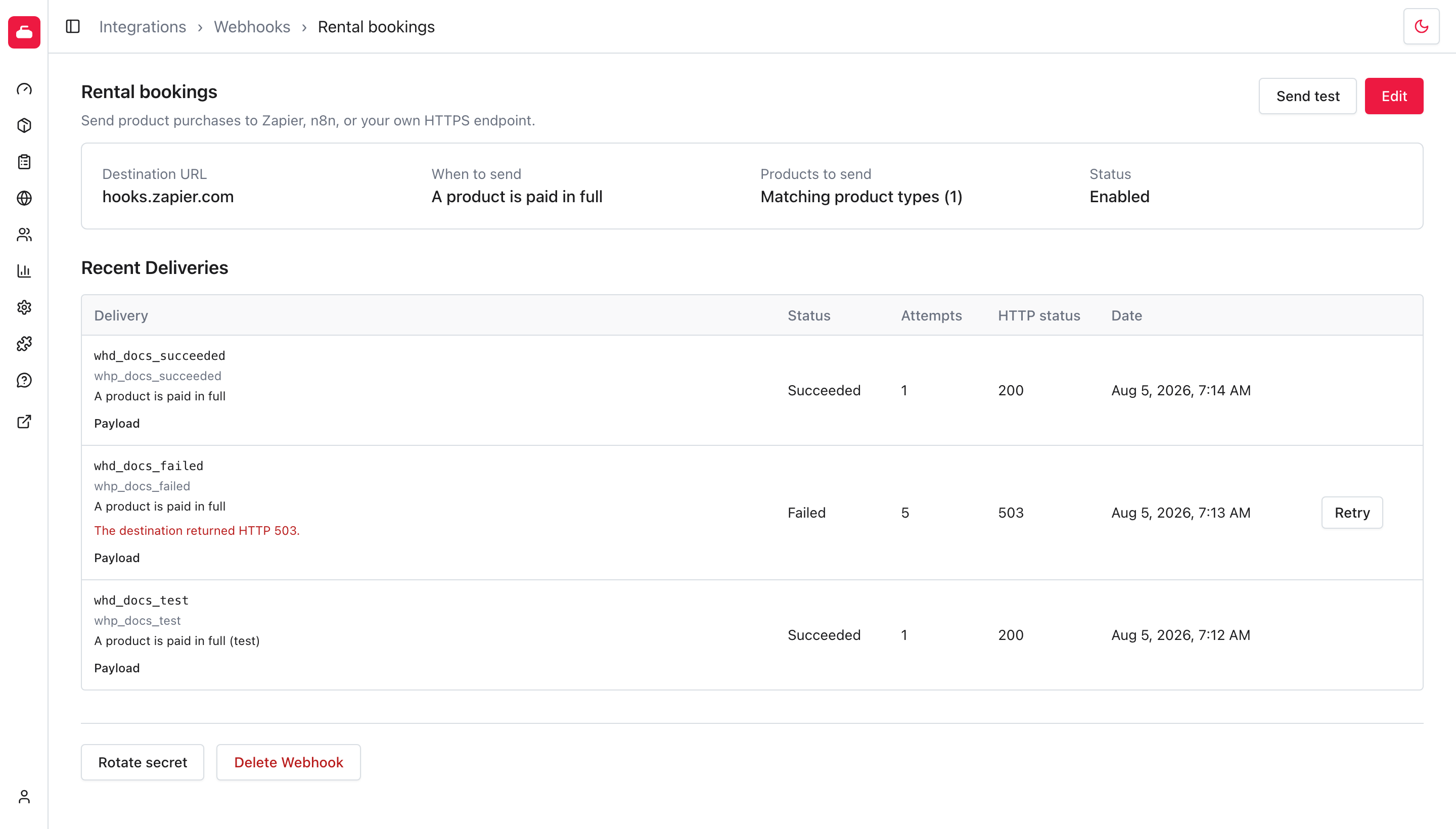
The delivery list shows the result, attempt count, HTTP status, and request payload. Select Retry after fixing the receiver for a failed retained delivery.
Disabling or deleting a webhook stops new notifications. A queued ordinary delivery is suppressed before its next call when the webhook is disabled. If Premium ends, Curling IO keeps the configuration but creates no new webhook work. Calls already queued while Premium was active may finish.
Payload
The payload preview beside Fields to send shows the JSON body as you change the selection. It uses representative values, not information from an actual purchase, and does not send anything to the destination. Selecting a field adds its key to the preview. Clearing a field removes its key.
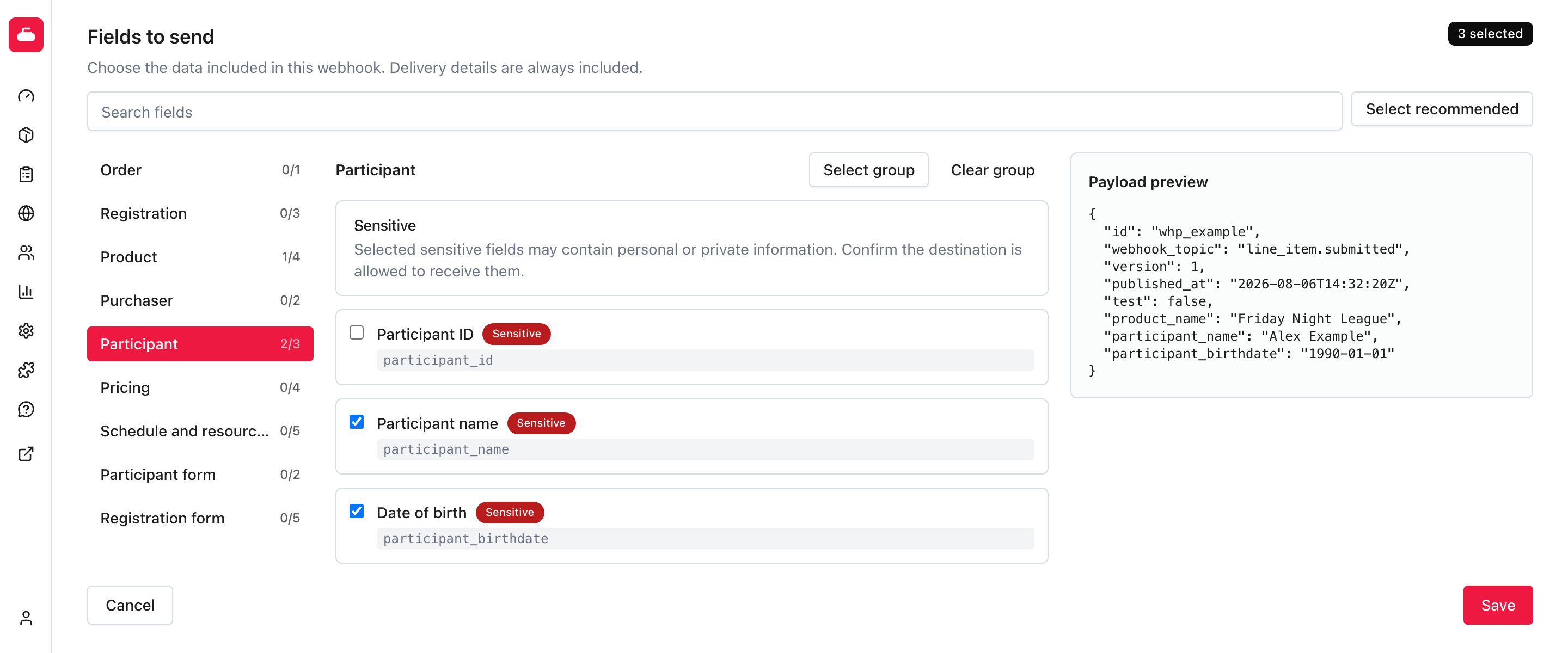
The example above uses a small selection so the complete body is visible. Every payload includes these delivery fields, even when they are not selected. They cannot be removed:
id: The webhook publication ID used for deduplication.webhook_topic: The saved notification topic.version: The payload format version.published_at: The UTC publication time.test: Whether Send test created the delivery.
The remaining keys come from Fields to send. Unselected keys are omitted. A
selected scalar with no value is null. A selected collection with no values
is an empty array. The preview updates before saving, but Send test and real
notifications use the last saved selection.
This example uses the recommended selection:
{
  "id": "whp_opaque_publication_id",
  "webhook_topic": "line_item.submitted",
  "version": 1,
  "published_at": "2026-08-01T00:55:00Z",
  "test": false,
  "order_id": 501,
  "line_item_id": 902,
  "status": "submitted",
  "product_id": 73,
  "product_name": "Corporate Ice Rental",
  "product_type_id": 8,
  "product_type_name": "Rentals",
  "quantity": 1,
  "unit_price_cents": 24000,
  "total_cents": 24000,
  "currency": "CAD",
  "rental_start_at": "2026-08-08T00:00:00Z",
  "rental_end_at": "2026-08-08T01:00:00Z",
  "rental_time_zone": "America/Toronto",
  "resources": [
    { "id": 1, "name": "Sheet 1" },
    { "id": 2, "name": "Sheet 2" }
  ],
  "resource_names": "Sheet 1, Sheet 2"
}
Participant form and registration form answers use stable flat keys. For
example, a participant question stored as accessibility is sent as
participant_question_accessibility. A registration question stored as
event_name is sent as registration_question_event_name.
Verify signatures
Curling IO shows a signing secret after webhook creation or secret rotation. Copy it then because it is not shown again.
The curlingio-webhook-signature header has this form:
t=1754009700,v1=hexadecimal_hmac
To verify it:
- Read the raw request body without parsing or reformatting it.
- Join the timestamp, a period, and the raw body:
<timestamp>.<raw_request_body>. - Calculate HMAC-SHA256 with the signing secret.
- Compare the hexadecimal result with
v1using a constant-time comparison. - Reject timestamps outside your chosen tolerance to limit replay.
The request also includes curlingio-webhook-topic,
curlingio-webhook-publication, curlingio-webhook-delivery, and
curlingio-webhook-version headers. Rotating the signing secret invalidates the
old secret for future delivery attempts.