Survey your affiliated organizations
Open Reports > Surveys to collect feedback from administrators at your association's active, directly affiliated organizations. Association surveys can include free-text questions and named responses. They differ from club member surveys, which show aggregate results only.
You need association manager access and at least one active affiliated organization. Membership associations receive Premium access. The audience is organization administrators, not every curler at those clubs or administrators of more distant organizations in the hierarchy.
Prepare the survey
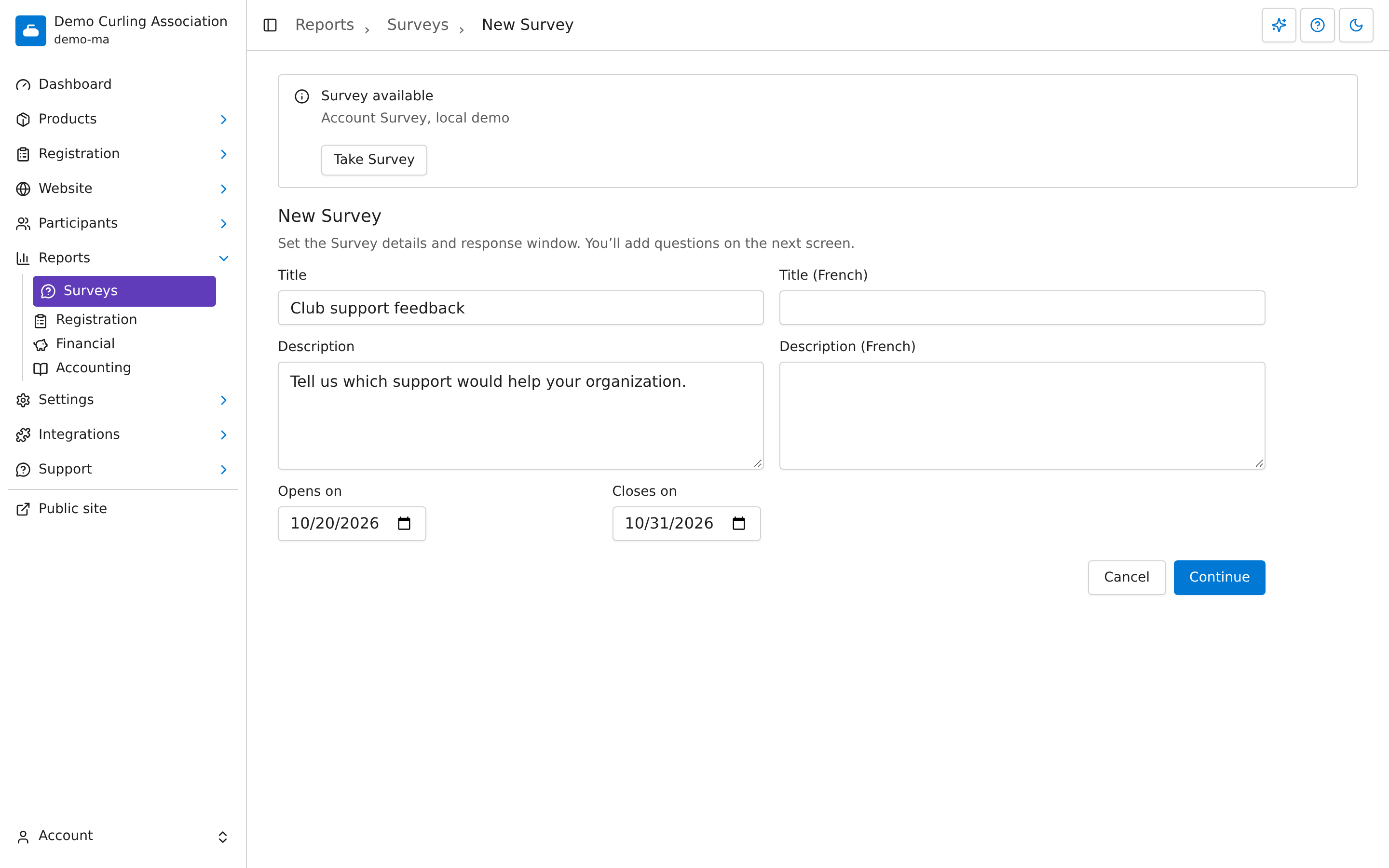
- Open Reports > Surveys, then select New Survey.
- Enter Title and Description, including French versions if needed. Explain who will see the answers, especially when asking for written feedback.
- Set Opens on after today and Closes on to that date or later.
- Select Continue to open the Form builder.
- Select New question, or add a saved question from Questions.
- Enter the question's Name, optional Hint and Type. Unlike a club member survey, an association survey can use free-text questions.
- Select Save in the question editor. Arrange the questions and choose Required where needed.
- Select the form's Save, then select Back. Open Preview on the survey overview.
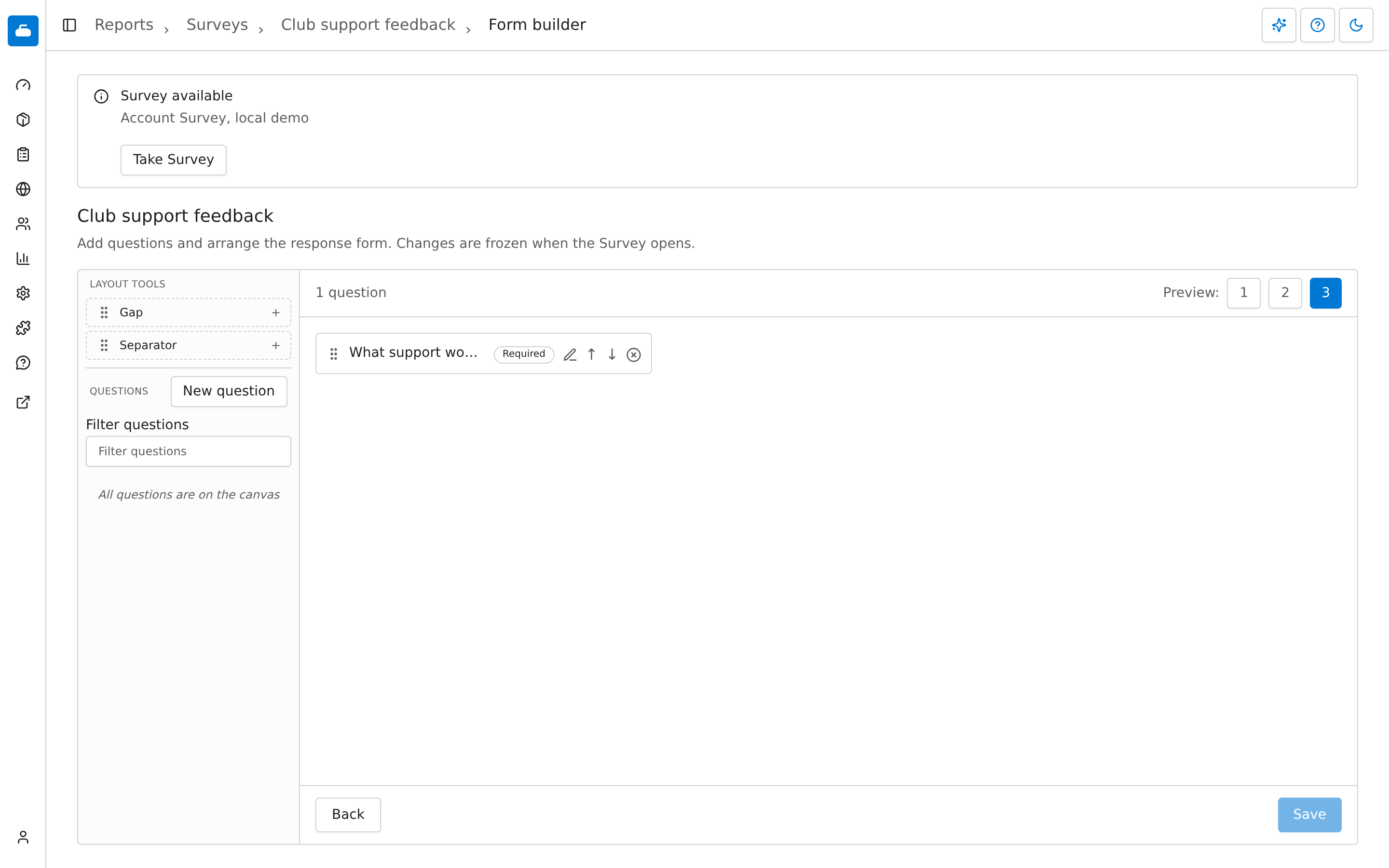
Save twice when you edit a question on a prepared form: first save the question in its editor, then save the form. The library and prepared survey are saved separately. Check Preview after the form save to see the updated wording and hints. Back returns to the overview; Info lets you edit the details.
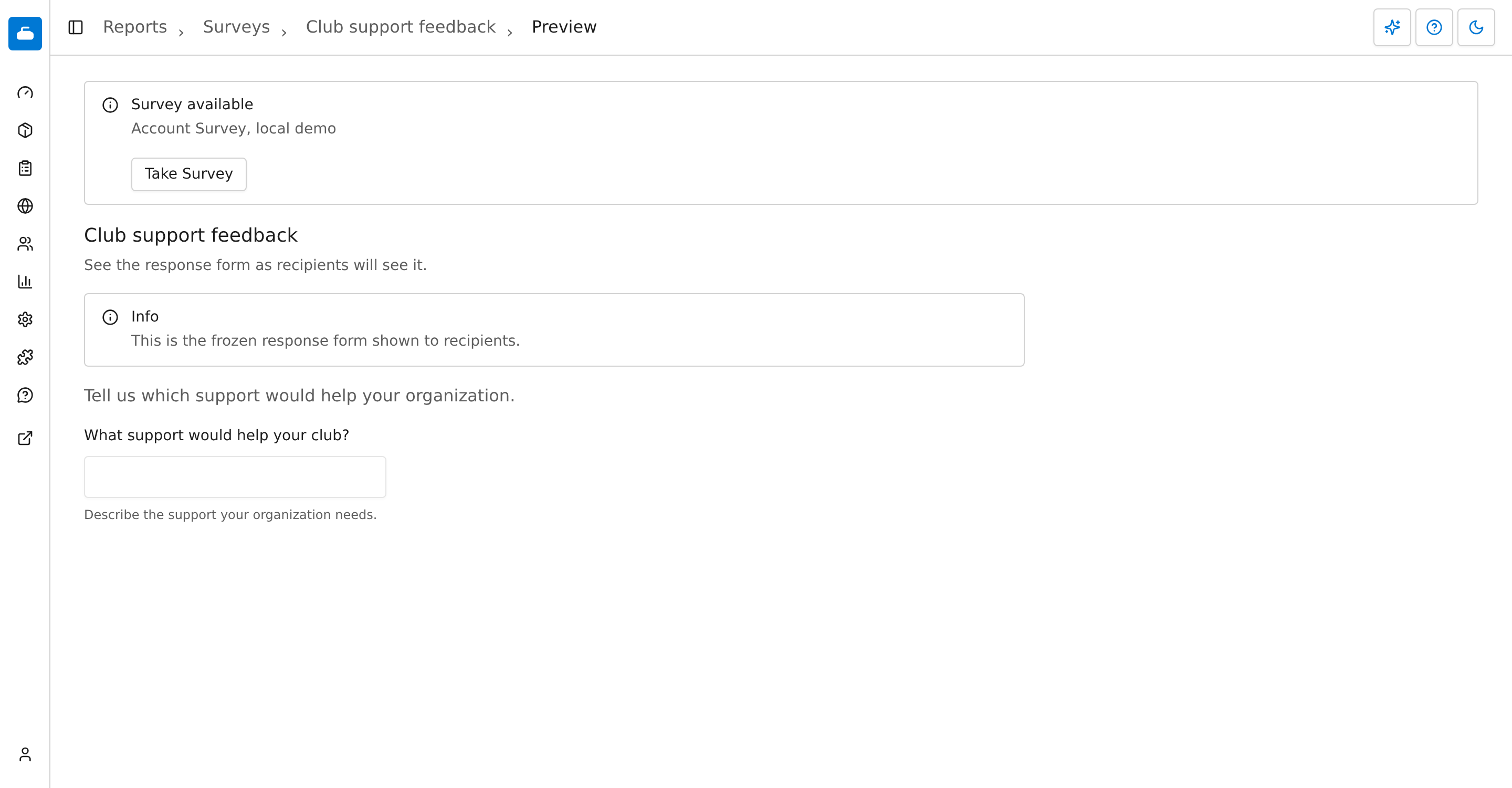
Finish preparation before the opening date. Opening freezes the details and form. Administrators can respond through their accounts from the opening date through the closing date, using the association's time zone. Saving the form doesn't send email invitations. Use the account instructions when helping someone find their survey.
Read the results
Select Responses on the survey overview. Check the response count and Organizations responded, then choose the view that fits your question:
- Organization weighted gives every responding organization equal influence, even when several of its administrators answer.
- Individual responses counts the administrators' answers separately.
Question summaries show how many organizations contributed and how many individual answers were received. Optional questions can have fewer answers than the whole survey. Written answers include the organization, respondent name and email. Under Respondents, open a response to review that person's saved answers. Treat those answers as identifiable information when sharing results.
On the survey list, Copy starts another survey from an existing one. Review its dates and questions before saving. Delete removes a survey with no responses; Archive is offered when responses exist.