Email Broadcasts
Email Broadcasts let you send one message to a targeted group of account holders based on their purchases. Use them for schedule changes, registration reminders, payment reminders, event information, and other messages that should reach everyone connected to a product or payment status.
Each purchasing account receives one email even when it bought several matching products. Purchases without a participant are included. When staff buy for someone else, the staff account receives the message unless it is opted out. Curling IO sends the message to the account holder's verified sign-in email address and excludes accounts that have opted out or cannot receive broadcast email.
People added to a club role start opted out of their club's broadcasts when they're added, including through a club claim. They can opt back in through Notification Preferences. Product managers keep their existing preferences.
A bounce or complaint that blocks broadcast delivery also queues an immediate Mailchimp update to unsubscribe the matching contact, when the club syncs with Mailchimp.
You can create or clone an Email Broadcast with Premium or an available Platform Credit balance. Sending requires enough credits for the selected recipients. Your broadcast history remains available without Premium. Learn about Premium access.
Walkthrough video
The following video shows you how to choose recipients, write and format the message, send an Email Broadcast, review its delivery details, investigate a failure, and clone an earlier broadcast.
Before you send
Email Broadcasts are sent immediately. There is no draft, scheduling, recall, or edit-after-send step, so review the recipient preview, Subject, and body before selecting Send Email Broadcast.
Each recipient uses one email credit from your available allowance. For example, a broadcast to 75 account holders requires 75 email credits. Curling IO prevents the broadcast from being created when the allowance is too low for the selected recipients.
New broadcasts default the From date to the beginning of your current season. This keeps older registrations out of the recipient list unless you choose to include them. Clear From date when you intentionally want to search all seasons.
Open Email Broadcasts
Go to Participants > Email broadcasts.
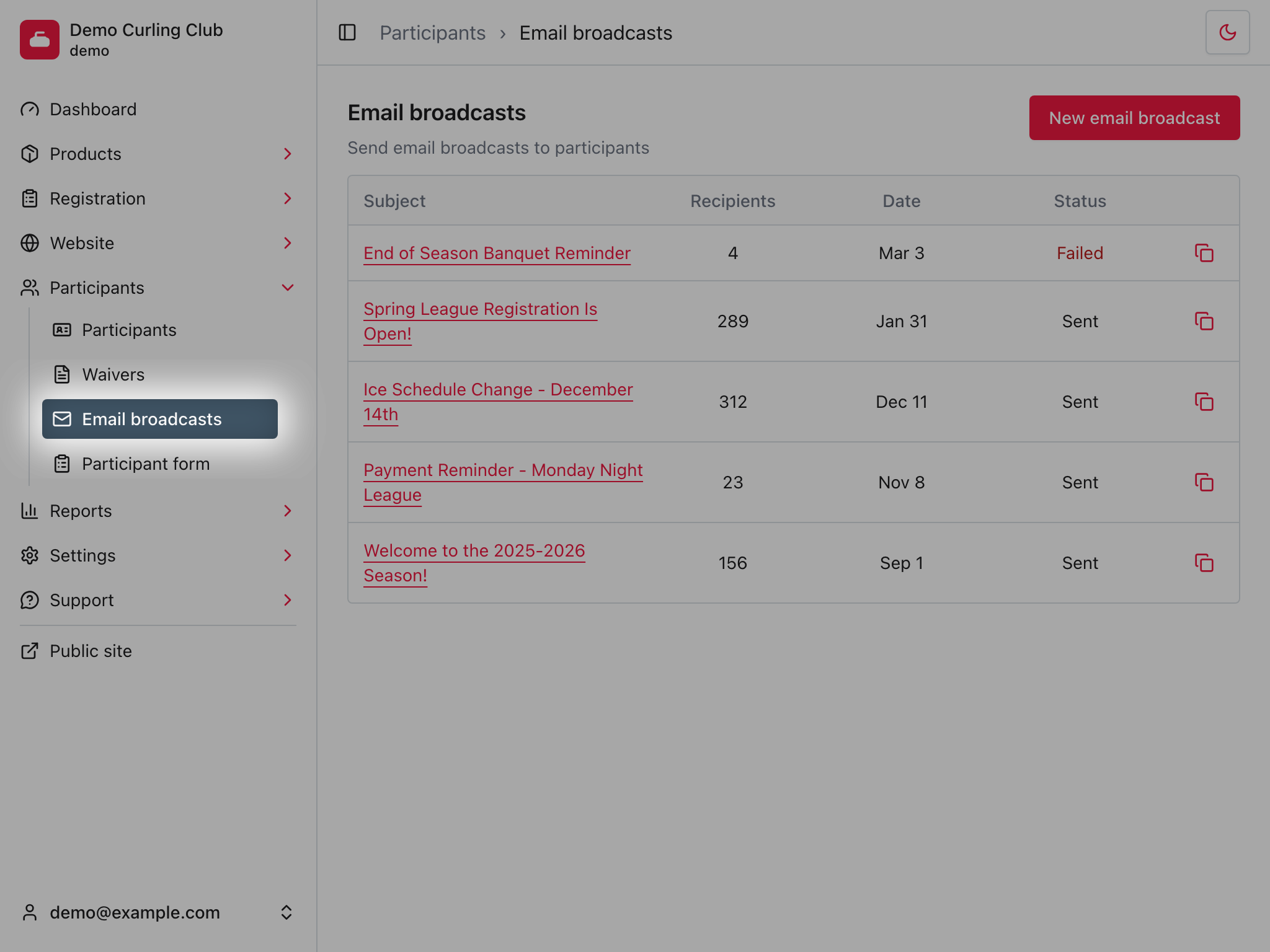
The history is ordered by creation date, newest first. Select a Subject to review that broadcast. Select Clone when you want to reuse a previous message and its filters as the starting point for a new broadcast.
Create an Email Broadcast
Select New email broadcast to open the composer.
Choose the recipients
Use the filters at the top of the composer to define who should receive the message:
- Product type limits recipients to accounts that purchased any matching product in that category. When you describe a category to the assistant, use the displayed name in your current language, such as Leagues or Ligues. Internal URL slugs are not assistant input.
- Payment status limits recipients based on the matching order. Owing includes submitted and partially paid orders.
- From date includes registrations created on or after that date.
- To date includes registrations created on or before that date.
- Product optionally narrows the resulting audience to one product. Use the keyword field to filter the available product list, then select one product or leave All matching products selected.
Product type, payment status, and dates update the available product list as you change them. Product keyword filtering happens immediately in the browser. All leaves an upstream filter unrestricted.
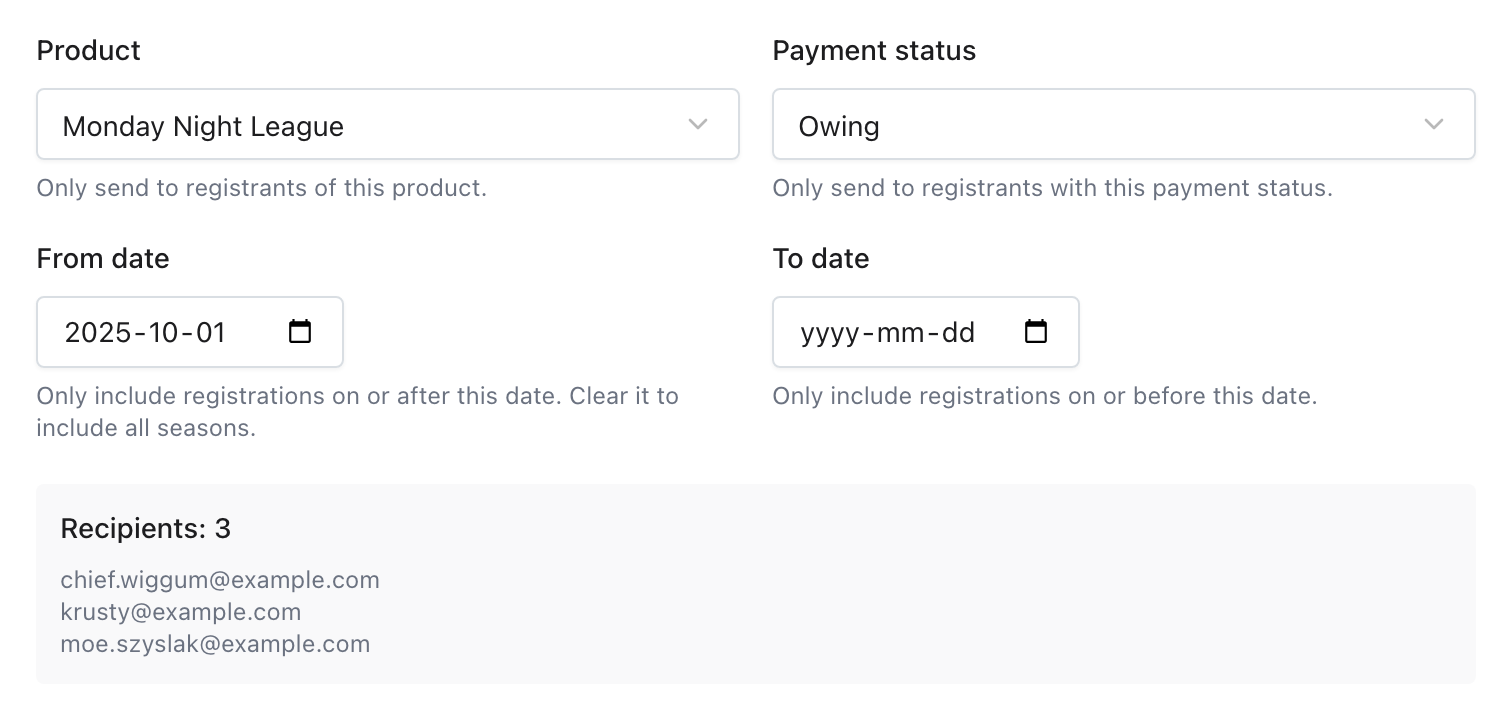
The Recipients count updates automatically. Curling IO also shows up to five matching sign-in email addresses so you can spot an unexpected audience before sending. Multiple matching purchases made by the same account are deduplicated into one recipient.
If the count is wrong, adjust the filters before writing or sending the message. A zero-recipient broadcast cannot be sent.
Ask the AI assistant for help
Select the Help question-mark button in the top-right corner, then select Ask AI for help with this task. The assistant opens beside the composer so you can keep reviewing and changing the broadcast yourself.
Tell the assistant who you want to reach and what you want to say. You can answer follow-up questions in the same conversation. As the assistant learns what you mean, it updates the recipient filters, Subject, and Message in the composer. It keeps the earlier conversation and the current form values as context, so a later answer adds to your request instead of replacing it. Press Enter to send a message, or Shift+Enter to add a new line.
The assistant cannot approve or send the broadcast. Close the assistant at any time, review or edit what it prepared, then select Send Email Broadcast yourself when the audience and message are correct. Select Open documentation from the Help menu when you want these instructions instead.
Write the message
Enter the email Subject, then select Body to open the Markdown editor. Write the message and compare it with the formatted result in Preview or Side-by-side view. Select Apply to return the body to the broadcast form. Applying the body does not send the broadcast.
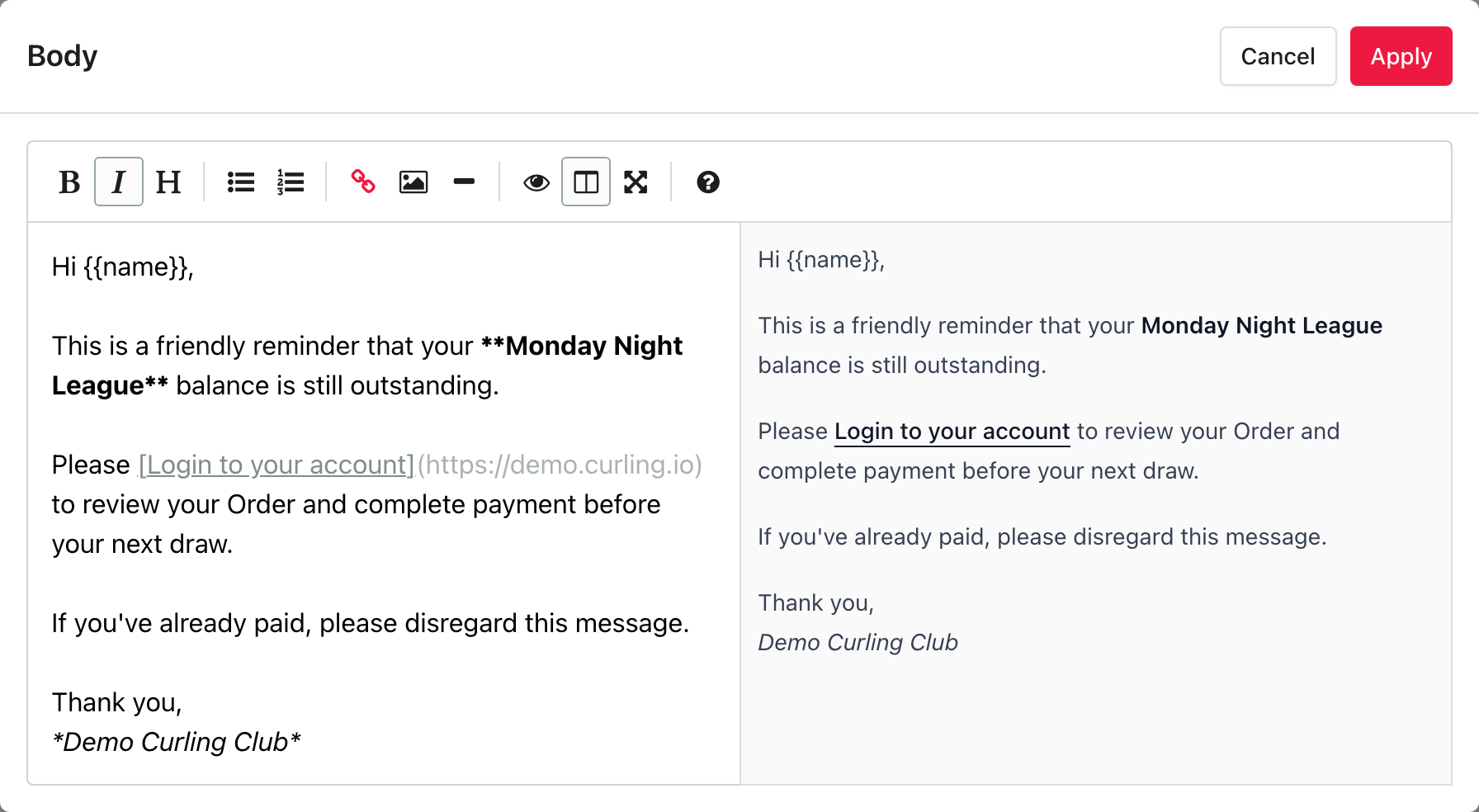
The body supports Markdown. Plain text works as written, and you can use Markdown when you need formatting such as:
**bold text***italic text*- Bulleted or numbered lists
[link text](https://example.com)- Headings that begin with
##
Use {{name}} or [name] to insert each account holder's name. The name comes
from the account that purchased the matching order.
Keep the Subject specific enough that the recipient understands why the message matters. In the body, include the important date, action, and contact information directly instead of relying on the Subject alone.
Send the broadcast
Check the recipient count, preview addresses, Subject, and body one last time. Then select Send Email Broadcast.
Curling IO returns you to the Email Broadcasts list and queues the message for delivery. The new row starts as Pending, then changes to Sent or Failed after the email provider responds.
Review a previous broadcast
Select a Subject from the Email Broadcasts list to review its delivery status, recipient count, saved filters, and complete message body.
For a successful broadcast, the detail page shows when it was sent. For a failed broadcast, the list deliberately shows only Failed. Open the broadcast to see the underlying error message.
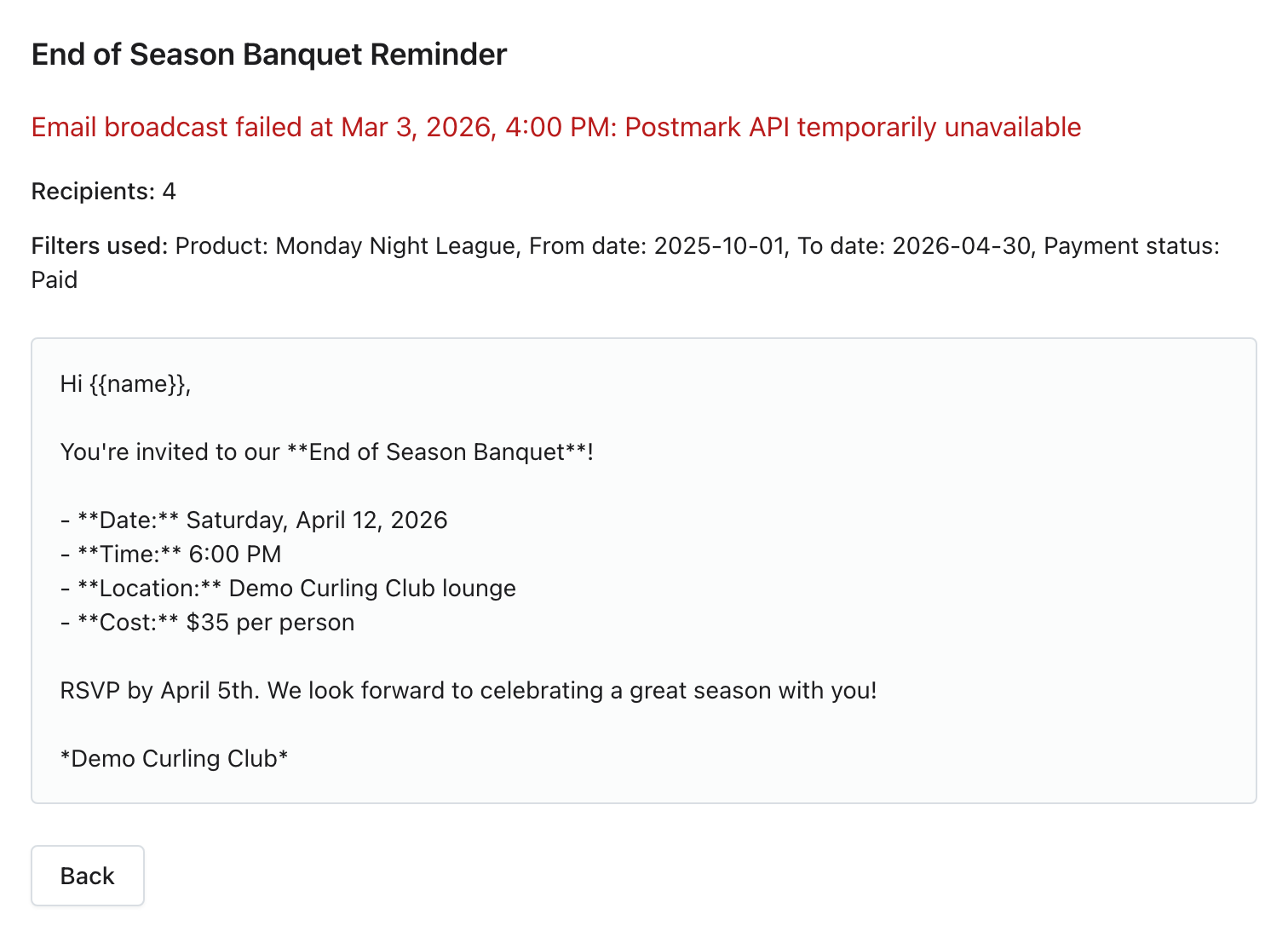
The error can help you distinguish a delivery-provider problem from an issue with the message or your setup. After correcting the problem, return to the list and select Clone to create a new copy. Review its current recipients before sending because purchase records, payment statuses, opt-outs, and email addresses may have changed since the original broadcast.
Troubleshooting
No recipients match the filters
Clear or broaden one filter at a time. Check From date first because new broadcasts default to the current season. Then check the product and payment status. The recipient preview updates after each change. When no recipients match, the Subject, Message, and Send controls stay disabled until you broaden the filters.
An account is excluded when its matching purchase is not eligible, its default sign-in email address is unverified, it has opted out of broadcasts, or the address has been suppressed after a delivery problem or spam complaint.
Email allowance exhausted
Reduce the recipient group or contact Curling IO about your available email allowance. The broadcast cannot be queued when its recipient count is greater than the remaining credits.
A broadcast failed
Open the failed Subject from the list and read the complete error. Correct the reported problem, then use Clone to prepare another broadcast. Do not send the clone until you have checked its refreshed recipient count and preview.