Participant Form
The participant form controls the profile information collected for every participant in your organization. It appears when an account holder creates or edits a participant, including when registration requires missing participant details.
Use it for information that belongs to the person and should follow them across registrations, such as contact details, allergies, accessibility information, or a participant photo. Use a product's form builder for answers that belong to one purchase, such as a meal choice, preferred draw time, or shirt size for a particular event.
Open the participant form
Go to Participants > Participant form.
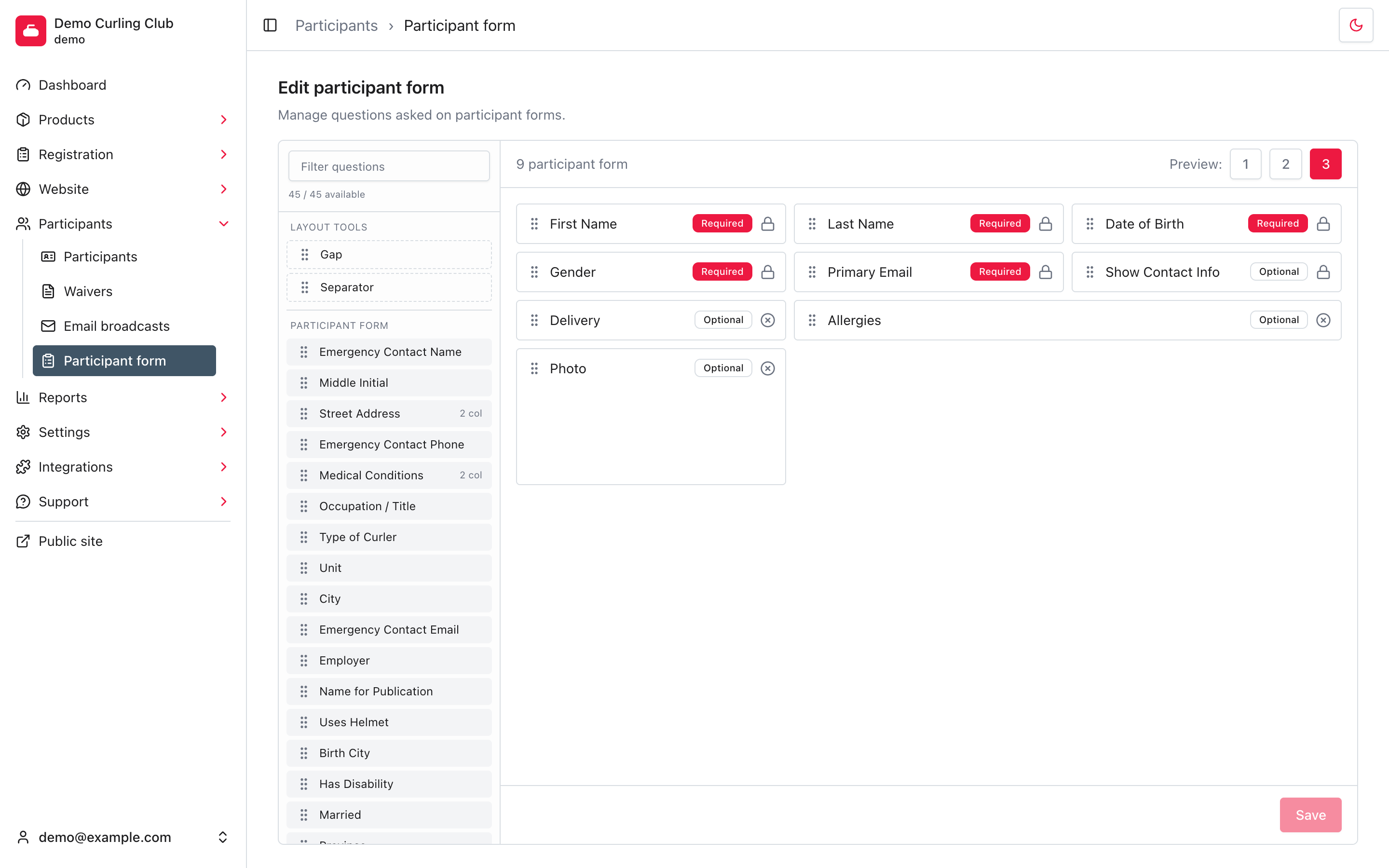
The available panel on the left contains questions you can add. The canvas on the right contains the questions currently collected on participant forms.
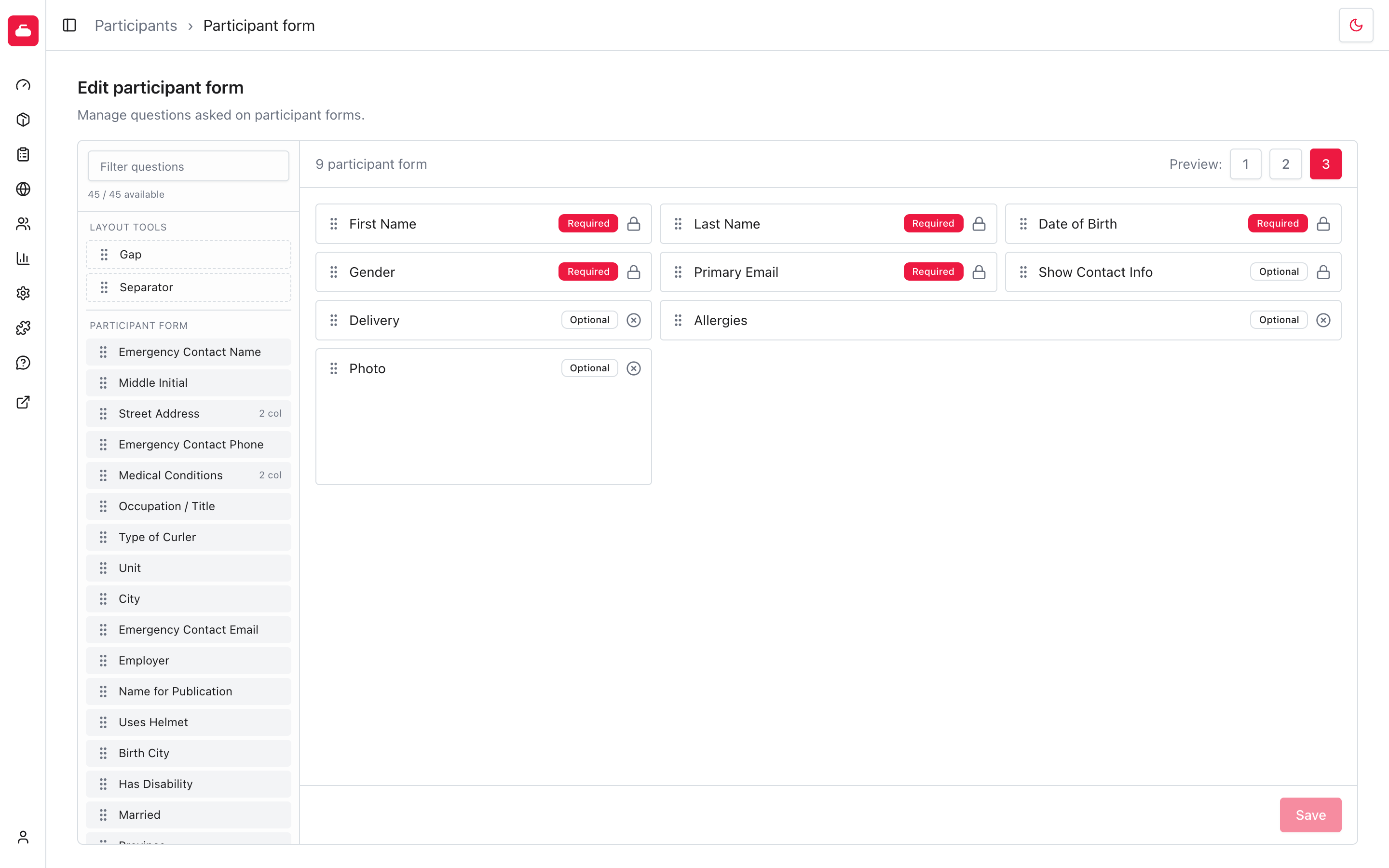
The count above the available panel shows how many questions match the current filter and how many remain available. A question disappears from this panel after you add it to the canvas because the same question cannot appear twice.
Understand the core fields
Six core fields are always part of the participant form. Their lock icons mean they cannot be removed or changed between required and optional.
| Field | Answer requirement |
|---|---|
| First Name | Required |
| Last Name | Required |
| Date of Birth | Required |
| Gender | Required |
| Primary Email | Required |
| Show Contact Info | Optional |
Show Contact Info lets the participant choose whether other members can see their contact details. It stays optional so the participant controls that choice.
Add and arrange questions
- Enter part of a question name in Filter questions when the available list is long.
- Drag the question from the available panel onto the canvas.
- Drop it where the field should appear on the participant form.
- Drag questions already on the canvas to change their order.
- Select Save.
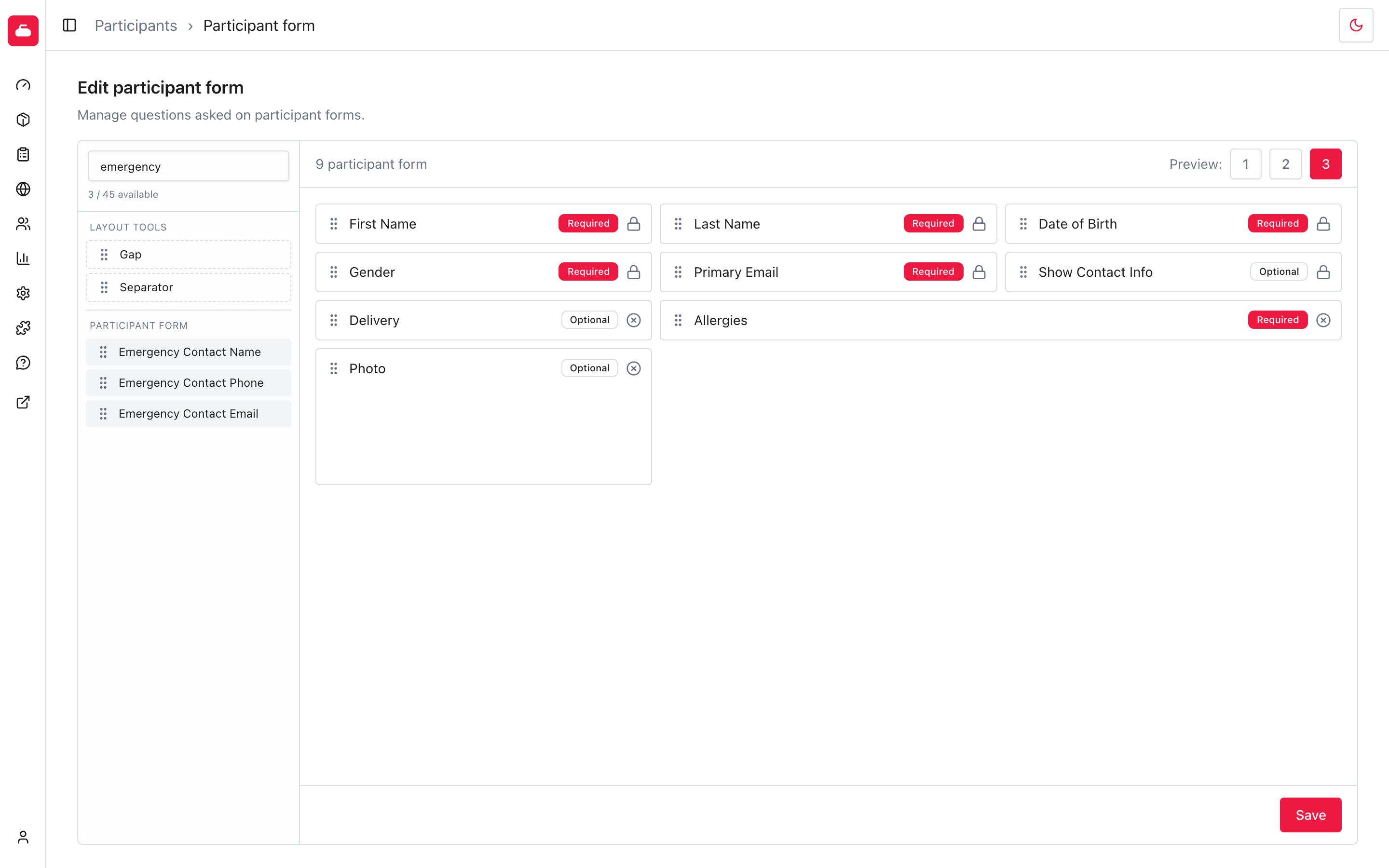
The filter only narrows the available list. It does not remove questions or change the canvas.
The Save button is disabled until the form has unsaved changes. After a successful save, Curling IO briefly shows Form layout saved and disables the button again.
Choose required or optional
Select an unlocked question's Optional or Required badge to switch its answer requirement.
A required field must be completed when Curling IO needs the participant form, including while adding or updating a participant during registration. Changing an existing field to required can therefore interrupt a later registration until the account holder supplies the missing answer.
Only require information you genuinely need. Longer required forms make every registration slower, even when most products do not use the answer.
Be careful with required checkbox questions. A required checkbox forces every participant to check it. If you need an explicit yes-or-no answer, create a Multiple Choice question with No and Yes options instead. See yes-or-no questions for examples.
Preview the responsive layout
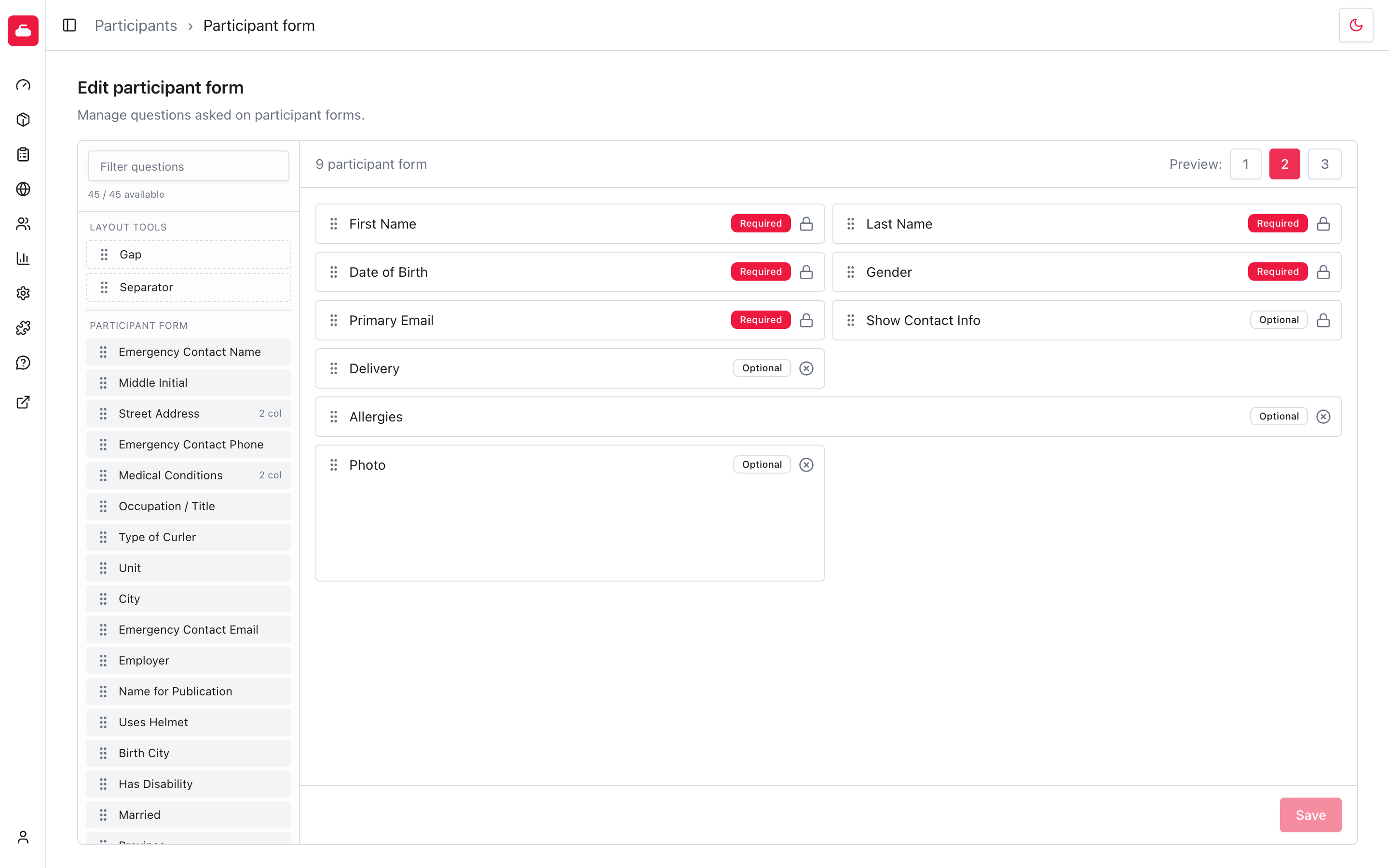
The participant form automatically changes between one, two, and three columns based on the space available. The questions stay in the order shown on the canvas, but Curling IO fits them into the available columns.
Select 1 under Preview to see the narrow layout used on small screens. Every question takes the full width.
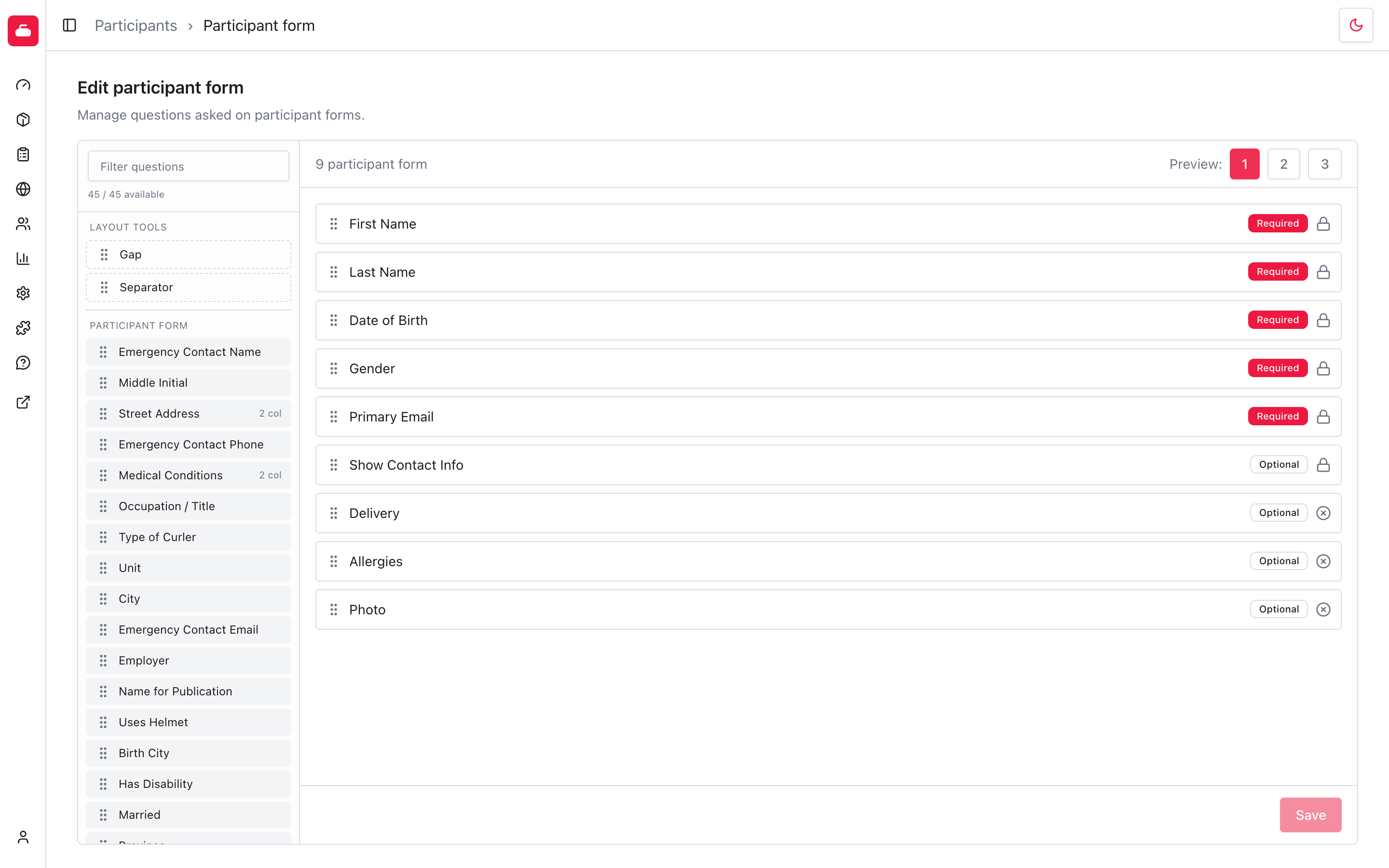
Select 2 to see the medium-width layout.
Select 3 to see the wide layout.
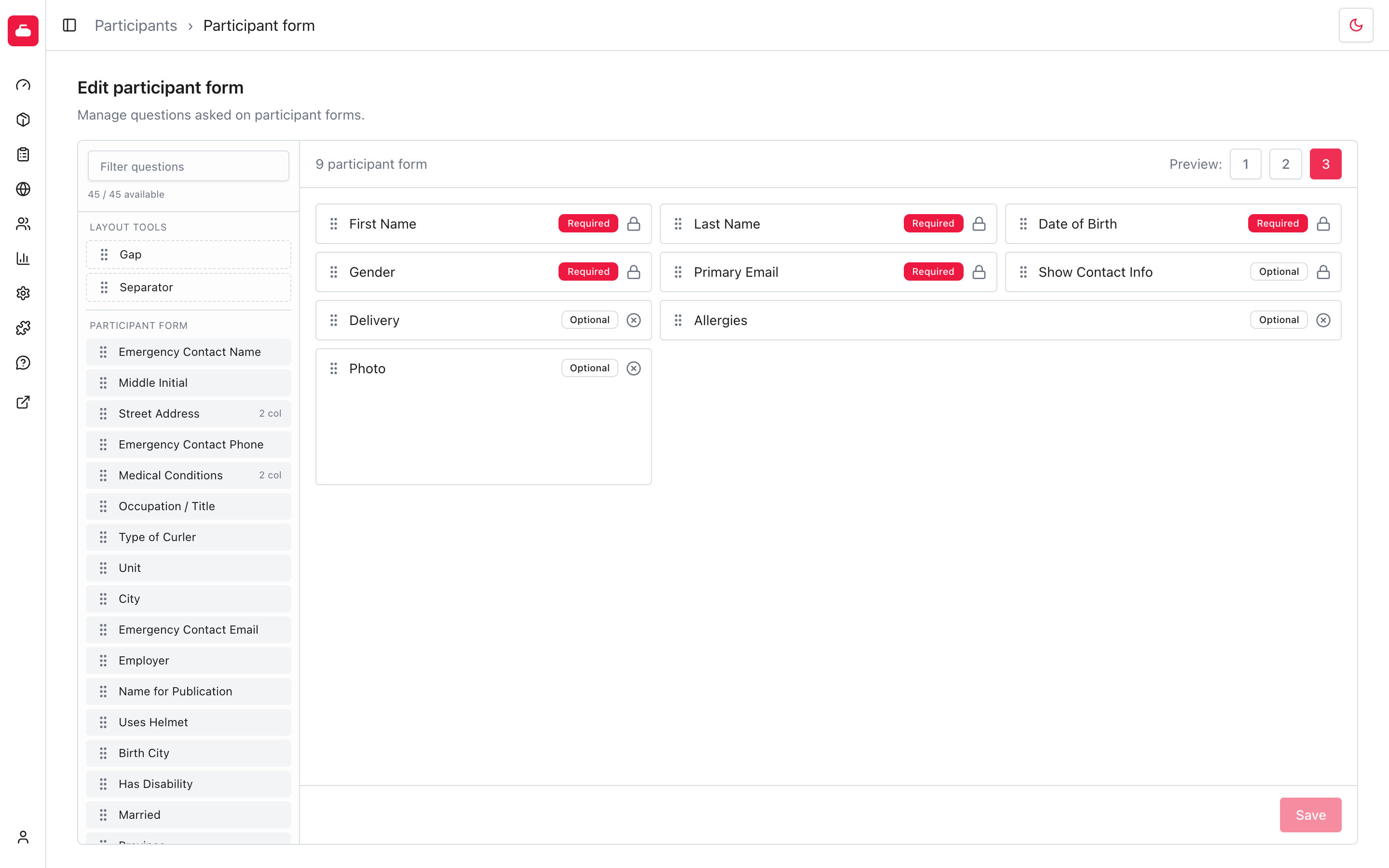
Some questions, such as Allergies, are designed to span two columns when space allows. They collapse to the full available width in the one-column layout. This gives longer answers more room without making the form awkward on a phone.
The preview buttons do not save a preferred column count. Account holders see one column on small screens, two columns on medium screens, and three columns on wide screens automatically.
Use gaps and separators
The Layout tools section contains two reusable items:
- Gap leaves one empty position in a multi-column layout. It has no visible effect when the form has only one column.
- Separator adds a horizontal break across the form.
Drag either tool onto the canvas and place it between questions. You can add more than one. Select its remove icon when it is no longer needed. Use the three previews to check how they behave at each width before saving.
Remove a question
Select the remove icon on an unlocked canvas question, or drag the question back to the available panel. Then select Save.
Removing a question stops asking it on the participant form. It does not delete answers already stored on participant profiles. Re-adding the same question makes those saved answers available again.
The six locked core fields cannot be removed.
Add a custom participant question
The available panel includes Curling IO's predefined participant fields and your organization's custom questions. If the question you need is missing:
- Select New question above the available question list.
- Create the custom question.
- The new question is appended to the canvas automatically.
- Choose whether it is required, then select Save.
Use a custom question here only when the answer should remain part of the participant's profile. A question whose answer can change from one event or season to another usually belongs on the relevant product form instead.
What account holders see
Account holders see the saved fields in the same order when they create or edit a participant. Required fields are marked with an asterisk.
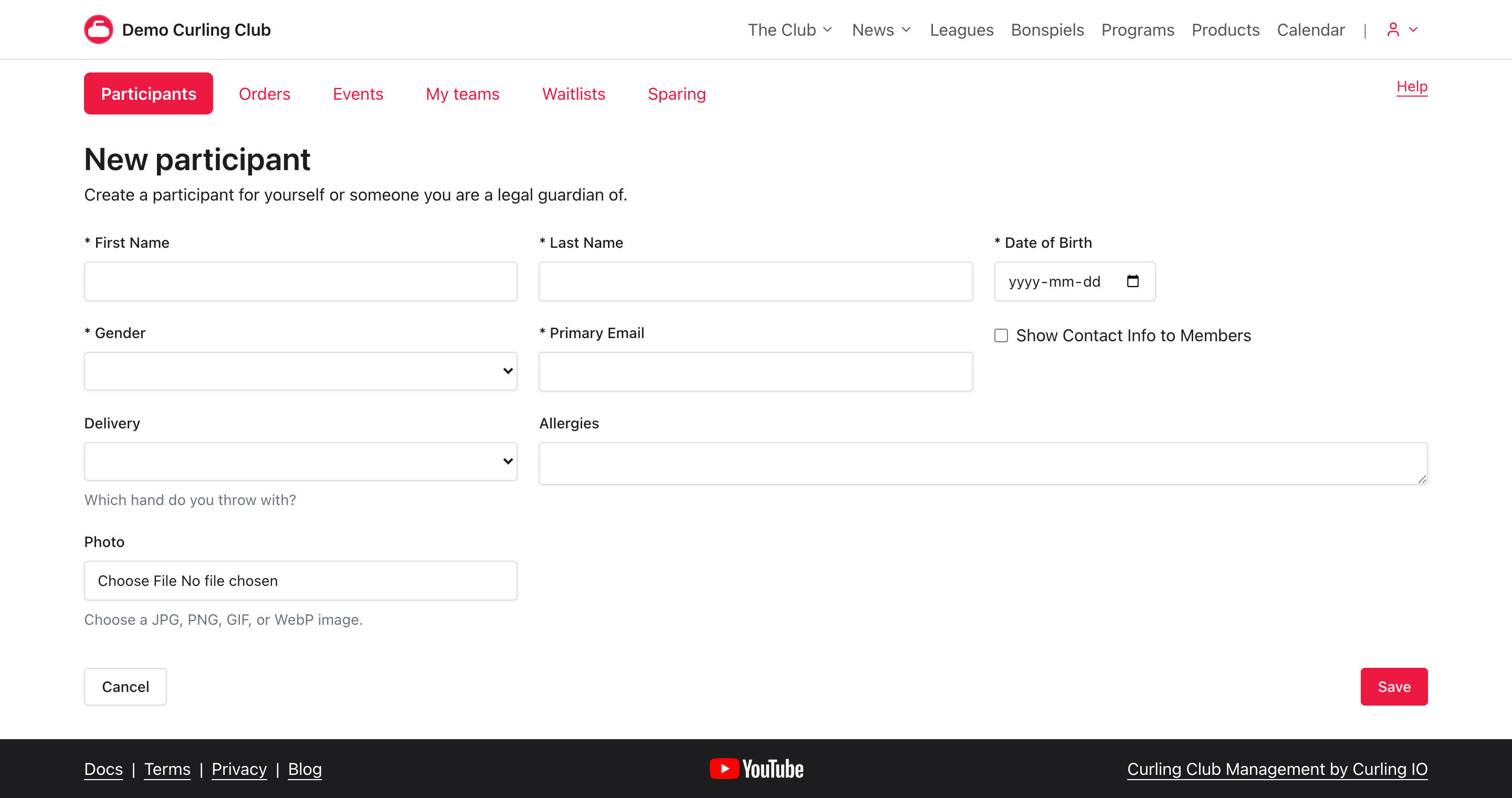
The participant form also appears when registration needs participant details that have not been completed. Answers belong to the participant profile, so the account holder does not need to enter them again for every product.
These screenshots use the Canuck theme. Another theme changes the colours and typography, but the form layout and answer requirements work the same way.
Change a live form carefully
Review the form before adding required fields while registration is open. An account holder with an existing participant may need to provide the new answer before continuing.
Prefer creating a new custom question when the meaning of an answer has changed. Renaming an existing question is appropriate only when the stored answers still mean the same thing. Otherwise, old and new answers become hard to distinguish in profiles, exports, and reports.
Troubleshooting
A question is missing from the available panel
Clear Filter questions and check the canvas. Questions already on the form do not appear in the available panel.
If it is a custom question, use its pencil action and confirm that Participant form is enabled under Use this question in. A question already on the canvas does not also appear in the available list.
A question cannot be removed or changed
Look for a lock icon. The six core participant fields have fixed answer requirements and cannot be removed.
Save is disabled
The form has no unsaved changes. Add, remove, reorder, or change an unlocked question's answer requirement before selecting Save.
A participant is being asked for information during registration
The participant profile is missing a field currently marked required. Complete the field to continue, or return to Participants > Participant form and make it optional if your organization does not require that answer.