Assign a participant to their account
Send an invitation when a participant profile belongs to your organization but hasn't been assigned to a person's Curling IO account. The recipient accepts the invitation to manage that profile from their account.
This assigns the existing profile. It keeps its registration history and avoids asking the person to create another profile for the same participant.
Send an invitation
- Open Participants > Participants.
- Find the participant and select their name.
- Under Assign this participant, enter the person's account email in Recipient email.
- Check the participant and email, then select Send invitation.
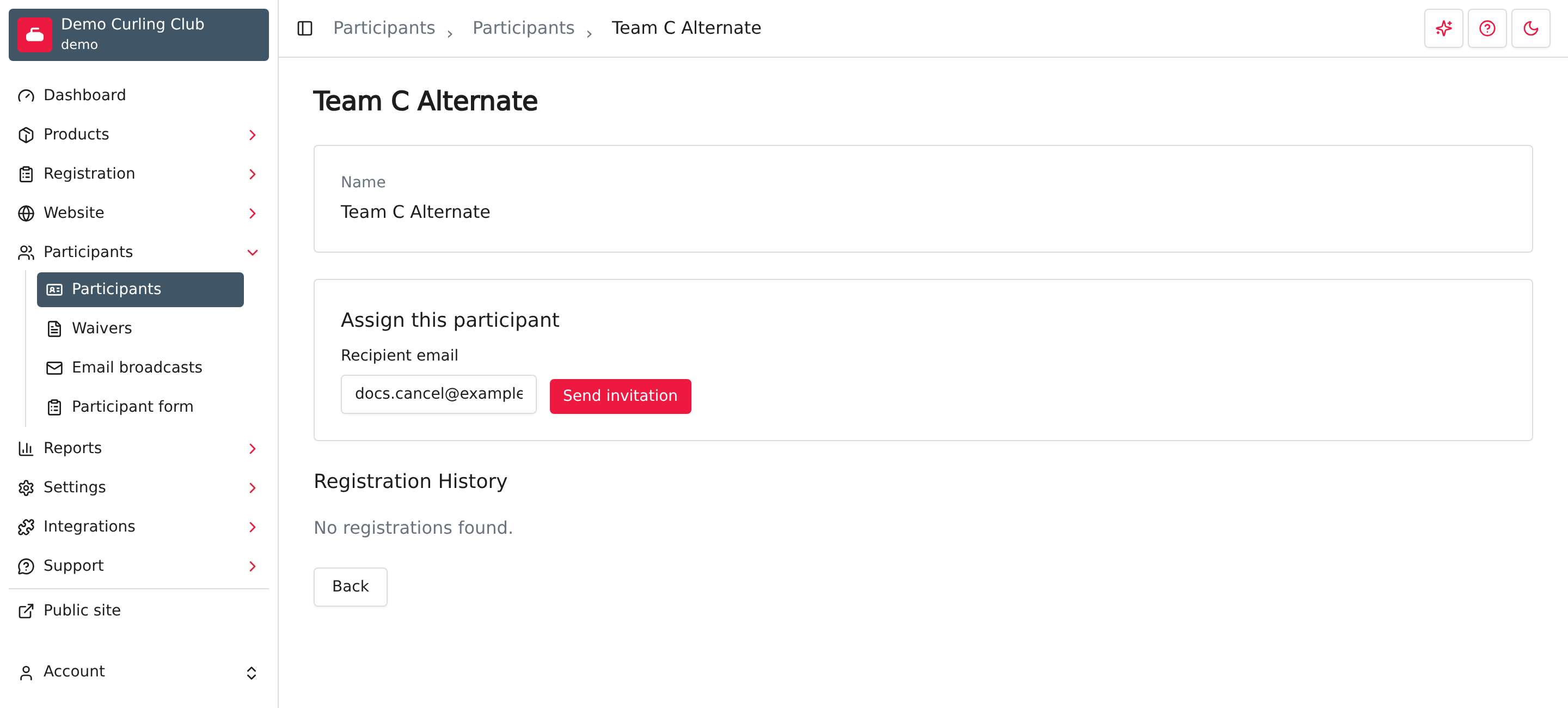
Assign this participant appears for profiles with no account owner. Sending an invitation doesn't assign the profile immediately; the recipient must accept it.
Use an email the person can access. They need to sign in with that email, or have it verified on their Curling IO account, to accept the invitation.
Check or cancel a pending invitation
The participant's page shows the invited email and when the invitation expires. The link is valid for seven days.
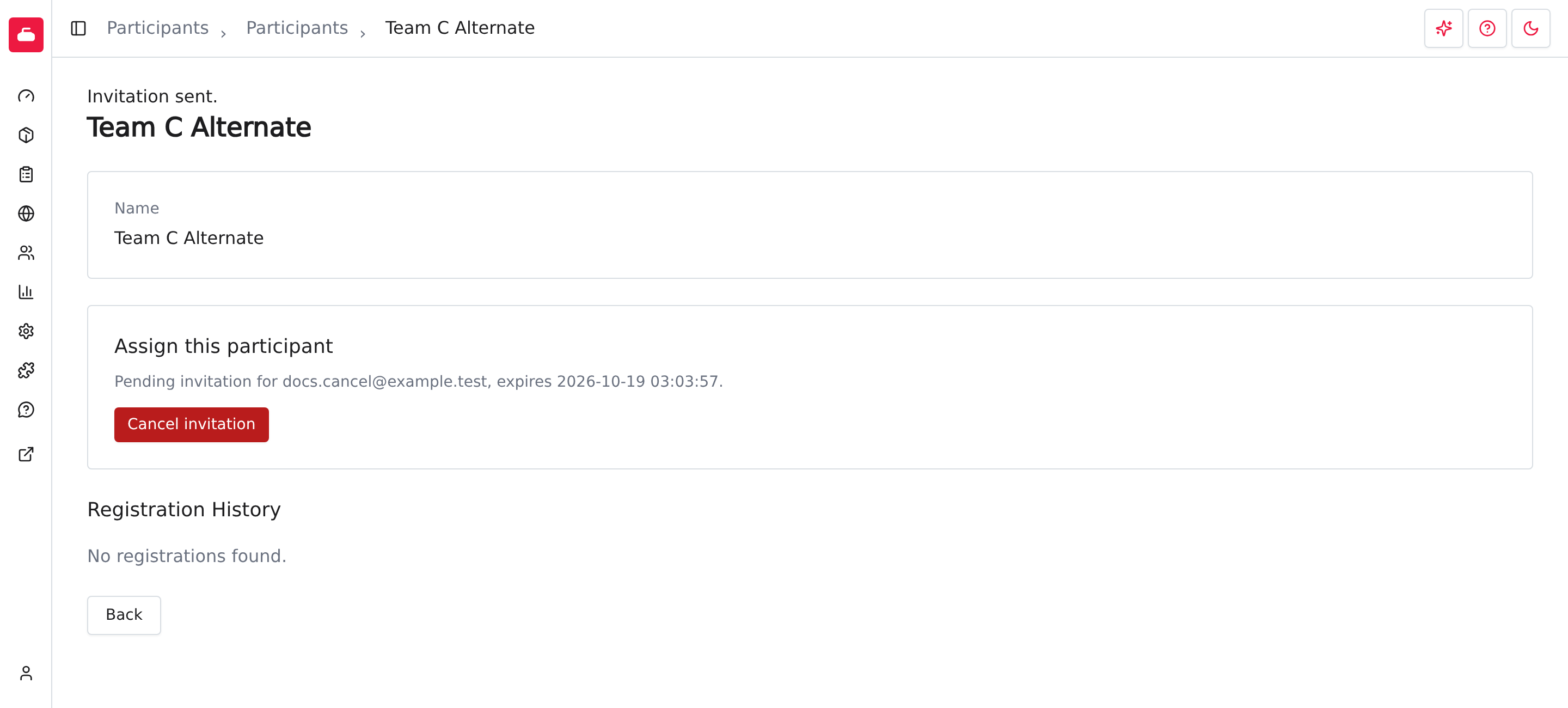
Select Cancel invitation if you entered the wrong email or the invitation is no longer needed. The profile stays unassigned, and the old link can no longer be used.
What the recipient does
- Open the participant-transfer link in the invitation email.
- If Sign in to continue appears, sign in using the invited email.
- Select Accept transfer.
- Open Participants in your account to find the assigned profile.
Select Decline on the invitation page if the profile shouldn't belong to your account. Declining leaves the profile with its existing ownership. If a link has expired or been cancelled, ask the club to check the invitation.
Only accept a profile you should manage, such as your own or one for someone you're a legal guardian of. See your account for account help.
This guide covers participant profiles. See orders for order management.