Waivers
Waivers let you collect and keep a participant's response to waiver text before they complete a registration or purchase. Use them for liability releases, codes of conduct, photo consent, or another agreement that applies to everyone or to a specific product or age group.
Each response records the exact waiver text the account holder saw. You can update a waiver later without changing an earlier response.
Legal guardians: An account holder should respond only for themselves or for a participant they are a legal guardian for.
Walkthrough video
The following video shows you how to create and customize organization waivers, set age and product rules, use managed association waivers, review version history, and inspect collected waiver responses.
Open waivers
Go to Participants > Waivers.
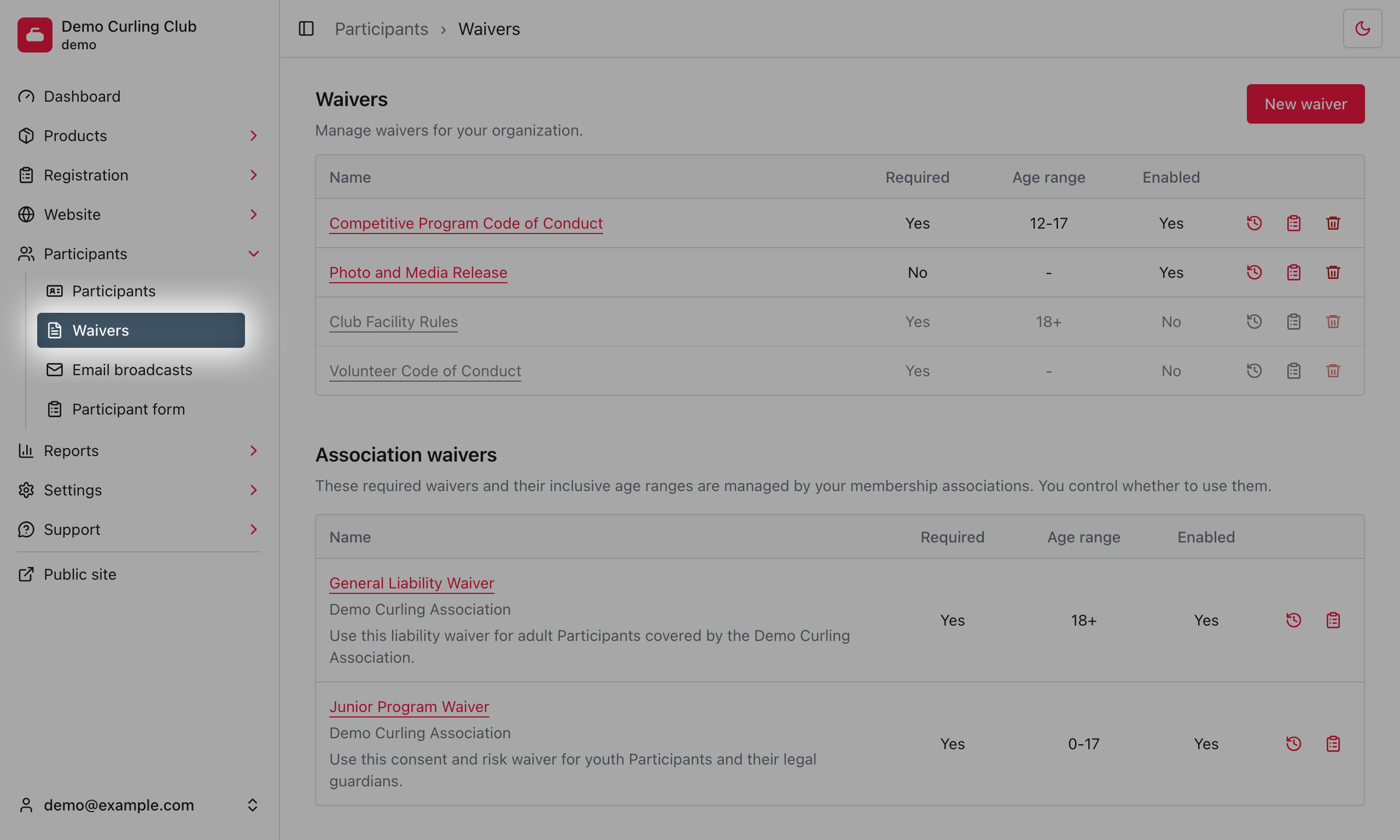
Your waivers are split into two sections:
- Organization waivers are written and controlled by you. They can be required or optional, organization-wide or product-specific, and limited by age.
- Association waivers are managed by a membership association above you. The association controls the waiver text and age range. You control whether you use it.
The list shows whether each waiver is required, the inclusive age range, and whether it is enabled. Select a waiver name to open it.
The actions beside an organization waiver let you review versions, open the response report, or delete the waiver. A managed association waiver has version history and response report actions, but it cannot be deleted. Its history comes from the association template and is read-only.
A grey row is disabled. Its previous responses remain available, but account holders are not asked to respond to it.
Create an organization waiver
Select New waiver when you need a waiver that you control.
If a membership association has provided customizable starting templates, Curling IO first shows Blank waiver and each available template. Templates from the closest association appear first, followed by templates from associations higher in the hierarchy.
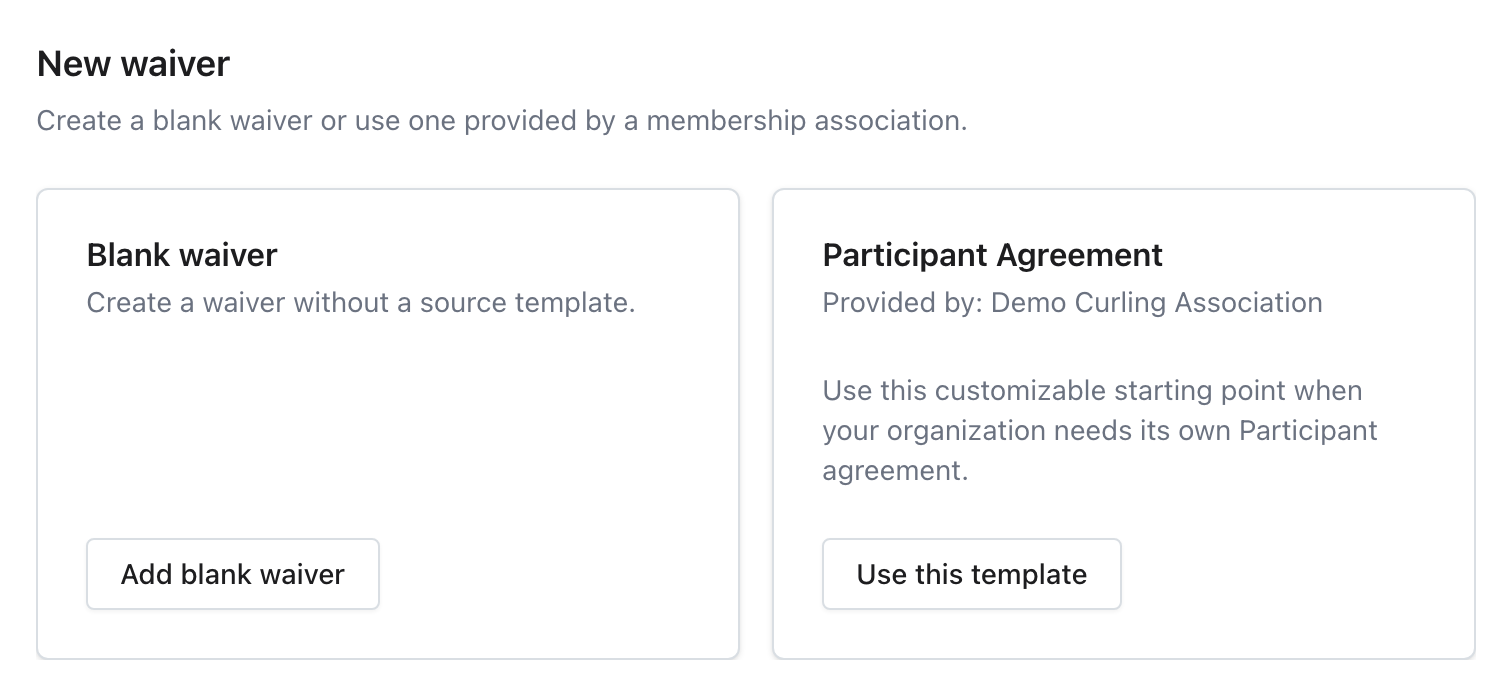
Select Add blank waiver to start with empty fields, or select Use this template to prefill the form. A template is only a starting point. You can change any field, and Curling IO does not create the waiver until you select Save. Your saved waiver belongs to you. Curling IO keeps its source template for reference, but the waiver does not change when the association updates that template later.
If no customizable starting templates are available, New waiver opens the blank form directly.
Complete these fields:
- Enter a clear Name, such as
General Liability WaiverorPhoto and Media Release. - Select Body to open the Markdown editor.
- Enter the complete waiver text, then preview the formatted result.
- Select Apply to return the body to the waiver form.
- Enter short Acceptance text, such as
I agree.
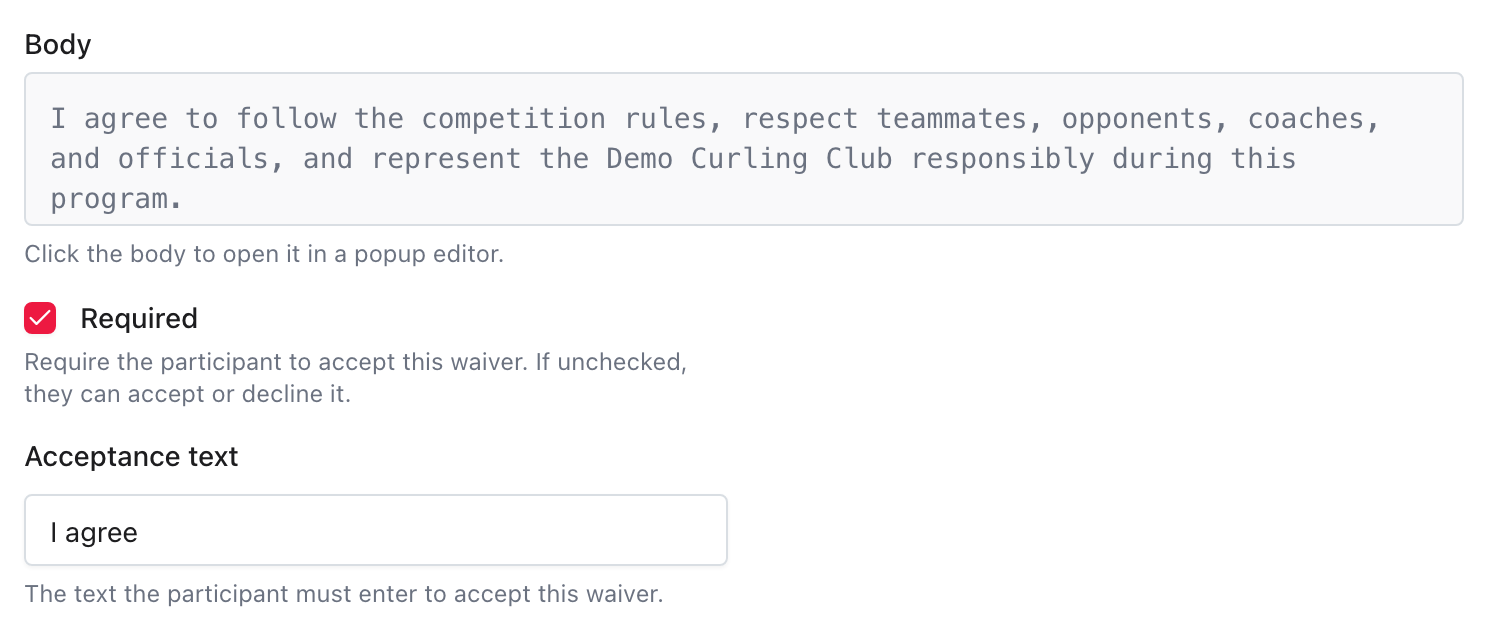
The body supports Markdown, including bold and italic text, headings, lists, and links. Keep the waiver name out of the body because Curling IO displays it above the body.
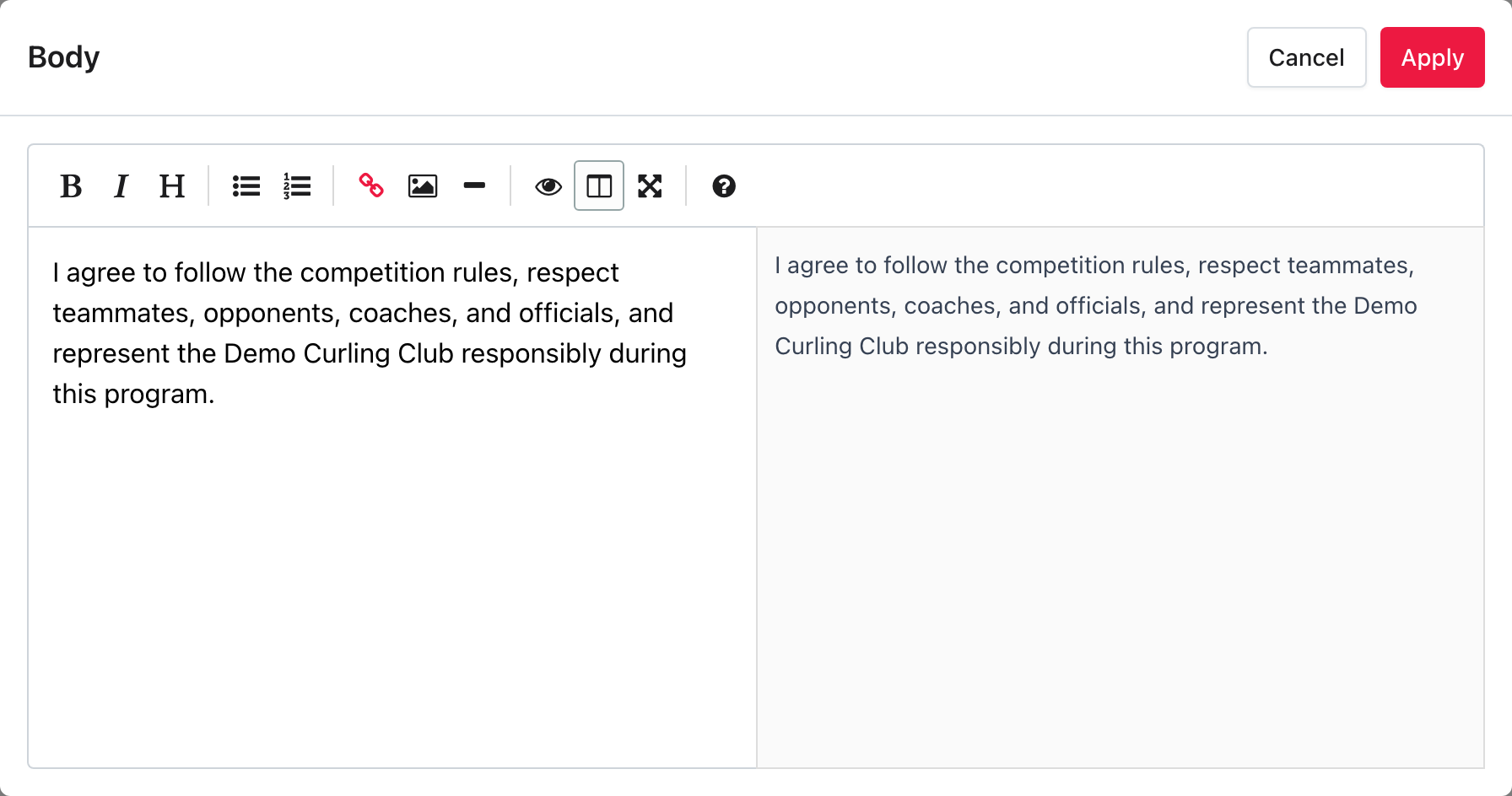
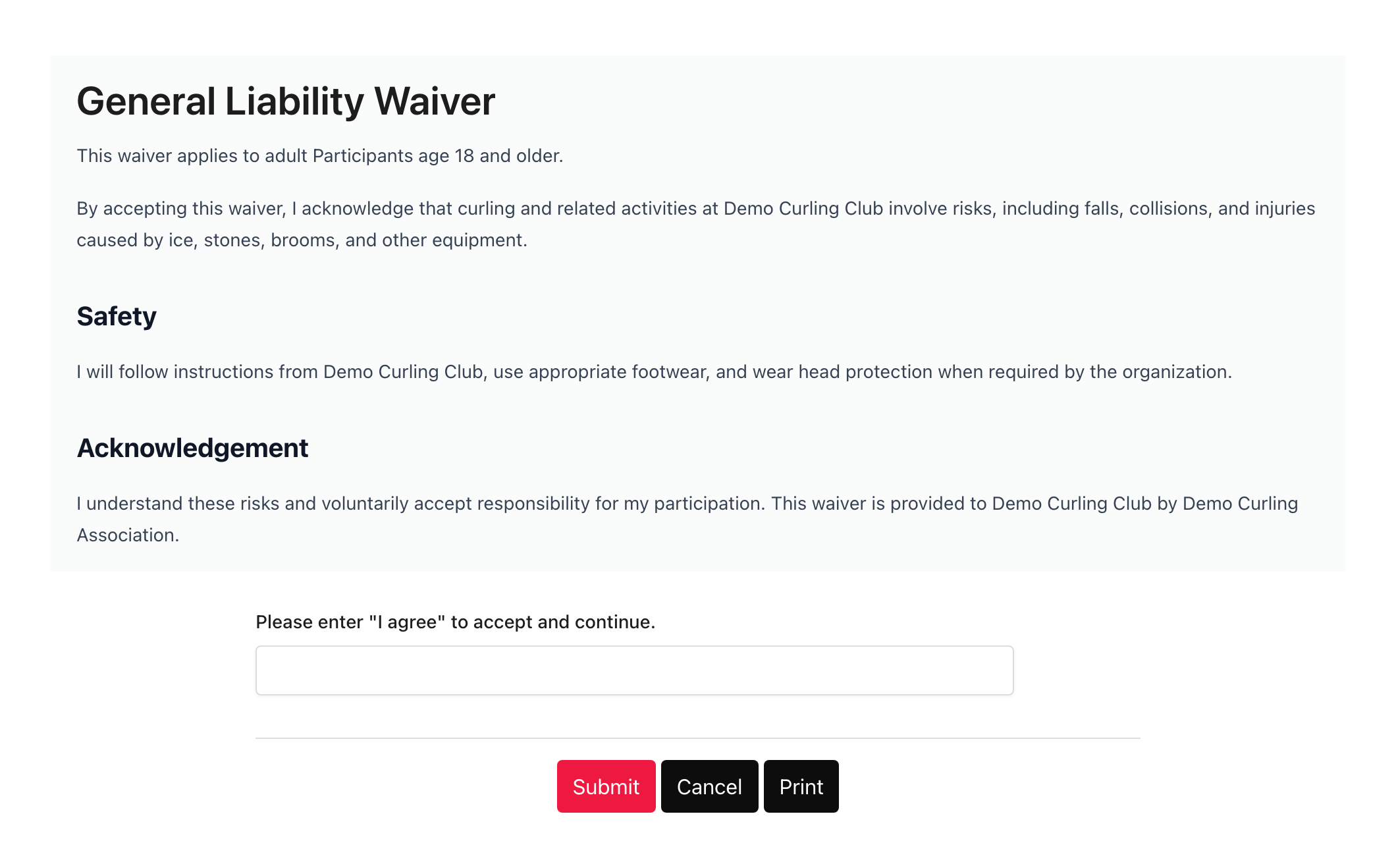
For a required waiver, the account holder must type the Acceptance text as shown. Capitalization does not matter, but the words must match.
Set Required, Scope, and Age Rules
Use the settings around the body to control who must respond and what choices they have. Enabled, scope, and age rules appear above the body. Required appears below it, immediately before the Acceptance text.
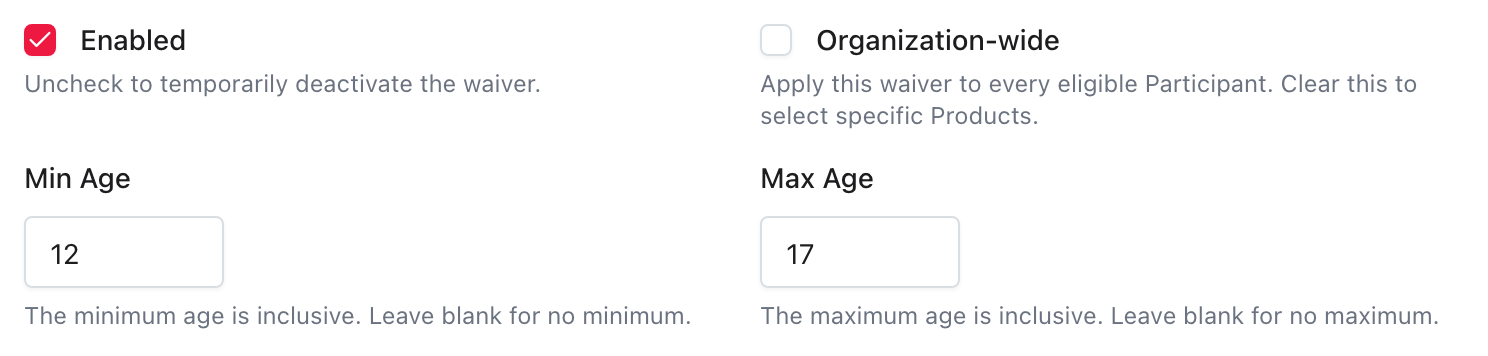
- Leave Enabled selected when Curling IO should present the waiver to applicable participants. Disable it to stop collecting new responses without deleting the waiver or its history.
- Select Required when the account holder must accept the waiver. They must type the Acceptance text before continuing.
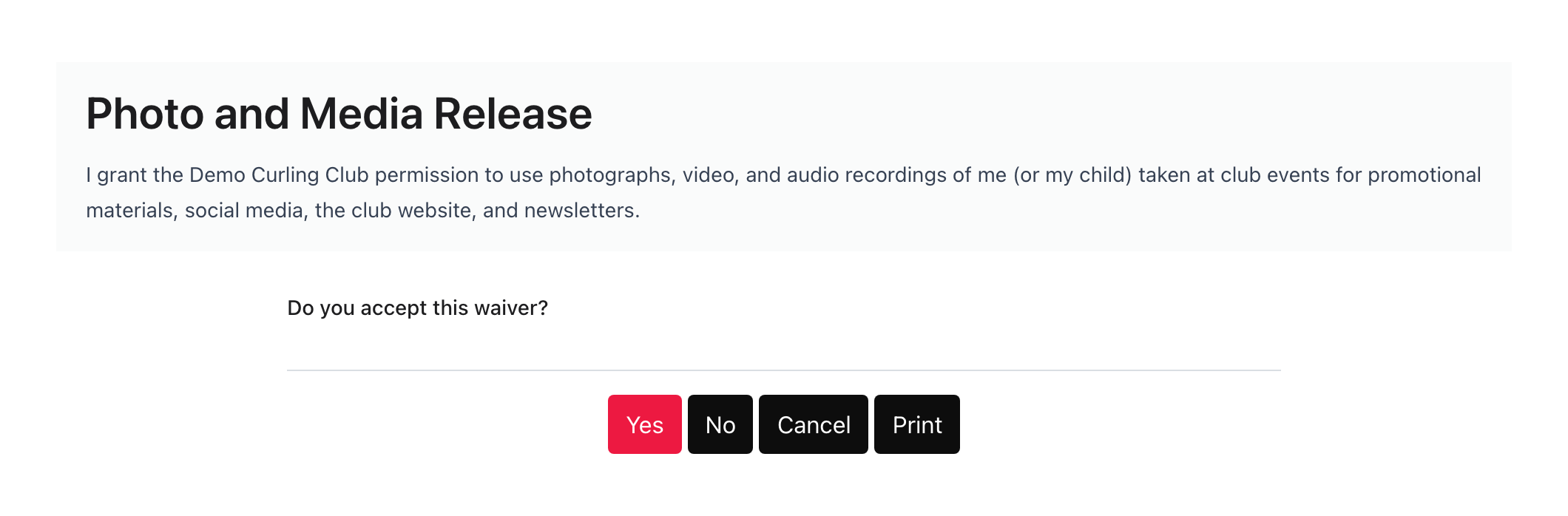
- Uncheck Required for an optional waiver. The account holder can select Yes or No, and either response lets them continue.
- Leave Organization-wide selected when the waiver should apply to every applicable participant. Uncheck it when the waiver should apply only to selected products.
- Set Min Age and Max Age when the waiver applies only to a specific age group.
Minimum and maximum ages are inclusive. A minimum age of 18 includes
participants who are exactly 18. A maximum age of 17 includes participants
who are exactly 17.
For example, use a minimum age of 18 for an adult waiver and a maximum age of
17 for a youth waiver. Leave one side blank when there is no minimum or
maximum. Leave both blank when the waiver applies at every age.
Waiver age rules use the participant's age when they are asked to respond. Age-specific waivers require a birthdate on the participant profile.
Select Save when the content and rules are correct.
Assign a waiver to products
If you unchecked Organization-wide, assign the waiver from each product that should require it:
- Open the product.
- Go to Product Information.
- Find Product-specific waivers.
- Select the waiver, then save the product.

Product-specific waivers are available only for products that require a participant. For example, you can use one for a competitive league without showing it during unrelated registrations.
Use a managed association waiver
When a membership association provides a waiver, it appears under Association waivers. When a new organization is created, every currently active managed template in its association hierarchy is added as an enabled waiver.
When an association adds another managed waiver later, it appears as a disabled row under Association waivers. Its description explains what the association expects it to be used for. Select Enable to create the managed waiver and start using it.
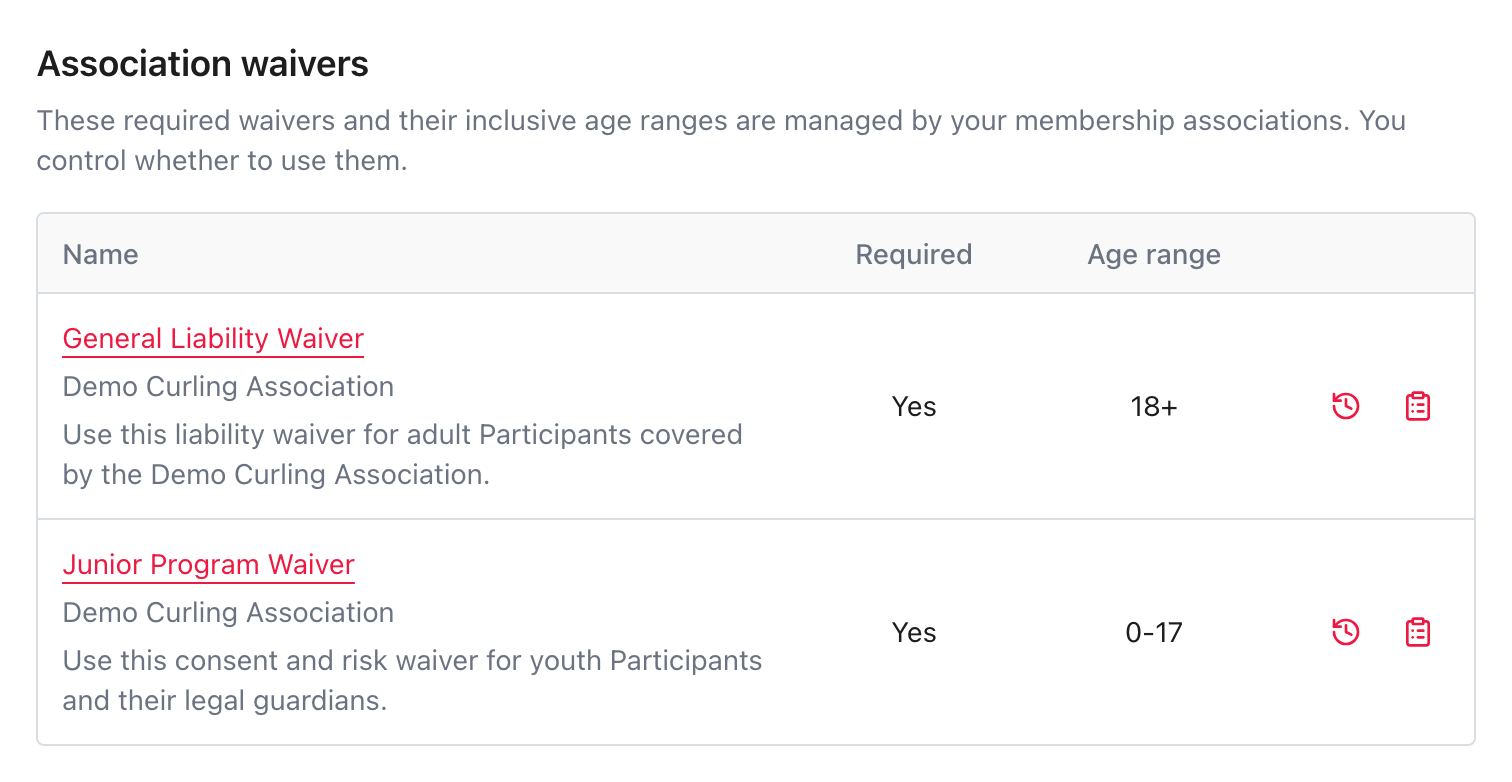
Curling IO includes managed waivers from every membership association above you. Waivers from the closest association appear first, followed by waivers from associations higher in the hierarchy.
A managed association waiver is:
- Required.
- Organization-wide.
- Collected for a participant once per season.
- Locked to the association's current waiver text and age range.
Select its name to review the locked waiver text and age range. Select Enable or Disable in the top-right to change whether you use it.
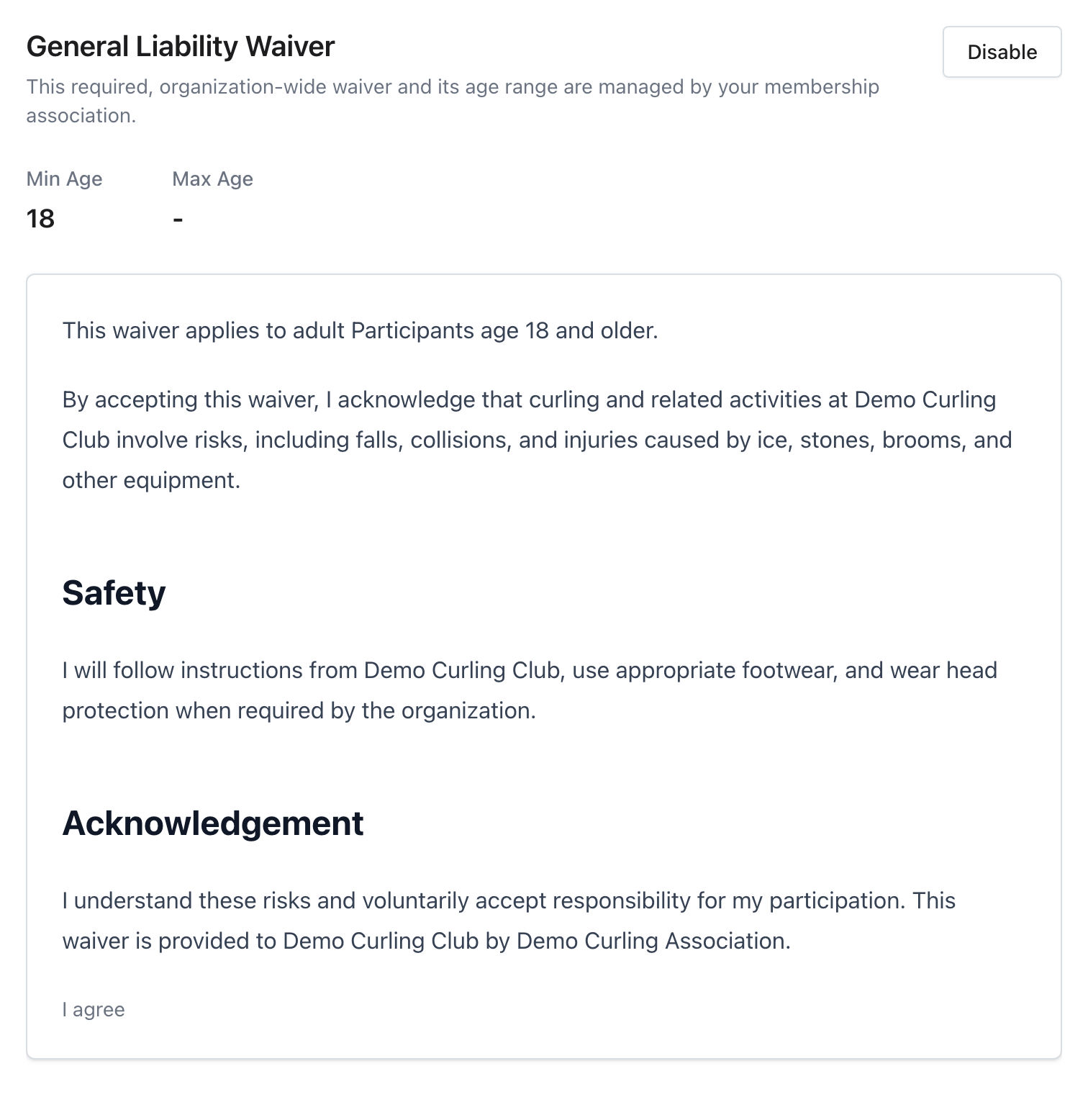
The membership association sets the minimum and maximum ages. Both limits are inclusive.
The association controls the name, body, and acceptance text. When the association publishes a new template version, the managed waiver text updates automatically. A participant who already responded during the current season is not asked to respond again.
Select the history icon to review the association template's versions and compare what changed. Managed waiver comparisons are read-only. You cannot apply an earlier template version because the association controls which version is current.
You cannot unlock, customize, or delete a managed waiver. You can disable it and create your own organization waiver instead. Curling IO warns you before you disable a managed waiver because you will stop collecting that association-provided waiver text.
If you manage a membership association and want to provide waivers to your member clubs, see waiver templates.
What the account holder sees
Curling IO checks enabled waivers against the product and each participant's age. The account holder may be asked to respond while registering or from the participants area of their account.
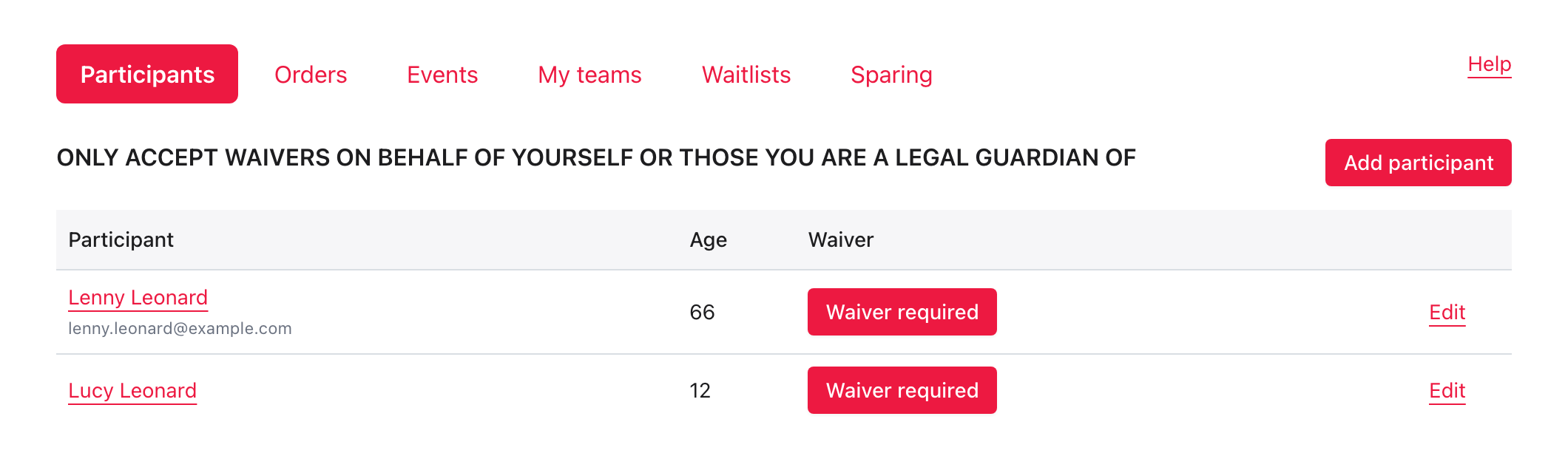
For a required waiver, the account holder reads the waiver text and types the Acceptance text before submitting.
For an optional waiver, the same waiver text is shown with Yes and No actions. Selecting No records a declined response and does not block the registration.
An applicable waiver is answered once per participant during the season. A later waiver or template update does not make a participant who already responded answer it again during that season.
Edit an organization waiver
Select the waiver name from Participants > Waivers, make the changes, then select Save.
Changing the body, acceptance text, required setting, scope, or age rules creates a new current version. New responses use that version, while earlier responses stay connected to the version originally shown to the account holder.
Changing only Enabled does not create a new version. It controls whether the waiver is presented without changing its body or response history.
Compare Earlier Versions
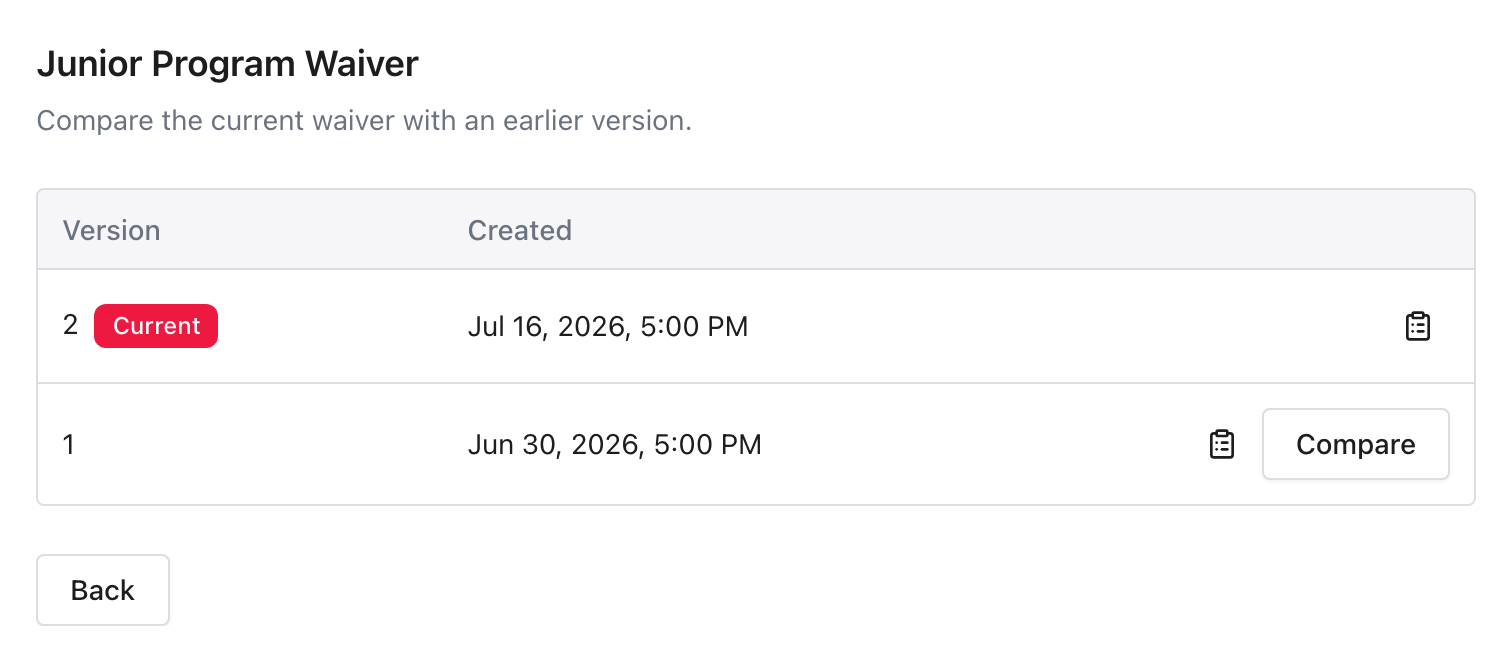
Select the history icon beside a waiver to open Waiver versions.
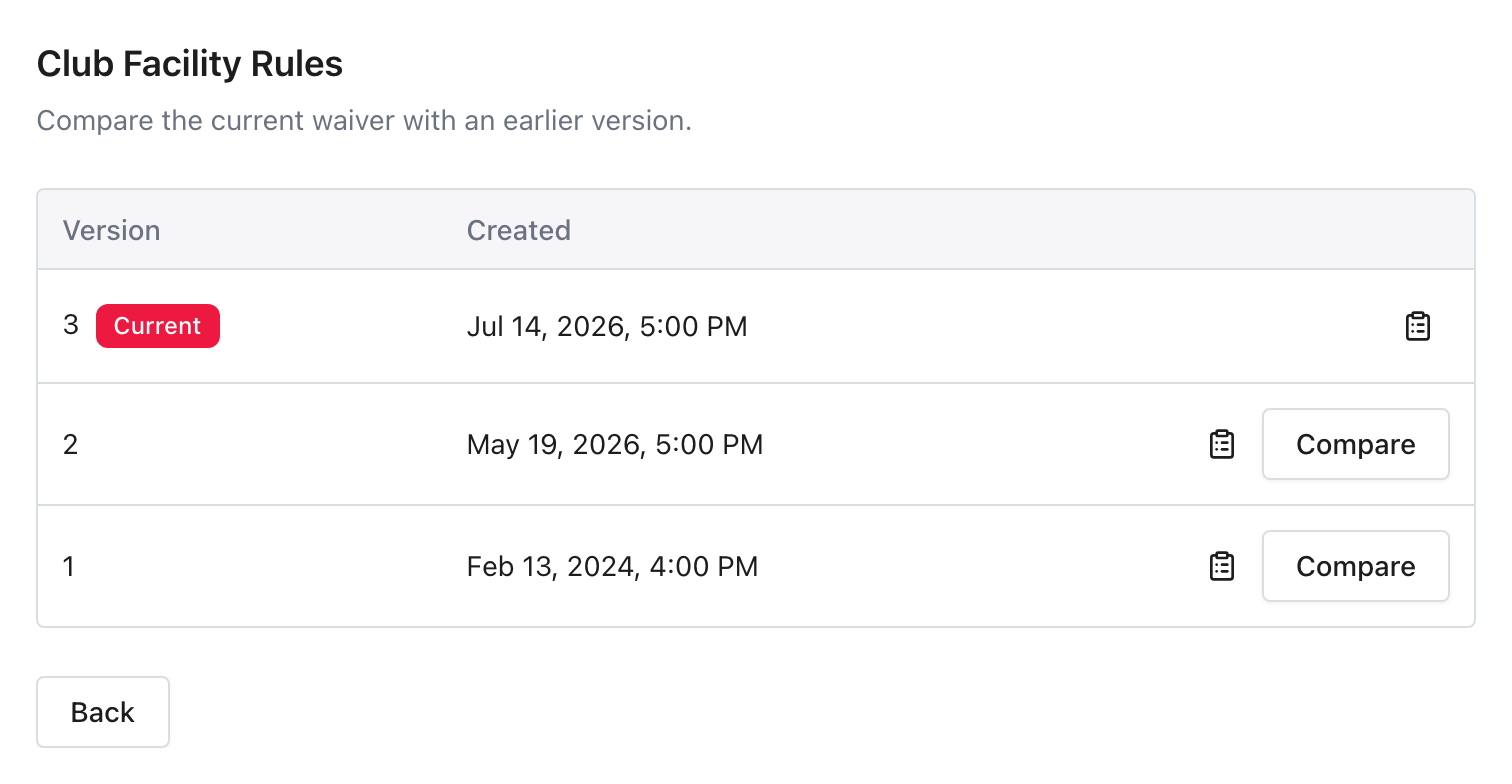
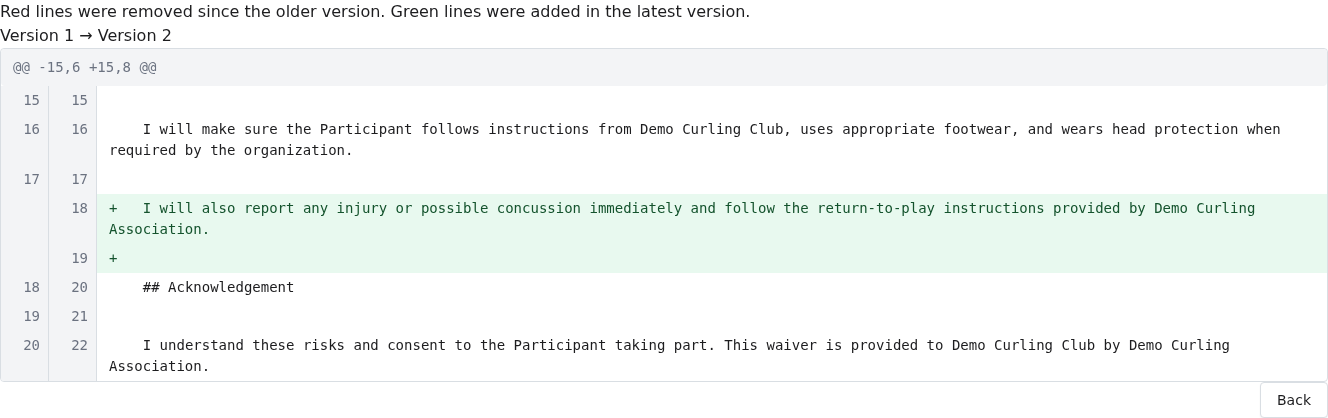
For an organization waiver, the current version appears first. Select Compare beside an earlier version to see what has changed since then. The comparison reads from the earlier version to the current one, for example Version 2 → Version 3. Red lines were in the earlier version and have since been removed. Green lines were added in the current waiver.
Select the response-report icon beside any version to open the report filtered to that waiver and version.
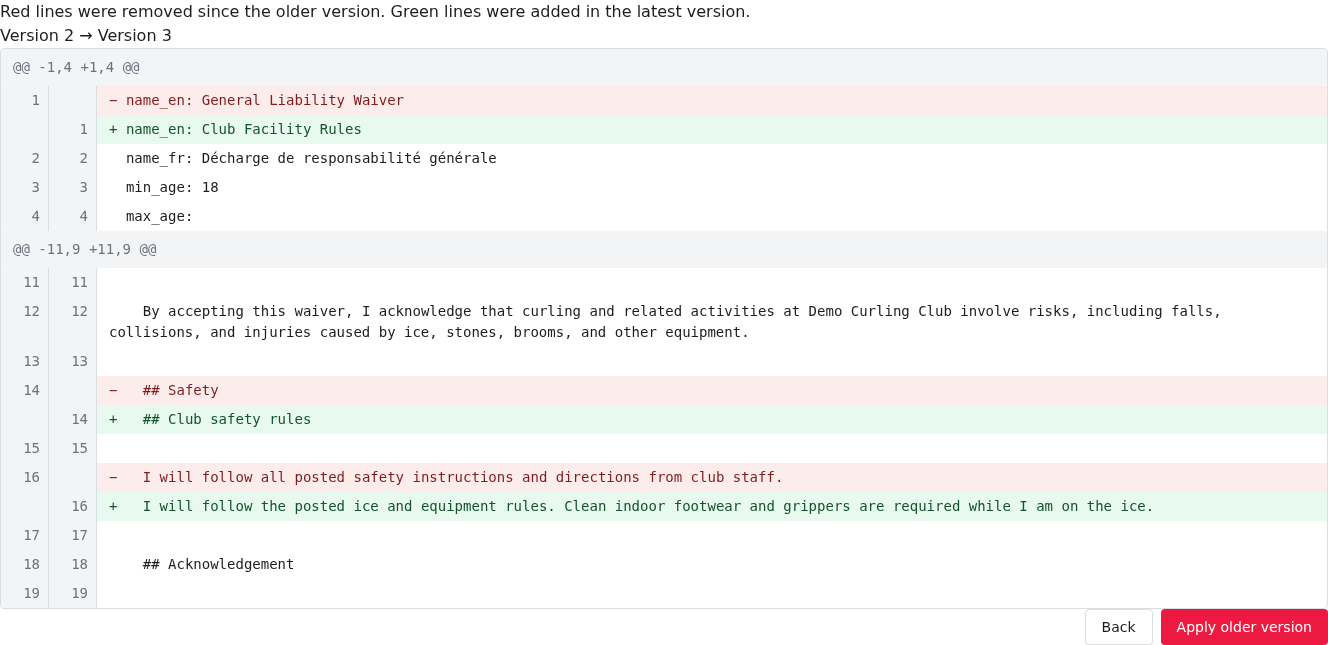
Select Apply older version when you want the earlier version's content and rules to become current again. This undoes the changes shown in the comparison. Curling IO adds it as another version, so the complete history remains available.
For a managed association waiver, the screen lists the association template's versions instead. You can compare earlier wording and age rules in the context of your organization, but you cannot apply a version.
Review waiver responses
Select the clipboard icon beside a waiver, or go to Reports > Registration > Waiver responses.
The report shows accepted and declined responses and the saved waiver wording. See Waiver Responses for season, version, and status filters, individual response details, and CSV downloads.
Troubleshooting
A participant is seeing the wrong waiver
Check the participant's birthdate and the waiver's Min Age and Max Age. Both age limits are inclusive. Then confirm the waiver is enabled. For a product-specific waiver, also confirm it is selected on the product's Product Information form.
A participant is not being asked to respond
Check whether they already responded during the current season. Then check the waiver's Enabled, age, and product settings.
An association waiver is not available
The template must be active and provided by a membership association above you. A managed template appears as a disabled row under Association waivers until you enable it. A customizable starting template appears after you select New waiver. Templates from your closest association appear first, followed by templates from associations higher in the hierarchy.
I need to change an association waiver
You cannot change the body in a managed association waiver. The membership association controls it and its inclusive age range. You can disable it or create a separate organization waiver that you control.