Platform Credits
Platform Credits pay for your club's email broadcasts and Curling IO's built-in AI assistant, including help in Website Studio. Any club can buy credits and use these features. You don't need Premium.
These are separate from Club credits, which members use toward registrations and purchases. Buying Platform Credits doesn't add Premium to your club.
Earn credits
New clubs receive 500 starter credits. Clubs can also earn monthly credits based on qualifying activity and online payment fees. Paying the yearly Premium fee adds credits too. These grants have a balance limit, so the amount added depends on the granted credits your club already has.
Granted and purchased credits don't expire. Curling IO uses granted credits first, then purchased credits.
Check your balance
Open Integrations > Platform Credits. You need Buy and manage Platform Credits permission to open this page.
- Granted and Purchased show the credits from each source.
- Available excludes credits reserved for work still in progress.
- Purchase history links to your receipts.
If your club received launch credits, Credit activity shows that top-up. The page also lists the credit packages you can buy. Check the current prices before purchasing.
Buy credits
- Under Choose a package, select Choose on the package you need.
- Review Subtotal, Tax, Total, currency and Quote expires (UTC).
- Enter the card details and select Pay once when the total is right.
- Check the result and the entry in Purchase history.
Card details go directly to SportsPay. Select Cancel quote if you decide not to buy the package.
If the page says the outcome is still being checked, select Check existing payment. Don't start another payment while the first result is uncertain. If the payment went through but the receipt couldn't load, reload the page without paying again. Contact support if the result remains unclear.
Spend credits
An email broadcast costs one credit per recipient. For example, sending to 75 account holders uses 75 credits.
The built-in assistant spends credits as it works. The amount depends on the request. Check its progress and spending before continuing a long task. Accepting or declining a Website Studio proposal you already have doesn't need more credits.
Who can spend them
Manager includes all club permissions. For a custom role, grant Spend Platform Credits together with the permission for the work:
- Communications for email broadcasts.
- Dashboard for administration conversations with the assistant.
- Website for Website Studio conversations.
The assistant's actions still require the permissions for the features it uses. Assign permissions in Settings > Managers.
Buy and manage Platform Credits is separate from Spend Platform Credits. Permission to buy credits doesn't grant permission to spend them or use other features. A Product Manager assignment alone doesn't grant credit spending or built-in assistant access. Someone who also has a club role can use that role's permissions.
Use the built-in assistant
- Open the administration page you want help with.
- Select the sparkle button, Ask AI for help with this task.
- Select Assist if My agent is open.
- Describe one task in Message, then select Send.
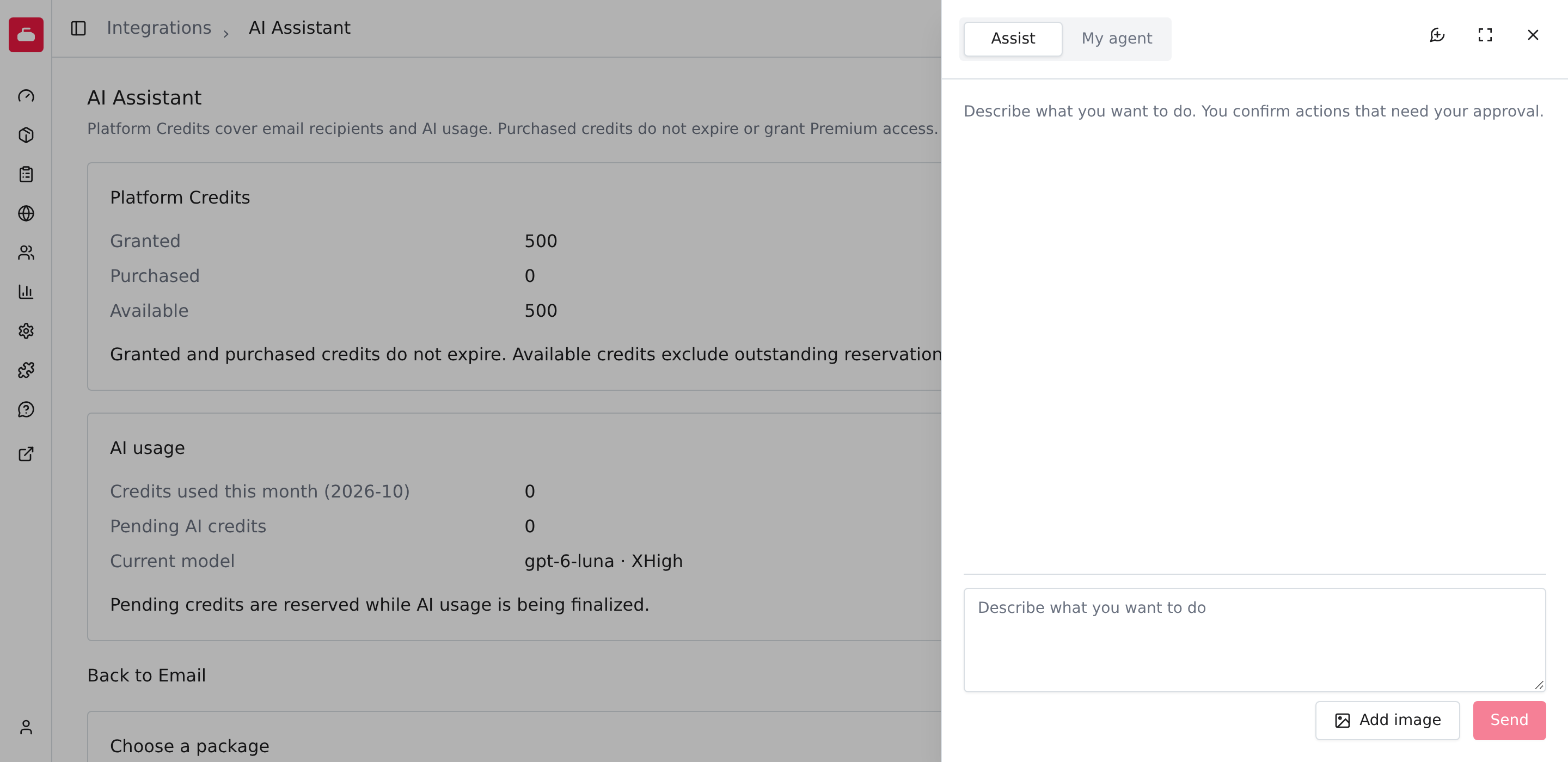
Use a specific request, such as "Explain the settings on this page" or "Help me change this product's description." Give it the facts it needs, including names and dates. Check its answer before relying on it.
The assistant uses the actions available on the current page, with your permissions. Availability varies by page. It cannot give itself access you don't have. If the sparkle button isn't available, use the page's normal controls.
Review changes and approvals
Read each proposed action before confirming it. Check the selected product, person, dates, amounts and any message that will be sent. Select Approve only when the action matches what you asked for, or Decline to refuse it. A conversation does not replace the confirmations required by the page.
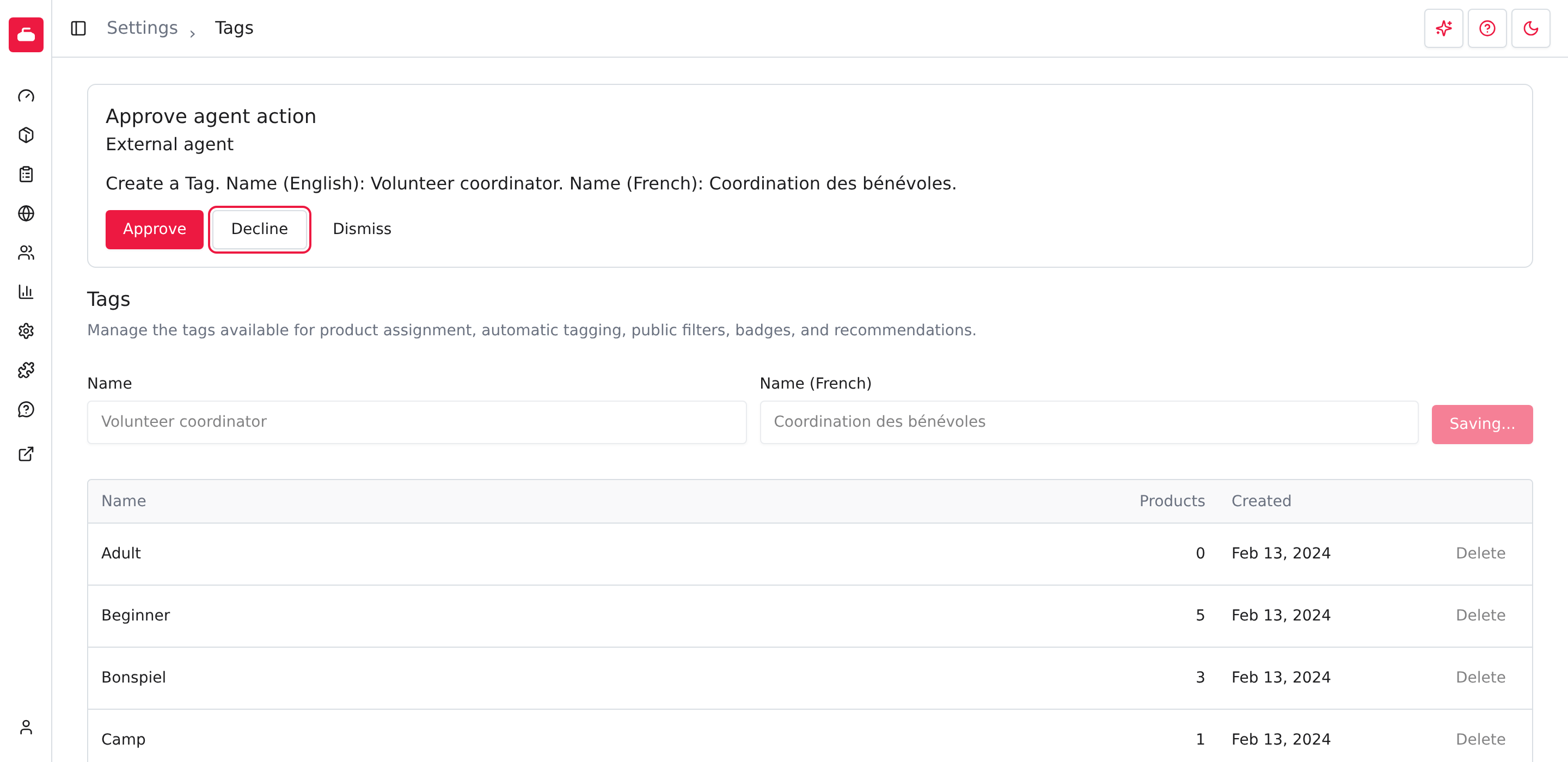
In Website Studio, select Edit first. The assistant prepares a website change in your private preview. Accept saves the change as a draft; Decline discards it. You still select Publish yourself when the saved preview is ready.
If an outcome is unknown, check the page before trying the action again. Repeating a request can repeat a change that already happened.
Use Stop to stop a running request. This does not undo changes already made. New chat, followed by New chat in the confirmation, clears the conversation so you can start another task.
Watch spending during a request
Sending a built-in assistant request spends Platform Credits. If your club lacks enough credits for another message, add credits before sending it. Work that has already been admitted can finish.
A long request can pause at a Credit checkpoint. Review the progress, credits used and pending or uncertain reservations. Continue authorizes up to another 100 Platform Credits for that request, subject to the club's available balance. Continue only if the progress and spending are what you expected.
Use your own agent
You can also bring your own agent. It uses your own assistant account. Premium and an accepted agent-access agreement unlock page actions and setup instructions for that agent; browser control remains available without Premium.