Products
Create a product for something people can buy, register for, rent or pay for through Curling IO. A league season, a beginner course, a club toque and an annual fee are all products. Open Products, choose the category, then use New product to create one.
A participant is a person taking part. A resource is something you can book, such as an ice sheet or room. Neither is a product on its own: a rental product makes the resource bookable, and a registration connects a participant to a product.
How products fit together
Four things control the setup:
| Term | What it means | Example |
|---|---|---|
| Product | One offering your organization creates and manages | Monday Night League for this season |
| Product type | A category your organization configures, with shared names and capabilities | Leagues |
| Capability | One of the six tools Curling IO makes available to a type | Event allows competition tools |
| Product settings | The switches and values you configure for one product under Info | Event Settings, Schedule and Results |

The capability reference explains each of the six choices and what it enables.
Your product type sets the options available to every product in that category. You then turn on the settings each product needs. A product can't turn on a capability its type doesn't support.
For example, the Leagues starter type supports all six capabilities. A Monday Night League can use Availability, Participant and Pricing for registration, then Event Settings, Schedule and Results for competition management. A practice league using the same type can leave the competition settings off.
A missing section can mean either that the type lacks a capability or that a required product setting is off. Start with product types, then check the product's Info. Your permissions can also limit the sections you see; product managers explains those grants.
Starter and custom product types
New organizations get starter types. Leagues, Bonspiels, Programs, Products, Fees, Rentals, Association fees and Club affiliation start enabled. Competitions, Tournaments, Events, Camps, Clinics, Courses, Memberships and Merchandise are created but start disabled.
The ordinary starter types include all six capabilities, except Memberships, which has no Dates or Event. Products is the enabled starter for merchandise. Programs is the enabled starter for programs or courses; you can enable Courses if your club prefers that category.
Your organization can rename types, change their capabilities, disable unused ones and create its own categories. Your navigation may therefore differ from these starter names. Use the configured category name when looking for a product.
Rentals, Association fees and Club affiliation have dedicated workflows. They aren't ordinary categories you can recreate by choosing the same capabilities. See Rentals, Association fees and Club affiliation for setup.
Find products
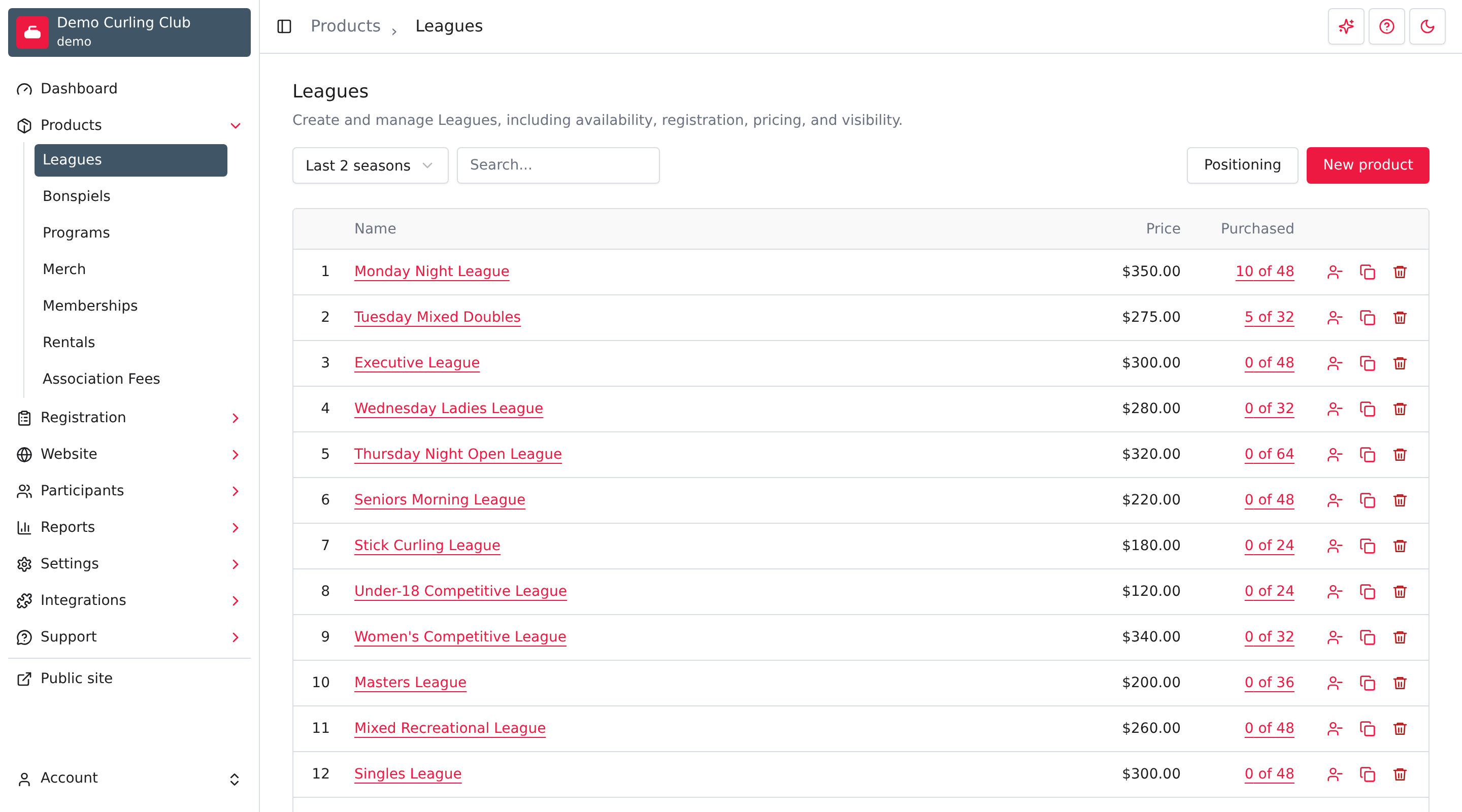
The list shows products for the type you selected. For example, Leagues shows league products with filters, Positioning, New product, prices and purchase counts.
Positioning products
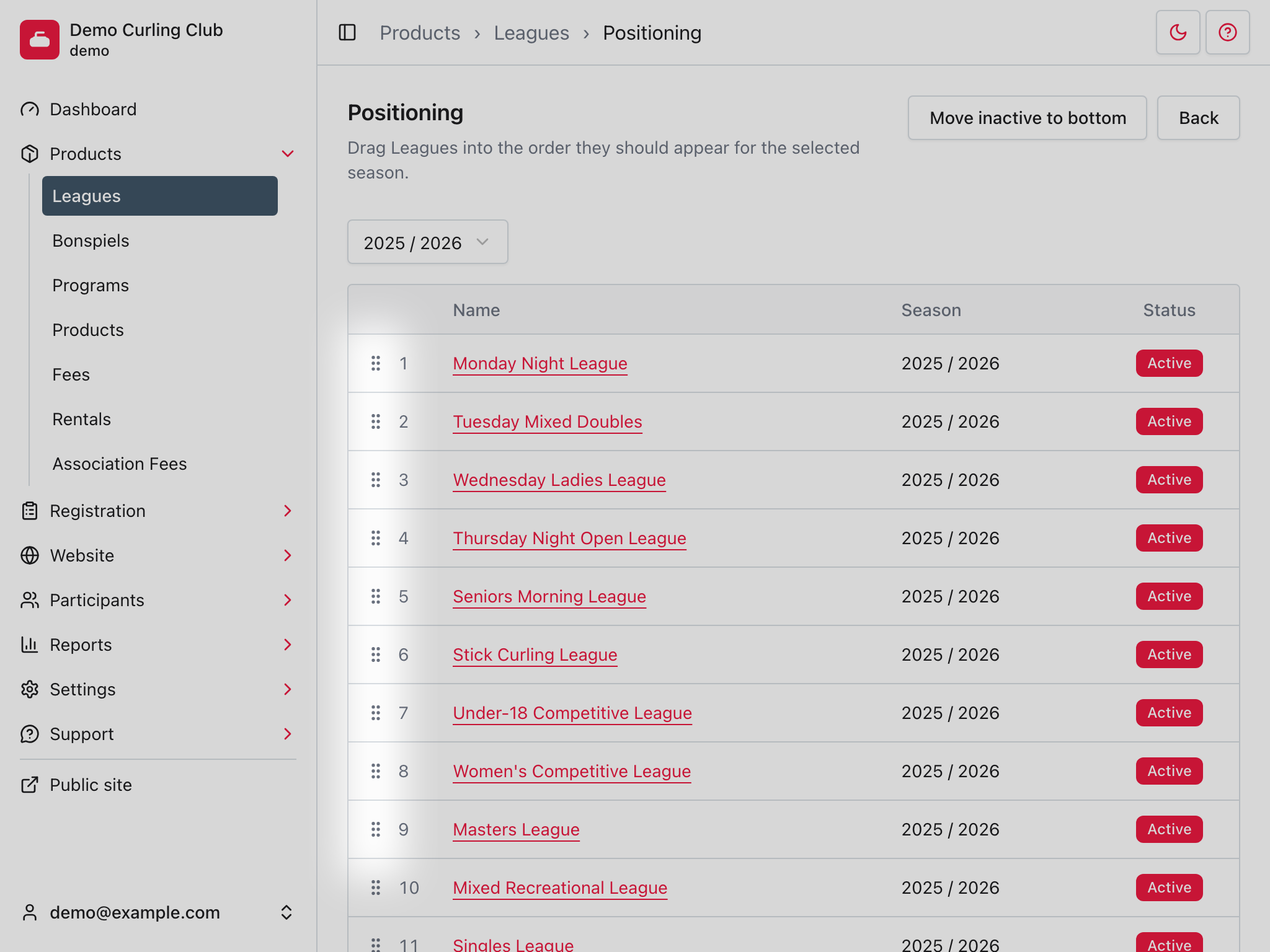
Use Positioning when the order of products matters on the public site or in the admin. Positioning is managed separately for each product type, so the order of leagues does not affect the order of bonspiels, rentals, products, or fees.
For date-based products, positioning is also separated by season. Changing the order for one season does not change the order for another season.
On the positioning screen, choose the season you want to arrange. Then use the drag handle beside a product to move it into the order it should appear.
Copying a product
Use Copy beside a product in its type's list when a new offering needs a similar setup. It opens New product with details filled in from the source. The source product stays separate.
- Open Products and the product type.
- Select the Copy action beside the source product.
- Update the name, descriptions, dates, opening window, price and inventory. Review every enabled language.
- Leave Enabled unchecked while you finish checking the copy.
- Review its Info switches, addons, discounts, form questions and managers.
- Select Save, then open the new product's Info to check the result.
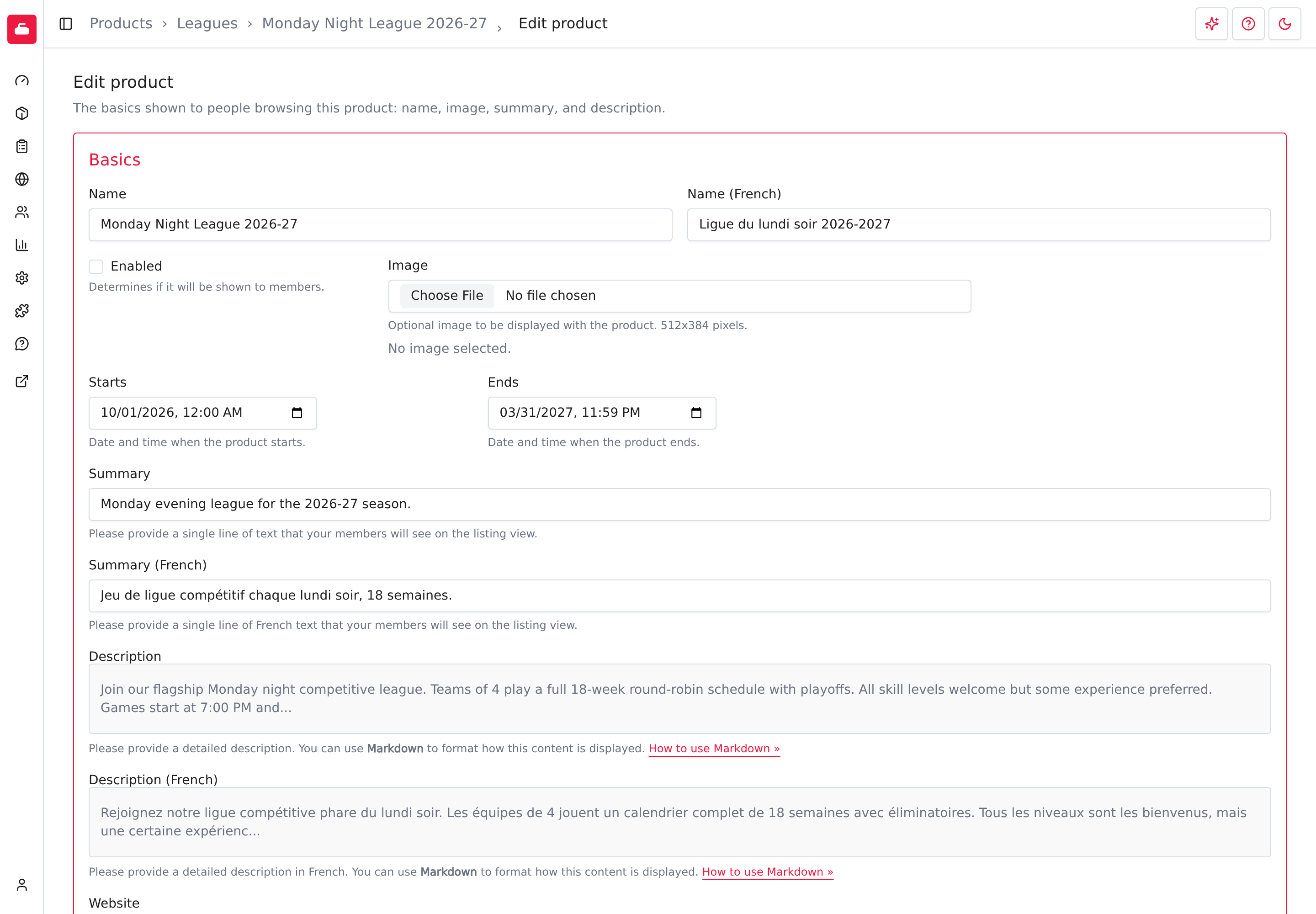
Copying carries product settings, manual tags, applicable addon and discount assignments, registration form question assignments and product managers. Review those manager grants before making the product available. A ready image is copied in the background and can take time to appear. If the source image is still processing or isn't ready, add it to the new product again if needed.
Registrations, teams, stages, games and results aren't copied. Use their guides to build the new competition. The copy remains in the source product's type; use New product in another type when you need a different category.
After checking the public details and registration setup, turn on Enabled when you're ready for people to use it.
For each product
The sections below appear when they are enabled for the product type you are working with.
Teams, stages, schedule, and results make up the event capabilities. A product type can enable these capabilities when it needs competition management.
Info
Info is for the product's core setup: name, pricing, visibility, dates, descriptions, images, tags, accounting codes, and other product-specific settings.
This is usually the first section to configure because the other sections depend on the product existing and being named clearly.
Form builder
This is for collecting information during registration. These questions belong to the purchase or registration itself, not general participant profile fields. Learn more about building product registration forms here.
Use participant questions for profile data that should stay with the participant across registrations.
Registrations
This is for reviewing who registered, inspecting line items, exporting registration data, and handling registration-specific follow-up.
This is the product-level view of registrations. Use registration > orders when you need to work with the full order and payment record.
Waitlist
Waitlist is for products that can fill up but still allow people to join a waiting list. It is only useful when inventory or capacity matters.
Teams
This is for managing teams within the event. Learn more about managing teams here.
Stages
This is for building round robins and elimination brackets. Learn more about managing stages here.
Schedule
This is for arranging games into draws and assigning resources. Learn more about managing schedules here.
Results
This is for entering scores and managing game outcomes. Learn more about managing results here.
Managers
Managers is for granting product-specific access to people who should help manage one product without giving them broader admin access.
Limit repeat purchases
Use Purchase limit in Availability when an account or participant should only be able to purchase a product once.
Every purchasable product can use:
- No purchase limit
- Once per season per account
Product types that support Participant can also use:
- Once per season per participant
- Once per lifetime per participant
Selecting a participant limit automatically turns on Participant. If you turn participant off afterward, the Purchase limit returns to No purchase limit.
Account limits apply to the account completing checkout. Participant limits apply to the participant assigned to the cart item. Choose one limit based on the person or account that should be restricted.
Capacity-enabled rentals also support limits for each time slot. See Limit repeat rental purchases for those choices.
Special product types
Some product types need their own guides because their setup is more specific than the shared product sections.
Rentals
This is for bookable resources, such as ice sheets, rooms, or other time-based availability. Learn more about managing rentals here.
Rentals depend on resources. Manage them under Settings > Resources.
Association fees
This is for national, provincial, or regional fees that eligible organizations collect from purchasers or participants. Learn more about managing association fees here.
Recipes
Choose the recipe closest to what your club needs:
| Recipe | Use it for | Starter type |
|---|---|---|
| Merchandise | An item with a price and stock limit | Products |
| League | Individual registration with team, schedule and result tools | Leagues |
| Program or course | A class with participant registration | Programs |
| Fee | An ordinary seasonal fee collected as a required addon | Fees |
| Locker | Seasonal locker sales with a stock limit | Products |
For bookable ice sheets, rooms or time slots, use the Rentals guide.