Addons
Make a product available as an addon, then attach it under the main product's Info > Addons settings. For example, offer a club T-shirt alongside a league registration, or include a required club fee.
Creating the addon product doesn't attach it to anything. You must select it on each product that should offer or collect it.
Prepare the addon product
- Open the product you want to offer as an addon, or create one.
- On Info, turn on Availability.
- Set List as to Addon only if it should be offered only with another product. Choose Standalone and addon if people can also buy it on its own.
- Turn on Pricing and set its price and applicable taxes.
- Check Enabled, inventory, and any opening and closing dates.
- Select Save.
Its product type needs the capabilities for those settings. See Product capabilities. Review the settings on the addon product as well as its assignment.
Attach it to the main product
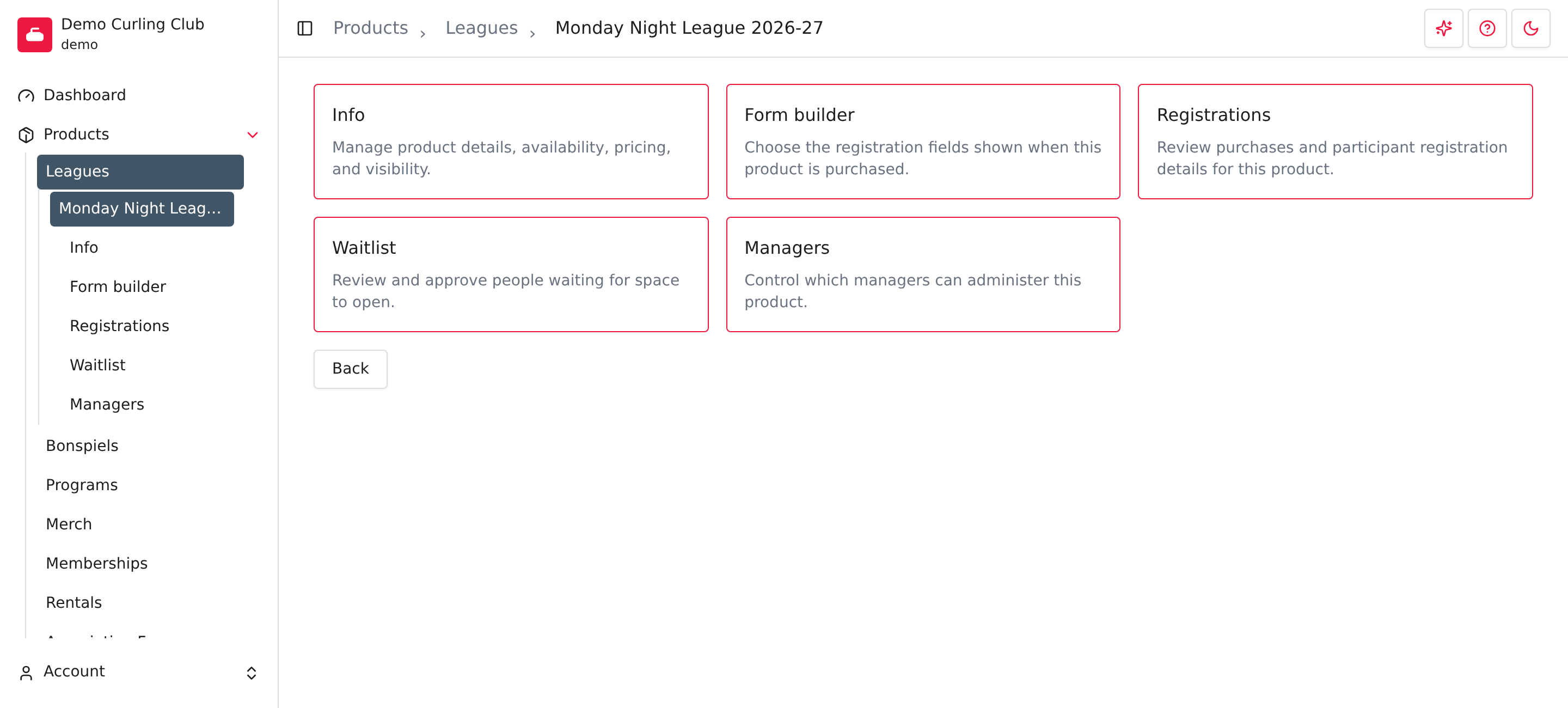
Open the product receiving the addon, such as a league, then select Info. Its type must support Purchasable, and Availability must be on to use Addons.
- Turn on Addons.
- Select Add Addon.
- Choose the product from Select a product.
- Leave Required unchecked for an optional item. Select it when an eligible purchaser must include that item.
- Select Save at the bottom of Info.
- Open Info again and confirm the attached item and Required setting.
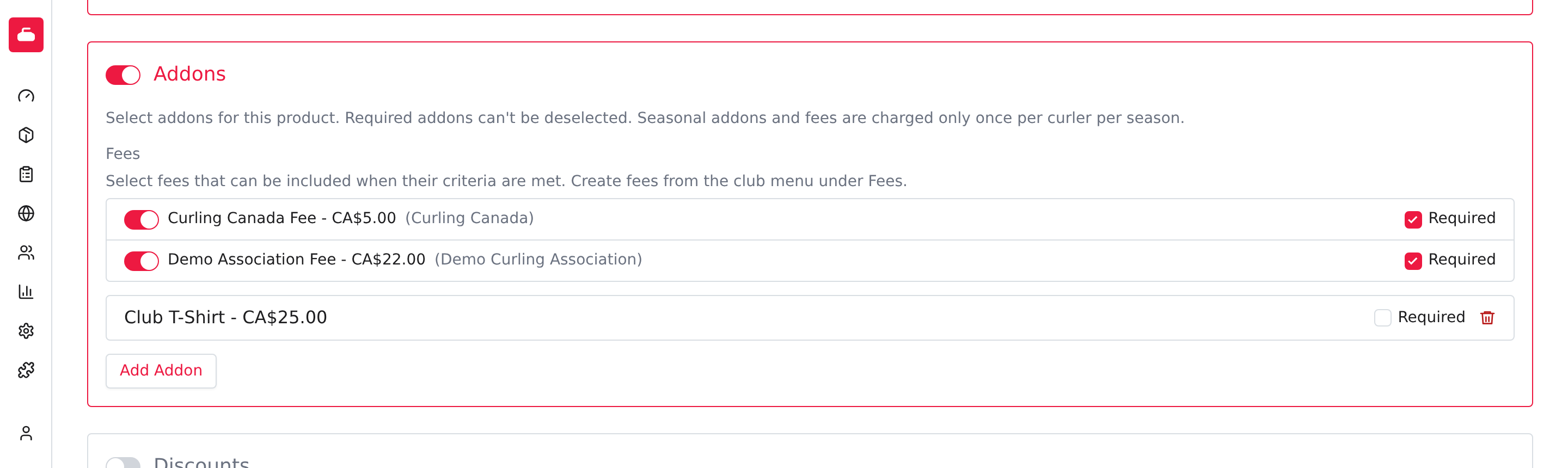
An optional addon lets the purchaser choose it. An eligible required addon is included automatically and can't be deselected. Purchase limits, participant eligibility, exclusions and association-fee rules can affect whether an item needs to be included.
Use the trash action, labelled Delete, beside an ordinary addon to remove its assignment, then save Info. That doesn't delete the addon product or refund completed purchases.
Collect a fee once per participant
Choose the appropriate Purchase limit on the fee product, rather than assuming every addon is collected only once. For a seasonal participant fee, use Once per season per participant. The fee needs Participant support, and the registration must identify the participant. See Limit repeat purchases.
Attach a mandatory fee as Required. Making it optional lets the purchaser skip it. Keep ordinary merchandise optional unless it is part of what every eligible registrant must buy.
For a participant who should be exempt from an ordinary addon, use Participant exclusions.
Association fees
Inherited association fees appear in a separate Fees group. Use their switches to select the applicable fees and Required when they must be included. These fees depend on participant eligibility and their own seasonal satisfaction rules. Follow Association fees for that setup; an ordinary fee product doesn't replace it.
Troubleshooting
The product isn't in the picker
Open the addon product and check List as. Standalone only products aren't offered in this picker. The addon must belong to your organization and can't be the same product you're editing.
The addon is unavailable or isn't added
Check that the addon and its type are enabled, then review participant eligibility, purchase limits and exclusions. Check the main product's Addons and Required settings too.
Saving reports an addon loop or excessive nesting
A product can't ultimately include itself. Keep the structure shallow: the main product plus two further levels is the supported limit. Remove the circular or extra assignment before saving.
See Info for the full product setup and Discounts for discount assignments.