Exclude a participant from an add-on charge
Use participant exclusions when someone should be exempt from a product added as a child add-on to their registration. For example, exclude a participant from a club merchandise charge that they shouldn't pay again.
An excluded participant can still buy that product directly. Association fees use their own eligibility rules; see association fees.
Find the exclusions screen
- Open Products and choose the product type, such as Merch.
- Find the product whose add-on charge you want to waive.
- Select its Participant exclusions action, shown as a person with a minus sign in the product list.
Choose the add-on product itself. If a league collects a club T-shirt charge, open the T-shirt's exclusions.
Add an exclusion
- Under Exclude a Participant, enter a name or email in Filter by keyword.
- Select Search.
- Find the correct participant and select Exclude beside their name.
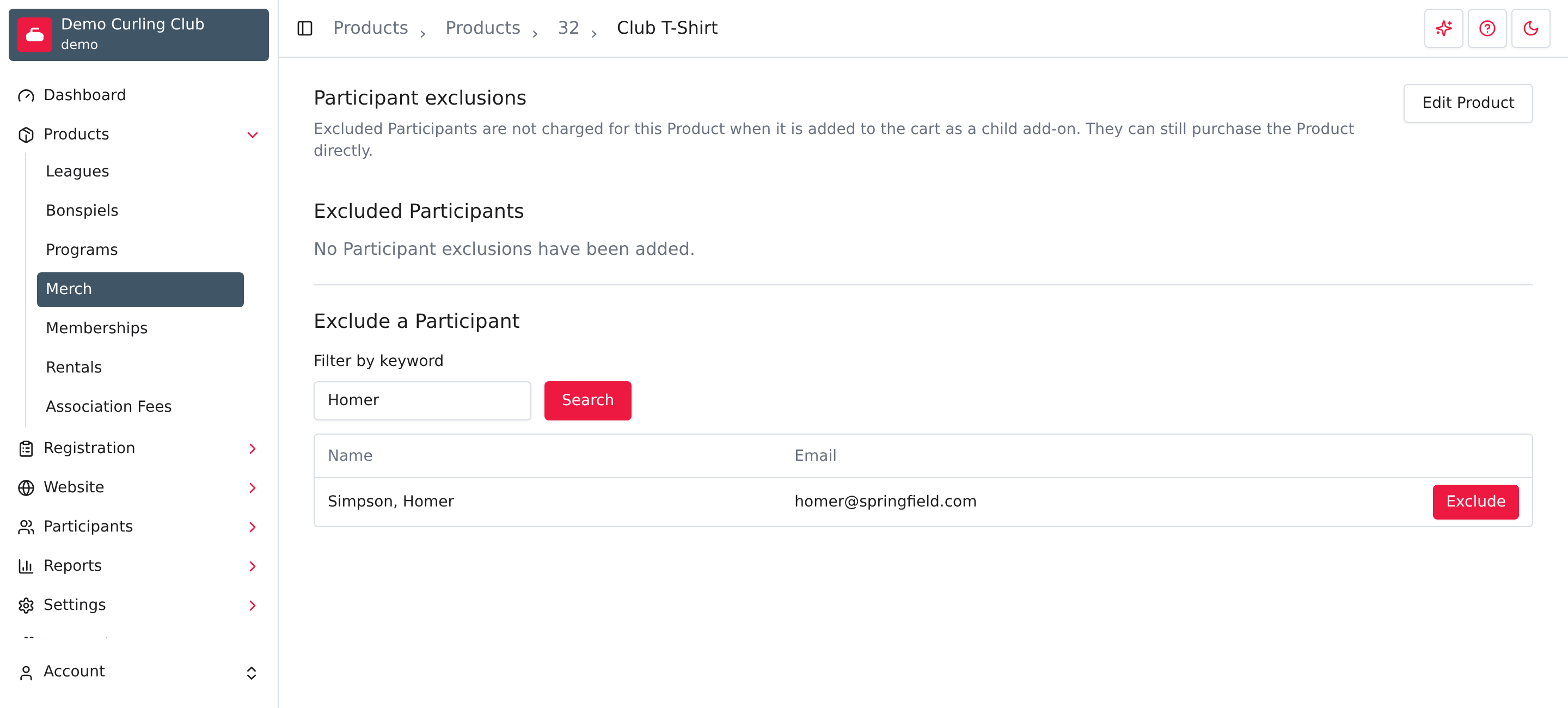
The participant moves into Excluded Participants, and the page confirms Participant exclusion added. Searches show participants already known to your organization. If there are too many matches, use a more specific name or email.
Exclusions apply to this product. They don't change the participant's profile, remove a registration, or issue a refund for a completed purchase. Use the orders guide when you need to correct an existing purchase.
Remove an exclusion
Select the trash action beside the participant under Excluded Participants. Then select the confirmation button naming that participant. Select the cancel button if you want to keep the exclusion.
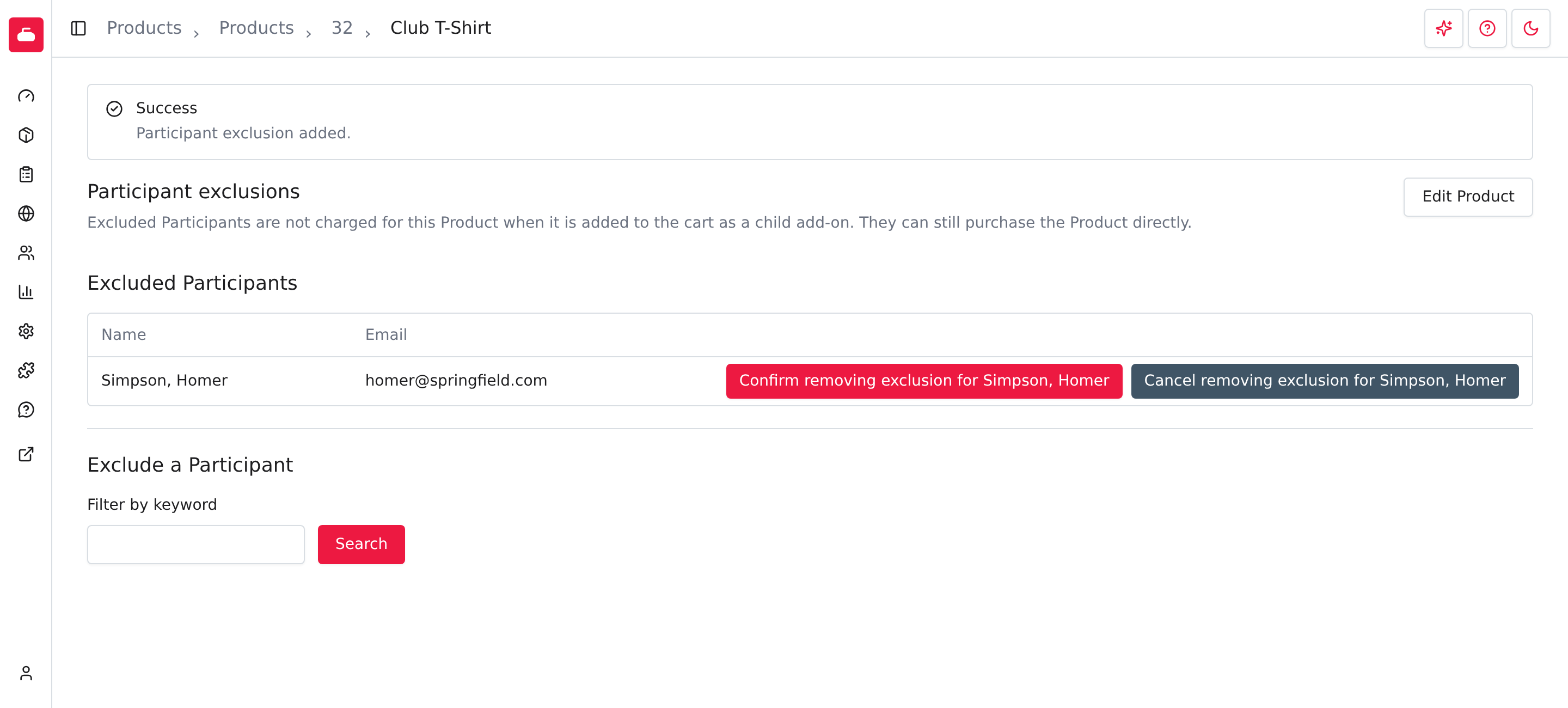
The page confirms Participant exclusion removed. The participant is eligible for this add-on charge again, subject to the product's other purchase rules.
See product information for setting up products and add-ons.