Info
Use Info to control how a product is presented, when it can be purchased or registered for, who can register, and which product-specific tools are active.
The available settings depend on the product type. A league can include participant, team, schedule, and result settings, while merchandise or a simple fee can leave those settings off. Configure product types under Settings > Product types.
Switching a section off keeps its settings and related records. Turn it back on to use those settings again. While a parent section is off, its child sections stay inactive, even if their own switches are on.
Open product info
Go to Products, select the product type, then open the product. Select Info.
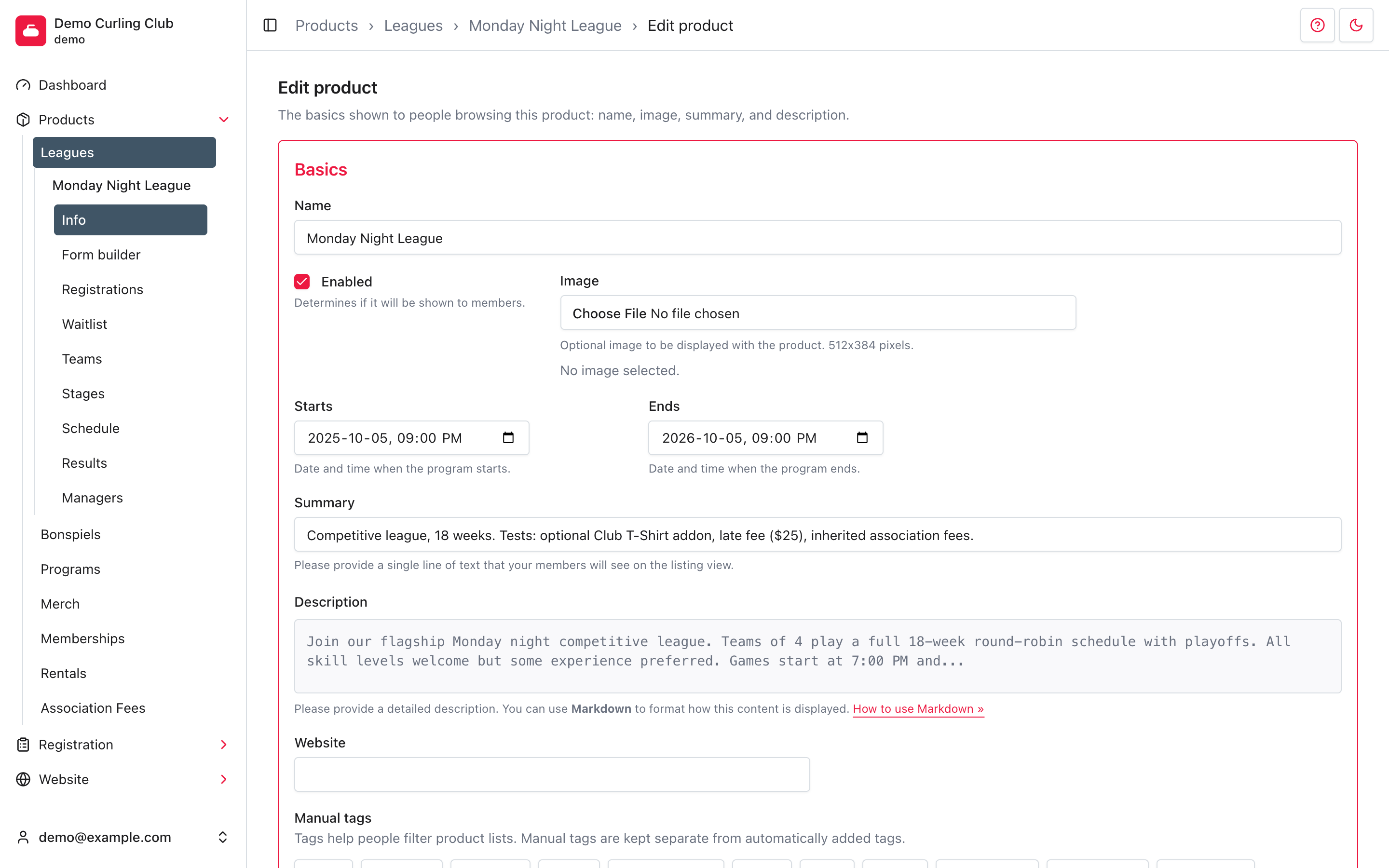
Set the public details
The Basics section identifies the product on the public site and in the administration area.
- Name is the product name shown to administrators and purchasers.
- Enabled controls whether members can see the product. It does not delete the product or its existing registrations.
- Image accepts an optional 512 by 384 pixel product image.
- Summary is the single line shown in product lists.
- Description contains the detailed public explanation. It supports Markdown.
- Website links to an optional external page.
Use Manual tags for labels that should remain assigned regardless of the product text. When Automatically add matching tags is selected, saving the product can add tags that match its type, name, or summary. Automatic matching does not remove manually assigned tags.
Set dates
Turn on Dates to use the product date range and online registration window. This section appears when the product type supports dates.
- Fill in Starts and Ends for the product date range.
- Fill in both Opens and Closes for the registration window. Leaving either blank makes the product unavailable. Turning off Dates ignores the stored registration window.
Set inventory
Turn on the Inventory section to limit capacity or use a waitlist. This section appears when the product type supports inventory.
- Inventory limits the number that can be sold. Leave it blank for no inventory limit.
- Waitlist allows people to join a waiting list after the inventory is sold. Review those entries under the product's Waitlist tab.
Configure availability
Turn on Availability when the product can be registered for or purchased. Dates and Inventory have their own sections.
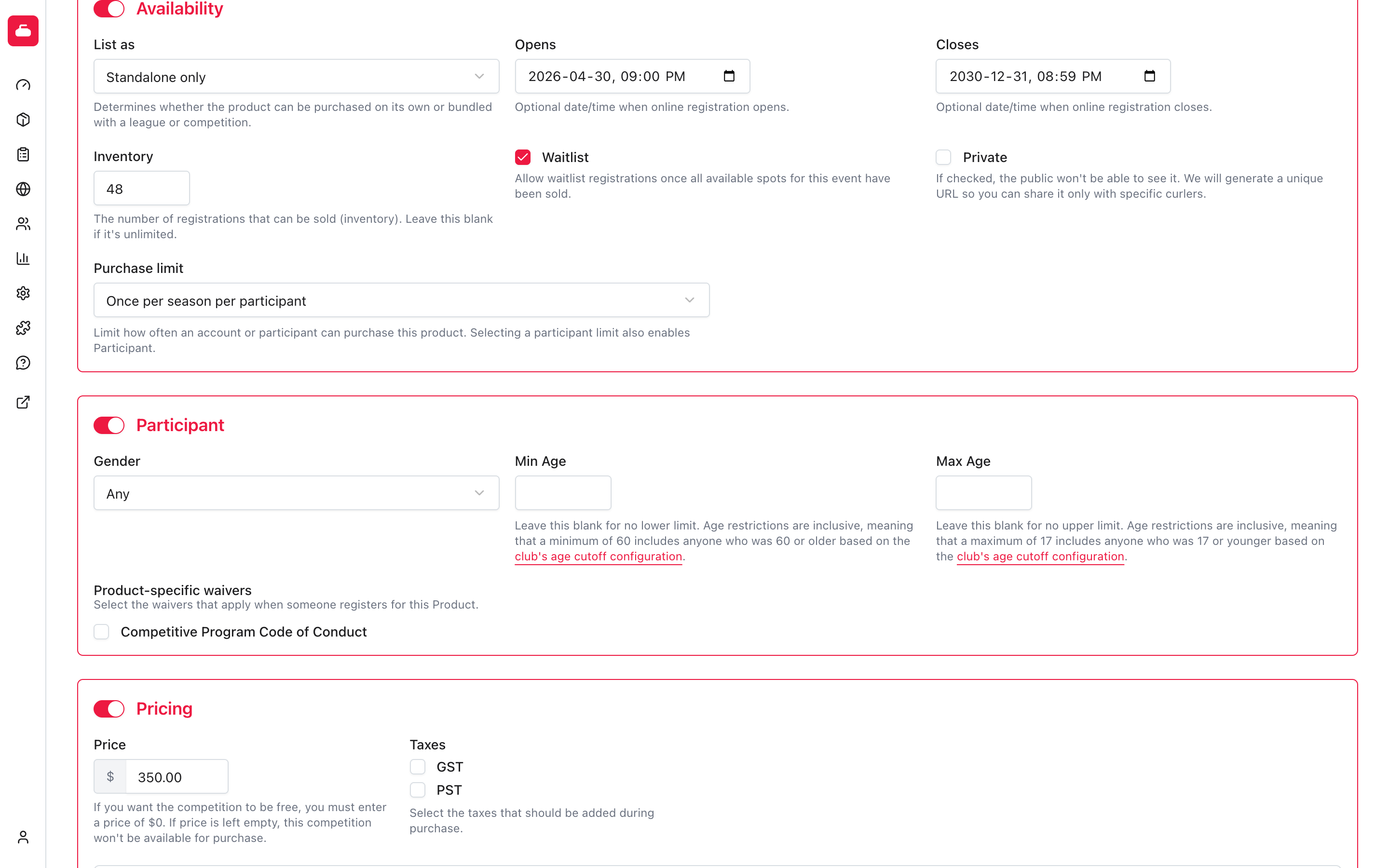
- List as determines whether the product is available on its own, as an addon, or both.
- Private hides the product from public lists and creates a URL that can be shared directly.
- Purchase limit prevents repeat purchases by an account or participant.
- Recommendation keywords are comma-separated words that decide which products are recommended to someone registering for this one. Products that share a keyword recommend each other. Leave this blank and the product has no recommendations. Tags do not affect recommendations.
Turning off Availability makes the dependent registration, pricing, and communication sections inactive. Their switches and settings are kept.
Set participant rules
Turn on Participant when a purchase must be assigned to a participant. You can then limit eligibility by Gender, Min Age, or Max Age. Age limits include the boundary age and use the organization's configured age cutoff.
Use Product-specific waivers for agreements that apply only to this product. Create and manage the available agreements under Participants > Waivers.
Choosing a participant-based Purchase limit turns on Participant. Turning Participant off keeps the saved limit but stops applying it until Participant is on again.
Set pricing and related charges
Turn on Pricing to make the product purchasable. Enter 0 for a free
product. Leaving Price blank means the product is not available for
purchase. Select each tax that should be added at checkout.
Depending on the product type and organization, the form can also show:
- Addons, for optional or required items and eligible fees;
- Discounts, for discounts that can apply during registration;
- Late Fee, for a charge that starts after a deadline;
- Accounting, for codes used in reports and exports.
Association fees have their own setup and inheritance rules. See association fees before changing those assignments.
Set a late fee
Use Late Fee for an extra charge that starts at a deadline. The product type must support Purchasable and Dates, and Availability must be on.
- Turn on Late Fee.
- Enter the amount in Late Fee, such as 25.00.
- Set Late fee applies at to the deadline in your organization's time zone.
- Select Save.
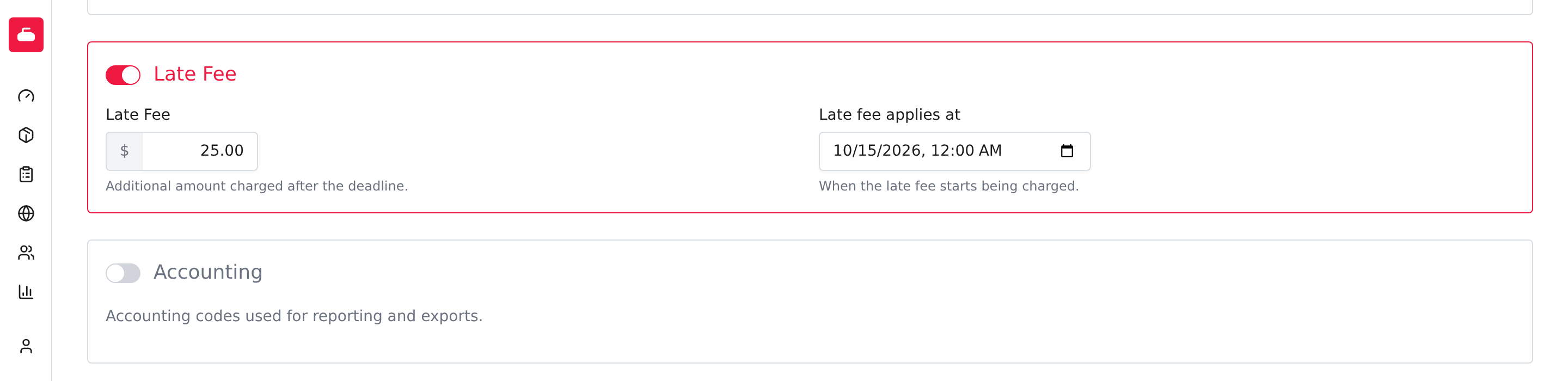
The fee applies when a pending cart is recalculated at or after the deadline. Starting registration earlier doesn't reserve the earlier total. Set the amount and deadline together; a missing deadline doesn't apply the charge. The product still needs an open purchase window. A late fee doesn't extend Closes or reopen a closed product.
Turning off Late Fee stops applying it to pending carts. It doesn't refund a completed purchase. Use Orders for that follow-up.
Offer a payment plan
Under Pricing, turn on Offer a Payment Plan to let members split the price of this product into scheduled payments. Members can still pay in full. A plan ends on its own once every payment is collected.
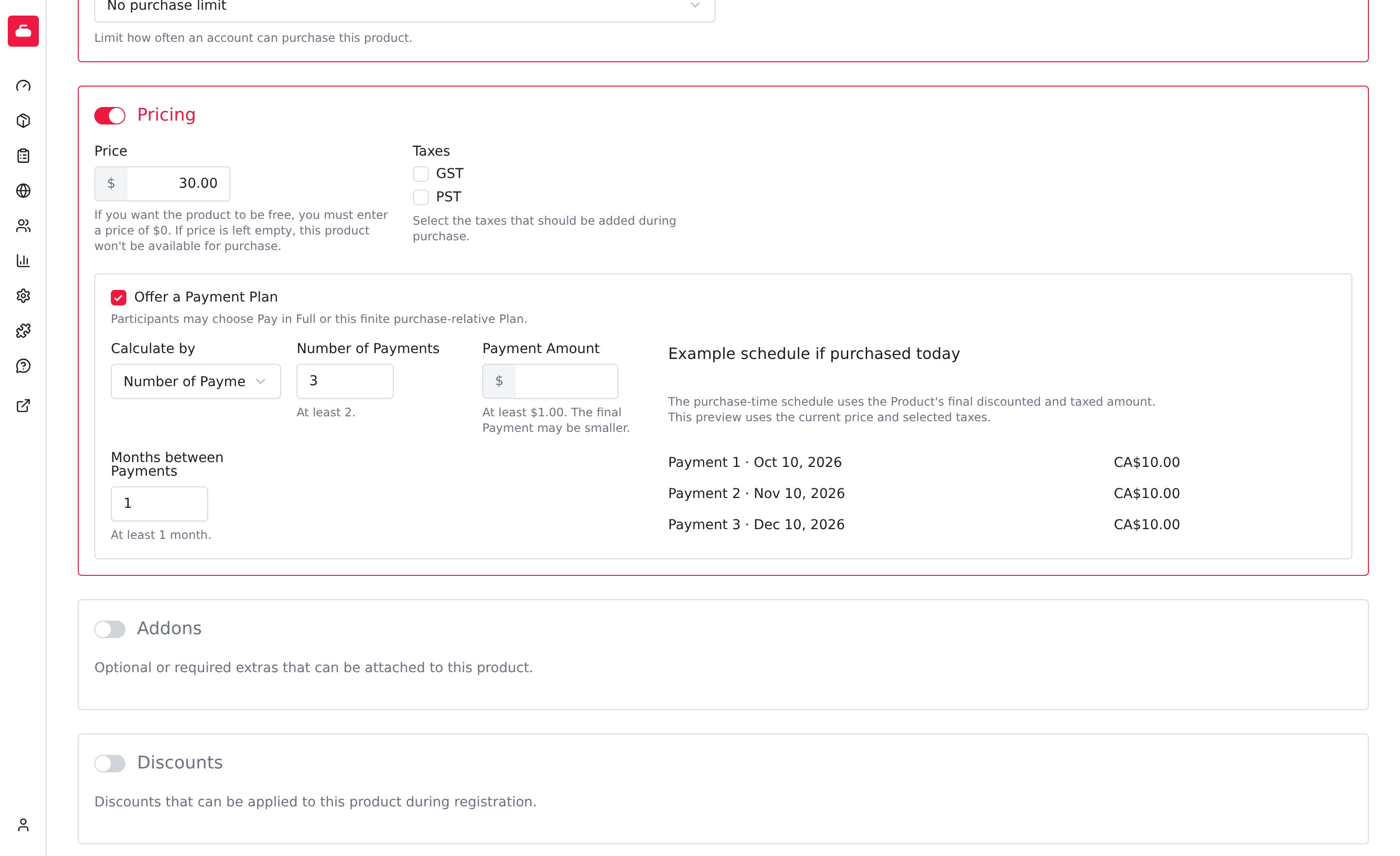
Choose how the plan is calculated, then set the timing:
- Calculate by chooses Number of Payments or Payment Amount.
- Number of Payments is how many payments to make, at least 2. Curling IO splits the price evenly. If it doesn't divide evenly, the first payment is a few cents larger. Each payment must be at least $1.00, so a small total can end up with fewer payments than you chose.
- Payment Amount is the amount of each payment, at least $1.00. The last payment may be smaller, because it covers whatever is left. If the member's total is no more than this amount, there is no plan: the whole amount is due at checkout.
- Months between Payments is the gap between payments, at least 1 month.
Enter the field that matches Calculate by. The other one is ignored.
Example schedule if purchased today shows what a member who bought now would pay and when. The first payment is due at checkout, and each later payment follows after the months you chose. The preview uses the current price and the taxes you selected. The real schedule is calculated when the member buys, from the price after discounts and taxes, so it can differ from the preview. Other items in the same cart and any checkout fees are due with the first payment.
Payment plans have these requirements:
- Set your Payment Plan Policies in Settings > Payments first. Until both are chosen, this section shows Configure Payment Plan Policies instead of the plan options.
- Your club must use SportsPay, or Stripe with payment plans enabled by Curling IO. Stripe clubs can email [email protected] to request enablement.
- Online payments must be enabled and fully configured. That includes Premium access, so you don't need to buy Premium separately. See Premium.
If online payment plans aren't available, the editor shows a warning with a link to Payment Settings. You can keep the plan terms saved, but members can't choose the plan until online payments are enabled and fully configured, and Curling IO has enabled plans if you use Stripe. Switching providers doesn't remove the saved terms or change plans members have already purchased.
Members see the plan option in their cart only when all of these are met. When you turn a plan on, the product's Form builder shows a locked Initial payment choice item. Leave it as it is. Members choose their payment option in the cart, not in the registration form.
To follow up on members whose payments fail, see Payment plans. For an overview, read Payment plans and installments.
Configure registration messages
Turn on Communications to manage information shown or sent during registration.
- Publish registrations makes participant names, lineups, and teams public. It does not publish contact information or custom field answers.
- Notification email sends purchase notices to a non-administrator who cannot use the orders screen.
- Required reading adds a mandatory Markdown screen before registration can continue.
- Post-registration message appears on the confirmation screen and in the thank-you email.
Use the product's Form builder for questions whose answers belong to one registration. Do not put registration questions in the description or required-reading text.
Configure event products
Event-capable product types can show Event Settings, Schedule, and Results.
Event Settings controls team registration rules, team format and composition, alternates, spares, venue details, and public notes. It must be on before Schedule can be enabled.
The Schedule panel supplies defaults such as resources, labels, draw times, and excluded dates. The product's separate Schedule section is where you build and manage the actual draw schedule.
The Results panel controls scoring rules and public result options. It requires Schedule. Use the separate Results section to enter scores.
Save and verify the product
Select Save at the bottom of the form. Creating a product opens its overview; saving changes to an existing product keeps you on Info.
For a live product, open it on the public site after saving. Confirm the name, summary, description, availability window, price, and registration action. Changing settings does not rewrite completed registrations, but it can change what new purchasers are allowed to do immediately.
Troubleshooting
A section or field is missing
The product type does not have the required capability, or a parent section is off. Check Settings > Product types, then confirm that Availability, Event Settings, or Schedule is enabled when the missing section depends on it.
The product is not available publicly
Confirm that Enabled and Availability are on. Then check Private, the Opens and Closes dates, inventory, and Price. A sold-out product shows a waitlist action only when Waitlist is enabled.
A registrant cannot buy the product again
Review Purchase limit and whether the limit applies to the account or the participant. Participant limits follow the selected participant, even when a different account holder completes the purchase.