Update live game scores
Enter completed ends in Results so spectators can follow a game while it is being played. Saved ends calculate each team's total and appear in the event's published results.
Before the game
You need access to the event's Results section. Organization managers and product managers assigned Results permission for this event can score here. See Managers for assigning a scorekeeper.
Participant scoring is a separate, final-score-only workflow; it doesn't let participants enter ends. See Participant final-score entry.
Create the event's teams, stages and schedule first.
Before the game, have an organization manager or someone with Info permission configure the event's Results panel:
- Turn on End scores enabled. End scoring requires active Premium.
- Leave Participant scoring off. Leave Shot by shot enabled off unless you are recording Curling Canada shot data.
- Turn on Publish results so spectators can see the scores.
- Select Save.
See Results for first hammer, LSD, shot data and the other scoring settings.
Enter each completed end
- Open the event under Products, then select Results.
- Select the game in its draw and sheet.
- Enter both teams' scores for the completed end. Entering a positive score fills the opponent's score with 0. For a blank end, enter 0 for both teams.
- Wait for Score saved. before continuing.
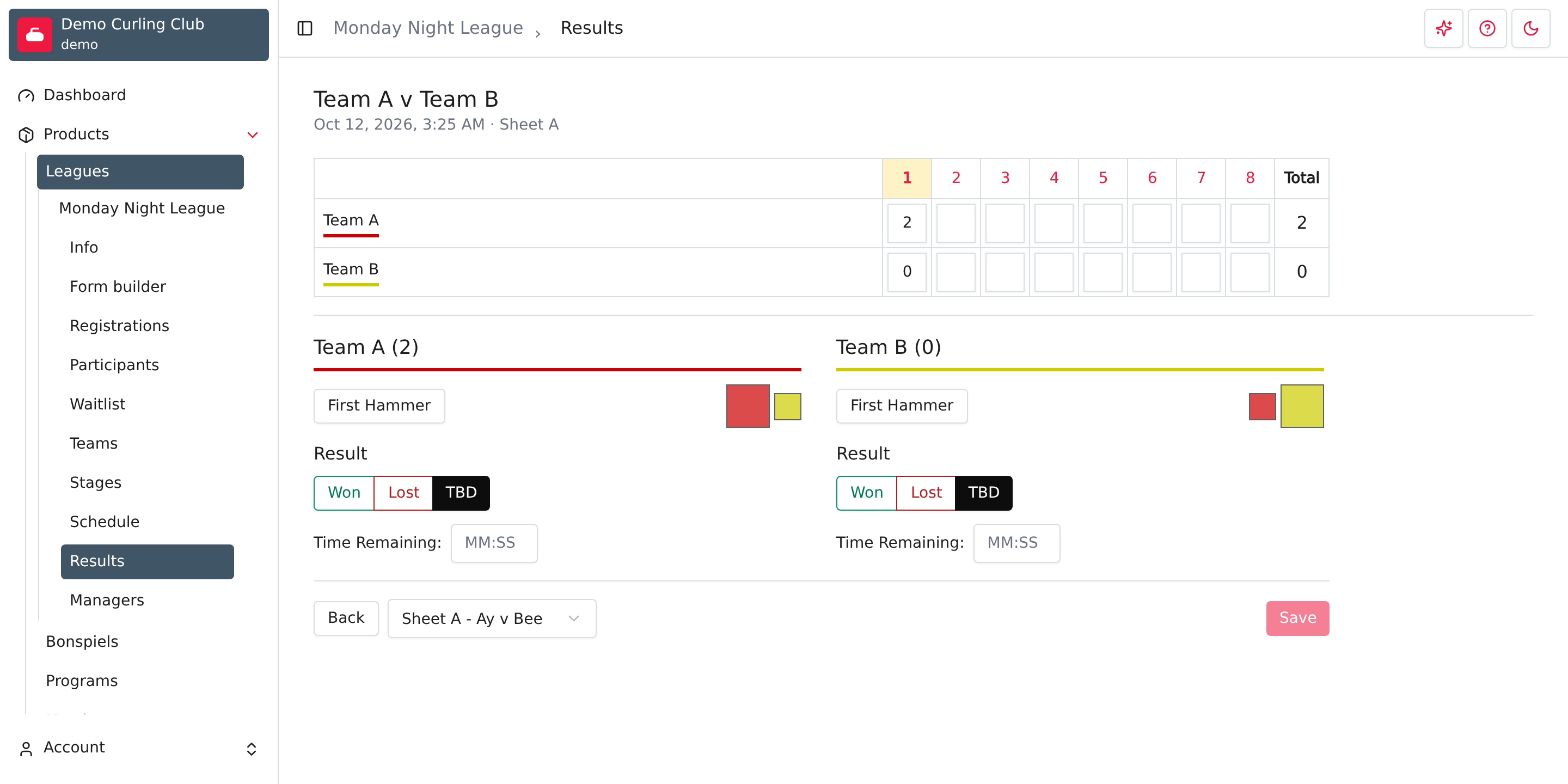
A blank field means the end hasn't been recorded. Don't enter zeros for ends that haven't been played. The total comes from the saved ends; you don't type it separately.
Keep the result at TBD while the game is unfinished. First hammer, result, time remaining and other changes outside a completed end need Save. If the editor reports an error, resolve it before leaving the game.
For more space, use Full screen from the results table. Use Back to return to the table and select another game.
Check what spectators see
Open the event on your public club website and select Results. Under Schedule, select the game to see its line score. Check that the most recent completed end and both totals match the Results editor.
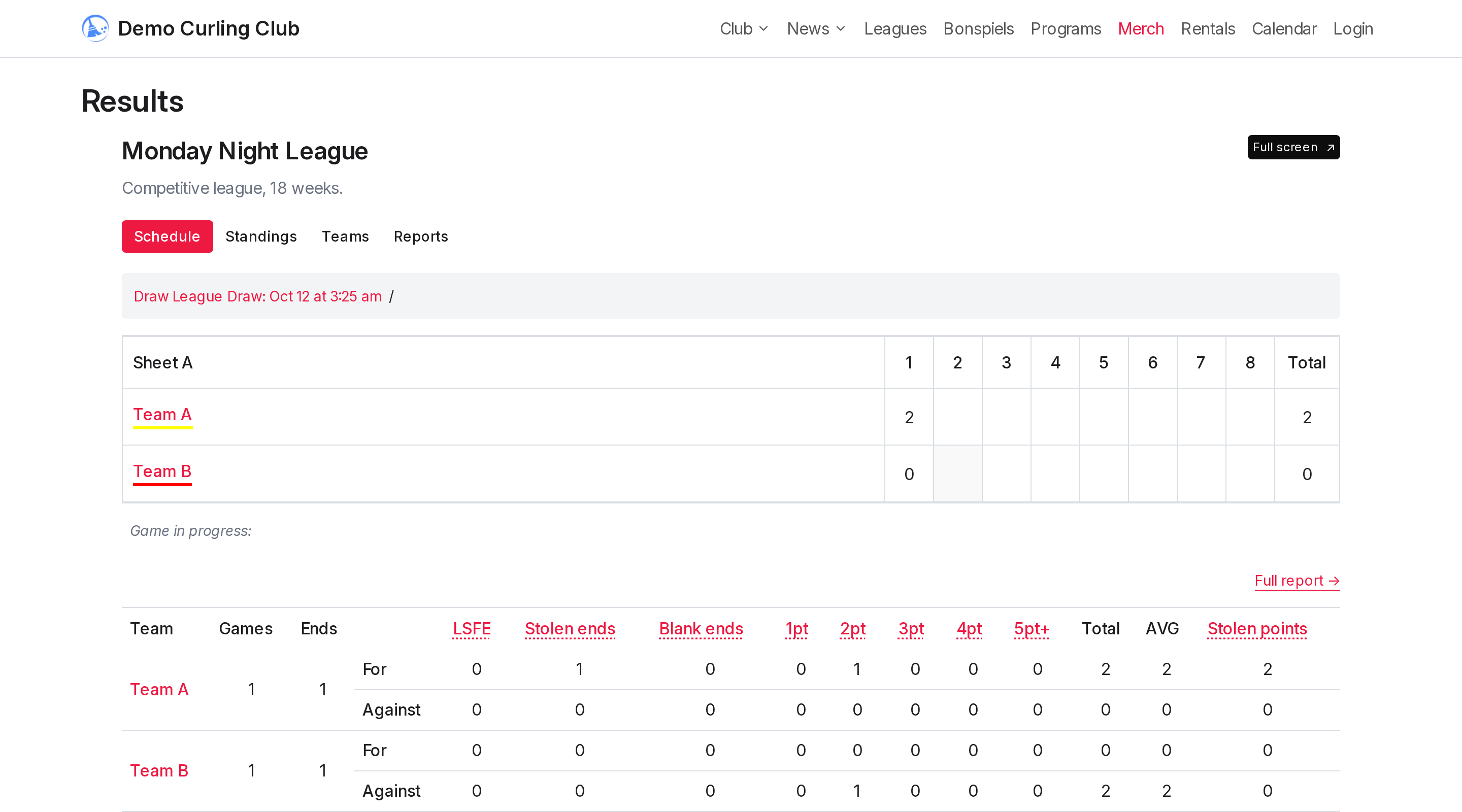
You can copy the game-detail page's address to share that game directly. A viewer can reopen that address to return to the detail.
Published scores also appear in Current games when the game qualifies for that display. To show the event on another website, use the website embeds guide.
Turning Publish results off hides the public results without deleting the saved scores.
Finish or correct a game
When the game is complete, record its official Won, Lost or permitted tied result, then select Save. Don't use the final result to mark an end that is still in progress.
To correct a score, reopen the game and start with the earliest wrong end. If the saved result conflicts with a correction, clear it to TBD, correct the ends, then restore the official result. The Results reference covers corrections and restrictions when shot data has already been recorded.
A walkthrough video is deferred. These instructions use the current event scoring screen.