Managers
Product managers have administrative access to one product. Use them when a convenor, volunteer, scorekeeper, or coordinator needs to manage part of a league or competition without becoming an organization manager.
The club Manager role has all club permissions. A Product Manager assignment grants only the assigned product and the sections you allow. Independent club roles can grant additional access.
Before you start
You must be an organization manager to add or remove product managers. You need the person's email address, but they do not need to have a Curling IO account already.
The product type must also have the Managers capability. Configure product capabilities under Settings > Product types.
Add a product manager
Go to Products, open the product type and product, then select Managers.
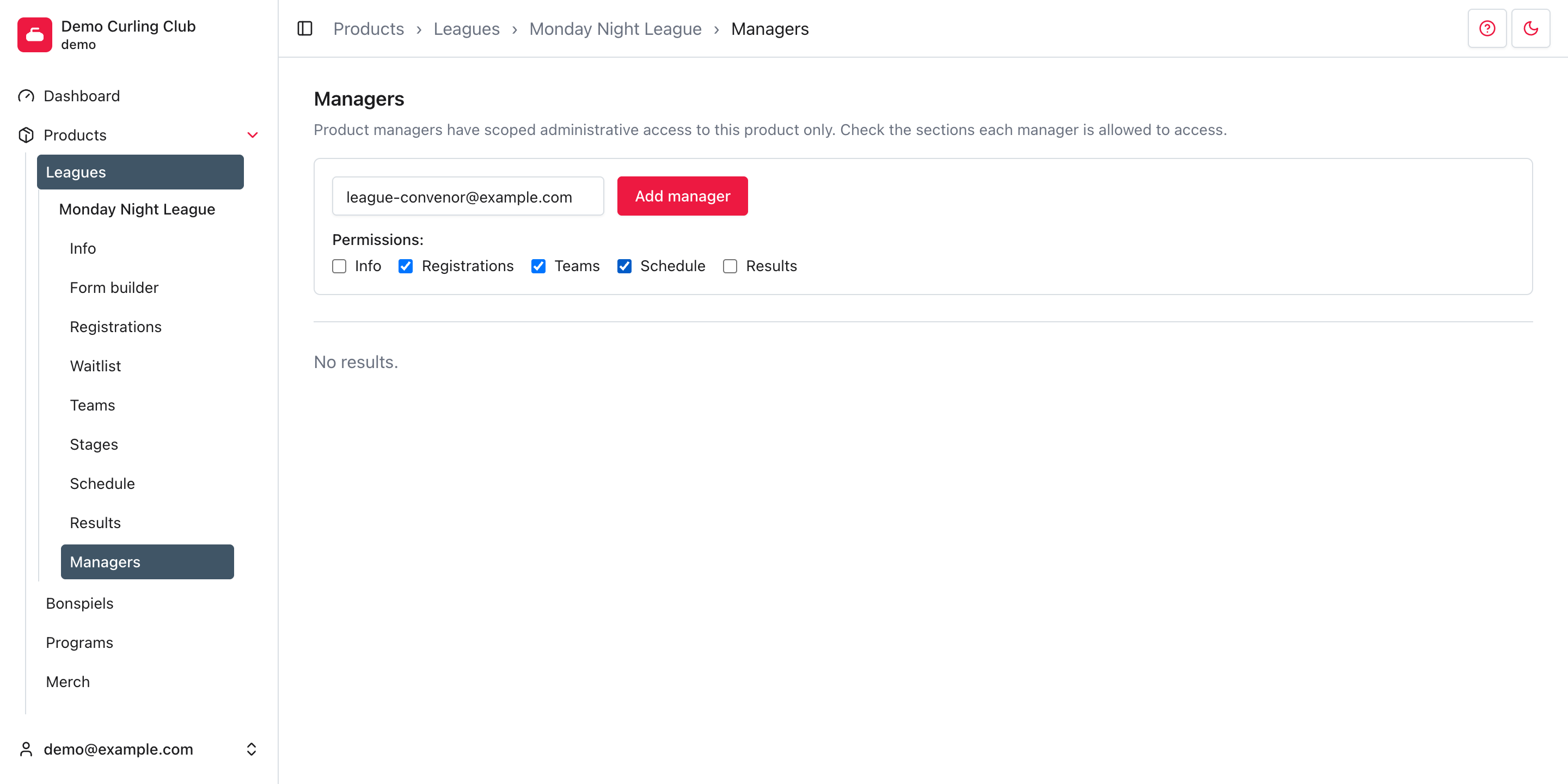
- Enter the person's address in Email.
- Select every product section they should manage.
- Select Add manager.
Curling IO reuses the account connected to that email address. If no account exists, it creates one. When enabled, the Product manager added transactional email tells the person which product they can manage and links to its administration area. See transactional emails to review that message.
A person can hold club roles and Product Manager assignments at the same time. Adding or changing either preserves the other. Club permissions combine with their assignments; a product assignment never extends to another product.
Product Manager assignments do not grant inline AI assistant access or Platform Credit spending. Product Managers can bring their own agent. Independent club-role permissions still apply if the person holds both. There is no spending checkbox on a Product Manager assignment.
Choose permissions
Permissions control the product navigation and routes available to that manager. The choices shown on the page depend on the product's active sections.
| Permission | Product access |
|---|---|
| Info | Product details, availability, pricing, communication, and event settings under Info |
| Registrations | Form builder, Registrations, and Waitlist when those sections are available |
| Teams | Teams and Stages |
| Schedule | The schedule workbench and schedule settings |
| Scores | Score entry |
| Results | Product results |
Grant the smallest set needed for the person's work. For example, a draw coordinator may need Teams and Schedule, while a scorekeeper may need only Scores.
The manager can always open the assigned product's overview. A manager with no selected permissions cannot open any of its editable sections.
Change manager permissions
Find the manager in the table, then select or clear a permission checkbox. Curling IO saves each change immediately. There is no separate Save button. The row briefly shows Saving while the update is in progress.
Changing permissions takes effect on the manager's next request. It does not change their account, their assignments to other products, or any registration or product data.
Remove a product manager
Select the delete action in the manager's row, then select Confirm. The product-manager assignment is removed immediately.
Removing the manager does not delete their Curling IO account or remove their access through club roles or other product assignments. Add them again if they need this assignment restored.
You can also review and remove product-manager assignments under Settings > Managers. Removal from that table is immediate, without a confirmation step.
Automatic cleanup
Nightly cleanup removes product-manager assignments for products that ended more than two calendar years ago. Products without an end date are not included. The product's end date controls this, not when you added the manager.
Cleanup removes only the assignments. It does not delete the product or anyone's account. Add the person again from the product's Managers section if they need access restored, but an unchanged old end date makes the assignment eligible for cleanup again.
Troubleshooting
Managers is missing from the product navigation
The product type does not have the Managers capability. Check Settings > Product types. Product managers cannot open the Managers section themselves.
A permission is missing
Only active product sections appear as permission choices. For example, Schedule is unavailable until the product has an active schedule, and a product without event settings does not offer Teams.
The person did not receive an invitation
Confirm the email address, then review the Product manager added template and delivery under transactional emails. The assignment is active even if the email was missed, so the person can still use the normal sign-in flow with the assigned address.
Permission changes do not save
If a row reports that the permission change could not be saved, reload the page and try once more. If it fails again, leave the existing permissions unchanged and contact Curling IO support.