Manage an event's participant pool
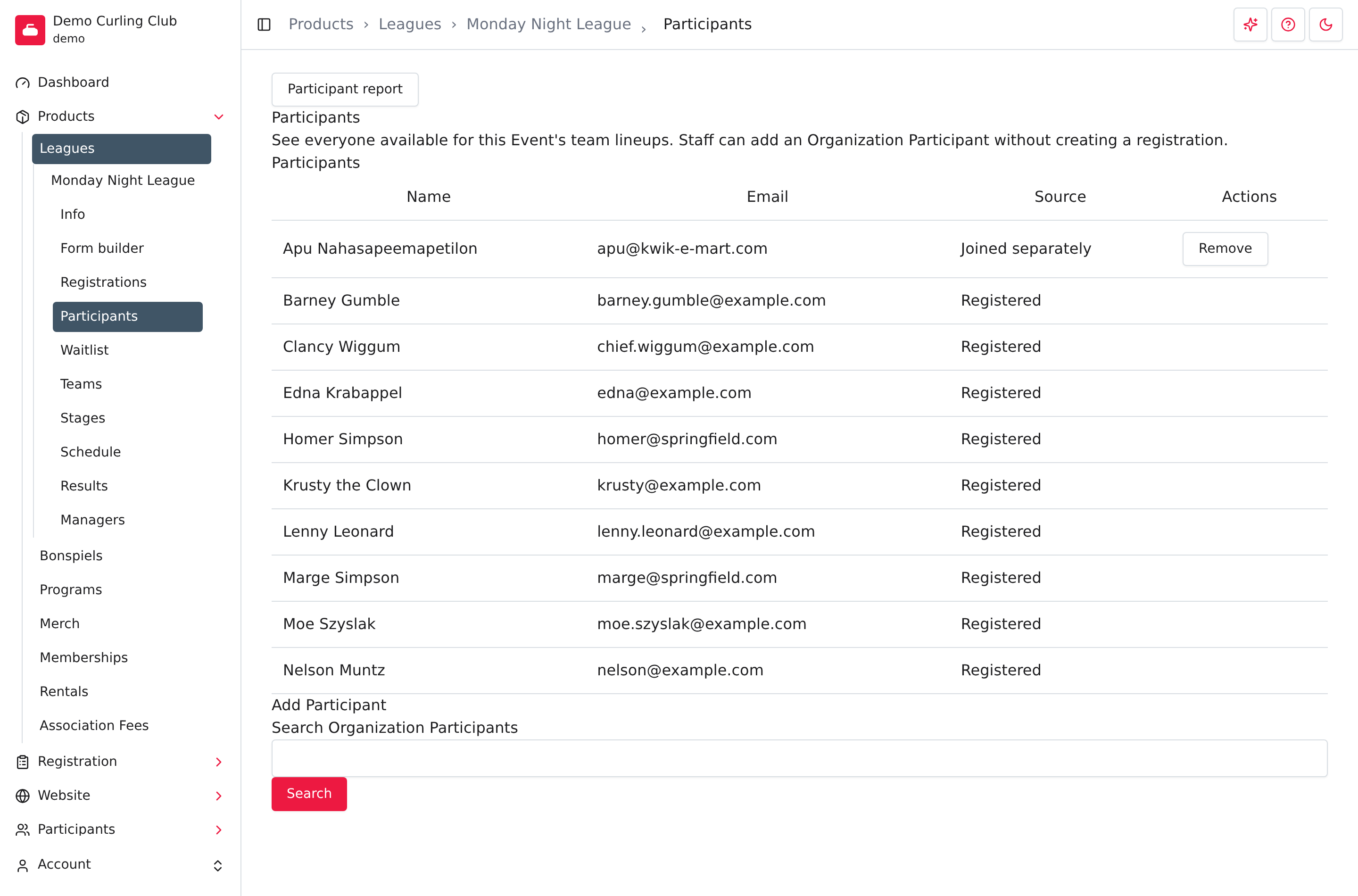
Open an event's Participants section to see who is available for its team lineups. You can add a participant from your organization without creating a registration or charging them.
Go to Products, open the league or bonspiel, then select Participants.
Participants, registrations or teams?
| Section | Use it to |
|---|---|
| Participants | Review the event's pool and add people who joined separately. |
| Registrations | Review registration answers and purchase details. |
| Teams | Assign available participants to team lineups. |
A participant can be in the pool without a registration and without a team. Adding them to the pool doesn't put them on a team. Assign their lineup under Teams afterward.
Read the source labels
The Source column explains why a participant is in the pool:
- Registered means they have an active registration for this event.
- Joined separately means they were added through a separate event join, including a manager adding them here.
A participant can have both labels. A registration left in a cart doesn't put them in the pool. When a registration covers a whole team, add each player to the pool before assigning their lineup.
The pool isn't a payment report. Use Registrations or Orders to check charges and payments.
Add a participant
- Under Add Participant, enter part of their name in Search Organization Participants.
- Select Search.
- Check the matching person's name and email.
- Select Add Participant beside the correct person.
The participant appears with Joined separately. The search only offers people already associated with your organization who aren't in this event's pool. It doesn't search every Curling IO account.
If someone is missing, check their participant profile and whether they already appear in the pool.
Remove a separate join
Select Remove beside someone with Joined separately. This removes their separate membership in this event, not their participant profile or registration.
If that separate join is their only way into the pool and they are on a team, Curling IO refuses the removal. Remove them from that team's lineup first, then return here and try again.
If they also have an active registration, removing the separate join leaves them in the pool as Registered. Use Registrations when the registration itself needs attention.
View or download the participant report
Select Participant report above the pool.
- Leave Participants set to All Participants for the full report.
- Choose Not assigned to a team to find eligible participants who haven't been placed on a lineup. The report updates when you choose the filter.
- Select Download to save
event_participants.csvfor the selected group.
The report includes profile information and your organization's configured participant fields. A report row doesn't prove that the registration is paid. Downloading doesn't assign teams, create registrations or send messages.
See Registration reports for the general download workflow.