Sell a seasonal locker
Use an ordinary product under Products > Products for seasonal locker sales. Set Inventory to the number of lockers available. You don't need reserved rental products or a separate resource for every locker.
This recipe creates Locker 2026-27: $45.00 for the season, with 40 units. Club staff assign the actual locker numbers separately.
Before you start
You need access to create products and an enabled type with Purchasable, Inventory and Dates. The Products starter includes all six capabilities. This example leaves Participant, Event Settings, Schedule and Results off.
If your club renamed the type, use its ordinary product category. Check product types if pricing, stock or dates are missing. Changing a type affects its other products too.
Create the seasonal product
- Select New product and enter Locker 2026-27 as the Name. Leave Enabled checked.
- Enter Seasonal use of one club locker. Staff assign the locker number. as the Summary. Put your club's actual assignment, key and clean-out instructions in Description if needed. Complete translated fields for your club's languages.
- Set Starts to October 1, 2026 at midnight and Ends to September 30, 2027 at 11:59 p.m. Use your actual locker season.
- Turn on Availability and choose Standalone only under List as.
- Set Opens to October 1, 2026 at midnight and Closes to September 30, 2027 at 11:59 p.m. Both fields are needed for online purchasing. Use an earlier closing date if your club stops sales before the season ends.
- Set Inventory to 40 and leave Private and Waitlist unchecked for this example.
- Leave Purchase limit at No purchase limit and Participant off. This example doesn't restrict how many lockers an account can buy.
- Turn on Pricing, enter 45.00 as the Price, and select applicable taxes. No taxes are selected in this example.
- Leave event settings off and select Save. Open Info to confirm the saved stock, dates and price.
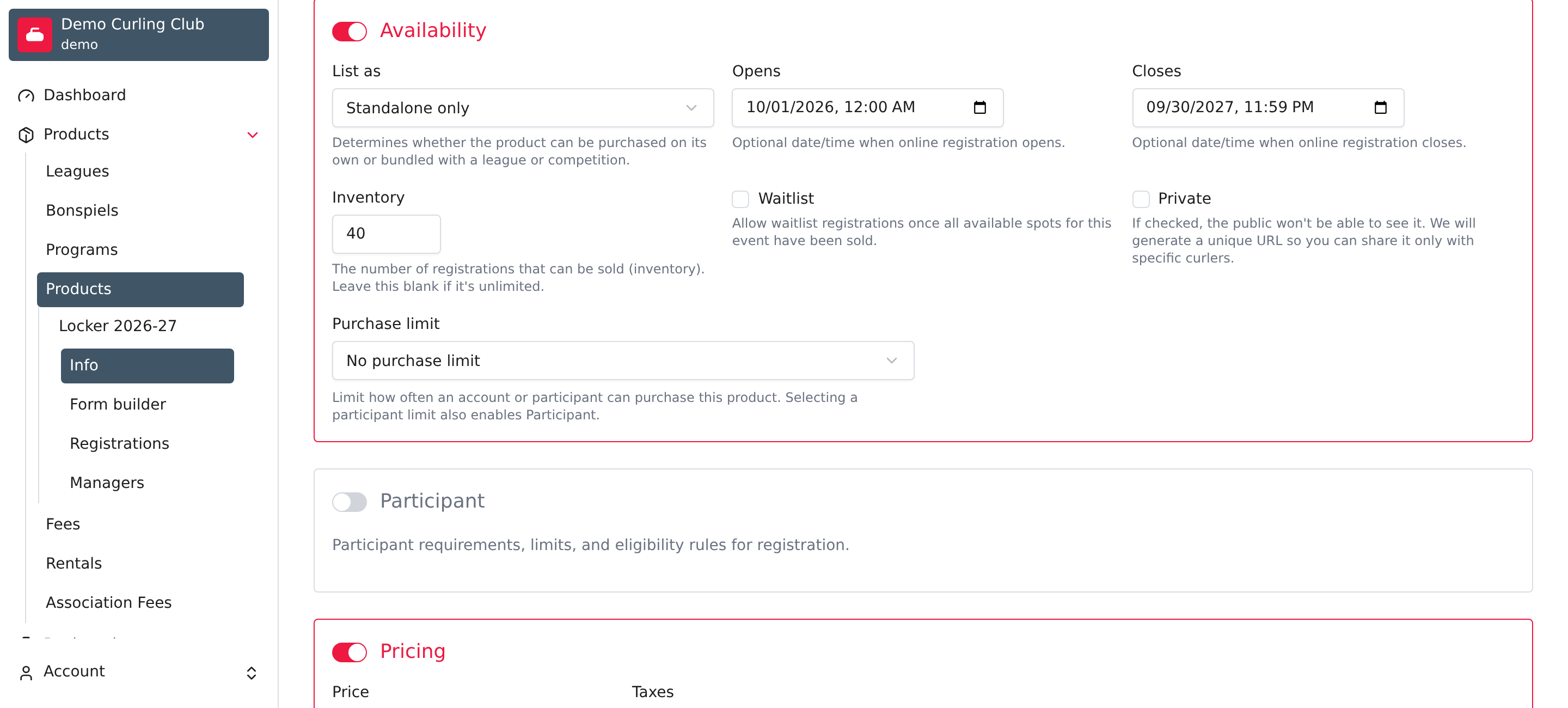
Starts and Ends describe the season. Opens and Closes control when people can purchase online. They don't assign a physical locker or control access to it.
Check the public result
Open the locker product on your club's public site. During the example's purchase window, the details show $45.00, 40 remaining, the season and purchase dates, and Add to cart. There is no participant requirement in this example.
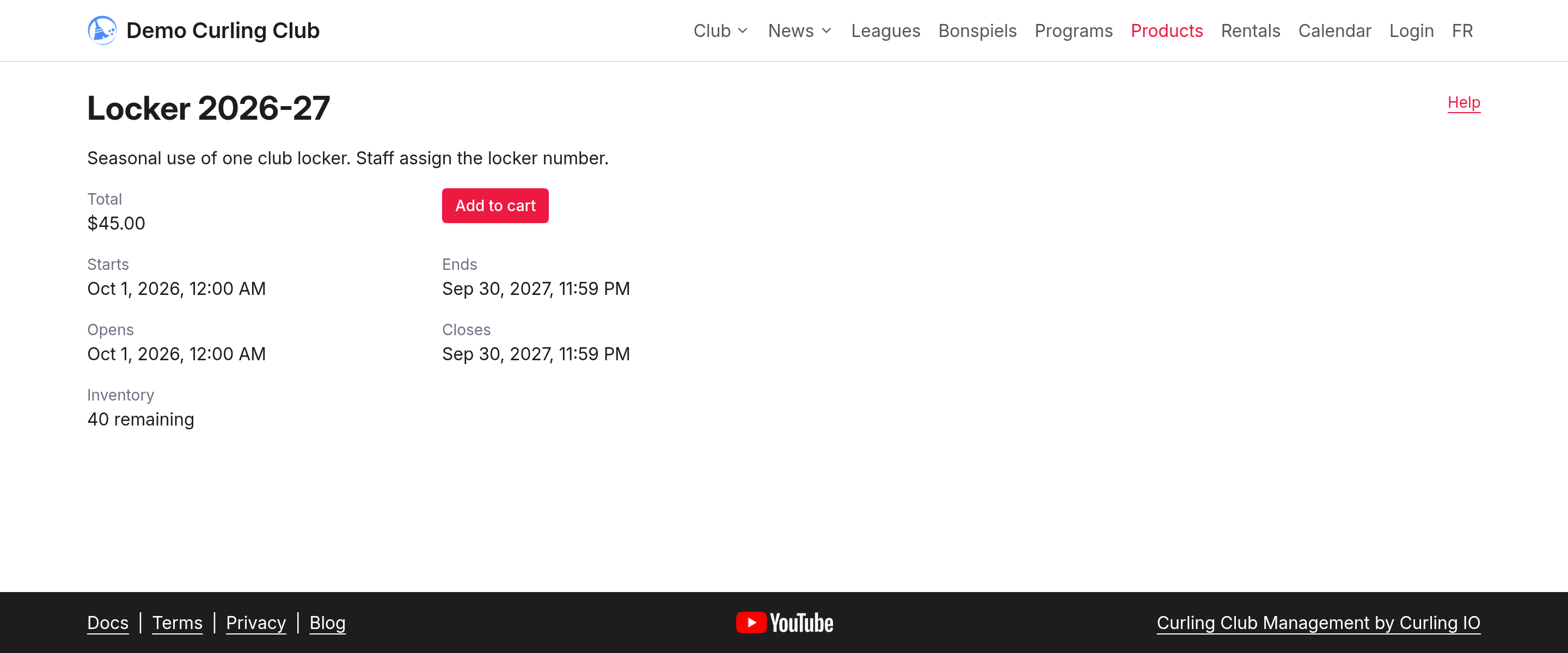
Keep your club's locker assignment record separately. Inventory limits the number of units sold; it doesn't provide a numbered locker picker. Use Orders to follow up on the purchases.
Prepare the next season
Create a separate product for the next season so its purchases stay separate. You can copy this product, then update its name, season, opening window, price and stock. Keep Enabled unchecked until you have reviewed the copy.
Use Waitlist if you want to collect interest when all lockers are sold. See Info for the full settings and Addons if you also want to offer the locker alongside another registration.