Create a simple merchandise product
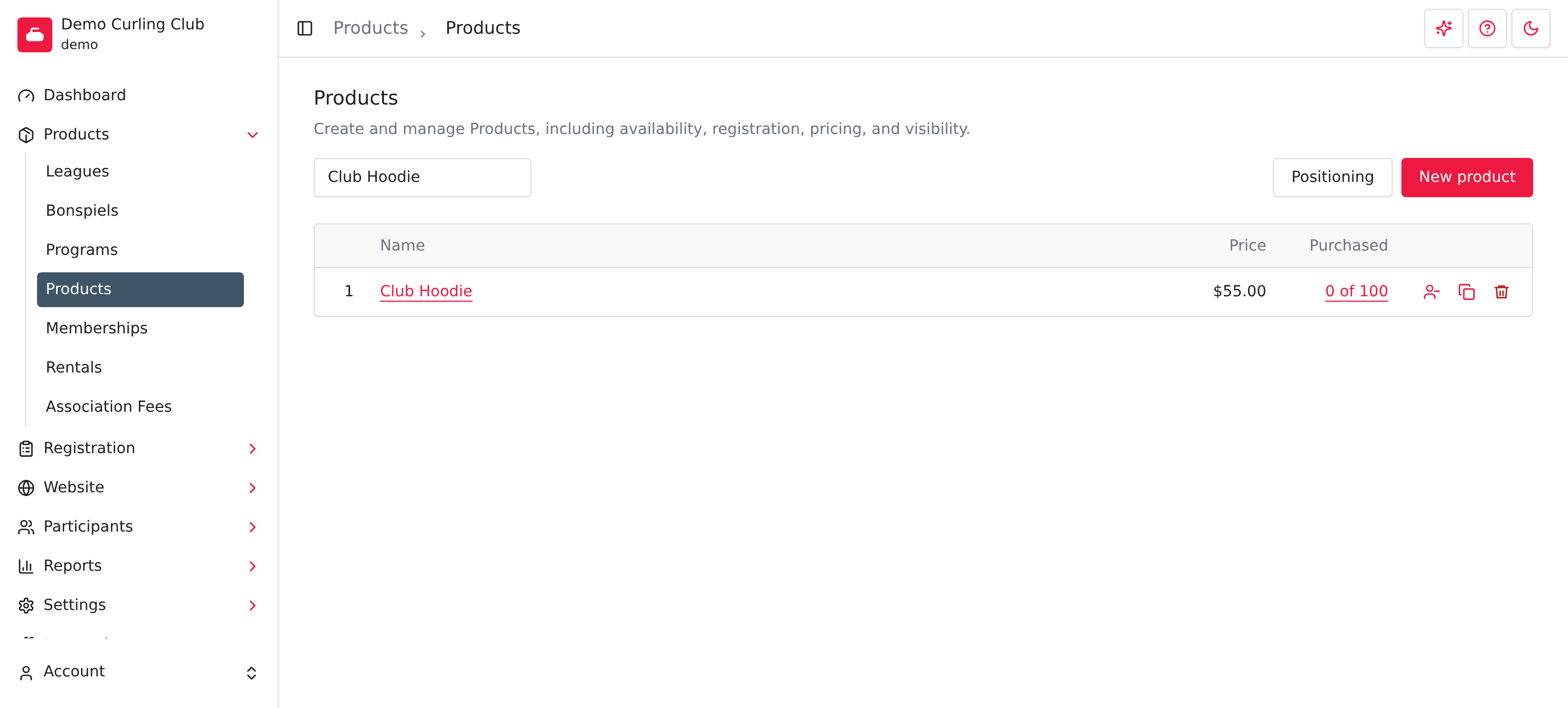
Go to Products > Products, select New product, then turn on Availability and Pricing. This recipe creates a public Club Toque for $30.00, with 50 available to buy on its own.
Before you start
You need access to create products and an enabled product type that supports Purchasable and Inventory. This example uses the Products starter type, which includes all six capabilities. Leave Participant and Event Settings off for this simple item.
Your club may have renamed the category to Merchandise or another name. Use the category your club has prepared. If a needed setting is missing, check product type capabilities. Changing a type affects every product in that category.
Enter the product details
- Select New product.
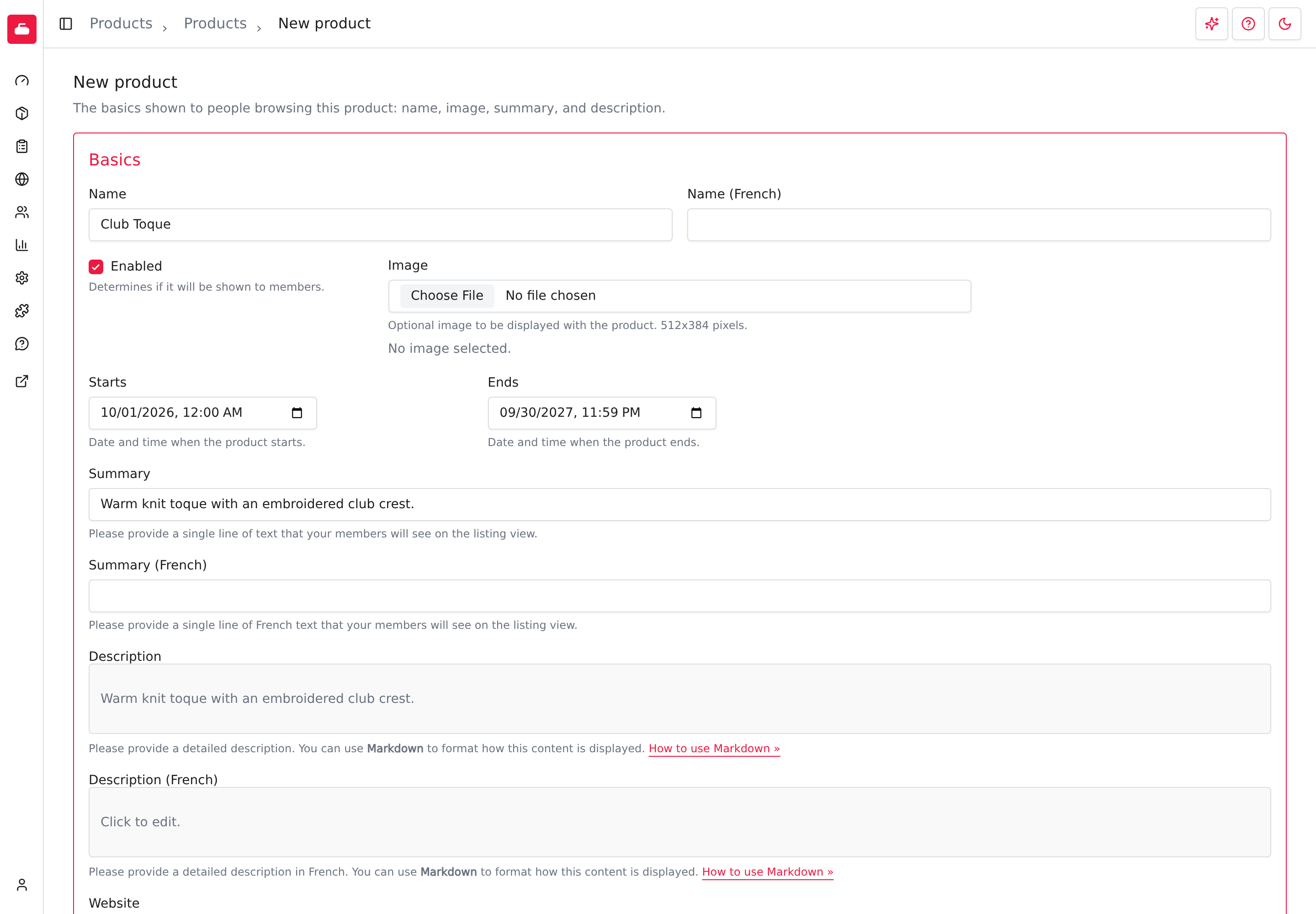
- In Basics, enter Club Toque as the Name.
- Leave Enabled checked.
- Enter Warm knit toque with an embroidered club crest. as the Summary.
- Select Description, enter the details buyers need, then select Apply in the editor. For this example, use the same sentence as the summary.
- If the type supports Dates, enter Starts and Ends. Both are required. Use your selling period; this example runs from October 1, 2026 at midnight to September 30, 2027 at 11:59 p.m.
You can add an image if you have one. French fields appear when your club uses French; enter translated details for your French-speaking buyers.
Make it available on its own
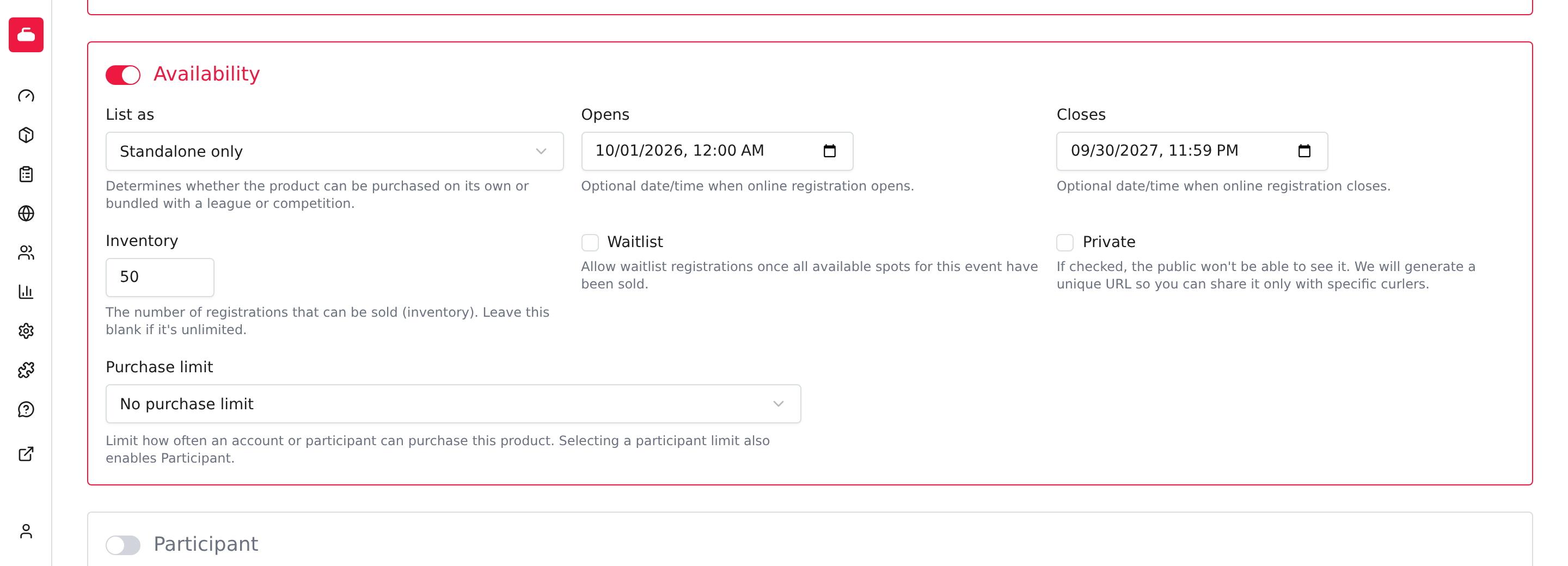
- Turn on Availability.
- Set List as to Standalone only.
- Set Inventory to 50.
- Leave Private unchecked so the product appears in public lists.
- Leave Waitlist unchecked and Purchase limit at No purchase limit for this example.
- If the type supports Dates, fill in both Opens and Closes. These control when people can buy online. Use the same period as above for this example, or your actual selling window.
With Dates enabled, leaving either Opens or Closes blank makes the product unavailable, even though the form's help text calls these optional. Choose a window that includes today if you want people to buy immediately. A type without Dates doesn't show these fields.
Set the price
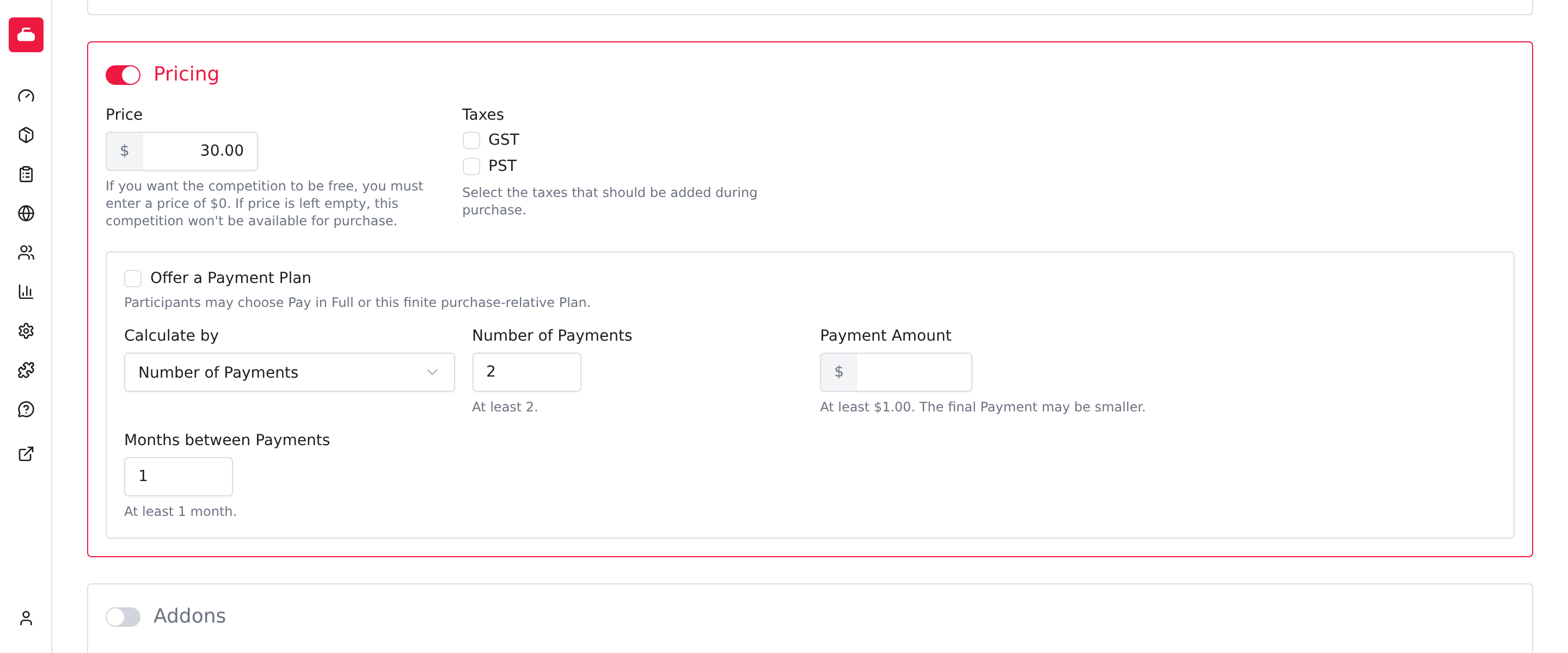
- Turn on Pricing.
- Enter 30.00 as the Price.
- Under Taxes, select the taxes that apply to this item. The example has none selected; use your club's tax requirements.
- Select Save at the bottom of the form.
After creating the product, Curling IO opens its overview. Select Info if you need to change the details you just saved.
Check what buyers see
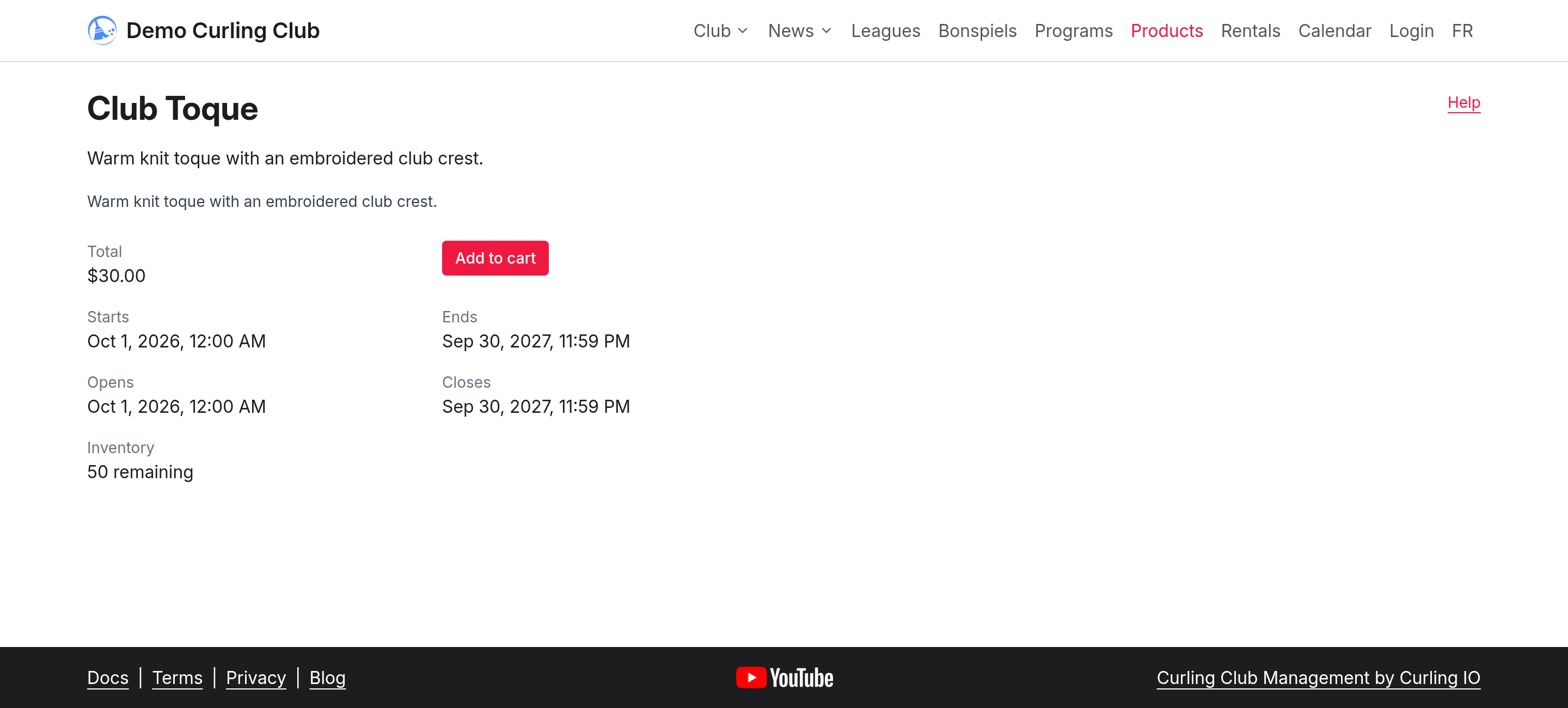
Open your club's public product list and select Details for Club Toque. Check the name, description, $30.00 price, 50 remaining, and Add to cart action. If you selected taxes, the displayed total will reflect them.
Troubleshooting
The product is missing from the public list
Confirm that Enabled is checked and Private is unchecked. Check that List as is Standalone only or Standalone and addon, rather than Addon only.
The product says Unavailable
Confirm that Availability and Pricing are on and Price is filled in. Check that inventory hasn't sold out. For a type with Dates, both Opens and Closes must be filled in and today must fall within that window.
Pricing or inventory is missing
Check the type's capabilities. Pricing needs Purchasable, and stock limits need Inventory. Turn on Availability to show the product's purchase settings.
Related settings
Use Info for the full product form, including registration messages under Communications. See Waitlist if you want to collect interest after stock sells out, Discounts for discount setup, and Accounting Codes for accounting codes. To arrange the public list, see Positioning products.