Review product registrations
Use a product's Registrations section to find everyone registered for that product, download the list, and correct the answers saved with one registration. This is narrower than the organization-wide registration reports.
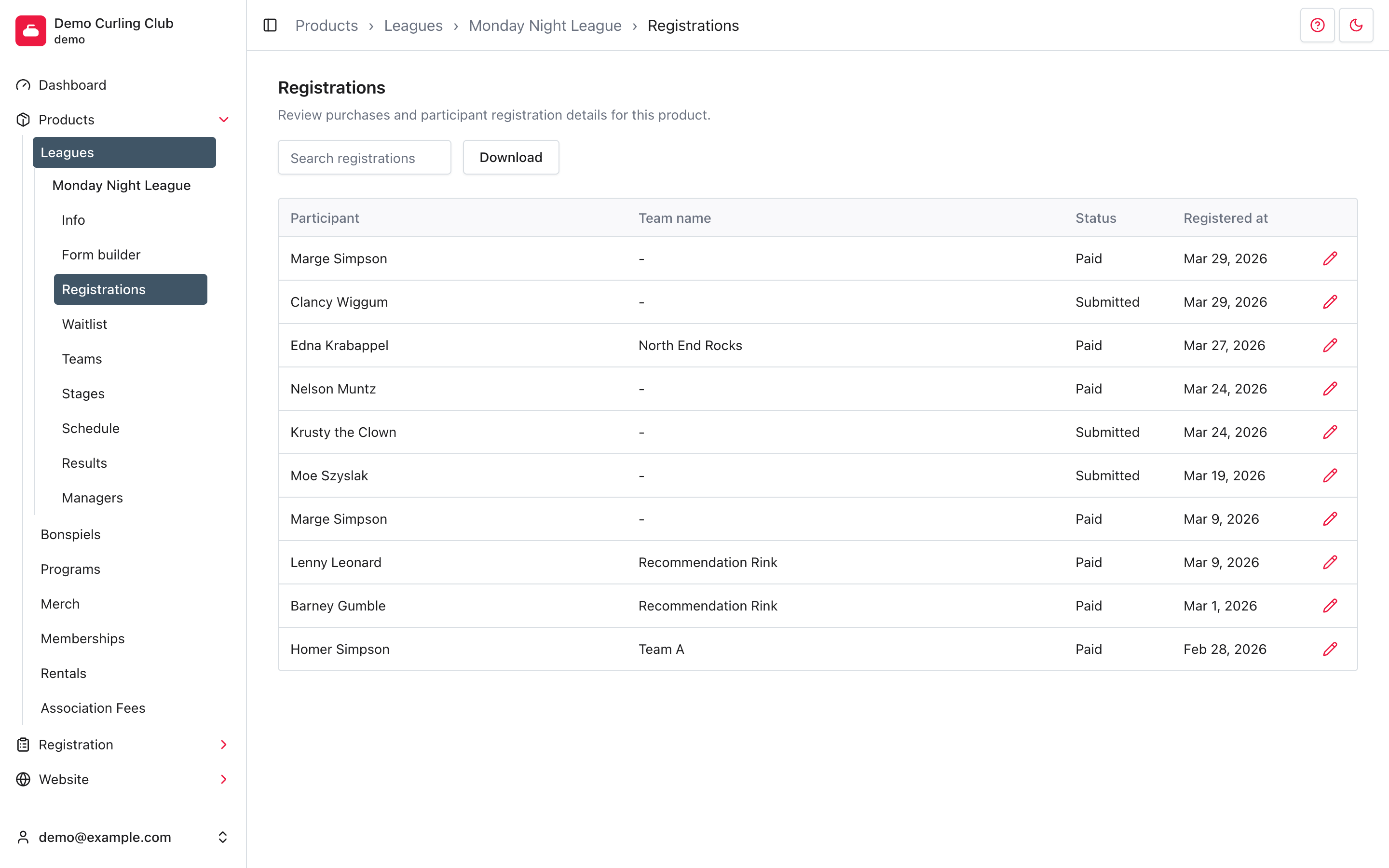
Open a product's registrations
- In the administration area, open Products.
- Choose a product type, such as Leagues.
- Select the product.
- Select Registrations in the product navigation.
The table shows the participant, team name when the product collects one, status, and registration date. Select the pencil action on a row to review its saved answers.
Search and download
Enter a participant name, participant email, or team name in Search registrations. The table updates as you type.
Select Download to save registrations.csv. The file follows the current
search and includes the registration date, participant, email, team name when
used, status, and amount.
Use the Line items report when you need to compare multiple products or include discounts, taxes, refunds, and custom report columns.
Review or correct registration answers
Select the pencil action beside a registration. The summary at the top shows the participant, registration date, status, amount, discount when one applies, and linked order number.
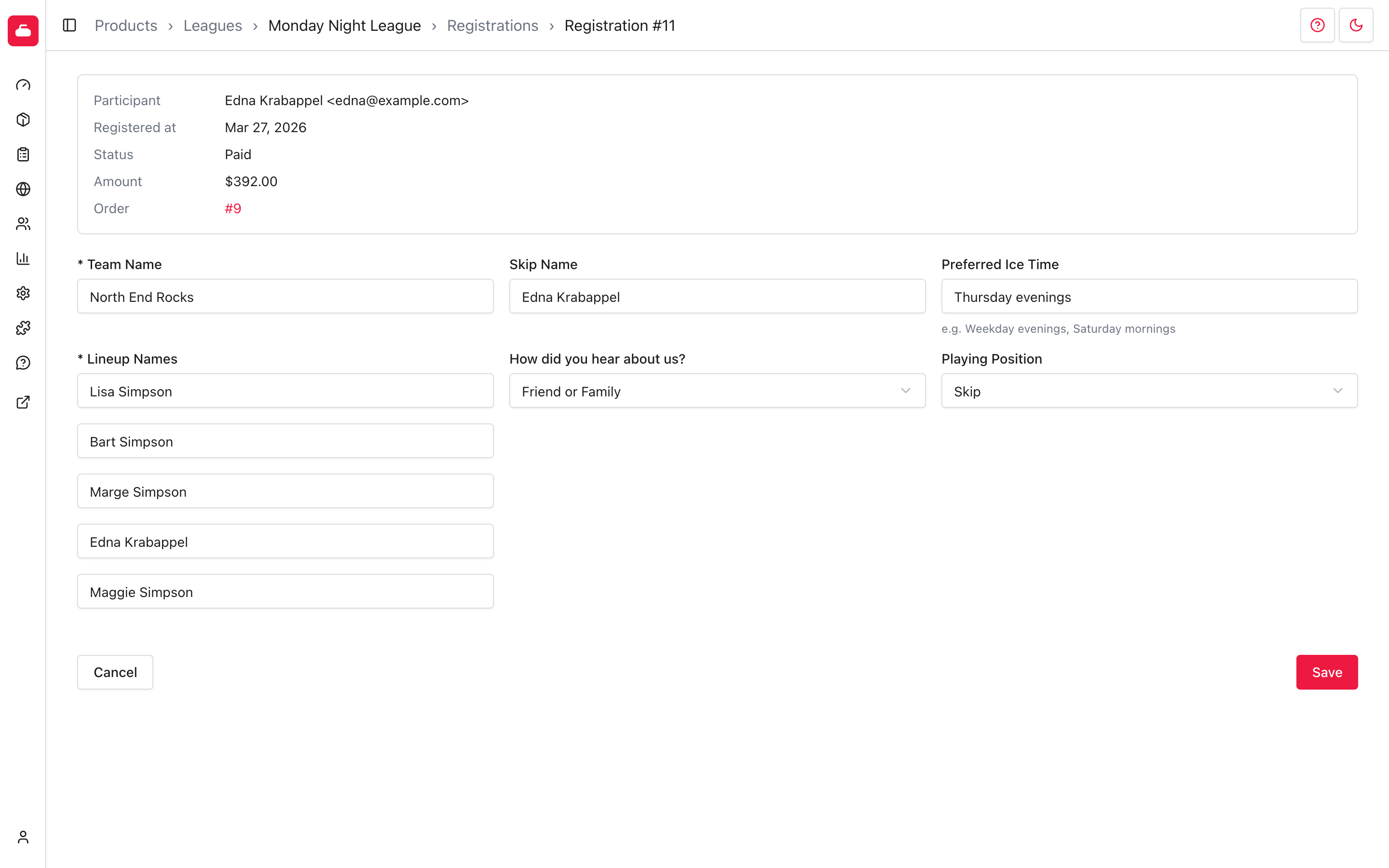
The editable fields come from the product's current form. They can include team details, lineup names, preferences, and custom questions.
A common correction is making team names consistent so the team recommendations
can group registrations correctly. For example, fix a spelling mistake or
change Jane Smith to Smith when the other members of that team entered only
the skip's last name. Team names and skip names feed into the recommendations
used to assemble teams, so consistent names make that work more smoothly.
Consistency also matters when registration is limited by the number of unique team names. Different spellings or formats for the same team can be counted as separate teams and falsely exhaust that limit.
- Review the participant and linked order in the summary.
- Correct the saved answers. Fields marked with an asterisk are required.
- Select Save.
- Search for the participant or team name on the registrations list to confirm the change.
Saving this form changes the registration answers only. It does not transfer the registration, change its status or price, edit the participant profile, or alter a payment. Select the linked order number when the correction belongs on the order instead.