Rentals
Rentals let account holders book a specific resource, date, and time through your public calendar. Use them for practice ice, rooms, or another scheduled offering that has a price and can be purchased online.
Each rental is a product. It uses the ordinary product tools for pricing, taxes, participants, questions, add-ons, discounts, accounting, communications, orders, payments, and refunds. Its rental schedule adds the resources and times that account holders can book.
rental products require Premium before they appear publicly or accept new bookings. Existing configuration and completed order history remain saved if Premium access ends. See settings > Premium.
Walkthrough Video
This video shows how to create and book an exclusive rental, configure a rental with capacity, and group resources into one bookable time slot.
Before you start
Create the resources that the rental will use under Settings > Resources. A resource can be an ice sheet or room. Only resources with Show on calendar turned on can be selected for a new rental schedule.
See resources for resource setup.
Decide whether one rental product can represent the complete offer. Every time slot from one rental shares the same:
- Price and taxes
- Duration
- Participant and form requirements
- Add-ons and discounts
- Accounting and communication settings
If Sheet A costs $100 and Sheet B costs $125, create two rentals. Do the same when different times or resources need different durations or commercial rules.
Also decide whether the selected resources are booked separately or grouped. Leave Rent selected Resources together unchecked when an account holder books one of the selected resources. Check it to group the resources when one booking must reserve all of them, such as a full-rink rental across four sheets.
How a rental schedule works
A rental schedule starts with:
- One start date
- One or more resources
- One or more explicit start times
- One duration
- A one-off or repeating schedule
Curling IO combines these settings into individual bookable time slots.
For example, a weekly rental assigned to four sheets with start times at 4:00 PM and 7:00 PM produces eight time slots on each scheduled date. Each resource and start time is booked separately.
Check Rent selected Resources together when the selected resources form one group. The same four sheets and two start times then produce two time slots on each scheduled date. Each time slot lists all four sheets, and one booking reserves all of them.
A time slot with grouped resources appears as one block across its resource columns in the calendar's Day view on desktop when those resources are next to each other. If the resources are not adjacent, or one is hidden by the resource filter, the calendar keeps the visible blocks in their individual columns. Selecting any of them still opens the complete time slot.
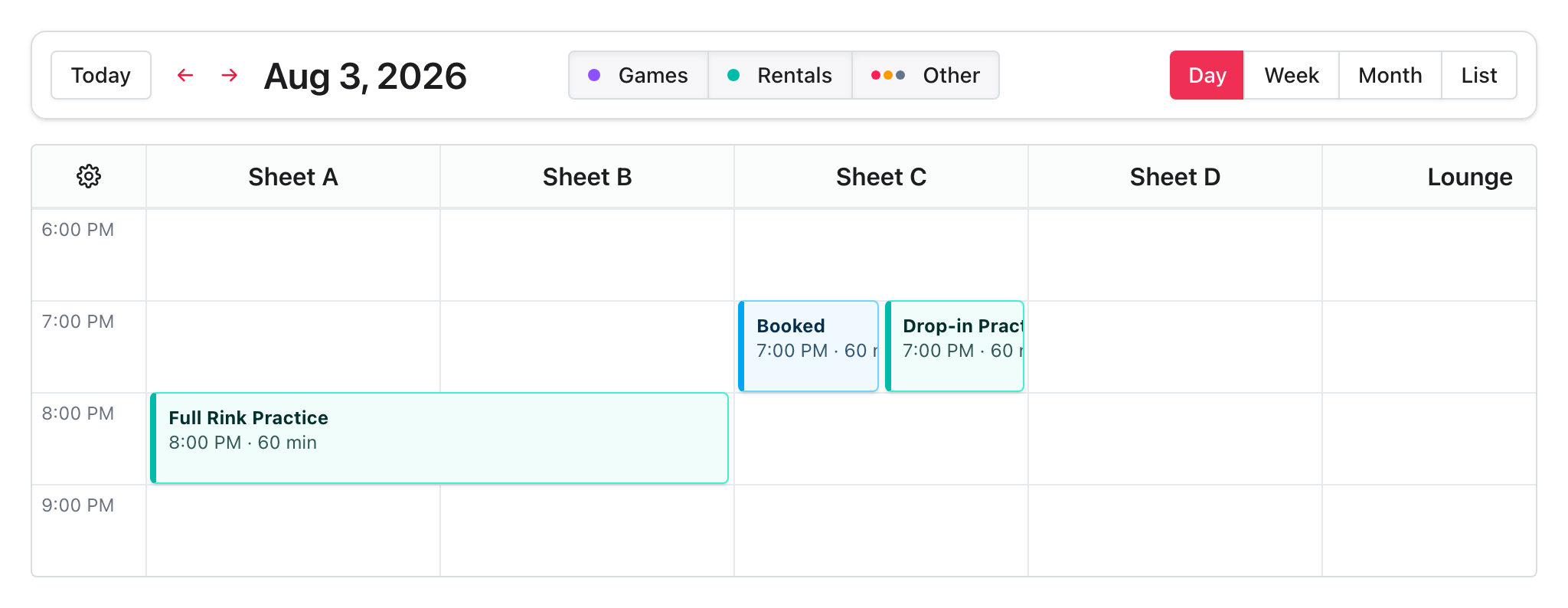
A grouped rental requires at least two resources. Every selected resource must be available or the time slot is unavailable.
A missing start time does not mean that account holders can choose any time during the day. Add every start time you want to offer.
Choose exclusive or capacity-enabled
Leave Capacity off when one booking should take the complete resource or resource set for that time slot. This is the usual choice for sheet, room, or full-rink rentals.
Turn on Capacity when several account holders can book the same time slot. Set the number of bookings accepted per time slot. Capacity is separate for every resource, date, and start time unless the selected resources are rented together.
For example, this guide creates:
- Team Practice Ice, an exclusive daily rental on Sheet A and Sheet B
- Drop-in Practice, a daily rental on Sheet C with capacity for four bookings per time slot
- Shared Practice, an exclusive rental that groups Sheet A and Sheet B
Create a rental
Go to Products > Rentals, then select New product.
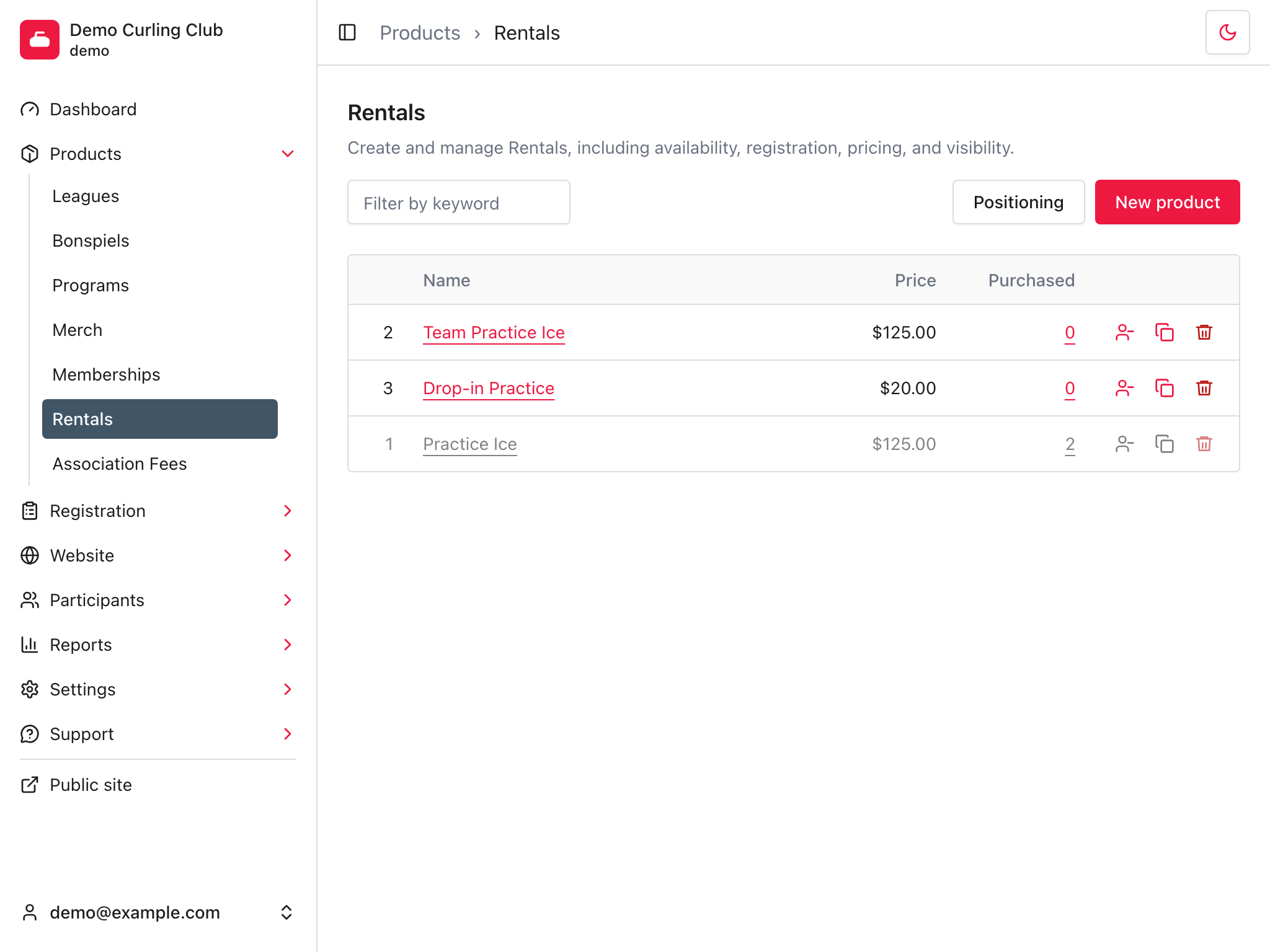
Enter the product information
Enter a clear Name that account holders will recognize on the calendar. Add a summary or image when it helps someone understand what they are booking.
Leave Enabled checked when the rental is ready to appear publicly. You can leave a rental disabled while preparing an incomplete draft.
Configure availability
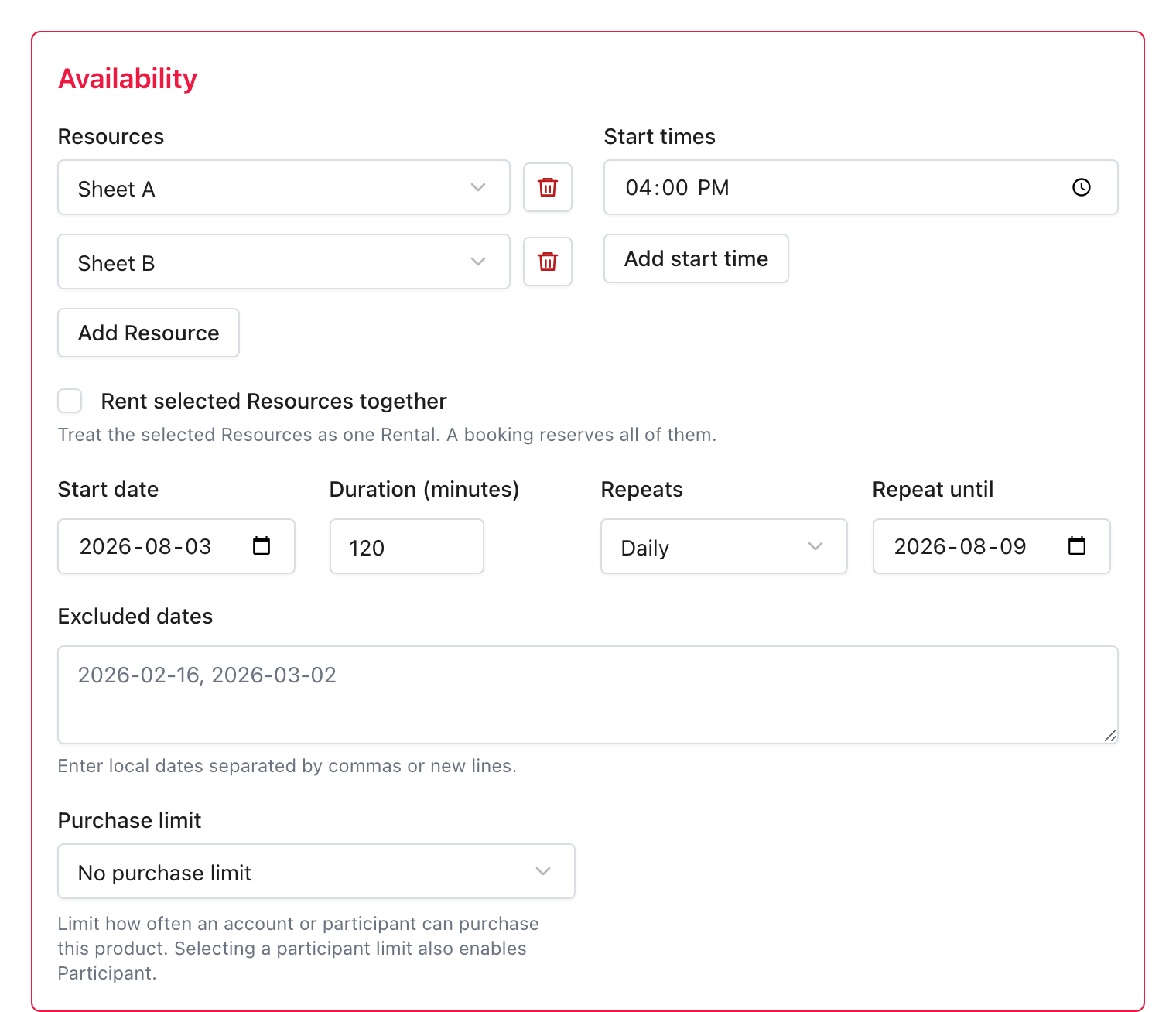
In Availability:
- Add at least one Resource.
- Check Rent selected Resources together if one booking must reserve every selected resource.
- Enter the Start date.
- Add at least one Start time.
- Enter the Duration (minutes).
- Choose how the rental Repeats.
- Optionally enter Repeat until.
- Add any Excluded dates.
Available recurrence choices are:
- Never for a one-off rental.
- Daily
- Weekly
- Monthly
- Yearly
Leave Repeat until blank when a repeating schedule should continue without a fixed end.
Use Excluded dates for holidays, maintenance days, or another exception to
the normal pattern. Enter local dates in YYYY-MM-DD format, separated by
commas or new lines. Every excluded date must be a date on which the recurrence
would otherwise create a time slot.
The Team Practice Ice example below is available on Sheet A and Sheet B at 4:00 PM each day from August 3 through August 9. Each time slot lasts 120 minutes. The resources are not rented together, so account holders choose one sheet.
Configure capacity
Leave Capacity off when one booking should take the complete resource or resource set for that time slot. This is an exclusive rental. The product's inventory value is ignored.
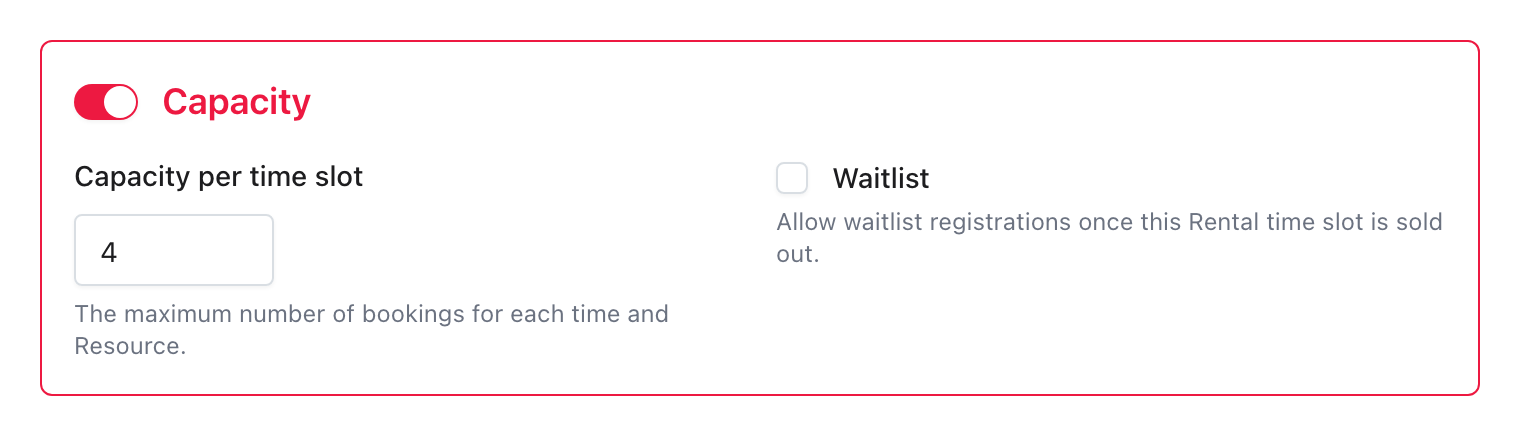
Turn on Capacity when multiple account holders can book the same time slot. Enter Capacity per time slot, then decide whether to turn on Waitlist.
When resources are booked separately, capacity applies to each resource, date, and start time. When resources are rented together, capacity applies to the complete selected resource set, date, and start time. It is not one inventory pool shared by every time slot from the rental product.
For example, a capacity of 8 on a rental with two resources and two start
times allows up to eight bookings for each of the four resulting time slots.
A capacity of 0 accepts no immediate bookings. If waitlist is on, account
holders can join the waitlist for the time slot instead.
Drop-in Practice accepts four bookings for each Sheet C time slot. Waitlist is left off for this example.
Limit repeat purchases
Use Purchase limit when one account or participant should not consume more than one unit of capacity or buy the same product repeatedly.
Every product can allow:
- No purchase limit
- Once per season per account
Participant limits are also available. Selecting one automatically turns on Participant:
- Once per season per participant
- Once per lifetime per participant
A capacity-enabled rental adds two time-slot choices:
- Once per time slot per account
- Once per time slot per participant
A time slot is one rental on one resource, or one grouped resource set, at one date and start time. The same account or participant can still book another date, resource choice, or start time. Time-slot limits do not appear for exclusive rentals because one booking already takes the complete time slot.
Choose either an account limit or a participant limit. Account limits apply to the account completing checkout. Participant limits apply to the participant assigned to the cart item.
Configure the ordinary product features
Rentals can use the same commercial sections as other products:
- Participant controls whether the account holder must choose a participant and can apply age, gender, waiver, or purchase restrictions.
- Pricing sets the price and taxes.
- Add-ons attaches optional or required related products.
- Discounts makes configured discounts available.
- Accounting assigns the accounting treatment used by orders and reports.
- Communications controls purchase-related notifications.
- Form builder adds registration questions to the cart workflow.
See products for the general product model. This guide focuses on the scheduling behavior that is specific to rentals.
Select Save when the product and rental schedule are complete.
One-off rentals
Choose Never under Repeats to offer a rental only on its Start date. The rental can still have multiple resources and start times on that date, with the resources offered separately or rented together.
Use a one-off rental when the price and commercial setup should be reusable across several choices on one particular date. Use a manual reservation instead when you only need to hold a resource and do not need a public product, cart, or order.
Recurring rentals
A recurring rental derives future time slots from its start date and recurrence. Curling IO does not store a separate row for every future date.
Use Repeat until when the series has a known final date. Use Excluded dates for individual exceptions.
Changing the recurring definition changes the derived availability. Existing purchased bookings remain concrete order records with their saved resources, date, time, and duration.
Control how far ahead account holders can book
Rental schedules and public booking windows are separate.
The schedule determines which time slots exist. Website > Calendar determines which time slots are currently close enough to book:
- Min advance booking (hours) sets how soon a booking can start.
- Max advance booking (hours) sets how far ahead a booking can start.
These windows are measured in hours from now. For example, a minimum of 24
requires at least one day of notice.
See calendar for the complete calendar settings.
Understand conflicts
A rental schedule can be saved even when some derived time slots overlap other activity. Curling IO resolves each time slot when it builds the calendar and again when a cart or checkout is validated.
A time slot is unavailable when its resource and time overlap:
- A capacity-holding booking from another rental
- A manual reservation
- A closure
- A scheduled draw
- Another rental time slot that takes priority
Only the overlapping resource and time are affected. The rest of a recurring schedule remains available.
For a grouped rental, an overlap on any selected resource makes the complete time slot unavailable. Curling IO does not offer a partial version of the group.
Removing a reservation or closure exposes the underlying rental time slot again automatically. You do not need to recreate the rental schedule.
Avoid overlapping rental products
Curling IO resolves overlapping rental products consistently, but only one can be offered for the same resource and time. Keep schedules distinct unless the overlap is intentional.
How account holders book a rental
Account holders find rentals on your public calendar.
- They select an available rental.
- They choose one resource when the selected resources are offered separately.
- They review the date, time, duration, and price.
- They select Add to cart.
- They complete any participant, question, waiver, add-on, or other product requirements in the cart.
- They complete checkout.
When equivalent resources are available, the dialog lets the account holder choose one before adding the rental to the cart.
When the selected resources are rented together, the dialog lists the complete resource set instead of showing a resource selector. The cart and completed order keep that resource set as part of the purchased rental snapshot.
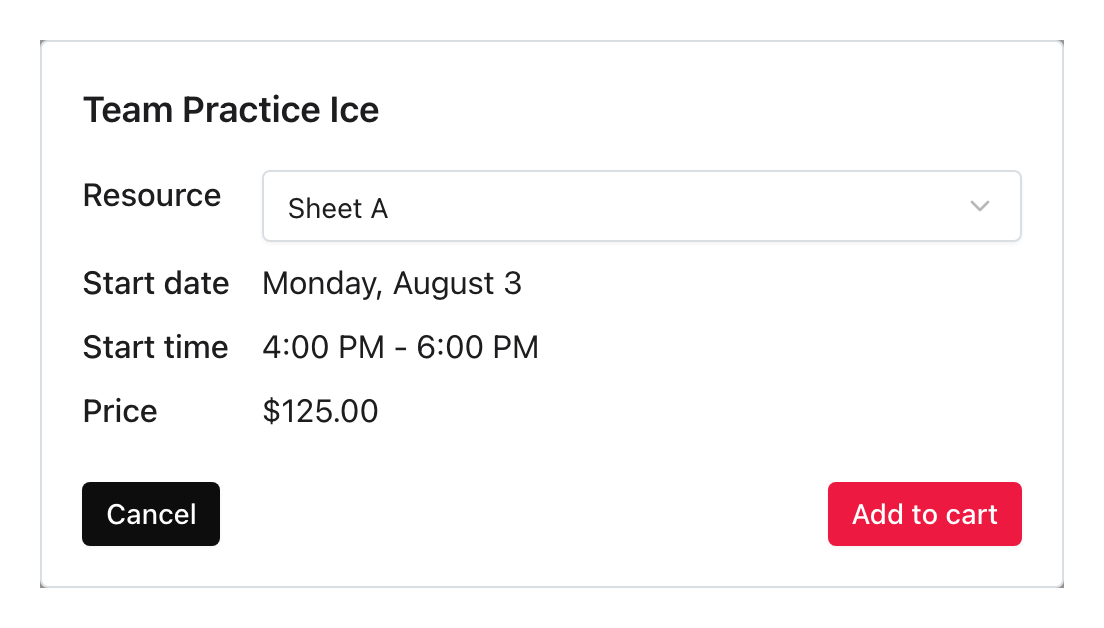
The cart records the selected resource or resource set, date, and time, but does not allocate that time slot. Allocation happens when checkout is completed. If another account holder completes checkout first, the later cart must choose another time slot.
After checkout, the booking becomes part of the order and appears on the calendar at its concrete resource, date, and time. The account holder who made the booking sees Booked with a distinct colour. Other curlers see Reserved and do not receive the rental or order details. In this example, Sheet A is booked while the same Team Practice Ice time slot remains available on Sheet B.
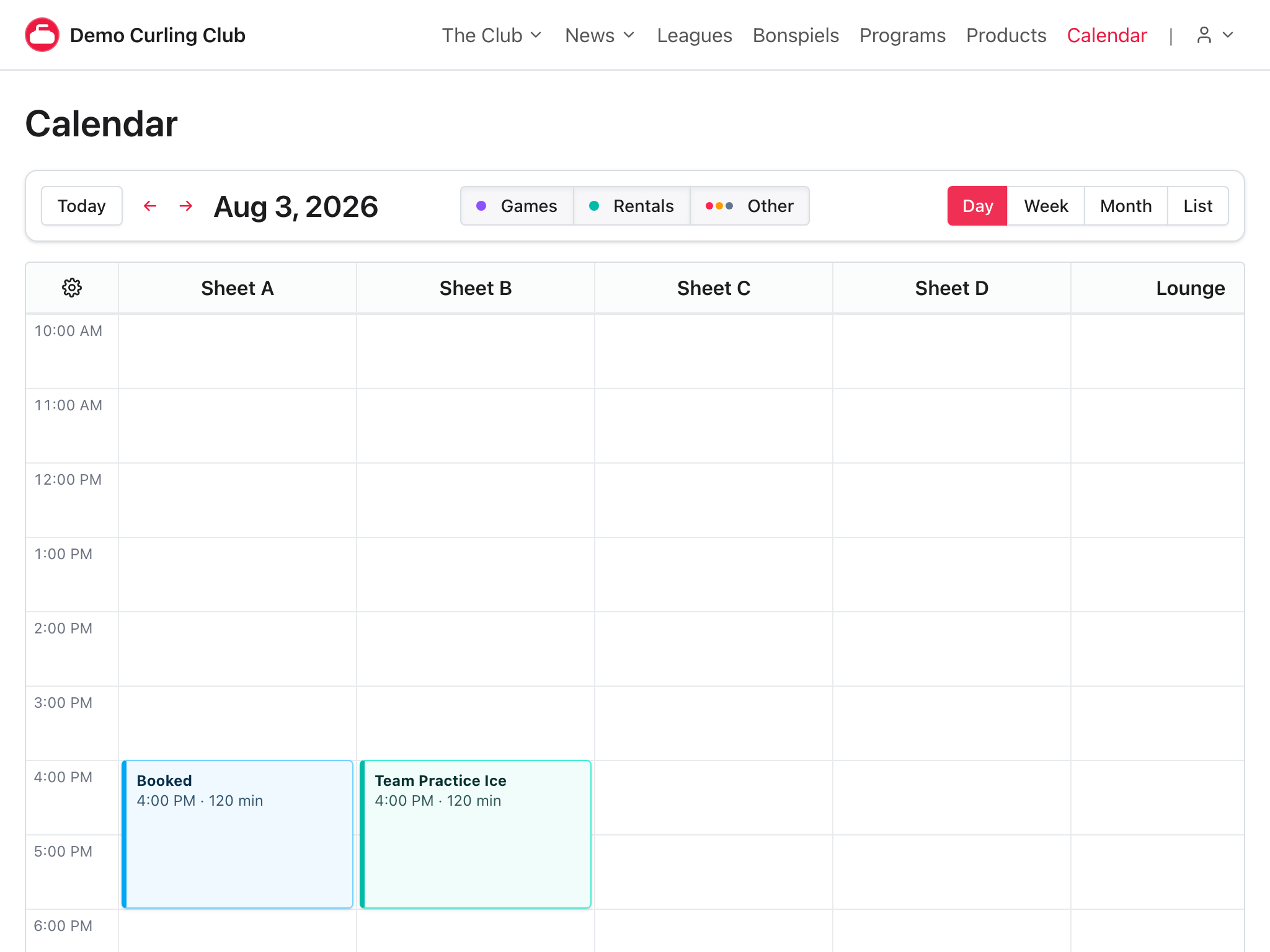
See calendar for public calendar navigation and administrator calendar actions.
Exclusive and capacity-enabled bookings
An exclusive time slot accepts one capacity-holding booking. After it is booked, the rental is no longer offered for that time slot.
A capacity-enabled time slot remains visible and bookable while capacity remains. The rental dialog shows how many more bookings the time slot can accept. When the time slot reaches capacity, it is sold out.
Before the first Drop-in Practice purchase, the time slot can accept four bookings.
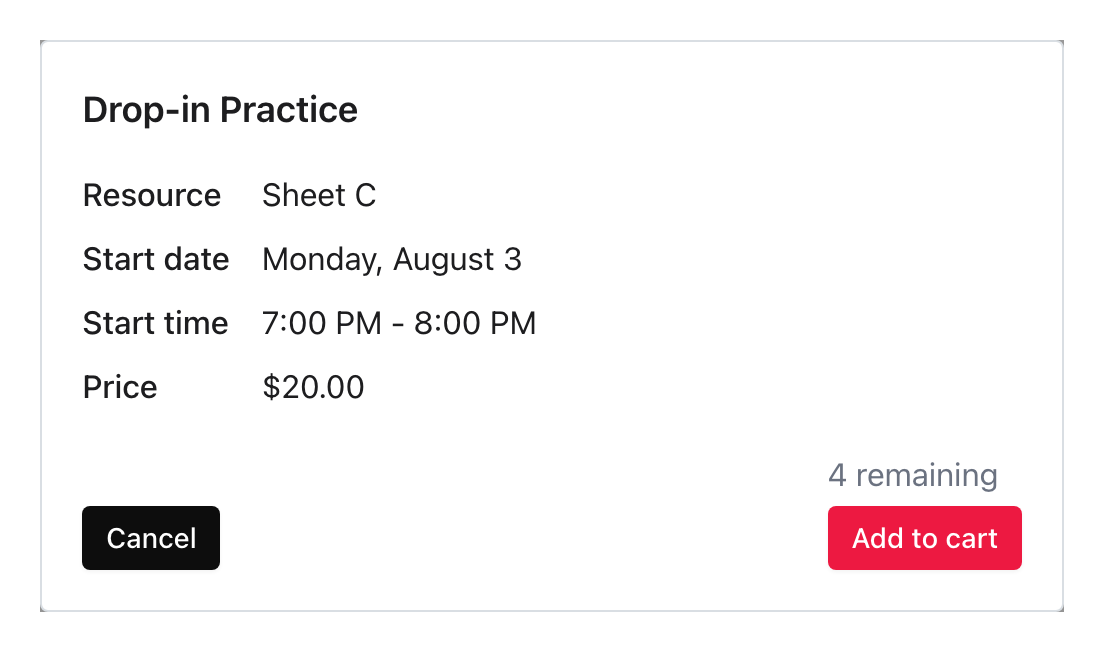
After checkout creates one booking, the same time slot remains available with capacity for three more bookings.
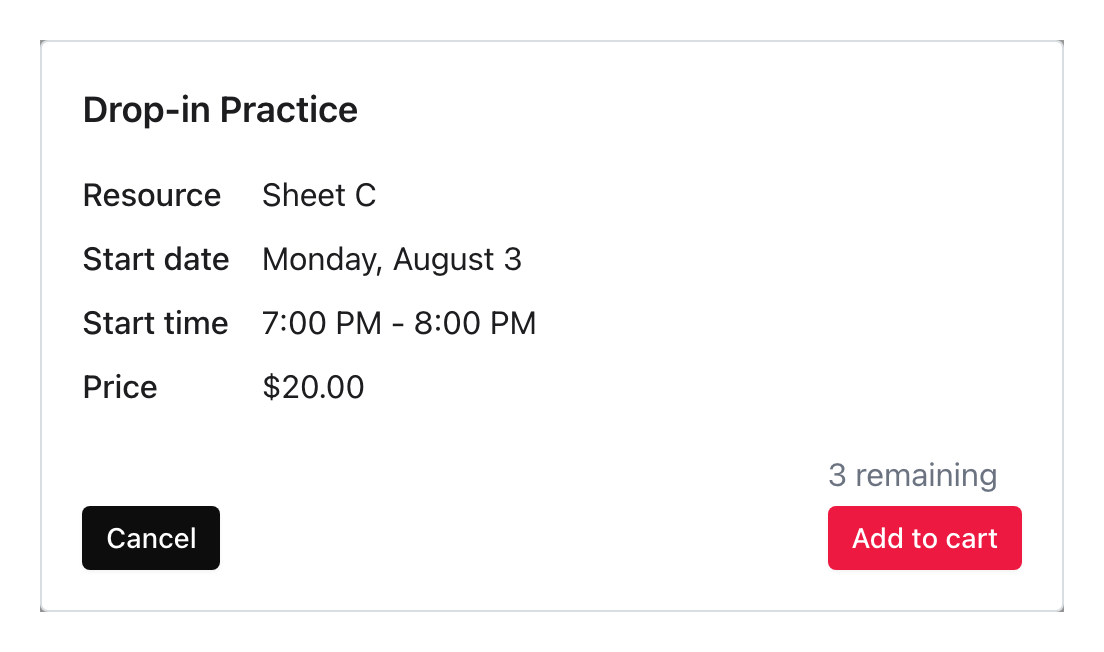
Each purchased line item consumes one unit of capacity. Cancelled line items do not consume capacity.
An account holder's unfinished cart counts its own pending rental selections so that one cart cannot exceed a time slot's capacity. Pending carts do not hold capacity against other account holders.
Rental waitlists
Turn on Waitlist in the rental's Capacity section when you want to collect interest after a time slot becomes unavailable.
Rental waitlists belong to one exact time slot: product, resource choice or grouped resource set, date, and start time. Joining the waitlist for one sheet at 4:00 PM does not join the queue for another sheet or the 7:00 PM time slot.
An administrator can review the rental's Waitlist section and approve an entry. Approval gives that account holder one private capacity exception for the exact time slot. It does not increase the public capacity or reopen the time slot for anyone else.
The approved account holder can select the sold-out time slot on the calendar, add it to the cart, and book it once. The approval is claimed only after checkout succeeds. It cannot be reused for a second line item.
Approval bypasses time-slot capacity only. It does not bypass a reservation, closure, draw, another schedule conflict, the public booking window, product availability, participant requirements, or purchase limits.
Edit a rental schedule
You can edit the complete rental under Products > Rentals > [Rental] > Info.
For a scheduling-only change, select a rental time slot on the calendar and choose Edit schedule. The calendar editor changes:
- Resources
- Whether the selected resources are rented together
- Start date
- Start times
- Duration
- Recurrence
- Recurrence end
- Excluded dates
Use Advanced settings to open the complete product form when you need to change pricing, content, capacity, waitlisting, taxes, participants, questions, or another commercial setting.
Removing a rental time slot or schedule from the calendar requires confirmation. Existing purchased bookings and their order history are not silently rewritten when the availability definition changes.
Work with existing bookings
Administrators can select a booking title on the calendar to change its date and start time. Rescheduling keeps the purchased resources and duration. It does not recalculate the product price, taxes, discounts, payments, or accounting records.
Use View order from the rescheduling form when you need the complete order. Cancelling a paid booking belongs to the order and refund workflow.
Manual reservations are different from purchased bookings. A reservation holds one resource without a rental product, line item, payment, or accounting record.
If Premium access ends
Rental products and schedules remain visible to administrators. They stop appearing publicly and cannot accept new bookings until Premium returns.
Curling IO removes pending rental items from unfinished carts. Submitted, paid, completed, cancelled, and refunded order history remains available.
See settings > Premium for the ways an organization can receive Premium.
Troubleshooting
The rental cannot be enabled or saved
Confirm that the rental has:
- At least one resource with Show on calendar turned on
- At least two resources when Rent selected Resources together is checked
- A valid start date
- At least one start time
- A positive duration
- A valid recurrence and recurrence end
- A nonnegative capacity when capacity is on
Also check that every excluded date belongs to the recurrence.
The rental does not appear publicly
Check:
- Premium is active.
- The rental is enabled and not private.
- Every selected resource has Show on calendar turned on.
- The selected date belongs to its recurrence and is not excluded.
- The date is inside the calendar's advance booking window.
- Another rental, booking, reservation, closure, or draw is not using the same resource and time.
- The public calendar is enabled.
The rental appears sold out too early
Confirm that Capacity per time slot is the intended value. Capacity applies to every resource and start time separately unless the selected resources are rented together.
Review the purchased bookings for that exact time slot. A booking in an active purchase state consumes one unit. An unfinished cart from another account holder does not.
For a grouped rental, also check every selected resource for a booking, reservation, closure, draw, or other schedule conflict. One conflict makes the complete time slot unavailable.
An approved waitlist entry cannot complete checkout
Confirm that the account holder selected the exact product, resource or grouped resource set, date, and start time attached to the approval. Then check for a reservation, closure, draw, another schedule conflict, a closed booking window, or an unmet cart requirement. Approval bypasses capacity for one line item, but it does not bypass those other rules.