Record and Publish Game Results
Use Results to record anything from a winner with no score to a complete Curling Canada shot-by-shot report. The product's Results settings decide which scoring editor opens.
Create the event's teams, stages, and schedule first. Results can only be recorded for games that already exist.
Choose a scoring experience
| Scoring experience | What the administrator records | Required setup |
|---|---|---|
| Outcome / final score | The winner and loser, with optional team totals and no line score | The product type includes Results. Leave End scores enabled and Participant scoring off. Premium is not required. |
| End by end | Every completed end, calculated totals, first hammer, and configured game details | Active Premium, End scores enabled on, and Participant scoring off. |
| Shot by shot | End scoring plus the Curling Canada curler, turn, throw, and rate fields for every shot | Active Premium, End scores enabled on, Shot by shot enabled on, and Participant scoring off. |
Outcome and final-score entry share one editor. There is no separate outcome-only setting. Leaving both score fields blank records only the outcome.
Configure Results settings
Go to Products, open the event, select Info, then open the Results panel. See Product Info for the rest of the product form.
Configure the scoring details before the first game:
- Top rock and Bottom rock set the colors shown beside the two game positions.
- Number of ends sets the regulation line score.
- Scoring rules selects standard or mixed doubles hammer behavior.
- Tied result enabled adds a tied result option.
- End scores enabled turns on line-score entry. It requires Premium.
- Last stone draw enabled adds game and cumulative LSD fields to the end scorer. It requires end scoring and Premium.
- Shot by shot enabled adds the Curling Canada shot tables. It requires end scoring, complete team rosters, and Premium.
- Publish results makes the event's public results available.
- Publish shot results adds shot-derived player percentages to public results. It appears after shot-by-shot scoring is enabled.
Participant scoring is separate from administrator scoring. It lets an eligible participant submit a final score from their own games page. It requires Premium and keeps participant entry final-score-only. Participants cannot enter end scores, first hammer, time, LSD, or shots. See Participant final-score entry below before turning it on.
Select Save after changing the product's Results settings. If a Premium setting is unavailable, check Settings > Premium. Curling IO retains previously saved scoring configuration and data if Premium ends, but Premium scoring cannot be used again until access returns.
Open a game
Go to Products, open the event, then select Results.
The results table has one row per draw and one column per sheet. Select a game to open its configured scoring editor. Use Full screen when a scorer needs more room and does not need the rest of the administrator navigation.
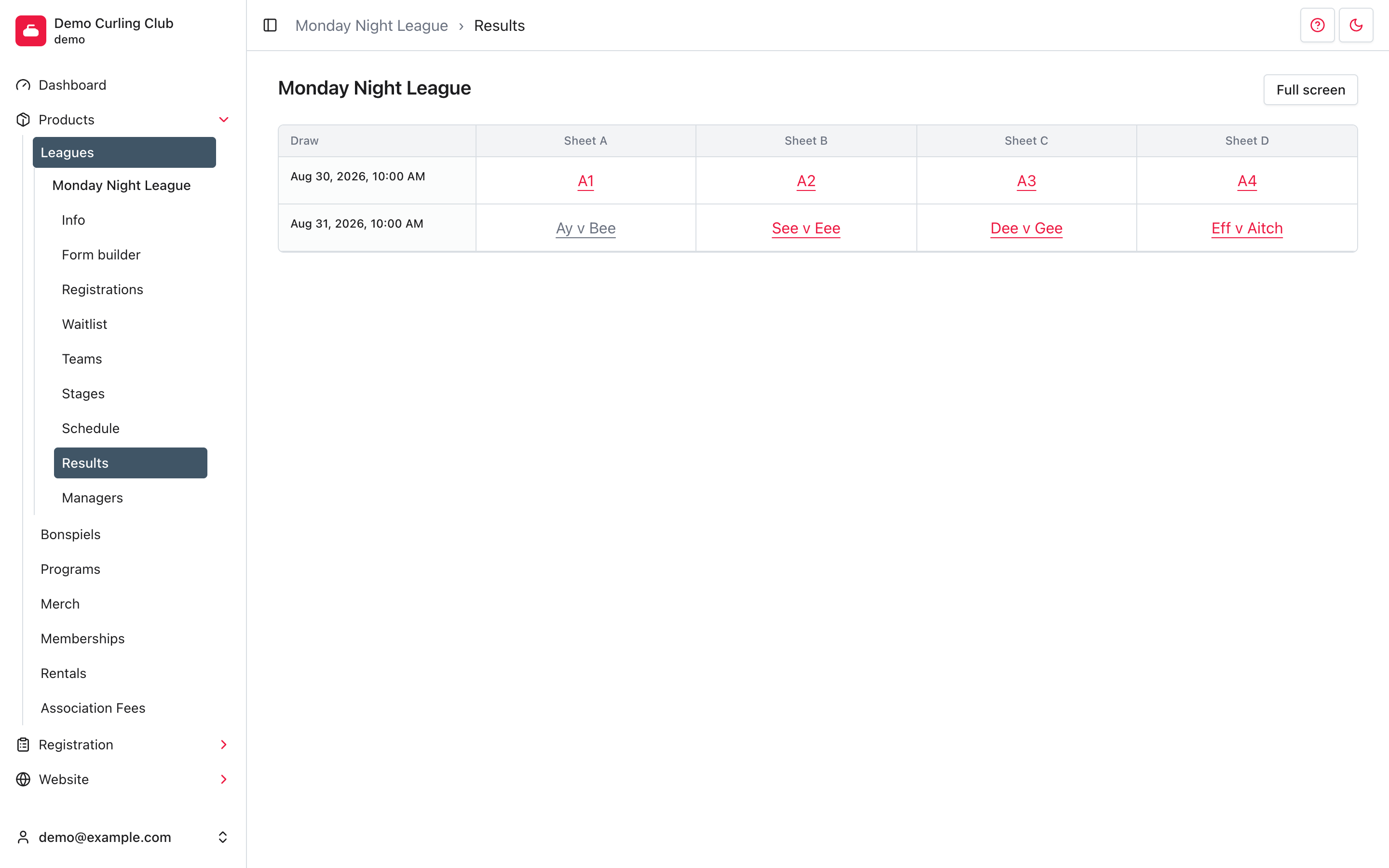
If a game is missing or assigned to the wrong draw or sheet, correct it under Schedule. If the matchup is wrong, check Teams and Stages.
Record an outcome / final score
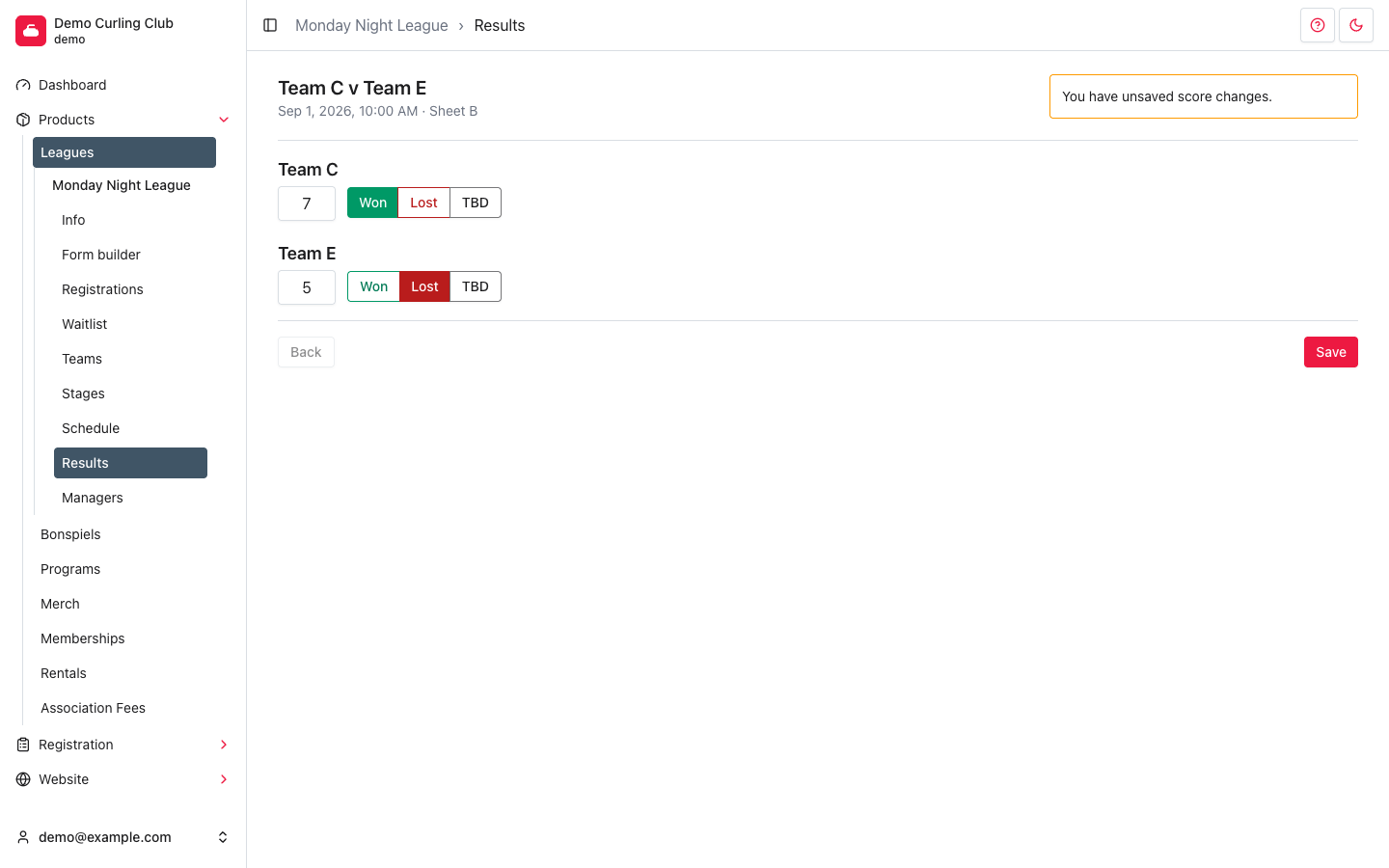
Outcome and final-score scoring use the same editor. Record the official result, then add totals only when they matter.
- Leave both Score fields blank for an outcome-only result, or enter each
team's total from
0through99for a final score. - Select Won for the winner. Curling IO selects Lost for the other team.
- Select Save.
Use TBD to clear an unfinished result. Forfeited is available only when the scores are blank or zero. Other result choices can appear when the product and game permit them.
When you enter totals, the result must agree with the scores. A tied result requires equal scores and the product's Tied result enabled setting. A forfeit cannot keep a nonzero score.
Record an end-by-end line score
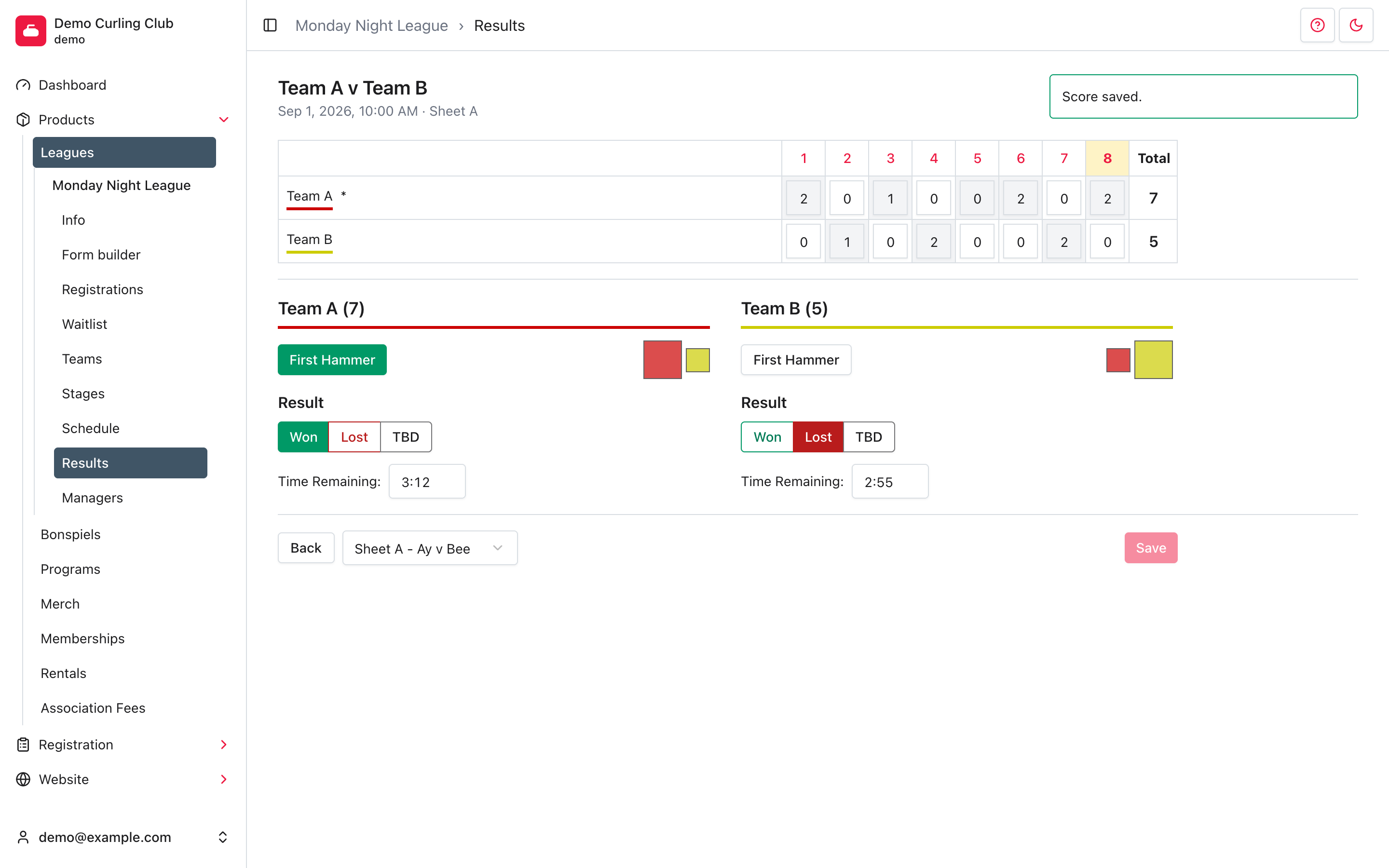
With End scores enabled, enter both teams' score for every completed end. The total is calculated from the ends and cannot be edited separately.
Enter 0 for both teams in a completed blank end. A blank field means the end
has not been recorded. When one team scores a positive number, Curling IO fills
the opponent's score with 0. Completing both cells saves that end and moves
the scorer forward.
Then complete the game details that apply:
- Select First Hammer for the team that had hammer in the first end. The asterisk marks that team, and later hammer cells are derived from the end scores. A standard blank end retains hammer; mixed doubles follows the configured mixed doubles rule.
- Select the official result. Use TBD while it is not final.
- Enter Time Remaining as
M:SSwhen it is recorded. - Enter game and cumulative LSD when Last stone draw enabled is on.
- Enter a points override only when the stage supplies that field.
- Select Save for changes that did not auto-save with a completed end.
The rock colors come from the product's Results settings. Using the rock-color swap control switches the complete game sides, including their teams and scoring data. It is not a score correction shortcut.
If regulation ends finish tied without a tied result, Curling IO adds an extra end. It removes an unused extra end when a correction resolves the tie.
Record Curling Canada shot-by-shot data
Shot-by-shot scoring extends the end scorer. It is the Curling Canada workflow for recording delivery data and calculating player percentages, not a separate game result.
Before opening the scorer, assign both teams and complete their scoring rosters under Teams. Standard curling needs four scoring participants per team. Doubles needs two. An alternate can remain on the roster without being part of the initial shot order.
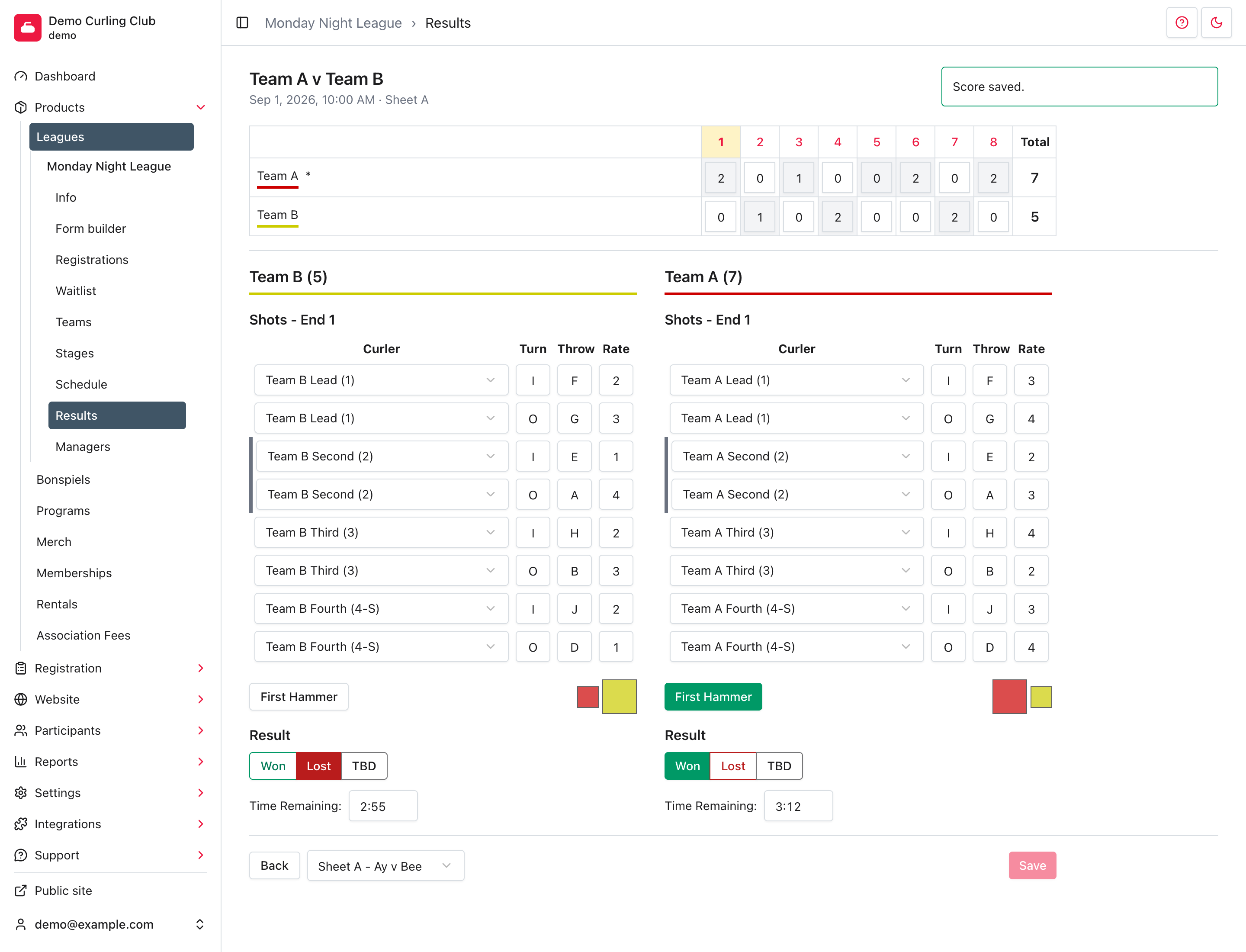
Select or enter an end to focus it. The shot tables show only that end. The team with hammer is displayed on the right for entry convenience; that display order does not swap the stored game sides.
Each shot row contains:
| Field | What to record |
|---|---|
| Curler | The participant who delivered the shot. Standard shot order starts with two shots each for lead, second, third, and fourth. Changing a curler also updates later untouched ends. |
| Turn | I for in-turn, O for out-turn, or X when the Curling Canada procedure calls for the special value. |
| Throw | The attempted shot type: A takeout, B hit and roll, C clear front, D raise takeout, E draw or raise, F front stone, G guard, H freeze, J tap back, or X for the special value. |
| Rate | The Curling Canada shot rating from 0 through 4, or V or X when its procedure calls for those values. Completing the rate saves the shot. |
Inputs accept the supported codes in either case and display them in uppercase. Finish the curler, turn, throw, and rate for one shot, then continue to the next shot. End scores and the final result are still entered in the same scorer.
Save, navigate, and correct results
The editor has two save boundaries:
- A completed end and a completed shot rating save automatically.
- First hammer, result, time, LSD, points override, side swaps, and incomplete end changes wait for Save.
After a manual save, Score saved. confirms that the server accepted the change. Back returns to the results table. In end and shot scoring, the draw selector moves directly to another game in the same draw. Navigation is disabled while changes are unsaved or a save is in progress.
To correct a final score, reopen the game, update the score and result together, then save. To correct end scoring, start with the earliest wrong end and work forward. A changed earlier end can invalidate later ends or create a temporary conflict with the saved won/lost result. If that happens, clear the result to TBD, save the corrected ends in order, then restore the result.
Actual shot data protects later scoring from being silently replaced. If a correction reports that downstream shots block it, review and clear the affected shot data before changing the earlier end. Curling IO keeps rejected changes in the editor and explains what must be fixed.
Do not change the schedule to correct a score. Schedule changes move the game; they do not edit its scoring data.
Publish the results
Open the event's Info section, turn on Publish results, then select Save. Open the event on the public site and select Results to verify it.
The public detail matches the recorded level:
| Recorded detail | What the public result shows |
|---|---|
| Outcome / final score | The matchup and official won/lost result, with totals when they were recorded and no line score. |
| End by end | The line score, calculated totals, first-hammer marker, configured game details, and end-based reports. |
| Shot by shot | The end-by-end result plus player shot counts, points, percentages, and scoring reports when Publish shot results is on. |
Shot data is not published for products whose maximum age is 19 or younger, even when Publish shot results is on.
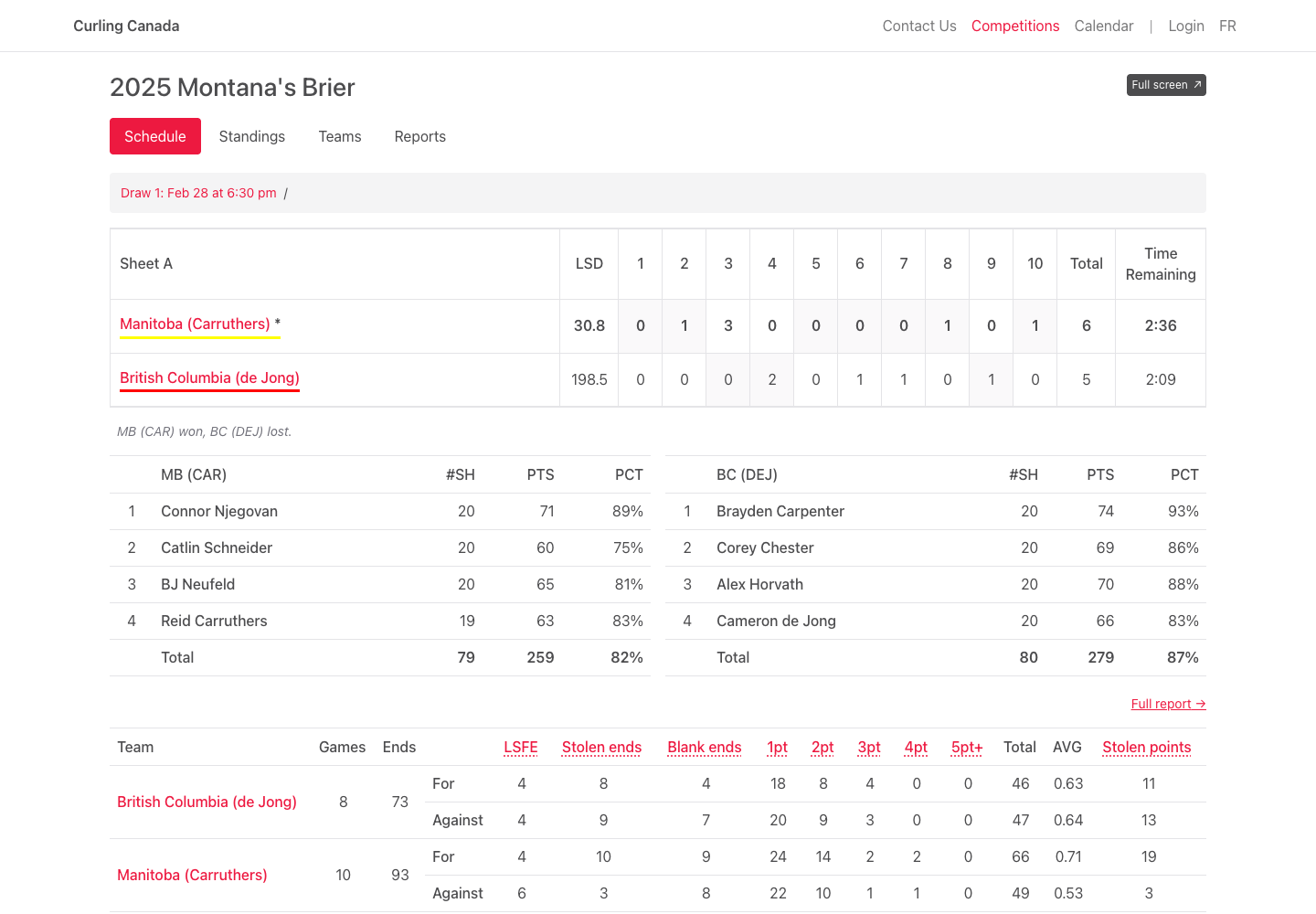
Turning Publish results off hides the public results. It does not delete scores. Turning Publish shot results off hides shot-derived public details without deleting the administrator's shot data.
Participant final-score entry
Participant scoring does not give participants access to the administrator Results screen. It adds a separate final-score form to an eligible participant's games page.
A participant can submit both teams' totals and the complementary won/lost or tied result for a game involving their team. They cannot submit end scores, first hammer, time, LSD, or shots. Participant scoring requires active Premium, must be enabled for the product, and is unavailable while end scoring is enabled.
Only a team participant can submit, and only after the game becomes eligible: at least 10 minutes after its scheduled start, no more than eight days after that start, and before the game is complete. Administrators remain responsible for later corrections in Results.
Live scoring walkthrough
Use Live scoring for a game-day walkthrough and checking the public score. A video is deferred.