Build and Manage a Draw Schedule
The schedule screen assigns an event’s existing games to draw dates and resources. Use it to allocate a new round robin, adjust an existing schedule by hand, add filler games, improve sheet fairness, apply a reusable template, or import assignments from a CSV file.
Saving here changes the event’s actual draw schedule. It does not create the event’s teams or competition structure. Create teams and generate round-robin games under Teams and Stages before arranging them on the schedule.
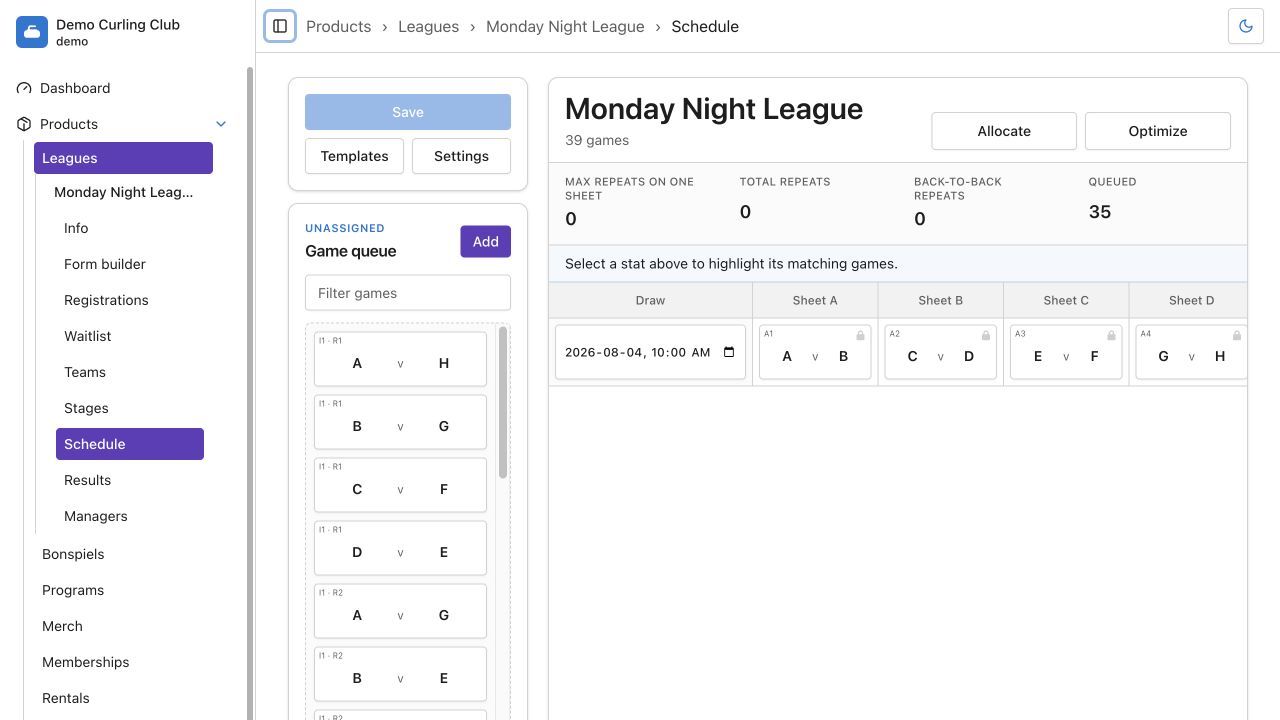
Before you start
Prepare these event details before building the schedule:
- Add and order the teams.
- Create each round robin under stages, assign its teams, and generate its games.
- Create the curling-sheet resources the event may use.
- Set the event start date.
Use a computer or tablet when possible. The workbench works on a phone, but a large schedule needs enough room to see several resources and drag games between the schedule and queue.
Go to Products, open the event, then select Schedule.
Understand the schedule screen
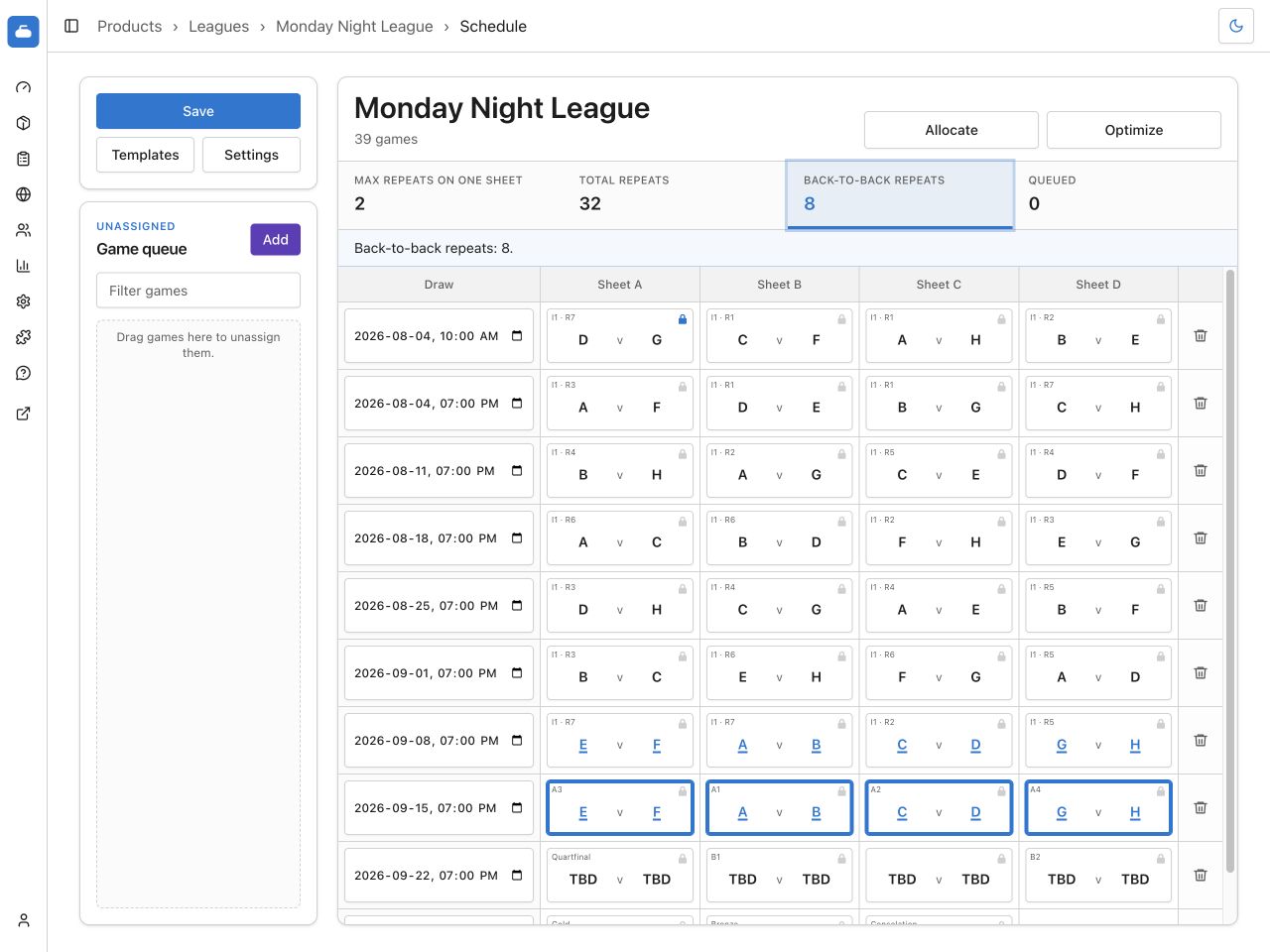
The left side contains the actions that affect the complete schedule:
- Save persists the current draws, game placements, and allocation locks.
- Templates applies a matching club draw schedule template, saves the current arrangement as a template, or imports a CSV schedule.
- Settings controls resources, labels, draw times, allowed dates, and round filling.
- Game queue contains unassigned games. Filter the queue by a team or game name, then drag a game into the schedule.
- Add creates an ad hoc game inside an existing round robin.
The main area contains:
- Allocate, which places unlocked games into draws;
- Optimize, which looks for fairer resource assignments;
- fairness statistics that can highlight the games behind each value;
- one row per draw and one column per selected resource;
- a derived BYE column when a round-robin or ad hoc draw leaves teams idle;
- a trash action that deletes a draw and returns its games to the queue.
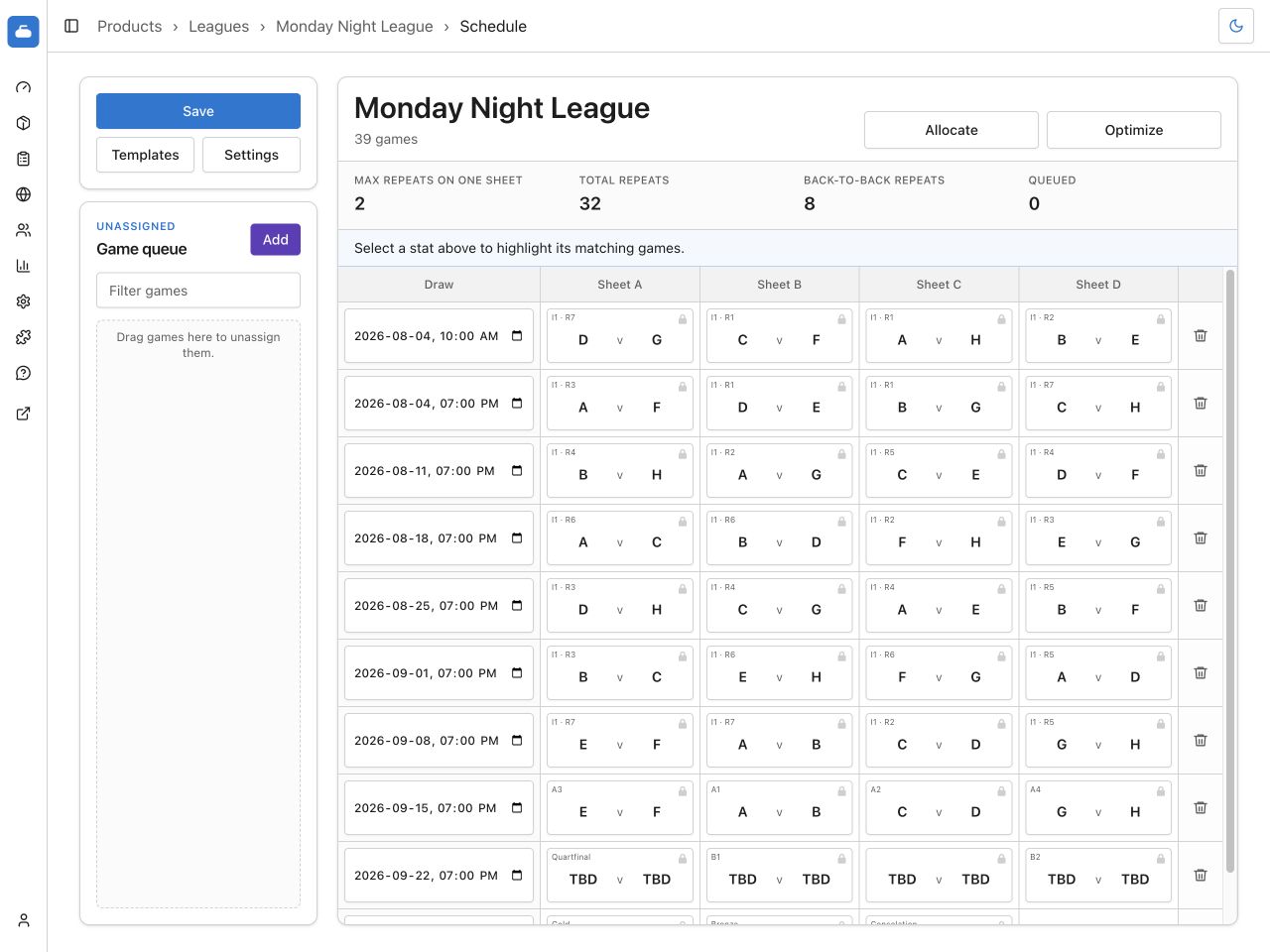
Round-robin cards show their iteration and round, such as I1 · R3. Ad hoc
cards show CG and the meeting number for those teams. Bracket cards use the
game name. The teams themselves use their short names, falling back to the full
team name when no short name is available.
Configure schedule settings
Select Settings before the first allocation. These settings control both the workbench display and newly created draws.
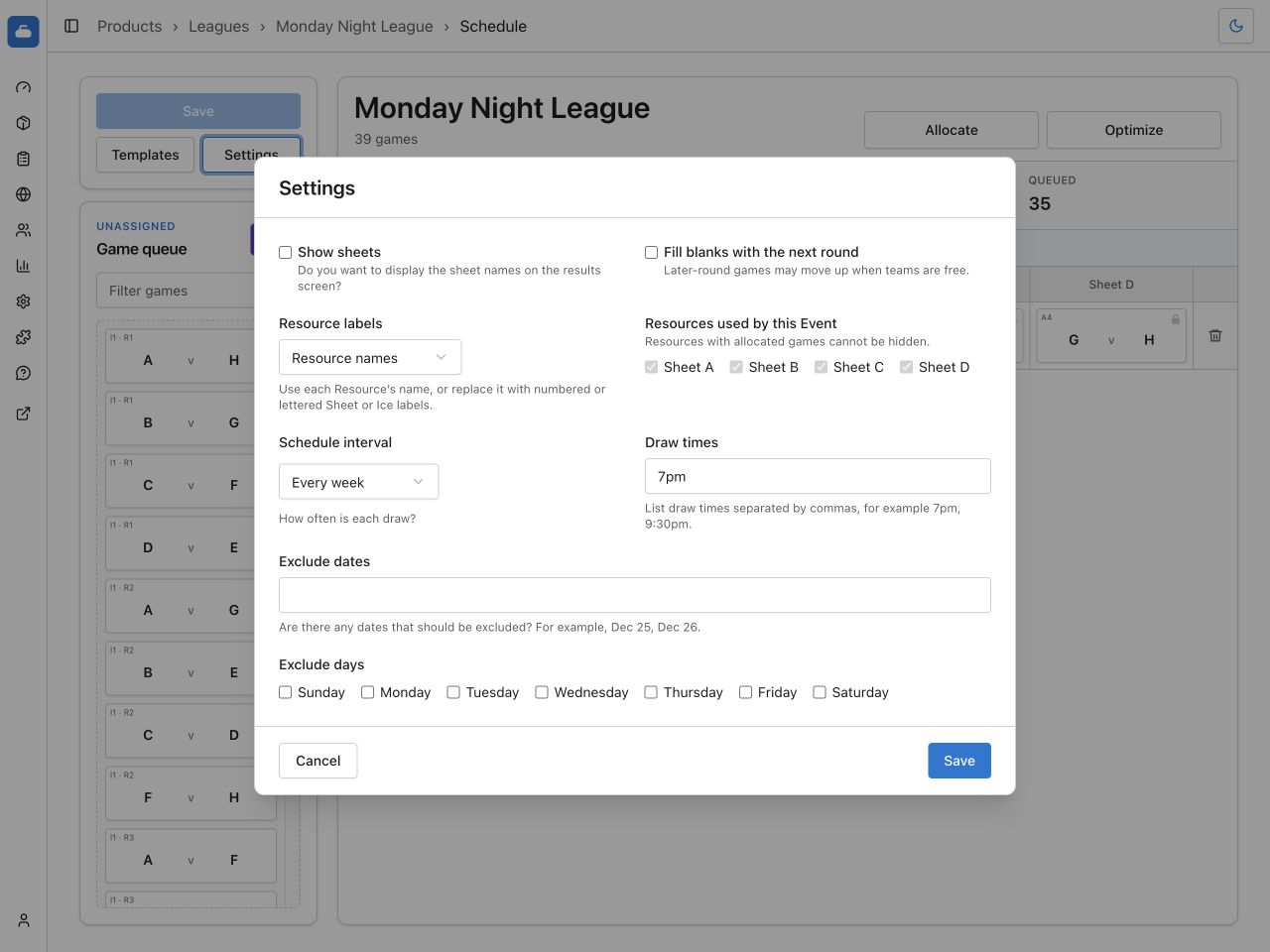
Choose display and resource settings
Check Show sheets to display resource labels with games on the public results page.
- Check Fill blanks with the next round when later-round games may move into earlier open resources while both teams are free. Leave it unchecked when every logical round should begin in a fresh draw.
- Use Resource labels to show each resource’s name or replace the names with lettered or numbered Sheet or Ice labels.
- Under Resources used by this Event, check every resource available to the schedule. A resource containing an allocated game cannot be hidden. Move its games first when you need to remove it.
Changing the selected resources changes the shape used by Allocate and Optimize. Curling IO checks its catalog again for the new team and resource combination.
Set the draw cadence
Choose how Curling IO suggests new draw dates:
- Select Every week, Every other week, or Every day.
- Enter one or more Draw times, separated by commas. For example, enter
7pm, 9:30pm. - Enter any Excluded dates, such as
Dec 25, Dec 26. - Check the weekdays that should be excluded.
- Select Save.
Allocate starts from the event’s start date, cycles through the configured draw times, and skips excluded dates and weekdays. It does not rewrite dates already assigned to existing draws.
At least one resource and one draw time are required. If draw times are missing when you select Allocate, Curling IO opens Schedule settings instead of moving games.
Allocate games
Select Allocate to arrange the unlocked games. If unlocked games are in the queue, Curling IO first asks whether to include them.
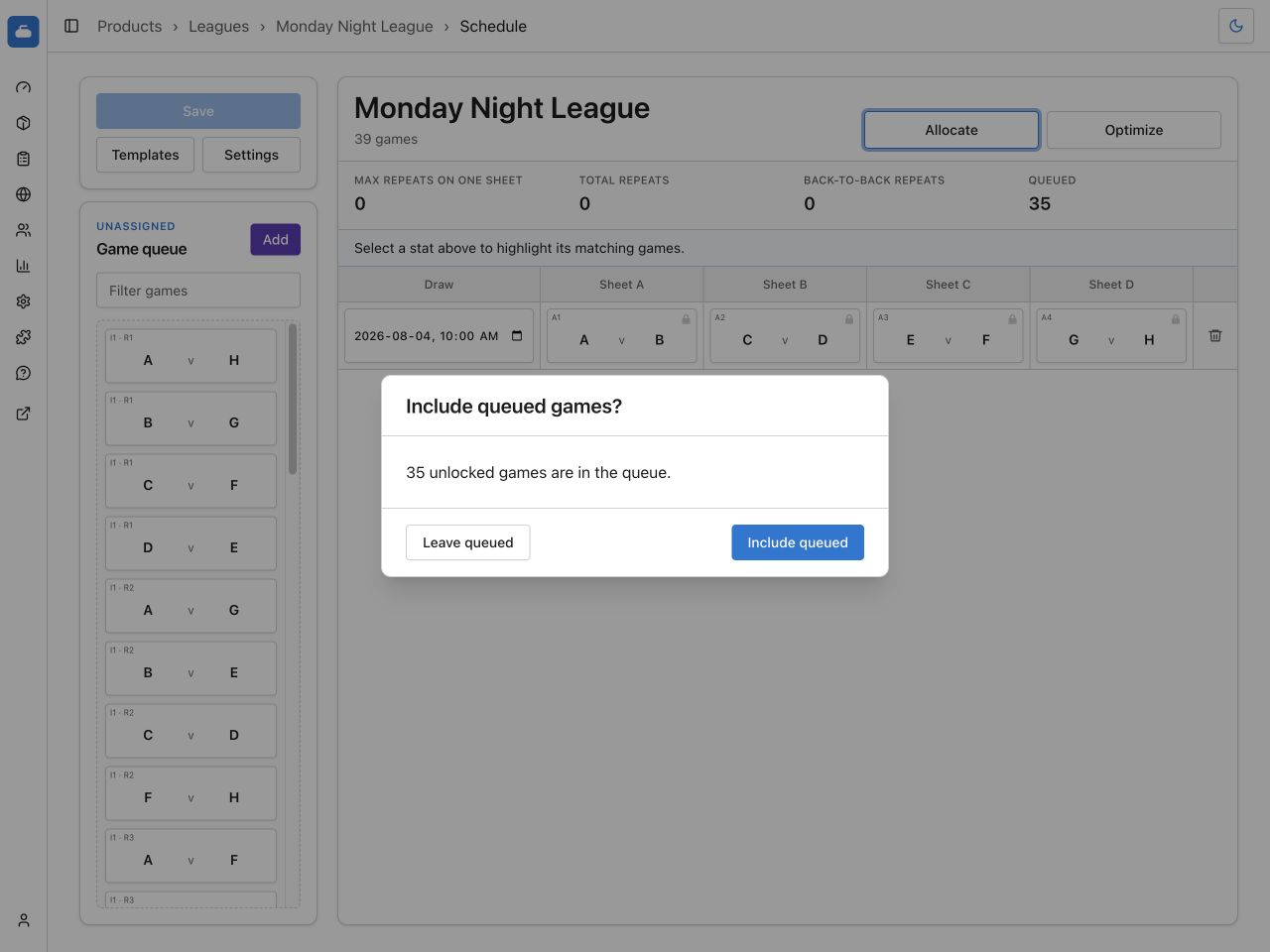
- Select Include queued to arrange unlocked games from both the schedule and queue.
- Select Leave queued to rearrange only the unlocked games already placed in the schedule.
Allocate leaves locked games where you put them. It places the remaining games in this order:
- Round-robin games.
- Ad hoc games, after the affected teams’ round-robin games.
- Bracket games, after the round-robin and ad hoc schedule. Unlocked bracket games begin on their own draw.
A locked game is outside those placement rules. For example, locking a bracket game in an early draw keeps it there while Allocate arranges the other games.
Curling IO reuses existing dated draws and adds more as needed from Schedule settings. Existing draw dates do not change.
Catalog schedules and browser allocation
For a standard single round robin, Curling IO first checks its catalog of validated schedules. An exact match includes the number of teams, selected resources, round-filling choice, and generated round-robin games. Multiple iterations reuse the matching catalog layout for each iteration.
When an exact catalog layout does not apply, the browser allocator builds the schedule. Locks, ad hoc games, bracket games, multiple stages, and other custom arrangements commonly require this fallback.
Club draw schedule templates are separate from the catalog. Curling IO never applies a club template merely because it matches. Open Templates and choose one deliberately.
Move games by hand
Every game card can be dragged, including active and completed games. Moving a game changes only its schedule placement. It does not change the game state, score, or result.
Use drag and drop to:
- move a game into an open resource;
- drop a game on another game to swap their positions;
- drag a game into the Game queue to unassign it;
- drag a queued game back into any valid position;
- drag a game below the final draw to create the next suggested draw.
The Game queue filter matches team short names and game names. It is useful when the schedule has enough games that the queue needs its own scrolling.
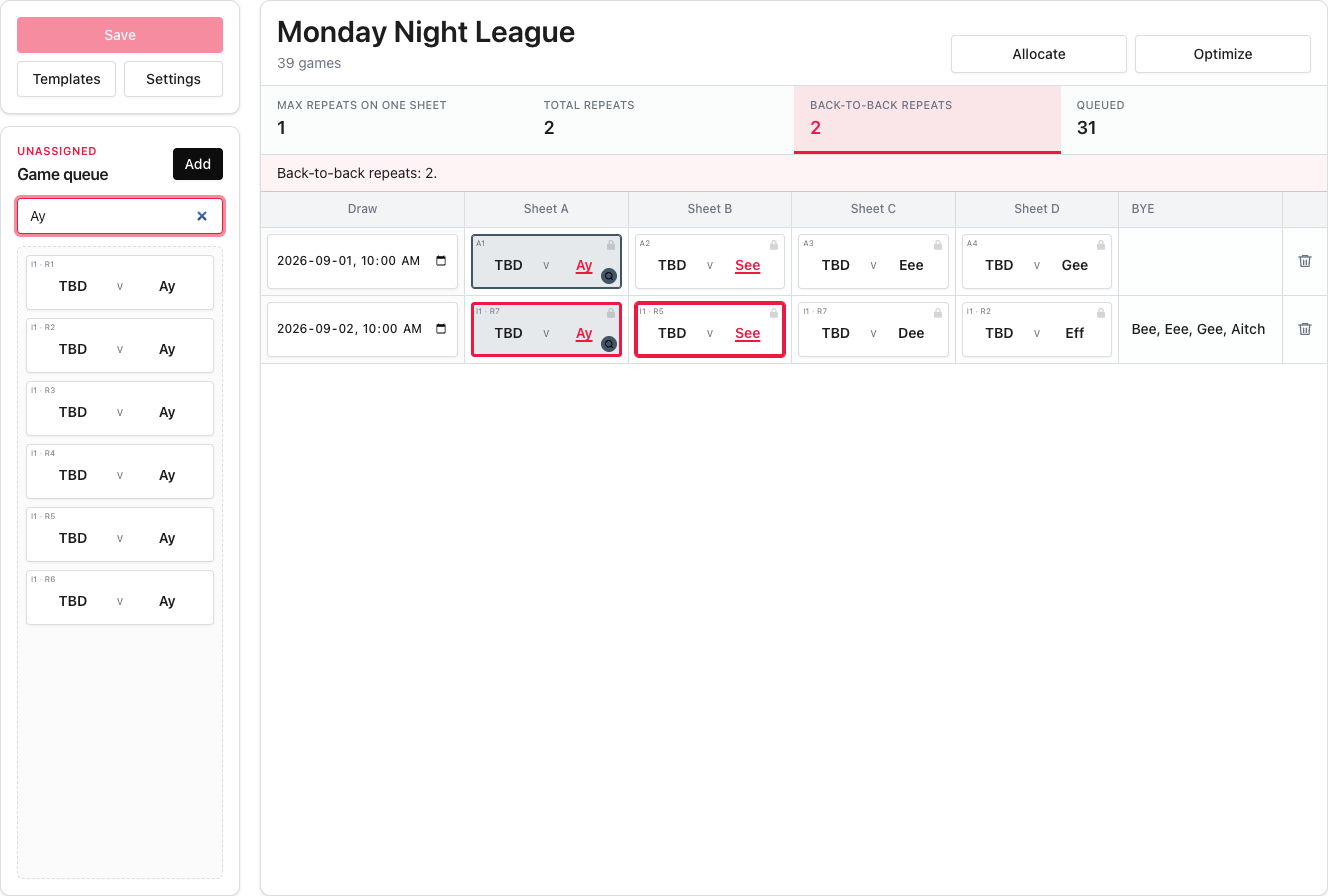
The same filter also marks matching games that are already in the schedule. Scheduled matches keep their draw and sheet positions and show a contrasting border with a magnifying-glass marker. Clearing the filter removes the markers. Filtering does not change the schedule or enable Save.
Search markers are separate from fairness inspection. A game can show both at once: the search marker remains visible while the primary-coloured fairness outline and underlined team name identify the selected fairness statistic.
Check conflicts before dropping
While a game hovers over a destination, red highlights identify games that would cause one team to appear twice in the same draw. Inspect those games before completing the move.
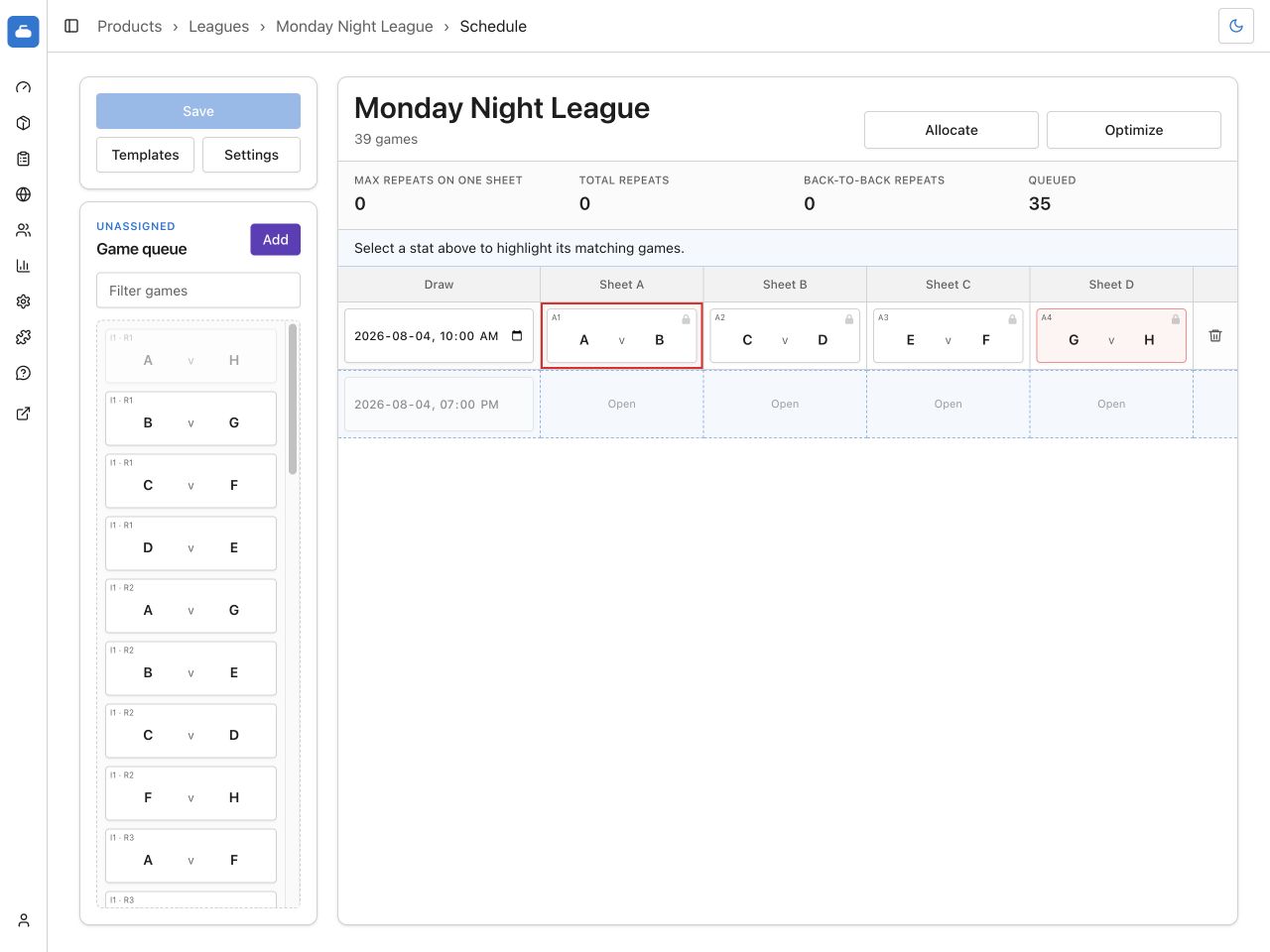
If a conflict remains in the schedule, Curling IO shows Schedule conflict. Resolve every conflict before saving.
Understand byes
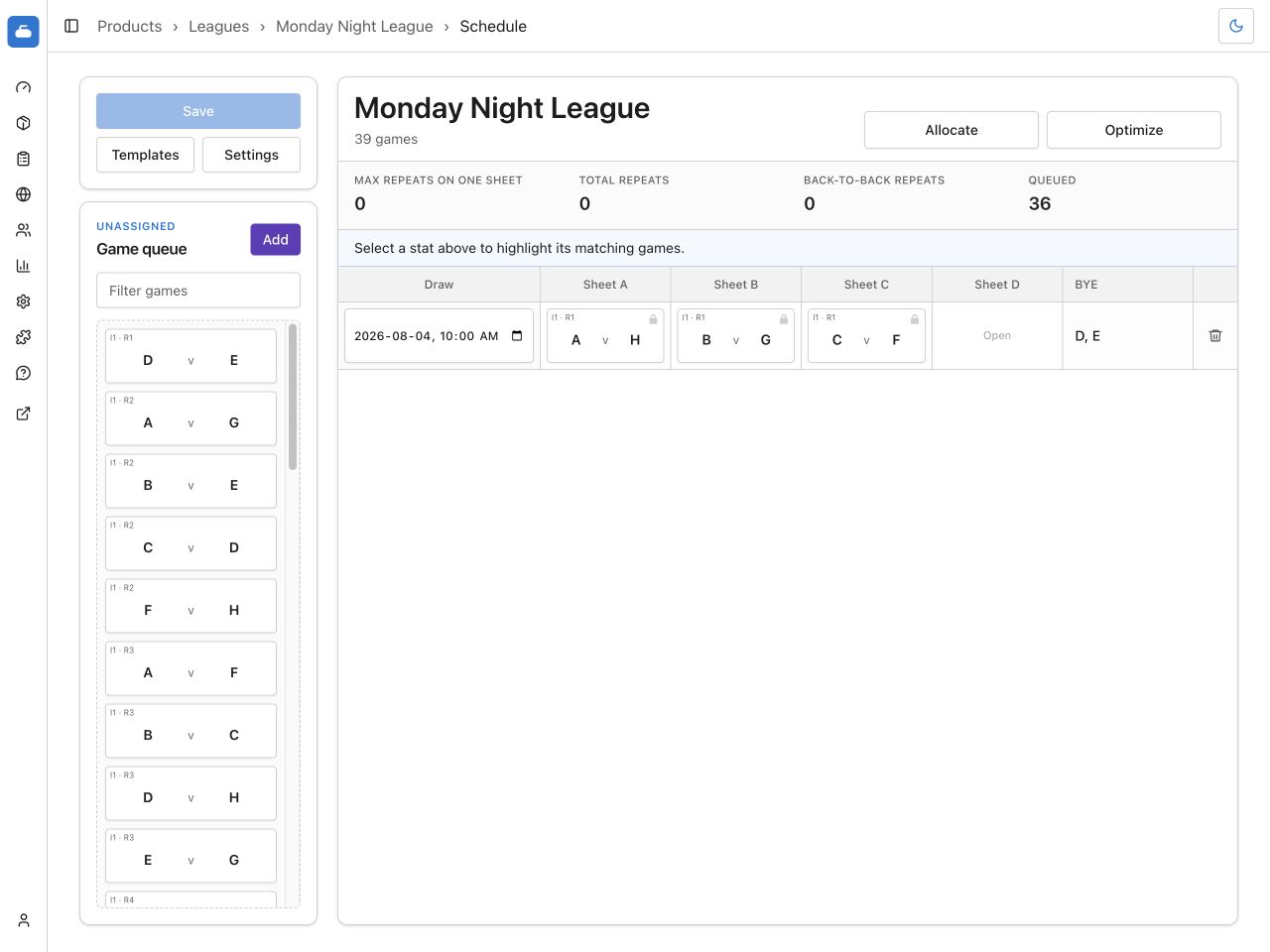
The BYE column lists teams that do not play in a draw containing at least one round-robin or ad hoc game. Curling IO derives this list from the event’s teams and scheduled games. Byes are not games and cannot be dragged or edited.
The column is hidden when no team has a bye anywhere in the schedule. A draw containing only bracket games does not produce byes.
Manage draws
Edit the date and time directly in the Draw column. Every draw date and time must be unique.
When you drag a game below the final draw, a temporary row appears with the next date and time derived from Schedule settings. Dropping the game makes that draw real. Moving away without dropping leaves the schedule unchanged.
Select the trash icon at the end of a draw row to delete it. Every game in that draw returns to the queue.
You cannot save when:
- a draw containing games has no date and time;
- two draws use the same date and time;
- one team appears more than once in the same draw.
The affected draw or games are marked in red, and Save remains disabled.
Lock a game placement
Select the padlock on a scheduled game to exclude it from automatic allocation. The primary-coloured lock identifies a locked game. Select it again to include the game in automatic allocation.
A lock means that Allocate and Optimize must leave the game in place. It does not prevent a drawmaster from dragging the game manually. Games in the queue do not have locks.
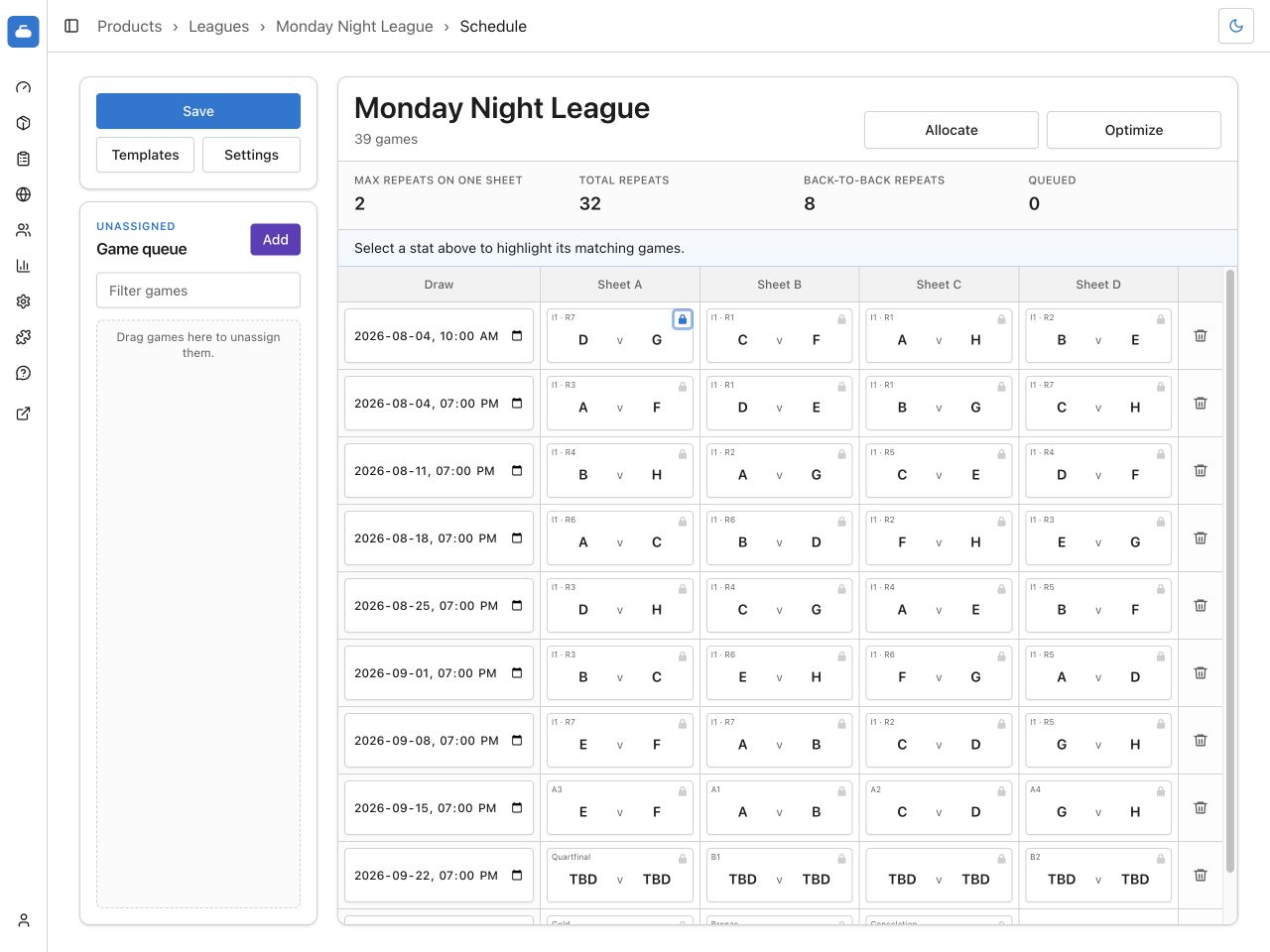
Use locks for games whose draw and resource must stay fixed while the rest of the schedule changes.
Inspect schedule fairness
The fairness statistics update after every move, allocation, template application, CSV import, and optimization.
- Max repeats on one sheet is the largest number of extra visits one team makes to one resource. If a team plays four games on Sheet A, that contributes three repeats.
- Total repeats adds every extra resource visit across all teams.
- Back-to-back repeats counts teams returning to the same resource in consecutive draws.
- Queued counts unassigned games. It is not a fairness measurement.
Select a non-zero fairness statistic to inspect it. Matching games are outlined, and the repeating team’s name is coloured and underlined in the relevant game cards. Select the active statistic again, or press Escape, to clear the inspection. A zero statistic is not selectable because it has no matching games.
Optimize resource assignments
Select Optimize to test alternate game placements and keep changes that improve resource fairness. Optimize keeps the matchups intact, respects team conflicts, and never moves locked games.
It may move unlocked games between draws that belong to the same logical round, not only between resources in one draw. Review the resulting draw and resource assignments before saving.
When games have been moved manually since the last allocation or optimization, Curling IO asks for confirmation. Continue only when those unlocked placements may change. Lock any placement that must remain fixed before confirming.
You can run Optimize again. Later attempts may find another improvement, though that becomes increasingly unlikely as the score improves. When the catalog layout has been proven optimal, Optimize is disabled because a better score does not exist for that standard shape.
Add an ad hoc game
Use an ad hoc game for a filler matchup that belongs to a round robin but is not part of its complete generated iterations. This supports an unbalanced schedule where there are extra draws but not enough time for another complete round robin.
Select Add beside Game queue.
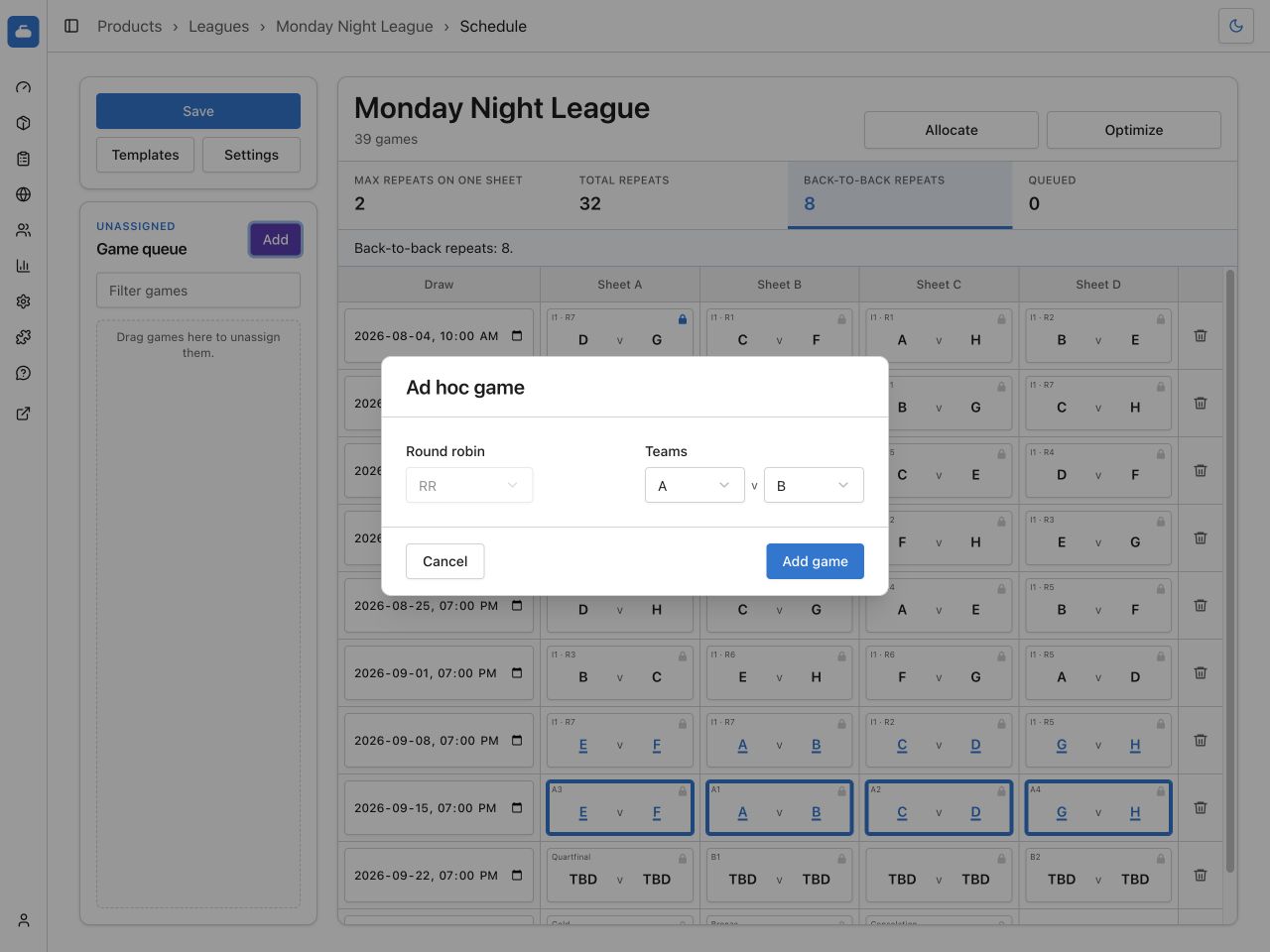
- Select the Round robin. It remains visible but disabled when the event has only one round robin.
- Under Teams, select the two teams from that round robin.
- Select Add game.
The game enters the queue and behaves like any other draggable game. Its card
shows CG and the number of times those teams meet in the complete event
schedule.
An ad hoc game must belong to a round robin because standings, scoring, ranking, tie-breaking, and carry-over rules belong to that stage.
To delete an ad hoc game, first return it to the queue. Then select the circled X on its card. A scheduled ad hoc game cannot be deleted.
Apply a club draw schedule template
Club draw schedule templates require Premium. Learn about Premium access.
Select Templates. Matching templates appear at the top of the dialog.
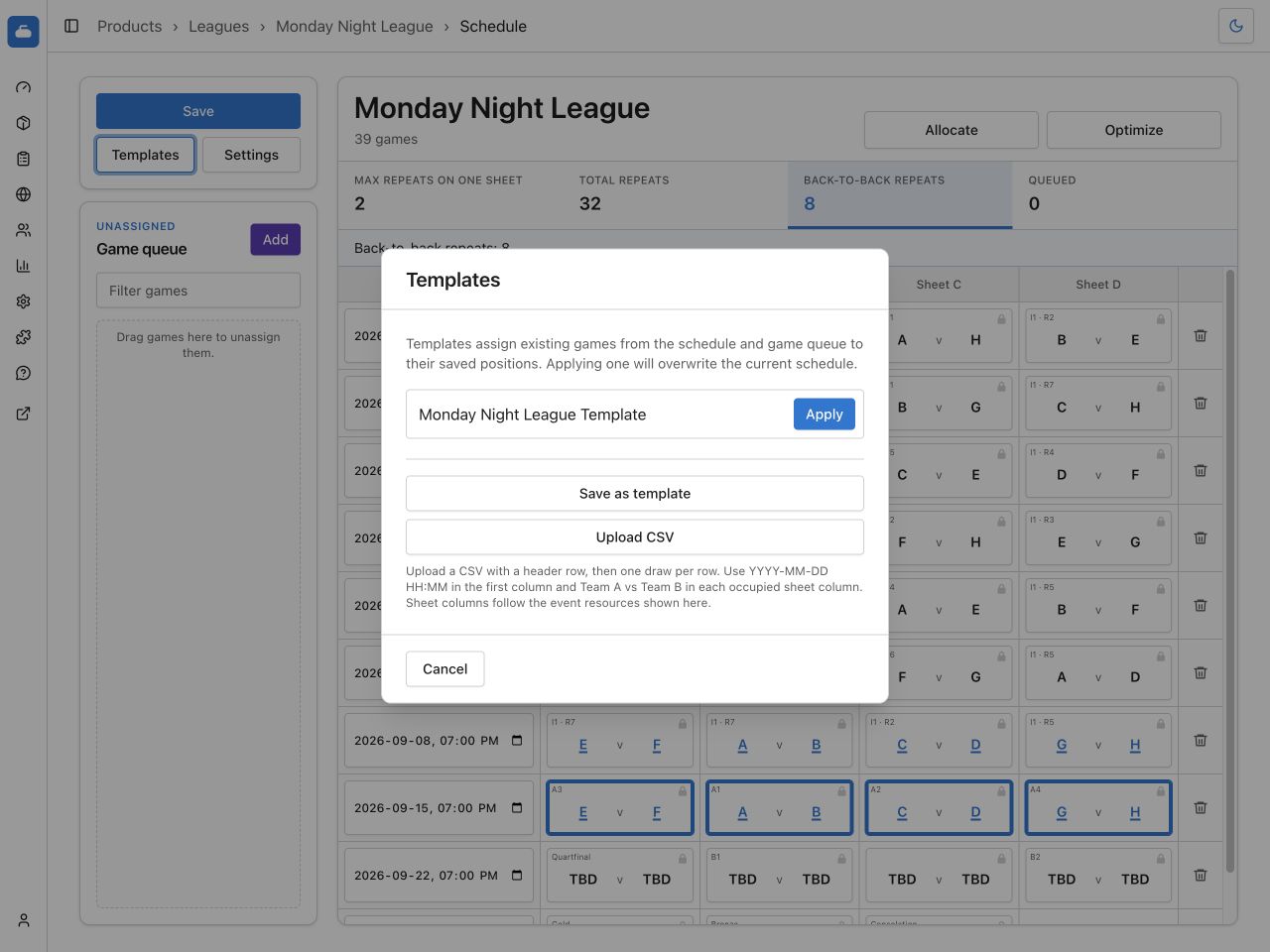
Templates match the complete eligible schedule, including its round robins, team slots, iterations, ad hoc games, and selected resources. Exact matches may be uncommon, but they let an organization reuse a specific league or event layout.
Select Apply beside the intended template. A template assigns the event’s existing round-robin and ad hoc games to its saved positions. It does not create teams, stages, or games. Applying it overwrites the current placements, so Curling IO asks for confirmation when scheduled games will move.
The resulting arrangement remains unsaved until you select Save.
Save the current schedule as a template
Open Templates, then select Save as template. This action is available after at least two eligible round-robin or ad hoc games are assigned.
- Enter a required Template name.
- Select Save template.
Template names must be unique within the organization. If the name already exists, enter a different name.
Bracket games are not saved in the current template format. The template generalizes draws and team slots so it can be matched against another event with the same competition shape.
Import a CSV schedule
Importing a CSV schedule requires Premium. Learn about Premium access.
CSV import is useful when the schedule was prepared in a spreadsheet. It replaces the current draw and game assignments, but does not save them until you select Save.
CSV import does not create teams, round robins, bracket games, or missing ad hoc games. Create the competition and every game first. The import only assigns existing round-robin and ad hoc games.
Format the CSV
The first row is a header. The first column represents the draw date and time, followed by one column for each selected event resource. The heading names are for readability; their positions determine the draw and resource assignments.
Each following row represents one draw:
Draw,Sheet A,Sheet B,Sheet C,Sheet D
2026-10-01 19:00,A vs H,B vs G,C vs F,D vs E
2026-10-08 19:00,A v G,B v E,C v D,F v H
Use:
YYYY-MM-DD HH:MMfor every draw date and time;- a unique date and time for every row;
- Team short names;
vorvswith spaces around the separator;- an empty cell for an unused resource.
When the same named matchup exists in more than one round robin, prefix the matchup with the round-robin name:
Pool A: Rocks vs Brooms
When the teams meet more than once, Curling IO assigns their existing games in CSV row order. If the CSV contains more meetings than the event, add the missing ad hoc games before importing.
Import the assignments
- Select Templates.
- Select Upload CSV and choose the file.
- Review the confirmation. Importing replaces the current schedule, moves omitted games to the queue, and clears allocation locks.
- Select Import CSV.
- Review the imported arrangement.
- Select Save when it is correct.
The confirmation is not a save. You can reload or leave the screen without saving if the imported arrangement is wrong.
Correct CSV errors
Curling IO validates the complete file and reports the row, column, problem, and correction. Fix the source CSV, then select Choose another CSV.
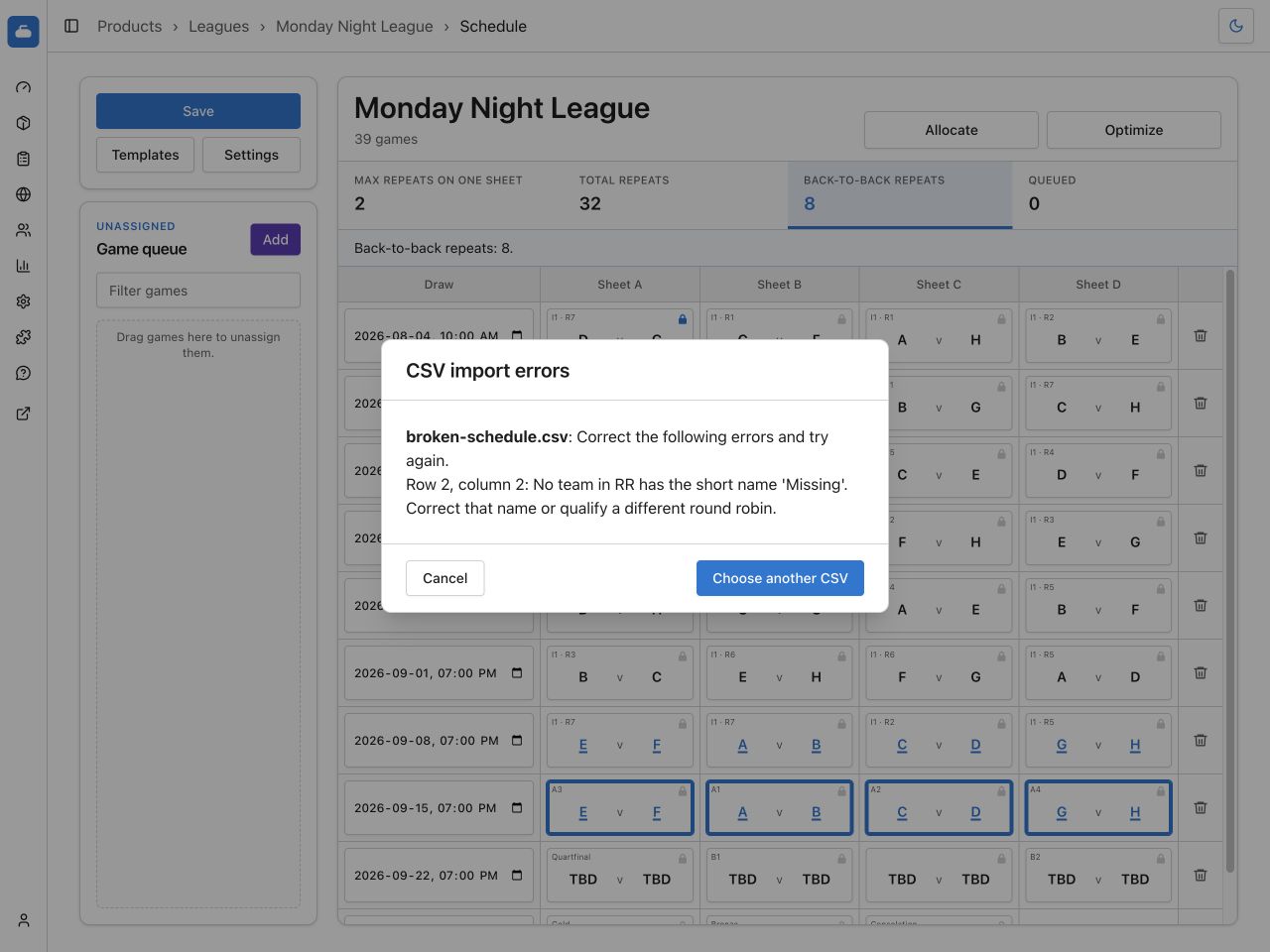
Common corrections are:
- Invalid Draw date: Use
YYYY-MM-DD HH:MMand a real calendar date and time. - Duplicate Draw date: Give every draw row a unique date and time.
- Wrong number of Resource columns: Add or remove CSV columns, or update the selected resources under Settings before importing.
- Unknown Team: Match the team short name exactly, ignoring capitalization and surrounding spaces.
- Duplicate Team short name: Give teams unique short names within their round robin.
- Ambiguous matchup: Prefix the matchup with its round-robin name.
- Team scheduled twice: Move one of that team’s games to another draw row.
- Game already used: Remove the duplicate matchup or create the required ad hoc game before importing.
- No matching Game: Confirm that the round robin or ad hoc game already exists under the event.
Save the schedule
Select Save after checking the complete arrangement. Curling IO saves:
- Draw dates and times;
- Game draw and resource assignments;
- allocation locks.
Save is disabled when nothing has changed, a draw or conflict is invalid, optimization is running, or a save is already in progress.
After saving, reload the screen and confirm that the draw dates, placements, and locks remain correct. Continue to Results when the event is ready for scores.
Troubleshooting
Allocate opens Settings instead of moving games
Enter at least one draw time and select at least one resource. Allocate needs both before it can create additional draws.
A resource cannot be unchecked
The resource contains an allocated game. Move every game off that resource, then return to Settings.
Save remains disabled
Look for a red draw input, a duplicate draw time, or the Schedule conflict message. A draw containing games needs a unique date and time, and a team can appear only once in a draw.
Optimize is disabled
Optimize is unavailable while another optimization runs, when fewer than two eligible unlocked games can move, or when the catalog layout is already proven optimal.
No templates match
Templates require an exact competition shape and selected resource count. Use the catalog-backed Allocate result, browser allocation, or CSV import. You can save the finished arrangement as a new club draw schedule template for the next matching event.
An ad hoc game cannot be deleted
Drag the game back to the queue first. Only queued ad hoc games show the delete action.
A queued game is hard to find
Enter a team short name or game name in Filter games. The schedule and queue scroll independently, so the filtered game remains available while you move through a long schedule.