Build round robins and brackets
Event stages are round robins and elimination brackets. Use a round robin to generate every required team matchup and calculate standings. Use a bracket to build playoff, elimination, consolation, or A/B/C event paths.
Each stage creates the games and advancement structure, but does not assign dates or curling sheets. After the stages are ready, use schedules to arrange the games into draws and resources.
Before you start
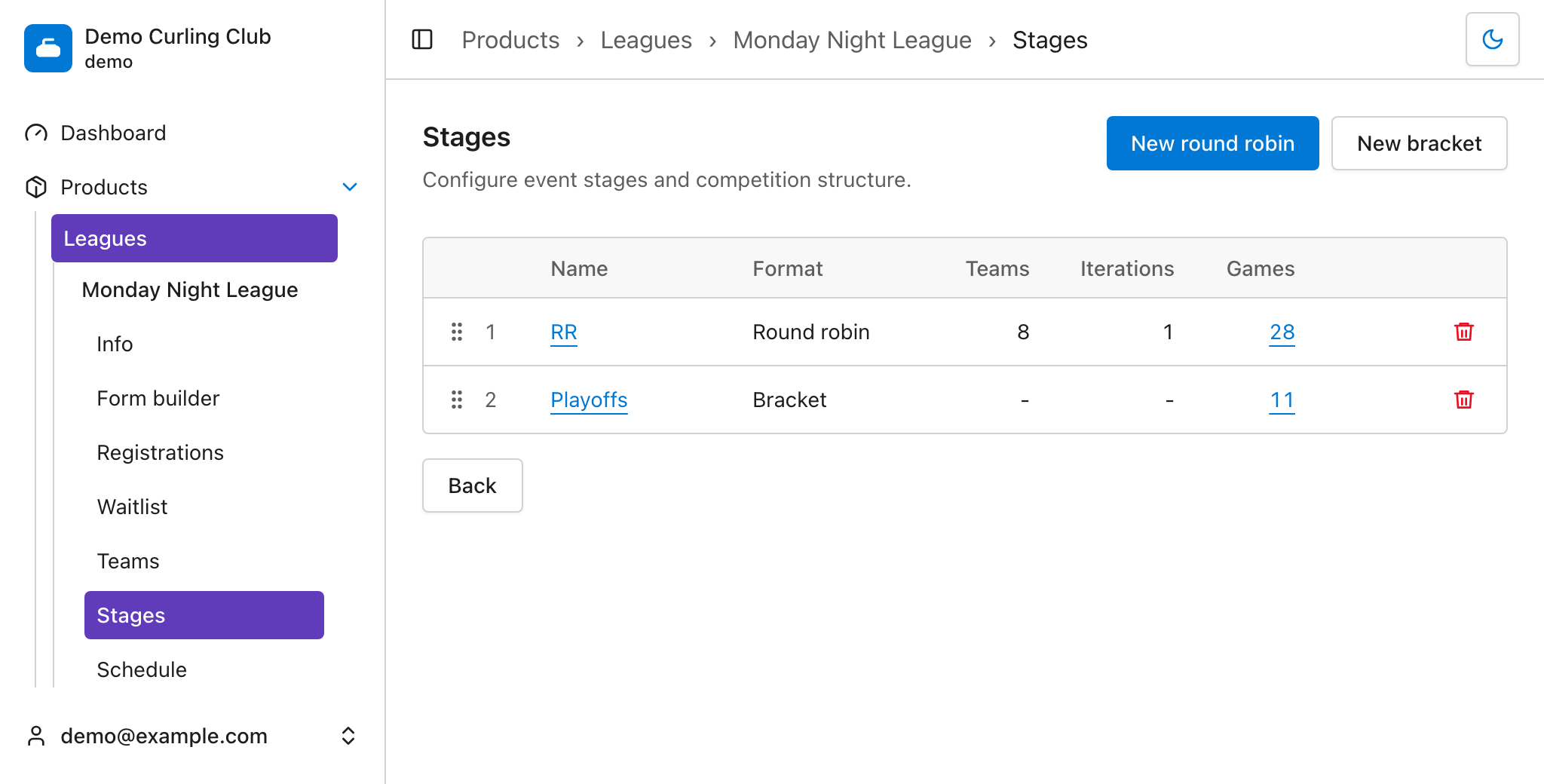
Go to Products, open the product, then select Stages.
Prepare these details first:
- Create the teams that will compete.
- Decide whether you need one round robin, several round-robin pools, a playoff bracket, etc.
- Decide how round-robin standings should be ranked and how tied rankings should be handled.
- For a bracket, sketch the games and winner or loser paths before building them.
Create separate round robin stages for separate pools. For example, create Pool A and Pool B when each pool needs its own teams, games, or standings. Bracket groups are different: they arrange related paths inside one bracket, such as A event, B event, and C event.
Use a computer or tablet when building a bracket. The builder needs enough room to move games and see their connections.
Manage the stages list
The stages list shows each stage's format, team count, iterations, and game count.
- Select New round robin to create a round robin.
- Select New bracket to open the bracket builder.
- Select a stage name to edit its settings or bracket structure.
- Select the linked game count to edit that stage's game details.
- Drag the handle beside a stage to change its position. The new order saves immediately.
- Select the trash icon, then Confirm, to delete a stage.
A product can contain up to 20 stages.
Create a round robin
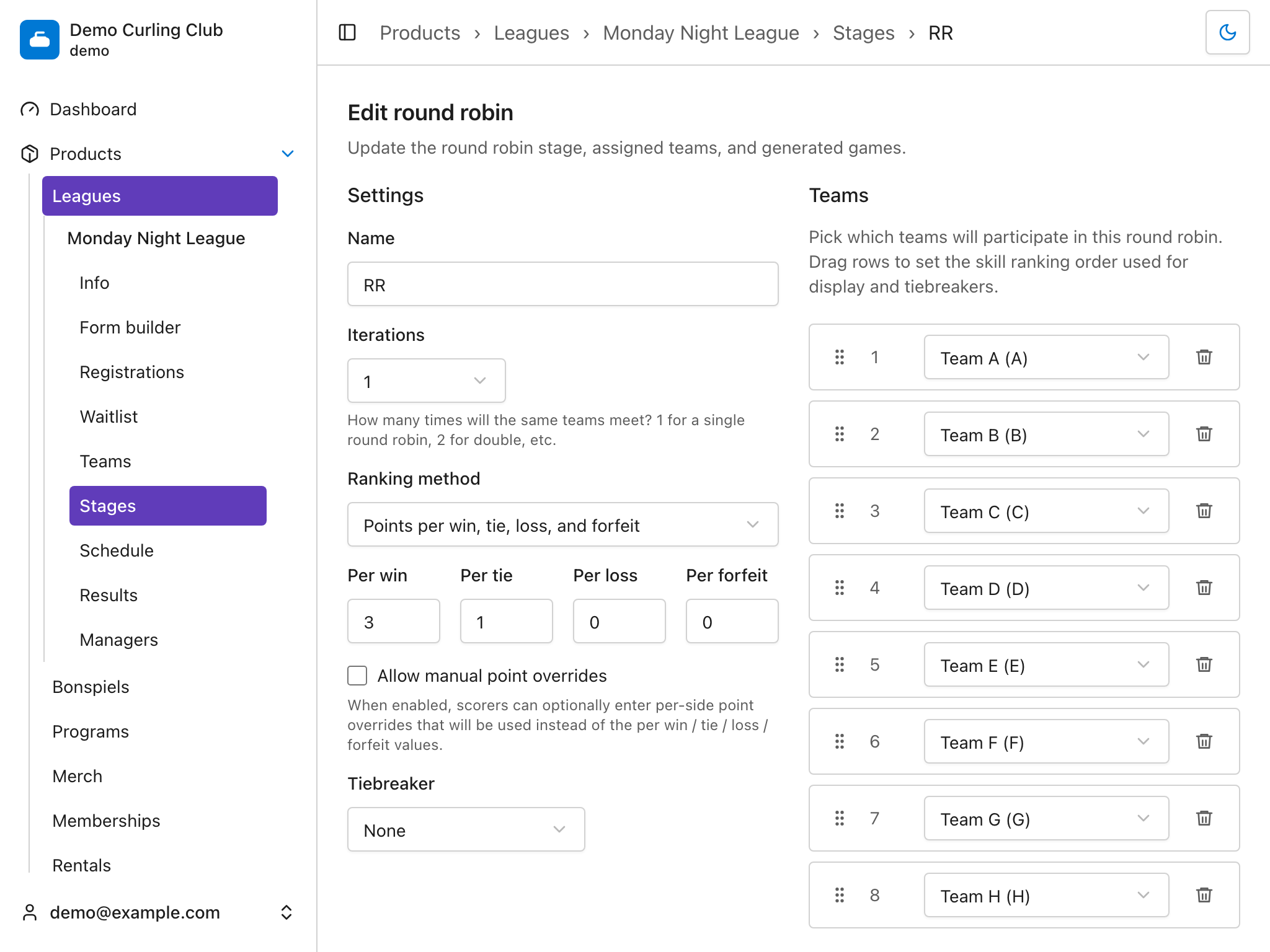
Select New round robin, then configure its settings and teams.
Name the round robin
Enter a name that distinguishes this stage anywhere stages are listed. Use a plain name such as Regular Season when the product has one round robin. Use names such as Pool A, Pool B, and Championship Round when it has several.
Choose the iterations
Iterations controls how many times every assigned team plays every other assigned team.
1creates a single round robin.2creates a double round robin.3and4repeat every matchup three or four times.
For example, eight teams and two iterations create 56 games. Each team plays the other seven teams twice.
Choose the ranking method
The ranking method controls the primary value used to order the standings.
- Points per win, tie, loss, and forfeit calculates standings points from the values you enter for each outcome. A common club setup is three points for a win, one for a tie, and zero for a loss or forfeit.
- Wins ranks teams by games won.
- Skins ranks by game wins and enables end-by-end skin values. Enter the skins or amount available in each end as a comma-separated list.
- Scores ranks teams by their total score.
- Win percentage ranks teams by wins plus half of ties, divided by the number of games with a recorded win, tie, or loss. Forfeits count as a game and a loss. Teams without a decided game rank last. Standings show the percentage as .750.
Check Allow manual point overrides when scorers must be able to replace the normal points for either side of a game. Leave it unchecked when every game should use the configured outcome values.
Choose the tiebreaker
The tiebreaker applies after two or more teams have the same primary standing value.
- None skips an additional head-to-head or score comparison.
- Head to head compares wins in completed games between the tied teams.
- Scores compares the teams' total scores.
If teams are still tied, Curling IO falls back to wins and then the skill-rank order from the team assignments.
Assign and order teams
Choose at least two teams. A team can appear only once in the same round robin.
The number beside each assignment is its skill rank. Drag team rows into the intended order. Curling IO uses that order for display and as the final standings tiebreaker.
Select Add team when the form needs another assignment row. Select the trash icon beside a row to remove it from this round robin. Removing a team from a round robin does not delete it from the product.
Select Save. Curling IO creates the complete game inventory for the assigned teams and iterations.
Change stages before scheduling when possible. Changing assigned teams or reducing iterations changes the required games. A reduction is blocked when a game that would be removed is already scheduled, has scoring or result data, or has a custom name or video link.
Combine standings from other round robins
A later round robin can carry over results or standings points from earlier round robins. This is useful for crossover and championship rounds where qualifying games should still count.
- Create the contributing round robins first. Then create or edit the receiving round robin.
- Under Carry-over results from:, check the round robins to include.
- Under Carry over, choose Results or Standings points.
- Assign the teams that should appear in the receiving standings. Carry-over does not assign teams for you.
- Set the ranking method, point values and tiebreaker, then select Save.
Results calculates points from the carried games using the receiving round robin's point values and point override setting.
Standings points adds the points each contributing round robin awarded, using its own point values and overrides, including anything it carries over. The receiving round robin adds points from its own games using its own settings. It and every selected round robin must use Points per win, tie, loss, and forfeit. The form names any round robin whose ranking method needs changing.
A round robin that supplies standings points has its ranking method locked. To change it, first switch every receiving round robin's Carry over setting to Results. The explanation beside the ranking control names those receivers.
Both modes count the carried games once for games played, wins, ties, losses and tiebreakers. Public standings show the combined totals. A team that isn't assigned to a contributing round robin gets no standings points from it, even if it played games there.
Check Combined standings only when the receiver should combine carry-overs without creating games of its own. This sets its iterations to zero.
Each contributing round robin must reach a receiver through only one carry-over path. If you select a round robin directly and through another round robin, or two round robins share an earlier contributor, Save explains the duplicate path. Remove an extra source to fix it. Circular carry-overs are also refused.
Review generated games
Select the linked game count on the stages list to open that stage's games.
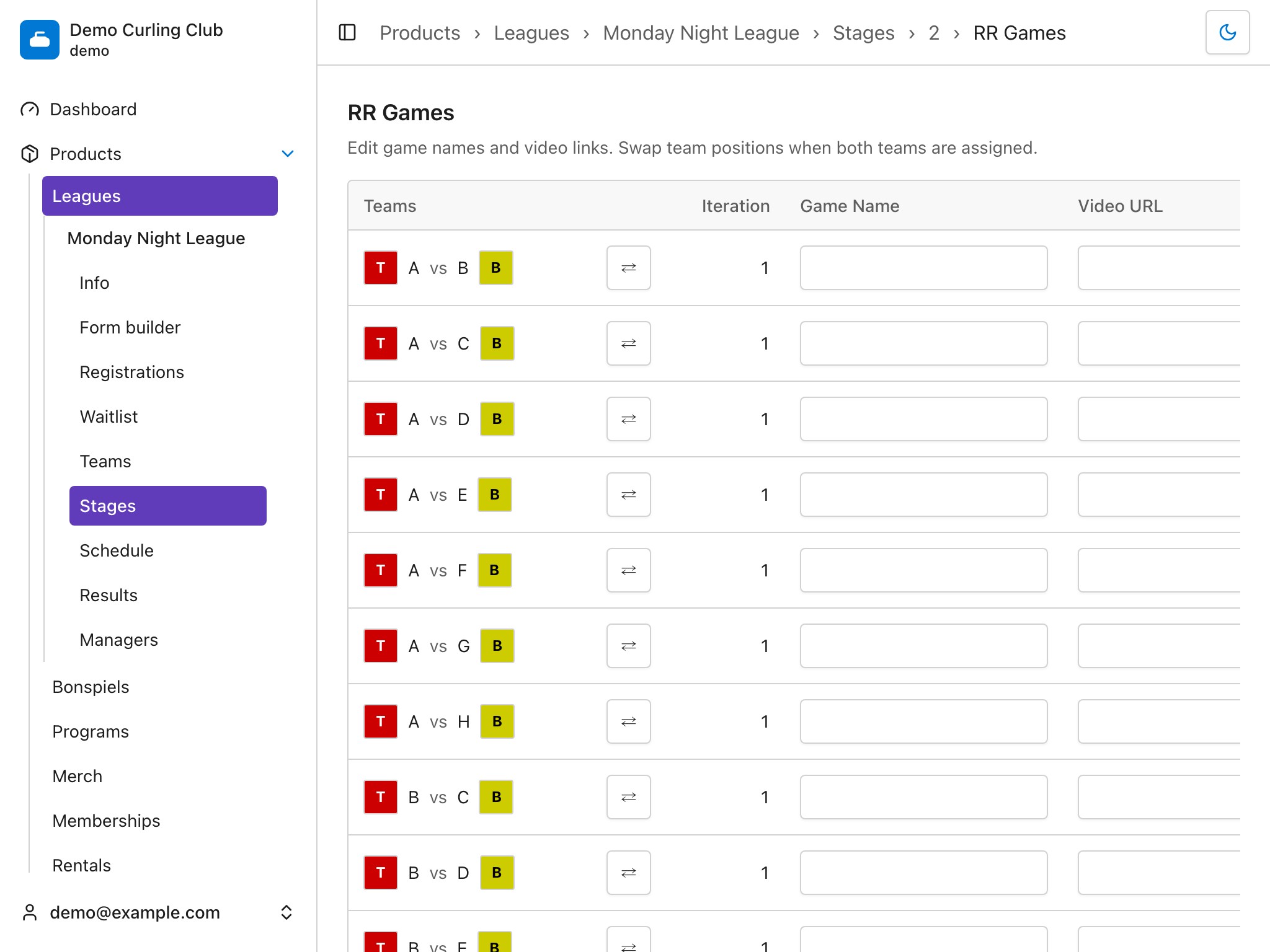
Use this screen to:
- review every generated matchup and its iteration;
- swap the top and bottom team positions;
- give a game a custom public name;
- attach a video URL to a game.
The coloured T and B badges show the product's top-rock and bottom-rock positions. Swapping the teams changes which team occupies each position. It does not change the product's rock colours.
Select Update games to save the changes. Custom names and video links count as saved game details, so clear them before trying to remove that game by reducing iterations or deleting its stage.
Build a playoff bracket
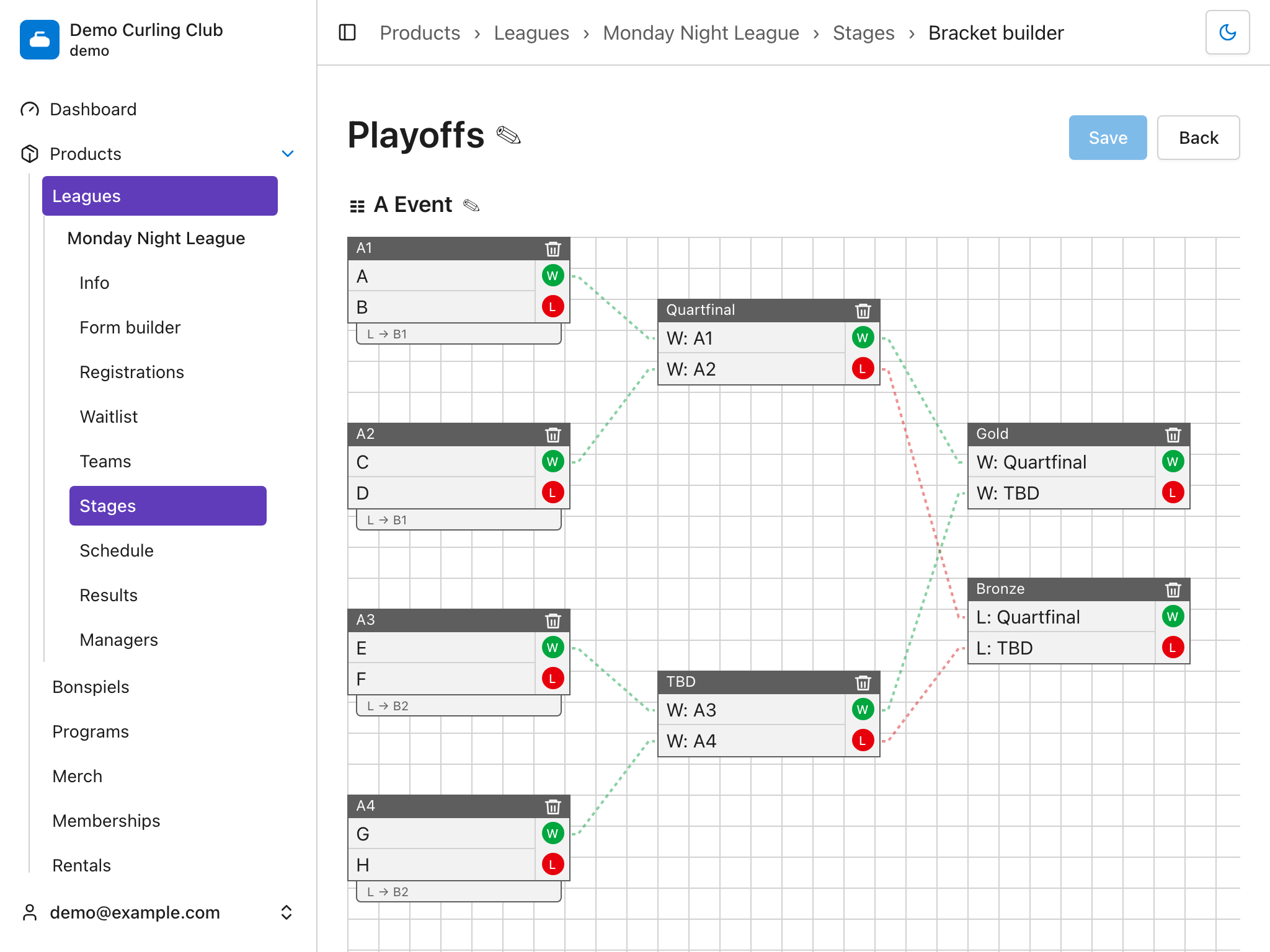
Select New bracket. A bracket can contain one group for a simple single-elimination playoff or several groups for paths such as A event, B event, C event, and consolation play.
Name the bracket and groups
- Select the bracket name or its pencil icon to rename the bracket.
- Select a group name to collapse or expand its grid.
- Select the pencil beside a group to rename or remove it.
- Select Add group to create another group.
A group can be removed only after all of its games have been removed or moved elsewhere.
Add, move, and edit games
- Double-click an empty grid position to add a game there.
- Drag a game card to move it within the group or into another group.
- Double-click a game card to edit its name and starting teams.
- Select the trash icon on a game to remove it.
Assign teams directly only to starting positions. For a later game, connect a result from an earlier game so the correct team advances automatically.
Completed games cannot be removed from the builder. Other existing games may also be protected when they have schedule or scoring data.
Connect winners and losers
Each game has a green W connector for its winner and a red L connector for its loser.
- Drag the source game's W or L connector.
- Drop it on the top or bottom team position of the destination game.
- Repeat for every advancement path.
The destination shows the source, such as W: Semifinal 1 or L: Semifinal 2. When the source game is completed, Curling IO assigns its winner or loser
to that destination position. Correcting the source result updates the
downstream assignment.
When a winner or loser moves to a game in another bracket group, a small tab
appears below the source game instead of a connection line crossing between
the separate grids. For example, L → B1 means the loser moves to game B1,
usually in another event. The tab is a label, not a button. To change that
path, drag the source game's L connector to a different destination.
Winner paths create ordinary single-elimination brackets. Loser paths can create bronze-medal games, consolation games, double-elimination formats, or A/B/C event drops. Connections may cross between groups in the same bracket.
To replace a connected destination with a directly assigned team, open the destination game and remove its incoming connection first. Editing the team in the source game is usually the better choice because its connection will then continue to work.
Save the bracket
Select Save after changing the name, groups, games, teams, positions, or connections. The bracket builder keeps all changes in the browser until you save them.
You can move games freely to make the structure easier to read. Their visual positions do not schedule them. Arrange the bracket games into dated draws and resources later under Schedule.
Delete a stage safely
Select the trash icon on the stages list, then Confirm.
Curling IO blocks deletion when the stage contains:
- scheduled games;
- scores, results, hammer, or shot data;
- custom game names or video links.
Remove the protected schedule placement or game data first, then try again. Deleting a stage removes its unprotected game inventory and competition structure. It does not delete the product's teams.
Next step
After the stages and games are correct, open Schedule to allocate the games to draw dates and resources. Results and automatic bracket advancement begin after those games are scheduled and scored.