Create and manage teams
Teams identify who competes in an event. A team needs a name and short name, but its lineup and contact details can be added later. Create the teams before you build round robins or brackets under Stages.
Before you start
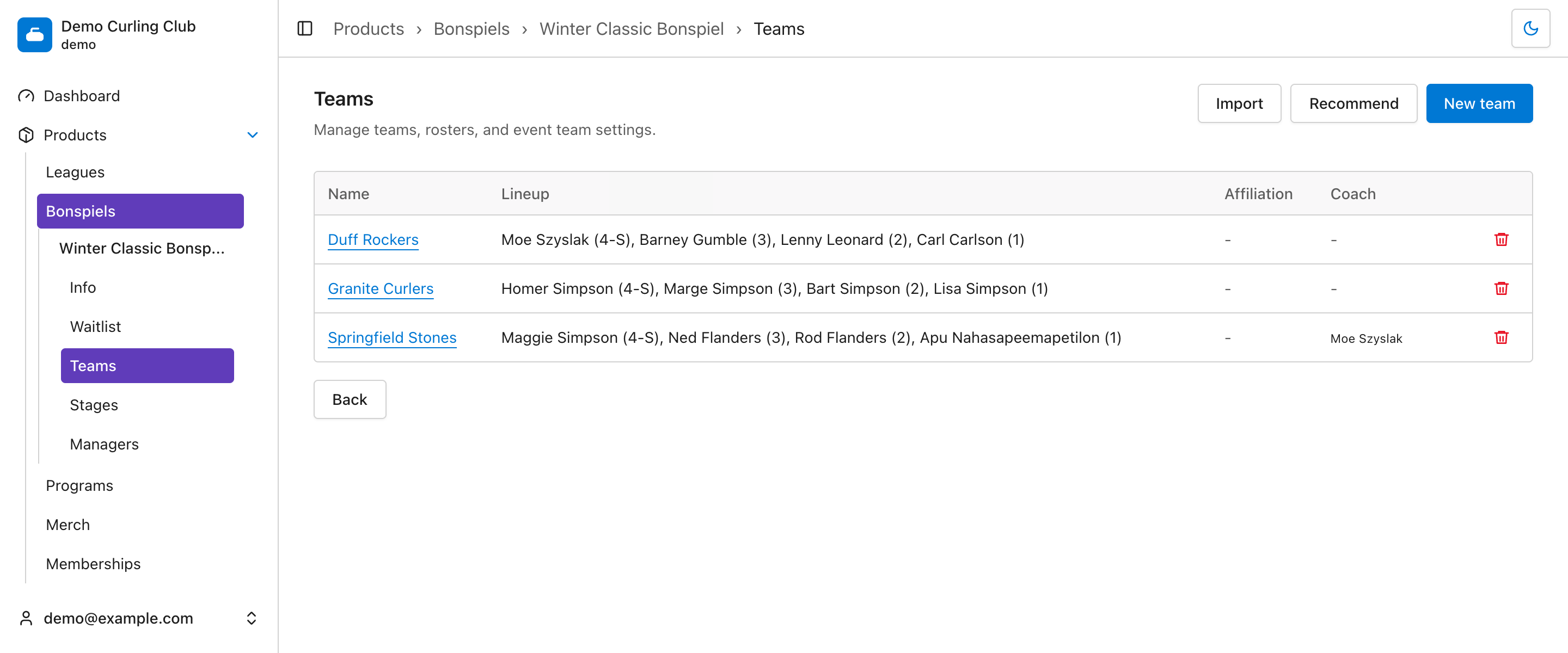
Go to Products, open the event, then select Teams.
You can add teams in three ways:
- select New team to create them manually;
- select Recommend to build them from registration answers;
- select Import to copy them from another event.
You can create empty teams before registrations arrive. A team does not need an assigned lineup before you use it in a stage or schedule its games.
Participants must already exist in your organization before you can assign them manually. See Participants if someone is missing from the lineup selector.
Manage the teams list
The teams list shows each team's name, lineup, affiliation, and coach.
- Select a team name to edit it.
- Select New team to add a team manually.
- Select Recommend to review suggestions from registration answers.
- Select Import to copy teams from another eligible event.
- Select the trash icon, then Confirm, to delete a team.
The lineup abbreviations show the player's position. For example, (4-S) means fourth and skip, (3) means third, and (A) means alternate.
Create or edit a team
Select New team, or select an existing team name.
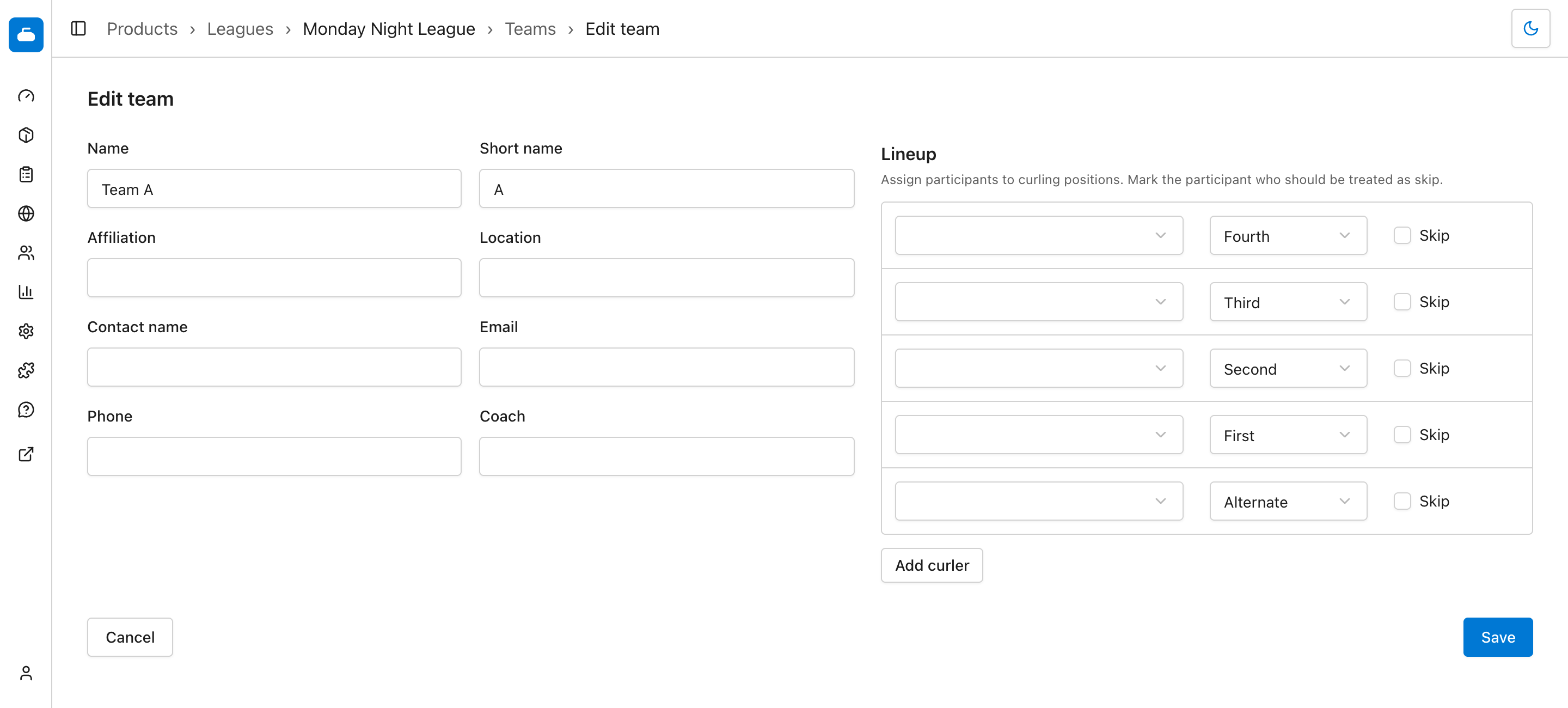
- Enter the required Name and Short name.
- Add the optional affiliation, location, contact, and coach details you want to keep with the team.
- Under Lineup, select a participant for each position.
- Select Add curler when the team has more than one alternate. You can add up to six alternates, for a maximum of 10 participants on a standard team or 8 on a doubles team.
- Check Skip beside the participant who should be treated as the skip.
- Select Save.
Use a short, recognizable value such as “Granite” for Short name. Curling IO uses it where the full team name would take too much room.
Standard teams start with fourth, third, second, first, and one alternate. Doubles teams start with second, first, and one alternate. Added curlers use the Alternate position. You can change the position in any row when the team's playing order is different.
Leave the participant selectors blank when you only need team placeholders. You can return and assign the lineup after registrations are complete.
Create teams from registration answers
Recommendations turn registration answers into teams and lineups. The registration form must collect a team name, skip name, or lineup for recommendations to be available.
Select Recommend from the teams list.
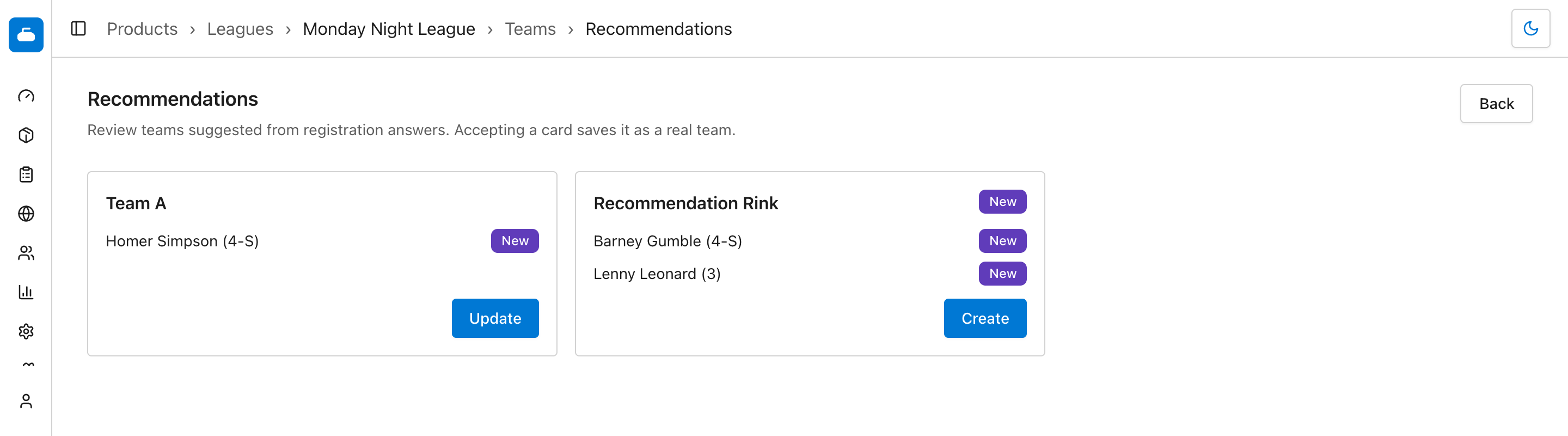
Each card shows what Curling IO found:
- New beside a team name means the team does not exist yet.
- New beside a participant means that participant is not assigned to the matching team yet.
- Select Create to save a new team.
- Select Update to save the suggested changes to an existing team.
Team names are matched without considering capitalization or surrounding spaces. Different wording still creates separate suggestions. For example, “Jones” and “Team Jones” do not match.
If registrations use inconsistent names, correct the answers under Registrations before accepting the recommendations. This avoids creating duplicate teams or putting players on the wrong lineup.
Recommendations copy the available team name, contact, coach, affiliation, and lineup answers. Review each card before selecting Create or Update.
Import teams from another event
Use import when another event already has the teams and lineups you need.
- Select Import from the teams list.
- Find the source event and check its start date, season, and team count.
- Select Import on that row.
- Leave Import players checked to copy the lineup, or uncheck it to create teams with empty lineups.
- Select Confirm.
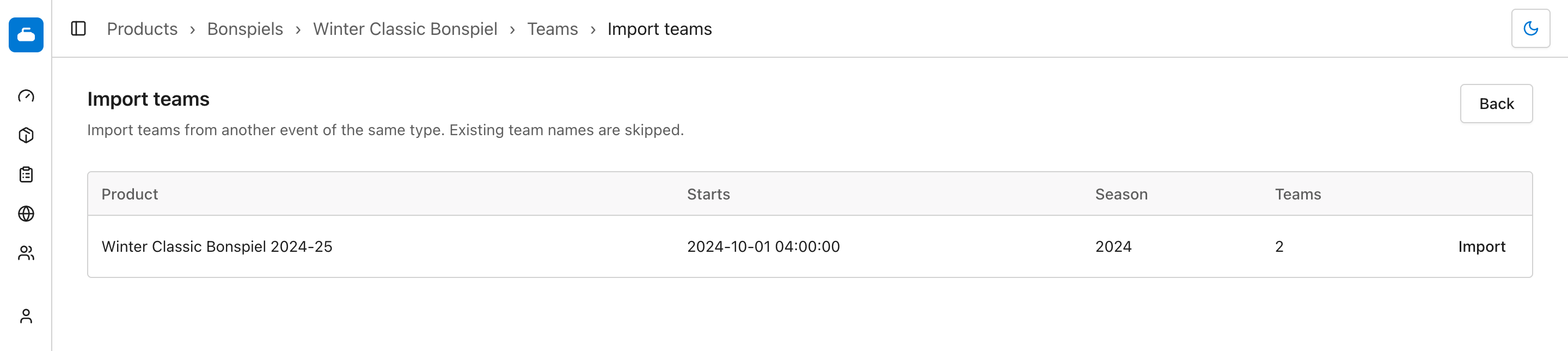
The source list only includes eligible events from the same organization. The event type and standard or doubles format must match. When the current event has a season, sources are limited to that season or the previous one.
Import copies each team's name, short name, affiliation, location, contact details, and coach. Import players is checked by default. If you uncheck it, the teams have empty lineups and their source players do not need to meet the current event's lineup rules. A team is skipped when the current event already has the same name, ignoring capitalization and surrounding spaces.
Selecting Import starts the copy immediately. There is no preview or undo, so check the source event before selecting it.
Delete a team carefully
Select the trash icon beside the team, then Confirm.
Deleting a team also removes its lineup and can affect stages that use it. It does not delete the participant records themselves. Delete teams before building stages when possible, and edit the lineup instead when you only need to remove or replace a participant.
Next step
After the teams are correct, open Stages to create the event's round robins and playoff brackets.