Manage a product waitlist
Use a product's Waitlist section to review people waiting for space, approve the next person, resend an approval, or cancel an entry. The section appears only when the product has waitlisting enabled.
Product waitlists require Premium. Existing waitlist configuration and entries remain saved if Premium access ends. Learn about Premium access.
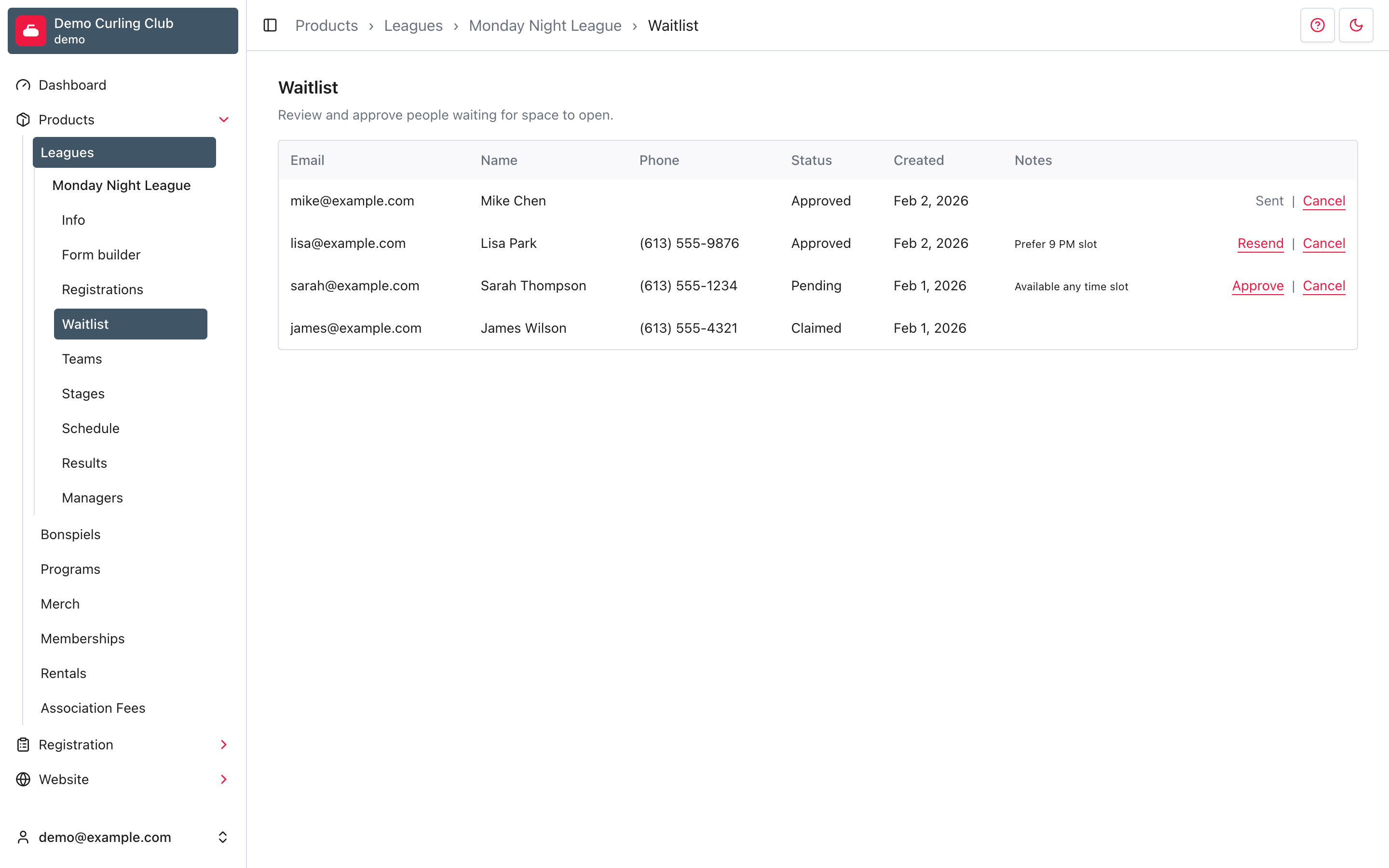
Open the waitlist
- In the administration area, open Products.
- Choose the product type and product.
- Select Waitlist in the product navigation.
Each row shows the account email, name, phone number, status, date joined, and notes. A rental or other scheduled occurrence can also show its resource and start time below the email.
Understand waitlist statuses
- Pending means the person is waiting. You can Approve or Cancel the entry.
- Approved means the person has been invited to register but has not used the approval yet. You can Cancel it. Resend becomes available after the one-hour resend cooldown.
- Claimed means the person used the approval during checkout. There is no waitlist action left to take.
- Cancelled means the entry is inactive. You can permanently Delete it.
Approve someone
Confirm that you intend to offer a place before approving an entry. Then:
- Find the next Pending entry you want to invite.
- Select Approve.
- Confirm that the row changes to Approved.
Curling IO sends the account holder an approval email with a link back to the product and their waitlists. One approval permits one registration opportunity. The entry changes to Claimed after the person uses it during checkout.
Approval is an invitation, not proof that the person completed registration or paid. Check the product's Registrations section or the linked order after the person claims the spot.
If the person did not receive the invitation, wait until Resend appears and select it once. Check the email address with the account holder before sending repeated messages.
Cancel or delete an entry
Select Cancel when the person should no longer be able to use the waitlist entry. Cancellation can notify the account holder and keeps the row as an inactive record.
Use Delete only when you intentionally want to remove a cancelled entry. Deletion is permanent. Claimed entries stay with the completed registration and do not offer a delete action.
Account holders can review their own entries under Account > Waitlists.