Club Credits
Club credits let you place a dollar balance on a Curling IO account for future purchases. An account is identified by its sign-in email address, and the person who owns that account is the account holder. Club credits are useful when someone is moving from one registration to another, when you want to return value without sending money back through the original payment method, or when you want to grant a courtesy credit.
When the account holder makes their next purchase, Curling IO applies the available credit automatically at checkout. You can grant credit directly, reduce an existing balance with a negative adjustment, or issue credit while refunding a payment from an order.
Walkthrough video
The video and screenshots use the previous Account Credits label. Club Credits keeps the same workflow and account ownership.
The following video shows you how to grant club credit, reduce an existing balance, review the credit log, and confirm what the account holder sees on your public site.
Before you start
Confirm the account holder's sign-in email address. Credit belongs to the account identified by that email address. It does not belong to a participant profile.
Club credits belong to accounts
Grant the credit to the account holder's sign-in email address, even when the purchase is for another participant on their account.
Grant club credit
Go to Registration > Club Credits.
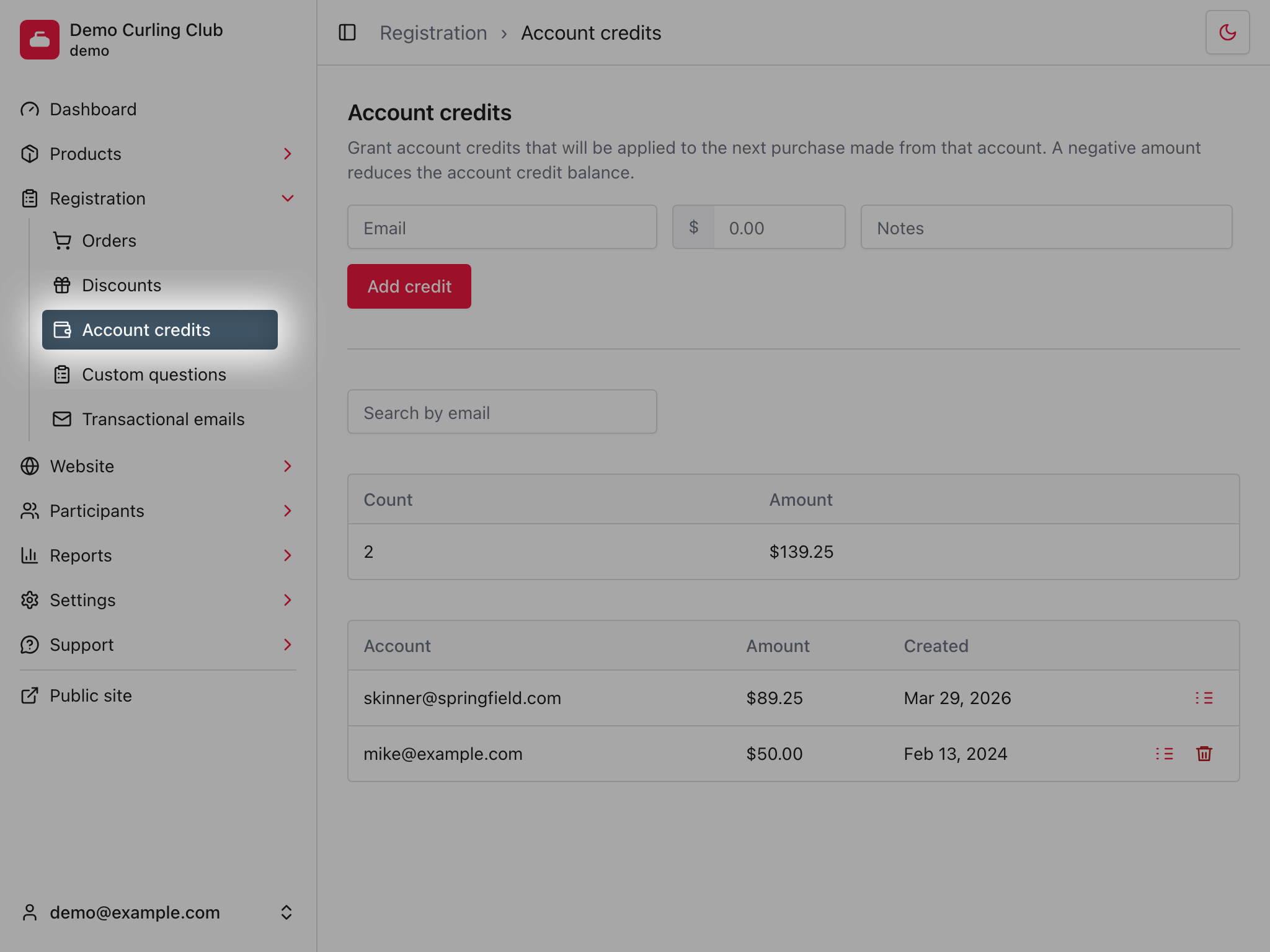
- In Email, enter the account holder's sign-in email address.
- In Amount, enter the amount to grant.
- In Notes, enter a short reason for the credit.
- Select Add credit.
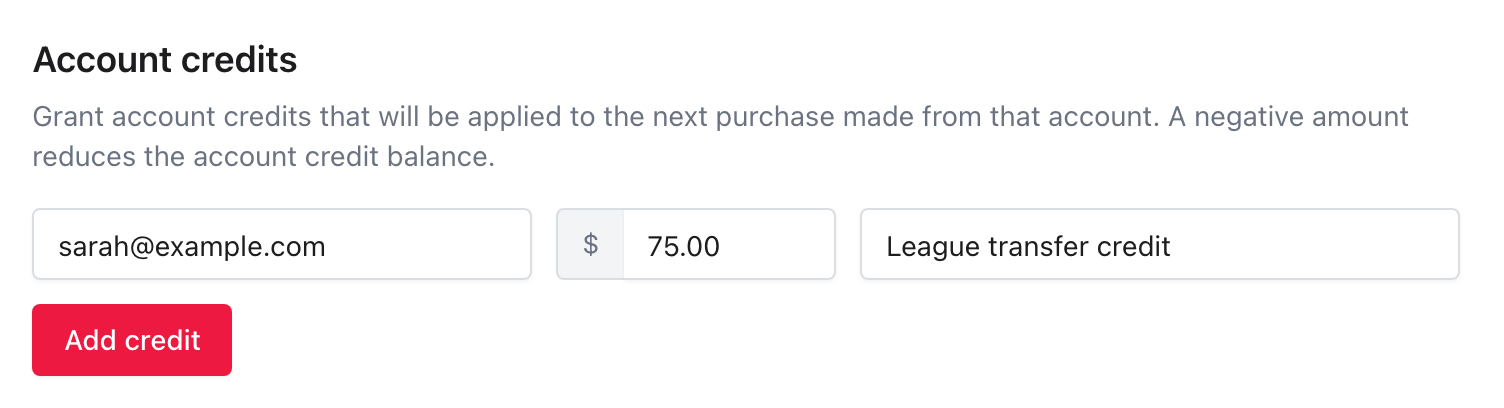
After the credit is added, Curling IO shows the resulting balance and adds the account to the list if it was not already there.
Reduce an club credit balance
Use a negative adjustment when you need to correct or reduce an existing balance.
- In Email, enter the account holder's sign-in email address.
- In Amount, enter a minus sign followed by the amount to remove. For
example, enter
-25.00to remove $25.00. - In Notes, explain why you reduced the balance.
- Select Add credit.
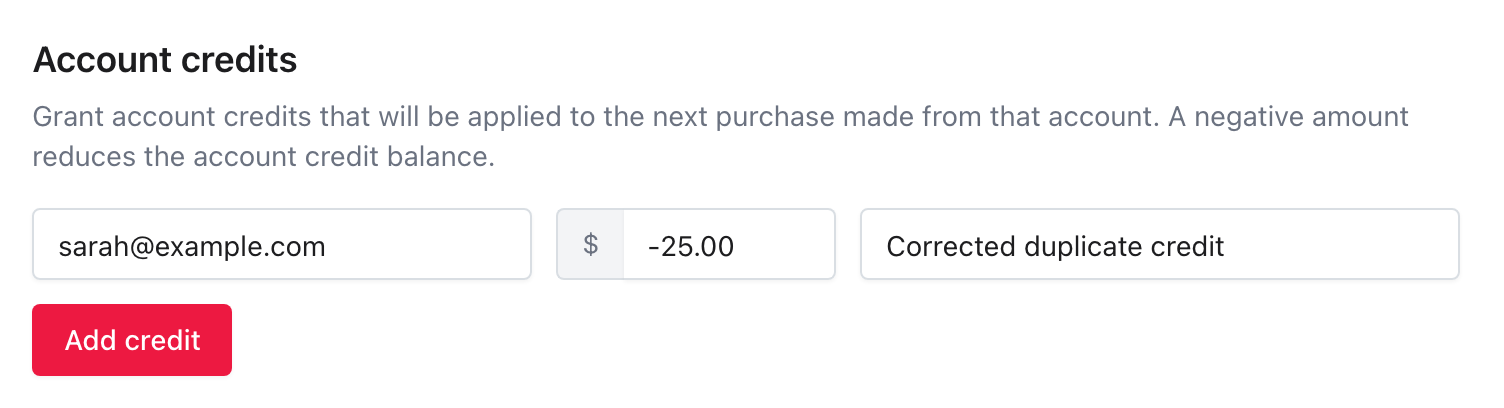
If the account started with $75.00, this adjustment leaves a $50.00 balance. Check the current balance before reducing it so you do not remove more credit than intended.
Review the credit log
Select Logs beside an account to review its credit history.
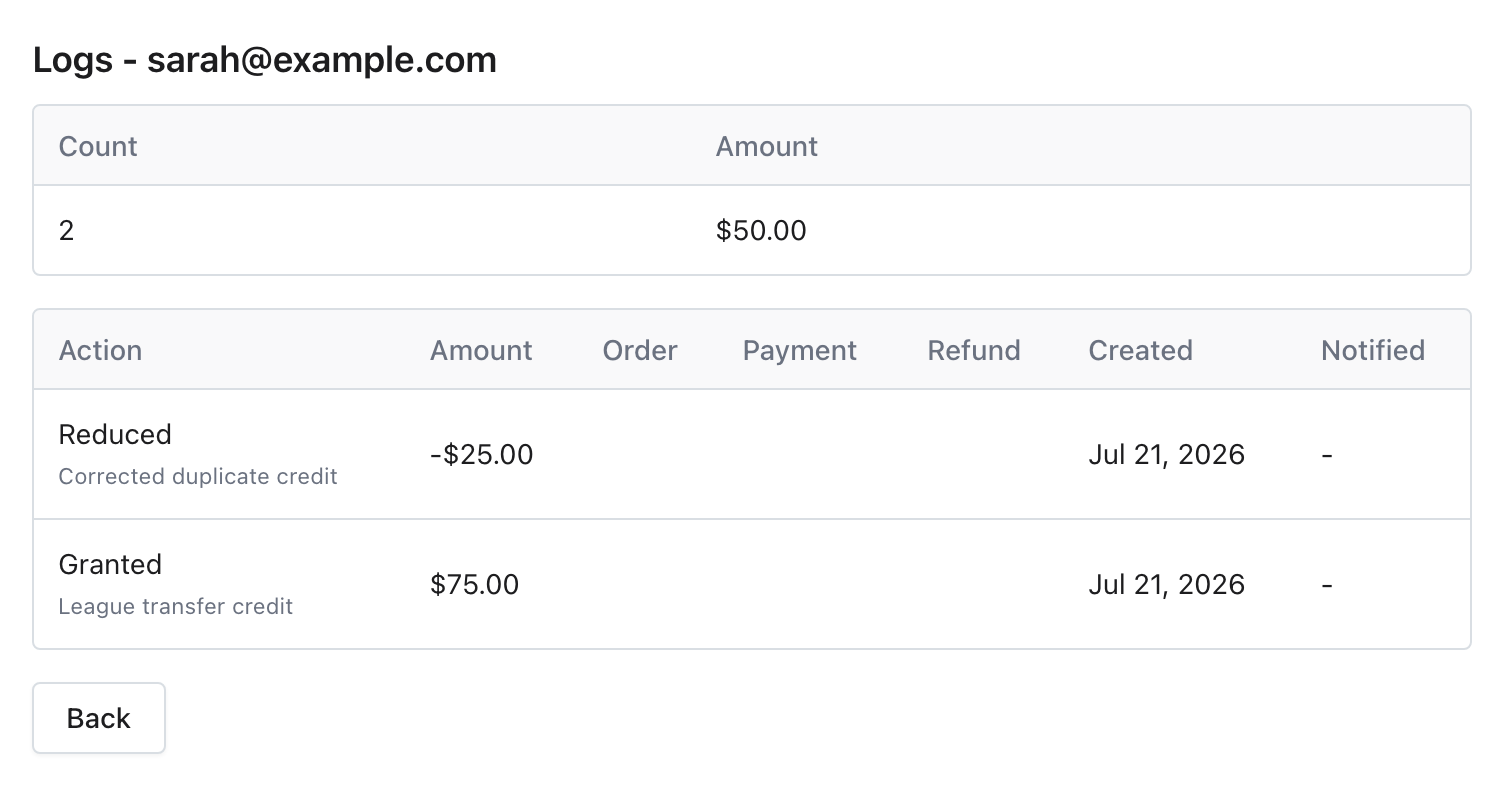
The log records each change to the account's balance. A direct grant shows the amount, the note entered by the manager, and when it was created. Credit used for a payment or granted through a refund also appears in this history, with a link back to the related order when available.
A negative adjustment appears as Reduced with a negative amount, such as
-$25.00. The minus sign and note show how much credit was removed and why.
Use the log when you need to explain the current balance or confirm that a grant, payment, or refund was recorded.
What the account holder sees
When the account holder is signed in on your public site, Curling IO shows that club credit is available for their next purchase.

The credit is tied to the account. Any participant selected during registration may benefit from it when the account holder makes the purchase.
How club credit is used
Curling IO applies available club credit automatically at checkout. The amount applied is limited to the order total and the available credit balance.
If the balance covers only part of the order, the purchaser pays the remainder using another available payment method. Any unused credit remains on the account for a later purchase.
Grant credit through a refund
You can also grant club credit while refunding a payment from an order. Select Club Credit as the refund method. The credit is granted to the account that owns the order.
We'll cover the complete refund workflow in separate refunds documentation and tutorial.
Troubleshooting
If the account holder does not see the credit, confirm that they are signed in with the same email address used when the credit was granted.
If the wrong email was used, review the original account's log first. If the mistaken credit is still available, reduce that account by the mistaken amount before granting it to the correct account. Add a note to both changes so the correction is clear in each account's log. If some of the credit was already used, reconcile the related order history before adjusting the balance.