Custom questions
Custom questions let you create reusable questions that can be added to product registration forms or the participant form. Use them when Curling's built-in fields do not collect the answer you need.
For example, you might ask whether someone is a first-time curler, how many players are on a team, which position someone prefers, or whether they have dietary restrictions.
Create and manage custom questions directly in a Form builder. A new question is added to the current form immediately. Select the Form builder's ordinary Save action to save its placement and answer requirement.
Before you start
Decide what kind of answer you need before creating the question.
- Use Text for a short typed answer.
- For a longer typed answer, use Text and set Row Span above
1. - Use Multiple Choice when the person should choose from a fixed list.
- Use Multiple Checkboxes when the person can choose several answers.
- Use Checkbox when checking the box is the intended answer.
- Use Date when the answer should be a date.
- Use Custom attachment (use a predefined question for police screening) when the person needs to upload a file.
Use participant form instead when the answer belongs to the participant profile and should stay with that person across registrations.
Do not use custom questions for general participant details that Curling already collects on the participant form. Custom questions are best for answers that belong to one registration or one kind of product.
Temporal questions usually belong here, not on the participant profile. For example, “Is this your first time curling?” can change from season to season, so it should be asked during registration instead of stored permanently on the participant.
Create a custom question
Open the relevant product's Form builder, or go to Participants > Participant form when the answer belongs on the participant profile.
- Select New question above the available question list.
- In Name, enter the question you want the registrant to answer.
- In Hint, add optional helper text if the question needs context.
- In Type, choose the answer type.
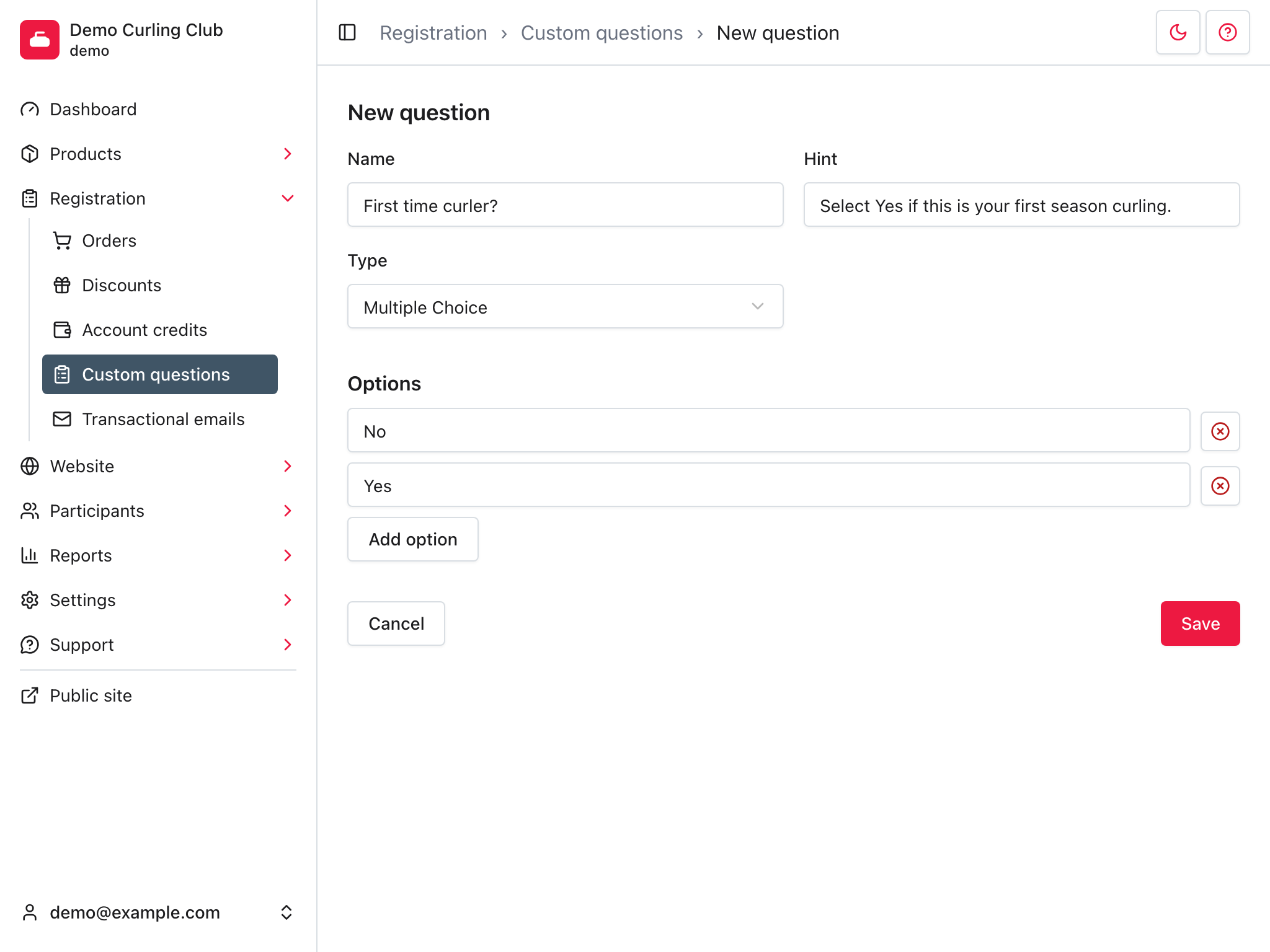
- If you choose Multiple Choice, add each allowed answer under Options.
- Under Use this question in, choose any other form contexts where the question should be available. The current form context is always selected.
- Select Save.
- Choose whether the new canvas question is required, then select the Form builder's Save action.
The custom question is saved to your organization's reusable question library and appended to the current canvas. If you enabled another context, the question also appears in that Form builder's available list.
Name and hint
Use Name for the question shown during registration. This is what the registrant sees.
The Hint is optional helper text shown with the question. Use it for short instructions, examples, or context that would make the name too long.
Multiple choice options
Selecting Multiple Choice will show the Options section. Add one option for each answer the registrant can choose.
Use Multiple Choice when the answer needs to be consistent for review, exports, discounts, or reporting. For example:
- Four
- Five
- Six
- Vegetarian
- Gluten free
- No meal required
- Beginner
- Intermediate
- Advanced
Keep option labels short and specific. If the answer needs explanation, put the explanation in the question name or hint instead of making the option text long.
Yes / No questions
Use Multiple Choice with No and Yes options when you want someone to read a question and deliberately answer yes or no.
Do not make a Checkbox question required unless the goal is to force the person to check it. A required checkbox is best for agreement-style questions, such as:
- I accept the waiver.
- I agree to the refund policy.
- I consent to receive required league communication.
For questions like “Do you want to volunteer?” or “First time curler?”, use Multiple Choice with No and Yes. That makes both answers explicit, and it avoids the common problem where people ignore checkboxes or assume they are optional marketing opt-ins.
Put No before Yes when choosing Yes has a consequence, such as receiving a first-time curler discount. This makes the Yes selection more intentional. If the registrant is not a first-time curler, it is harder for them to argue that they selected Yes by accident when it was the second option.
This matters even more when the answer controls a discount. If a discount depends on a custom answer, use Multiple Choice instead of a checkbox in most cases. Then you can make the question required without automatically forcing everyone into the discount.
Attachments
Use Custom attachment (use a predefined question for police screening) only when you need the registrant to upload a file, such as proof of certification or another document.
Attachment answers are private. Curling IO generates secure file links on request, only for authorized managers and for the registrant viewing their own uploaded file.
Reuse the question on another form
Edit the custom question with its pencil action and enable the other context under Use this question in. Then open the other Form builder and drag the question from the available list onto its canvas.
If more than one product needs the same question, drag the same library question onto each product form.
Editing and deleting questions
Use the pencil action beside a custom question in the available list or on the canvas. Predefined questions do not have this action. The editor shows where the question is already used.
Be careful changing a question after registrations have already used it. Renaming the question can make old answers harder to interpret, especially in exports or reports.
Deleting is available only when the question has no form assignments, discount references, or stored answers. Removing a question from one canvas removes only that form assignment; it does not delete the shared question.
Troubleshooting
If the form does not save, check that Name is filled in.
If Options is missing, check that Type is set to Multiple Choice.
If registrants are not seeing the question, make sure it is on the product's Form builder canvas and that the form layout was saved.