Find orders and record payments
Use Registration > Orders to record money received for an offline-payment order. You can also check who placed an order, what they purchased, whether the details are correct, and which payments or refunds have been recorded. This is the order-level record. Use reports when you need totals across many orders.
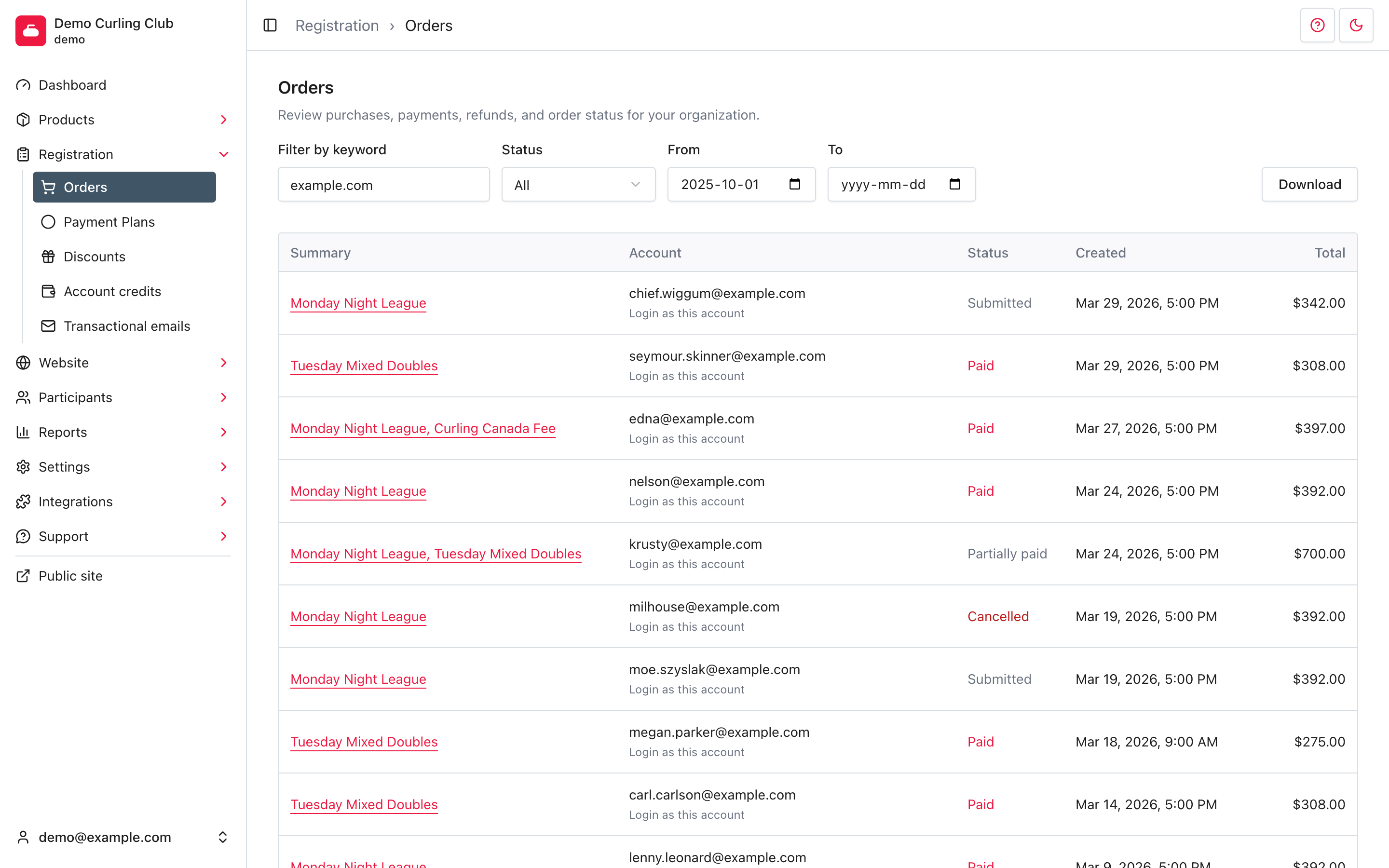
Find an order
- In the administration area, open Registration > Orders.
- Use Filter by keyword to search by product summary, account email, or an exact order number. Enter at least one nonblank character for a text search.
- Choose a Status when you need to narrow the list:
- All shows submitted, partially paid, paid, overpaid, processing, and cancelled orders. It does not include unfinished carts.
- Owing shows submitted and partially paid orders.
- Paid shows paid and overpaid orders.
- Cancelled shows cancelled orders.
- Carts shows checkouts that have not been submitted.
- Use From and To to limit the date range. The default From date is the start of your organization's current season.
- Select an order summary to open it.
The filters update the table and pagination together. If there are many results, use Next, Previous, or a page number below the table.
Record an offline payment
Record a payment after your organization receives money outside Curling IO, such as cash, cheque, e-transfer, or an offline card payment.
- Find the order and open it.
- In Payments, select Add payment.
- Select the items the payment applies to.
- Enter the Amount, choose Paid with, and enter the Deposited on date.
- Add payment details or notes when they will help with reconciliation.
- Select Save.
Recording a payment updates the order balance and financial records. It does not collect the money or confirm that it reached your bank account. Verify the payment first, then record it here.
Download the filtered list
Set the keyword, status, and date filters first, then select Download. The
orders.csv file contains the same filtered set, including order number,
summary, account, status, created date, and total.
The download is a list of orders, not a transaction reconciliation. Use the financial reports when you need separate payment, refund, payout, or dispute records.
Review an order
The order detail shows the order number, date, status, account, and summary. The receipt has three columns: Item, Details, and Amount. Amounts are before tax. Add-ons sit beneath their parent item. Named discounts, reductions, and cancellations sit beneath the item they apply to, with a minus sign for amounts taken off. Cancelled items are grey and their status stays red.
The amount rows add up to Subtotal. Each tax follows by name, after any reductions or cancellations, then Total. Amount owing stays above the receipt; payments and refunds have their own sections below it.
If your organization has saved a Tax ID in Settings > Taxes, it also appears on the order detail and printable order.
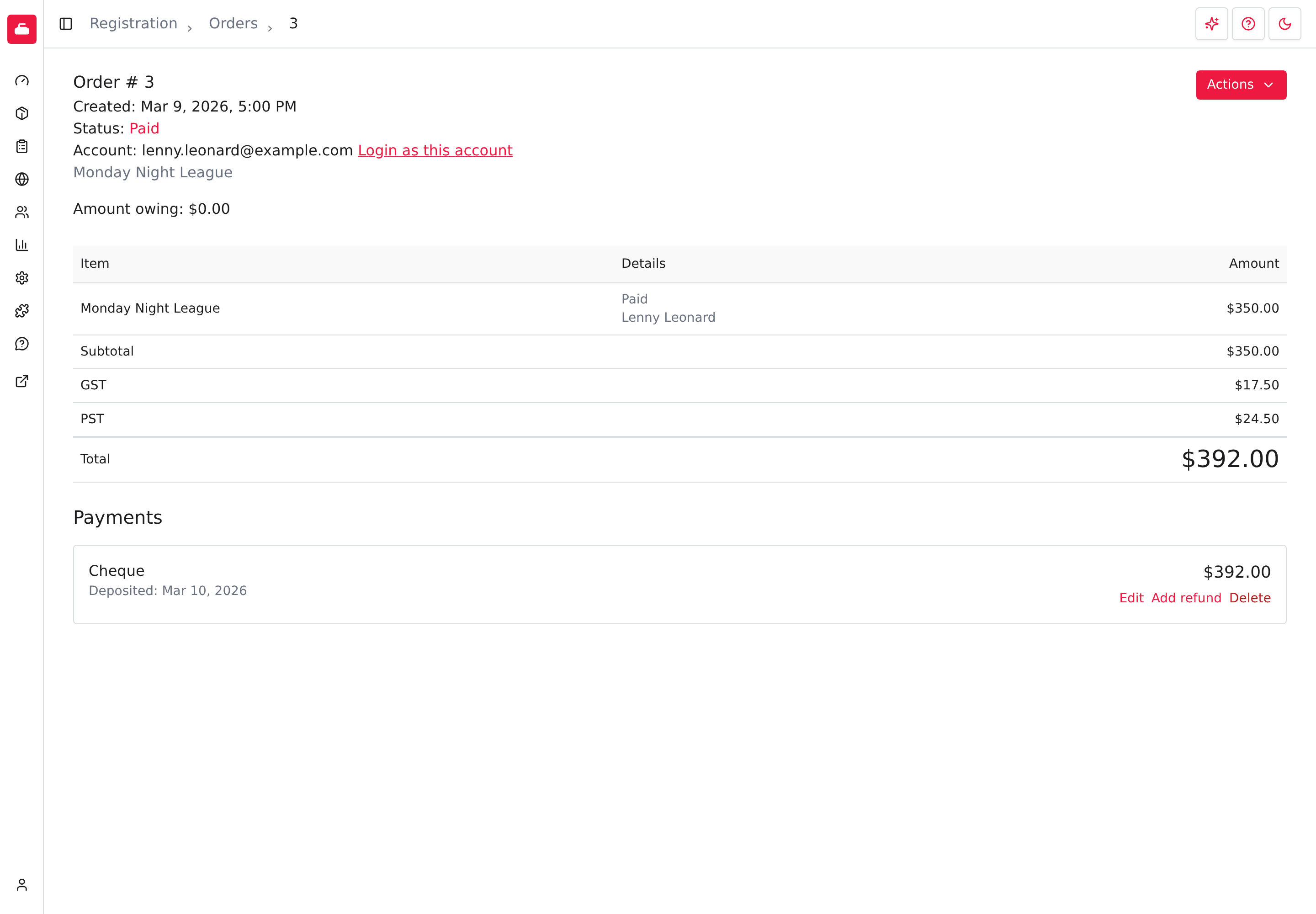
The Payments section lists recorded payments and their deposit dates. The controls beside a payment depend on its type and state. They can include:
- Edit for correcting an editable payment record.
- Add refund for recording money returned against that payment.
- Delete for removing a payment record when deletion is allowed.
A payment dispute appears directly beneath the payment it belongs to. Review its provider, external ID, status, deadline, and amount before responding. The Attention Centre links urgent disputes back to this Order.
An Order can also show a Potential retroactive discount. Select Apply discount to open a refund form prefilled with the eligible line item, amount, method, and reason. Review those values before saving the refund.
Deleting or editing a payment changes the order's financial record. Confirm the payment against your processor or bank records first. For refund reporting, see Refunds.
Payment requests on an order
When a member checks out a payment request, it becomes its own line on their order. The line shows the description you wrote and the amount before tax. The taxes you selected are included in the receipt's named tax totals. It has no product or participant, so there are no registration questions or waivers for it. Payment Request in Details identifies where the line came from. The marker also appears on the member's receipt and printable copy.
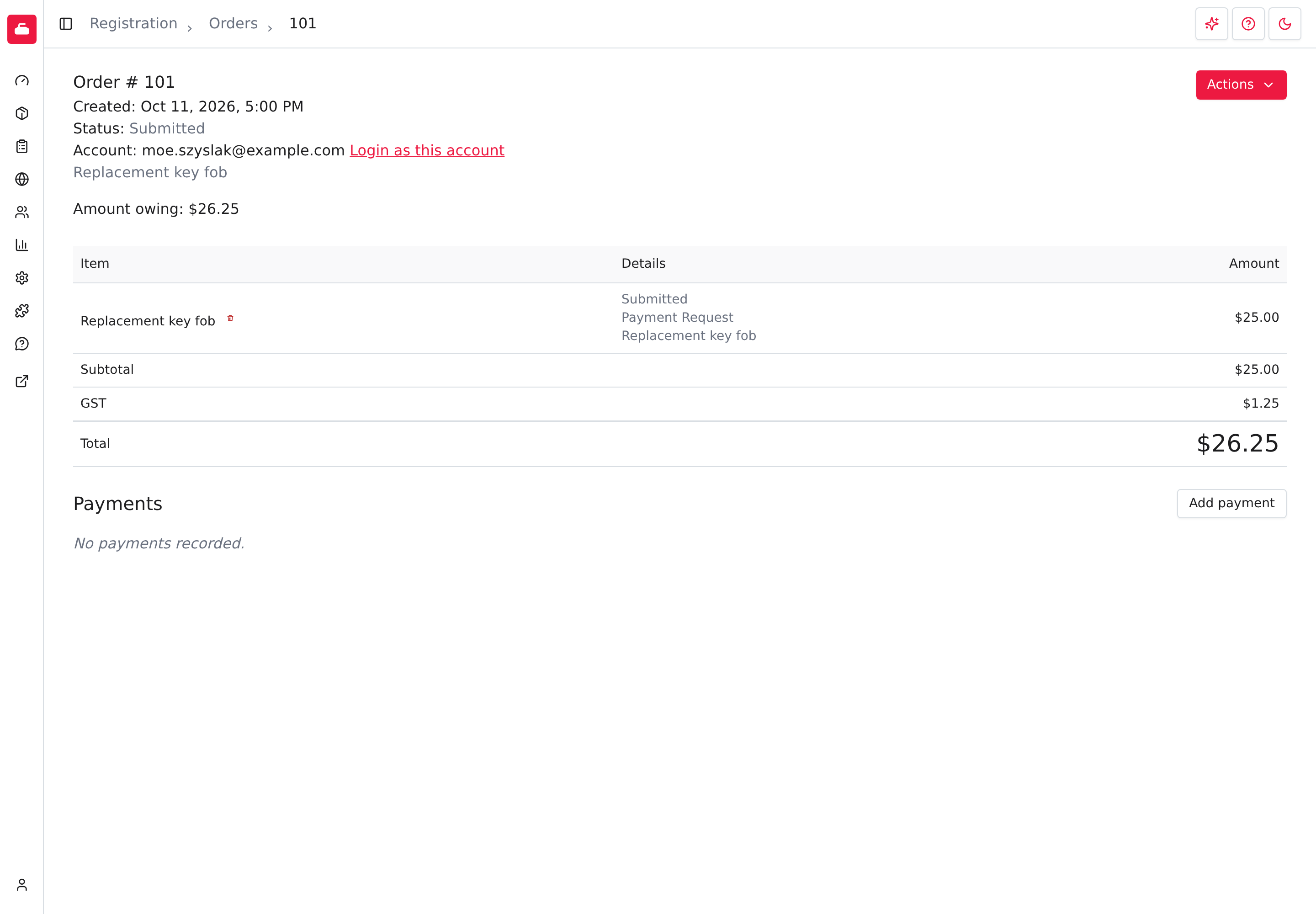
The line items report can find these lines under Type > Payment Request.
If the member paid by card, the payment appears under Payments. If they chose to pay at the club, the order stays Submitted with an amount owing until you select Add payment. Sending the order back to the cart keeps the payment request's amount before tax, but its tax and total are recalculated with your current tax rates.
Review scheduled payments
When a member bought a product with a payment plan, the order has a Scheduled payments section below Payments. It lists each installment with its amount, due date and status:
- Pending is waiting for its due date or for SportsPay to process it.
- Paid was collected. The money also appears under Payments.
- Declined was refused, usually because of the member's card. Later installments wait until this one is resolved.
- Cancelled was cancelled by staff. It can also show whether SportsPay confirmed that the scheduled charge was removed.
The first installment is collected at checkout, so a new plan starts with one paid installment.
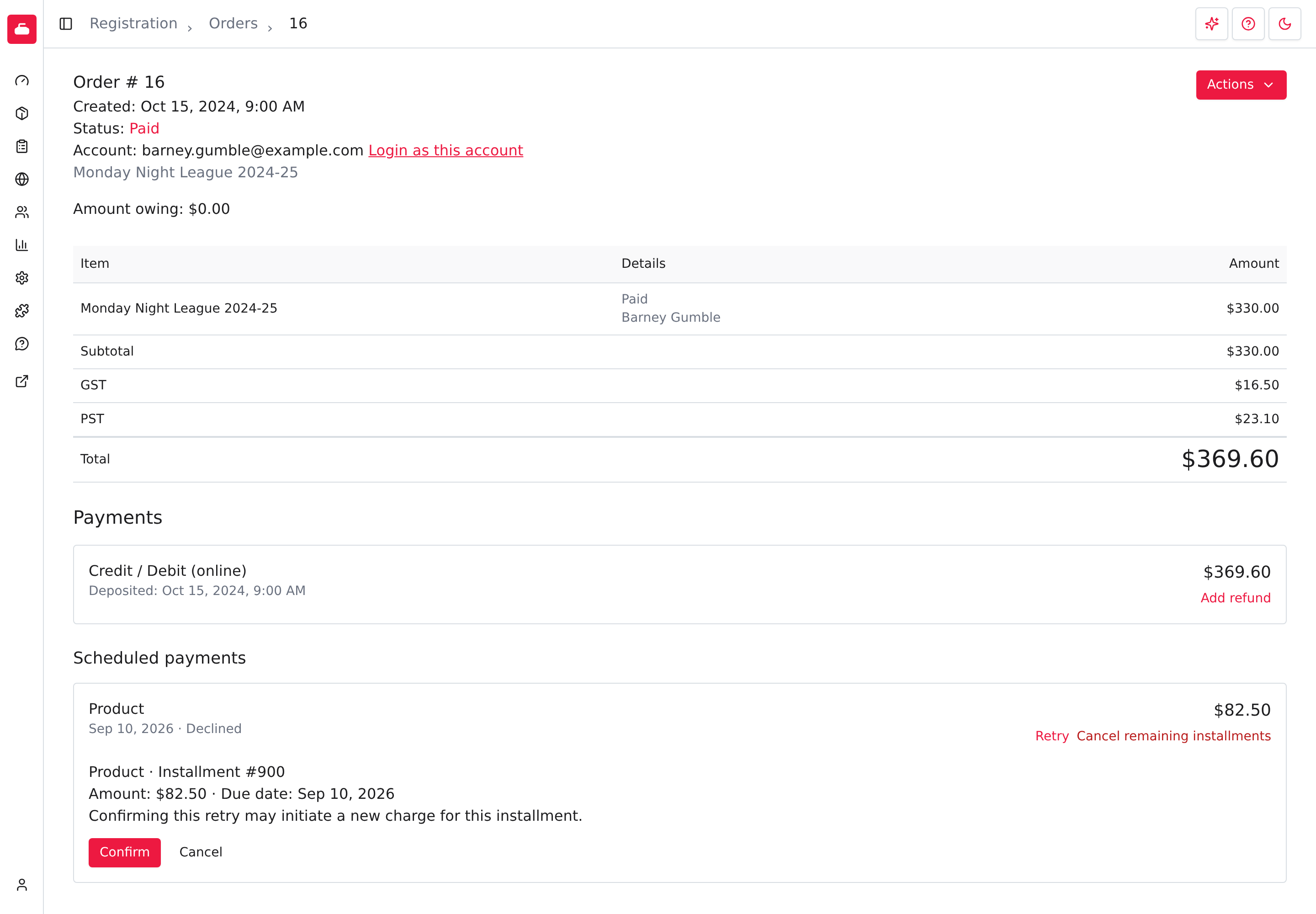
For a Declined installment, select Retry to try the charge again. Read the amount and due date, then select Confirm. Confirming can start a real charge. Select Cancel to close the question without charging anything.
To stop the remaining payments, select Cancel remaining installments on a Pending or Declined installment. That cancels it and every later installment, reduces the amount owing, and doesn't refund money already collected or cancel the registration. Read the result message, because a scheduled charge may still happen if SportsPay didn't confirm the removal.
Registration > Payment Plans explains each step and lists every plan that needs follow-up.
Use order actions
Open Actions on the order detail to see what you can do with that order. The menu only lists actions that fit the order's status, so it's shorter for a paid order than for one that still has a balance.
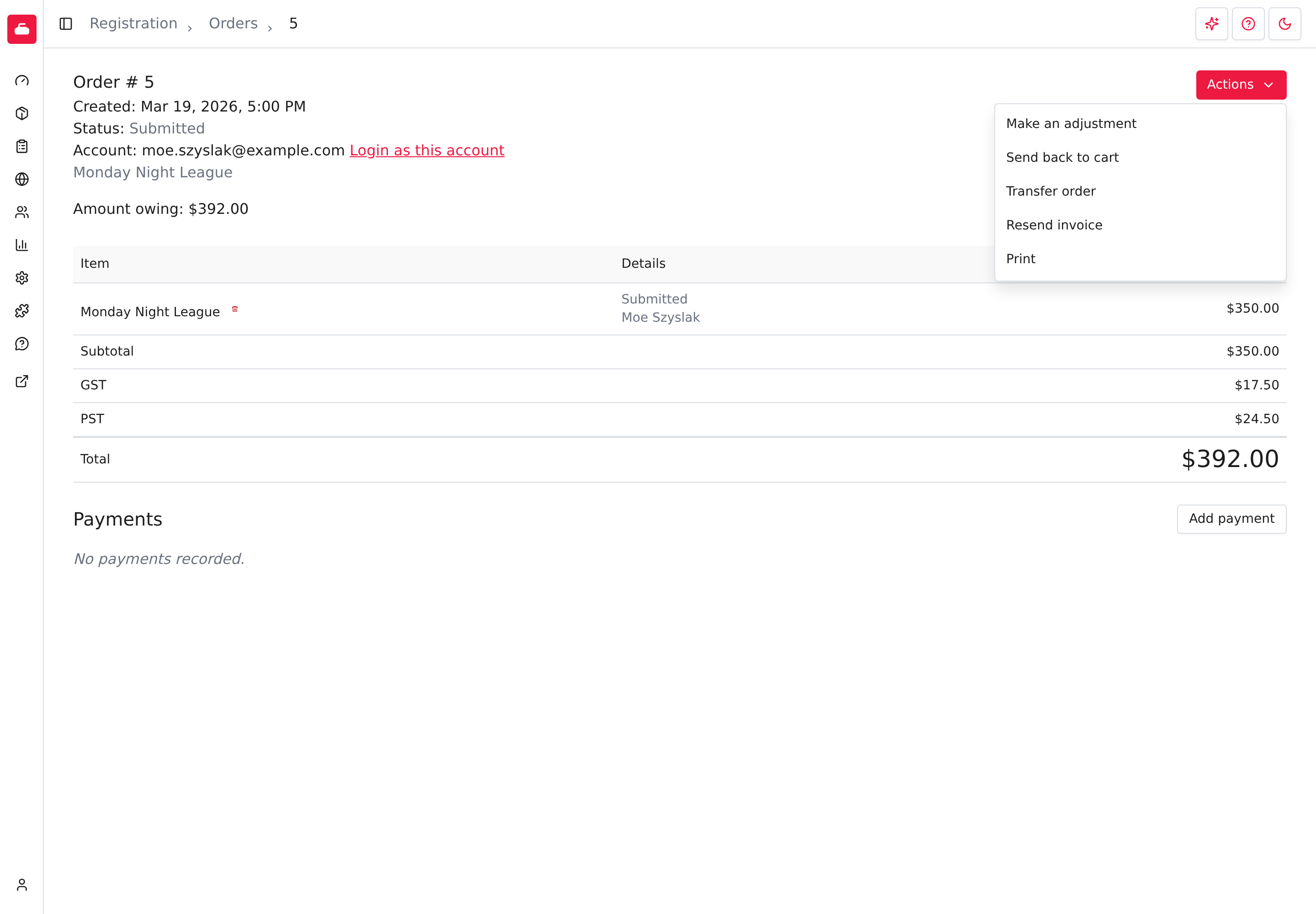
- Make an adjustment adds a charge or a credit to the order. See Adjust an order.
- Send back to cart returns the order to the member's cart so it can be changed and checked out again. See Send an order back to the cart.
- Transfer order moves the order to another account.
- Resend invoice or Resend receipt emails the order again. See Resend the order email.
- Delete order removes an order that was never completed. See Delete an order.
- Print opens a printable order view.
Adjusting, sending back, resending, deleting, and transferring are for managers. A treasurer can read every order and record payments and refunds, but doesn't see these actions.
The order list and detail can also show Sign in as this account. Use it only when you are authorized to reproduce the account holder's view. It opens a new signed-in session as that account, so treat it as an impersonation action, not as a harmless preview.
Adjust an order
An adjustment is a separate line on the order for a charge or credit that isn't part of any product. Use a positive amount to add a charge, such as a fee for replacing a lost key. Use a negative amount to reduce what the member owes, such as a credit for volunteering. The product's own price doesn't change.
You can add and delete adjustments only while the order is Submitted or Partially paid. Paid, overpaid, cancelled, and unfinished orders don't offer Make an adjustment. To return money on a paid order, use Add refund under Payments instead.
Add an adjustment
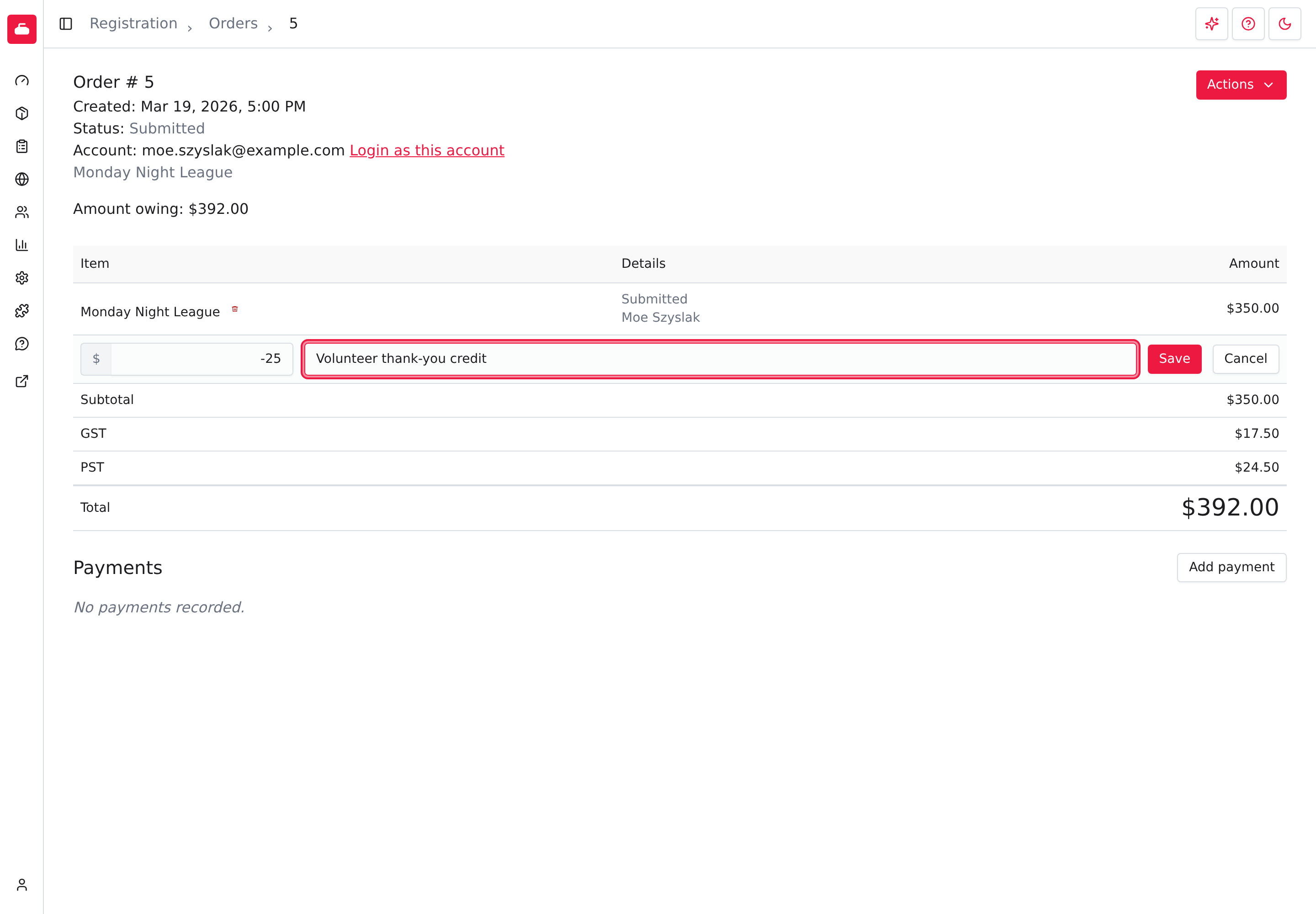
- Open the order and select Actions > Make an adjustment.
- Enter the Amount. Use a minus sign for a credit, such as
-25. - Enter a Description. It appears in the Details column, so write something your treasurer will recognize later.
- Select Save.
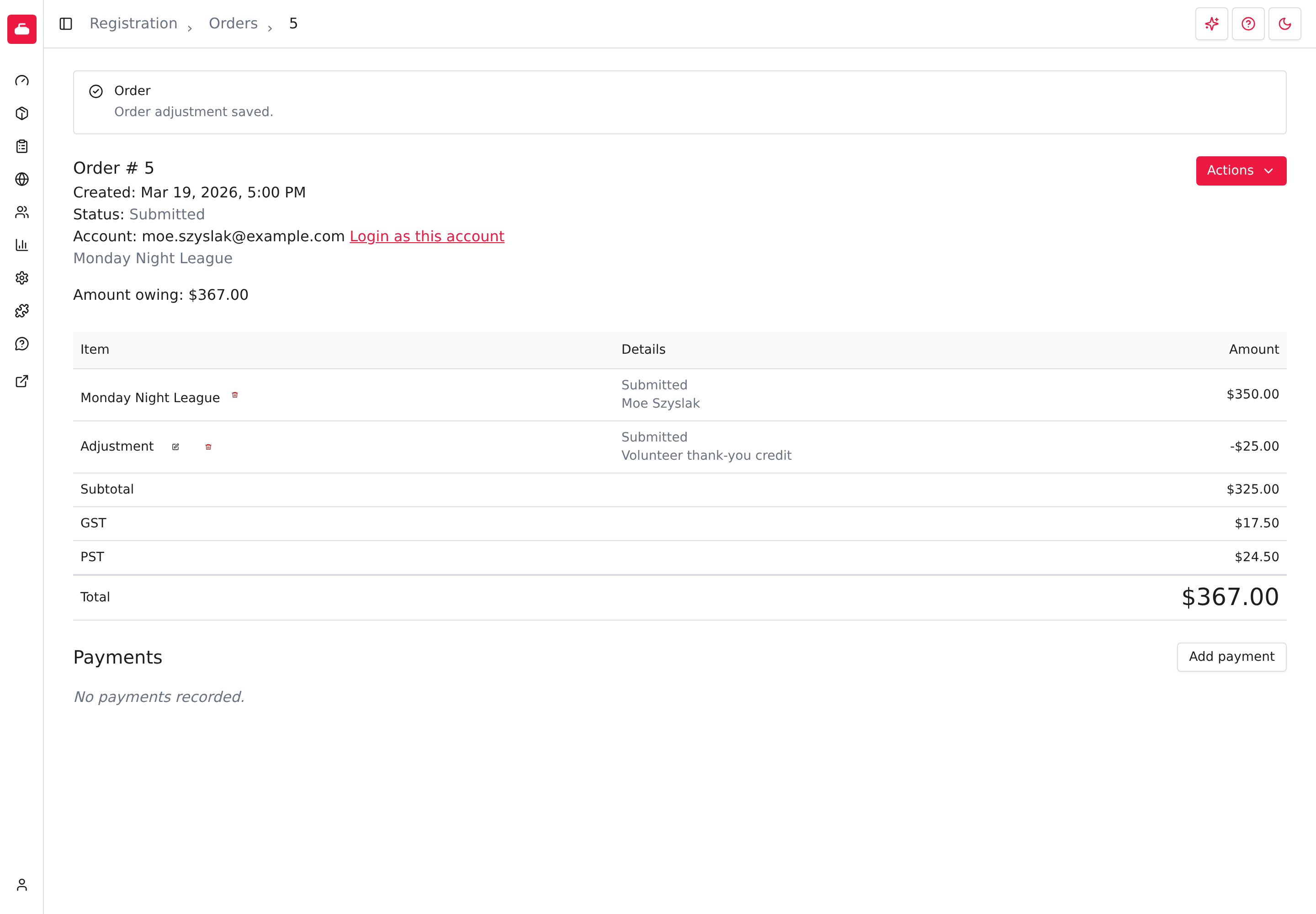
The order shows an Order adjustment saved. message, the new line, and the new Amount owing.
Curling IO refuses an adjustment when:
- the amount is zero (Amount must not be zero.);
- the description is blank (Description is required.); or
- the new order total would drop below zero or below what has already been paid (Adjustment cannot reduce the order total below net payments.). Net payments means payments minus refunds.
What an adjustment changes
- Amount owing and total. A credit lowers them and a charge raises them. The order's status follows. If a credit brings the total down to exactly what has been paid, the order becomes Paid.
- Tax. Adjustments aren't taxed. The named tax totals in the receipt stay the same, even when the adjustment is a credit against a taxed product. If the credit needs to reduce tax, use a refund on the product instead.
- Money. A negative adjustment isn't a refund. No payment or refund is recorded and no money moves. It only lowers the balance the member still owes.
- Retroactive discounts. Adding an adjustment dismisses any Potential retroactive discount shown for that order.
- History. Curling IO records who added or deleted the adjustment and when.
Delete an adjustment
Adjustments don't have an Edit control. While the order is Submitted or Partially paid, select the trash can beside an eligible Adjustment, then select Confirm to delete it. Deletion is still checked when you confirm.
If a negative adjustment brings the amount owing to zero, the order becomes Paid. You can't edit or delete that adjustment from the paid order. The Delete control is hidden; settling the order doesn't grant an undo.
You can't delete an adjustment with any payment or refund allocation. Deletion never moves its payments to another item. Use the appropriate payment or refund workflow to address those financial records.
On a Partially paid order, an unallocated adjustment also requires its signed total to be no greater than the amount owing, no refunds or cancelled items on the order, and no child items on the adjustment.
Deletion also requires verifiable financial history and no payment in progress. Curling IO refuses adjustments with unsupported accounting entries, refund allocations or child items whose financial effects cannot be reversed safely. Adjustments without the accounting entries needed for deletion remain refused. If deletion is refused, leave the payment and adjustment unchanged.
Send an order back to the cart
Use Send back to cart when a member's order needs to change before it is paid, such as a wrong product or participant. It turns the order back into an unfinished cart in the member's account. The member checks out again when it's right.
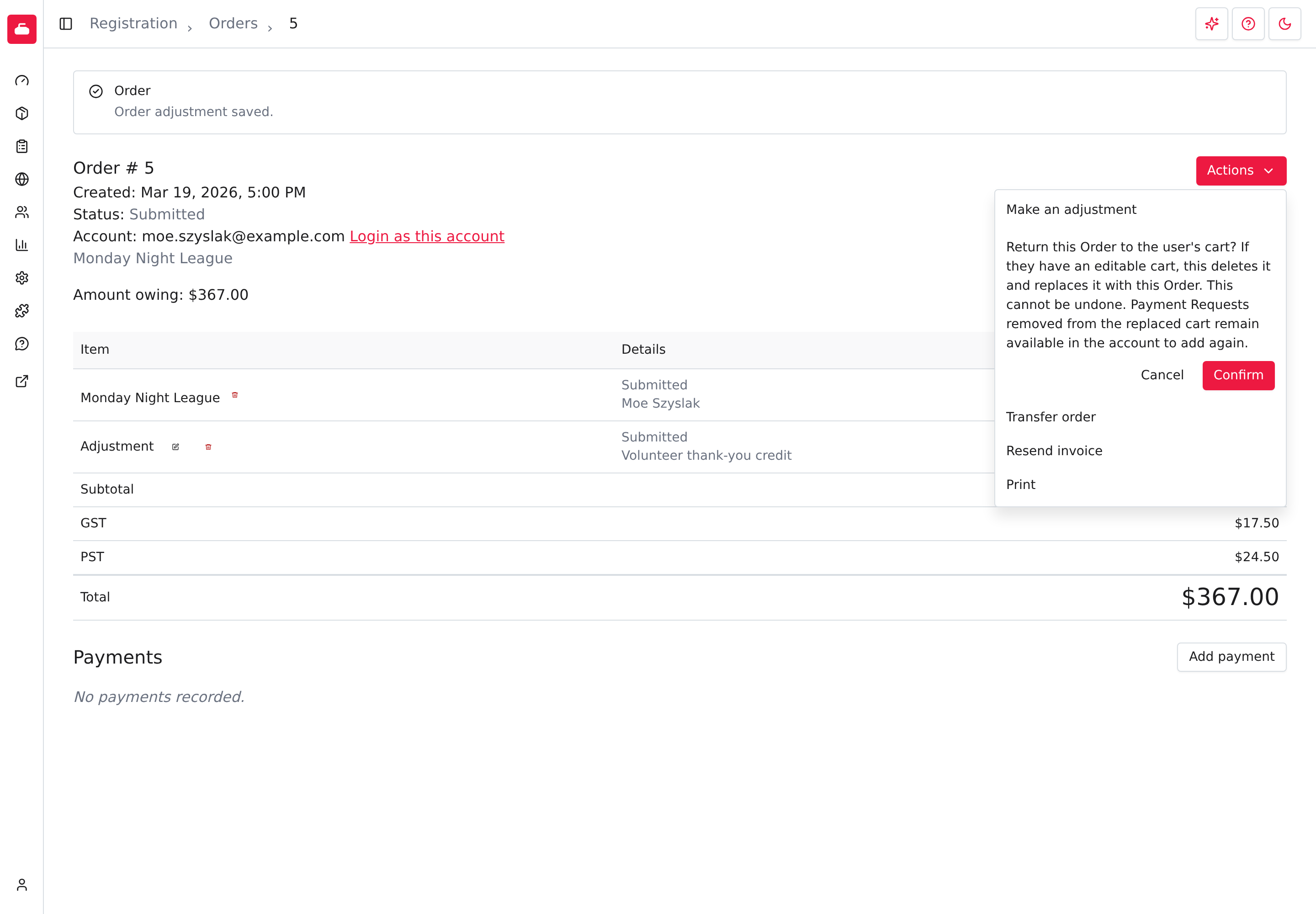
- Open the order and select Actions > Send back to cart.
- Read the question. Select Confirm to continue or Cancel to leave the order alone.
The order is eligible when all of these are true:
- the order belongs to a member account;
- it's Submitted and has no payment recorded (a Paid order qualifies only when its total is $0.00);
- the member doesn't have another payment still being processed; and
- the account isn't set up for multiple carts.
If something blocks it, Curling IO says why, for example This order has a recorded payment and cannot be sent back to the cart. Refunding doesn't clear this, because the original payment stays on the order. Only deleting the payment record clears it, and a payment that has been refunded can't be deleted.
Sending an order back:
- changes its status to Pending and puts it in the member's cart;
- replaces the member's current cart. If they already have an editable cart, that cart is deleted and this order takes its place. Payment requests that were in the deleted cart stay in the account to add again;
- clears the product prices, discounts and taxes, which are calculated again at checkout with your current prices and discounts. Adjustments and payment requests keep their amounts; and
- reverses the order's accounting entries, so the order isn't counted again until it's checked out.
It can't be undone. Confirm that you want to replace the member's cart before you select Confirm.
Delete an order
Delete order removes an order completely: the order, its line items, and its accounting entries. It's only for orders that never became a real purchase, such as an unfinished cart, even one with products in it. A submitted or paid order with registered products or participants doesn't show it. Use Send back to cart to change those, or a refund to cancel them.
The action is also unavailable when the order has any payment, dispute, club credit, payment plan, online payment attempt, or pending transfer. Select Delete order and confirm. You return to the order list, and the deletion can't be undone.
Resend the order email
When a member says they never received an order email, or lost it, resend it from the order.
- Open the order and select Actions.
- Select Resend invoice or Resend receipt. The name depends on the order: Resend invoice for Submitted and Partially paid orders and Resend receipt for Paid orders. Overpaid, cancelled, and unfinished orders don't offer it.
- Select Confirm.
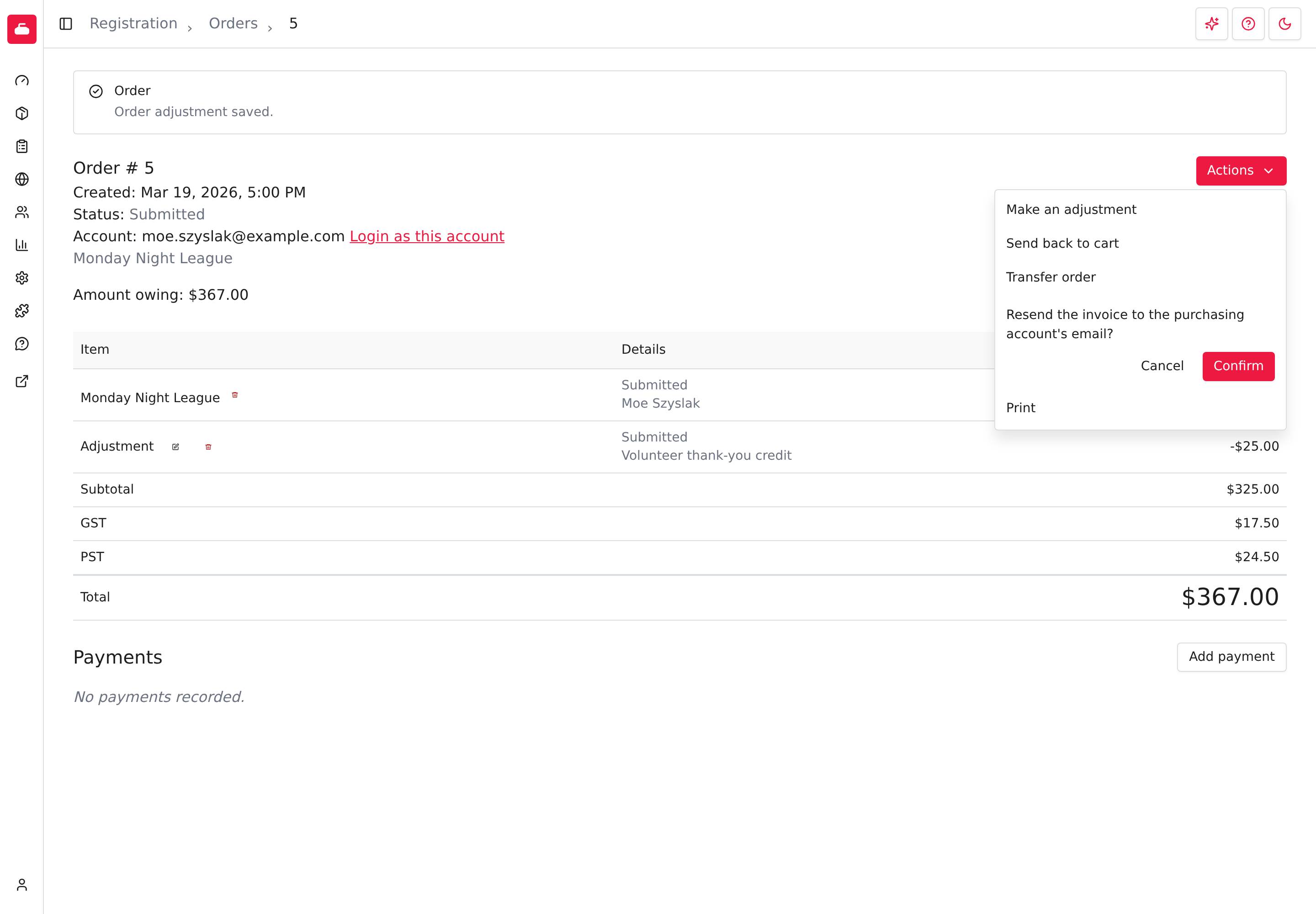
Invoice email queued. or Receipt email queued. means Curling IO accepted an email job for the account's email address. It doesn't confirm provider delivery or arrival in the member's inbox. Ask the member to check their spam folder and confirm the email address on the account.
If the matching template is missing, Curling IO refuses the resend and identifies Invoice or Receipt in the error. No email job or resend history entry is created. Check Registration > Transactional emails. If that template isn't listed, contact support to restore the missing default before trying again.
The default email includes the order date and status, items and participant names, successful payments, the original order total and any successful refunds, and links to the member's order history and your contact page. Your Tax ID appears when set. An invoice also asks for payment of the amount still owing. Resending reads the current order facts, so the invoice uses the current balance. The wording comes from your Invoice and Receipt templates, which you can change under Transactional emails.
Resending doesn't change the order's financial amounts. When the email job is queued, the order records who requested it. If the account has no email address, Curling IO can't queue the email.
Club credits are managed under Registration > Club credits. Discount rules are managed under Registration > Discounts.
Walkthrough video
A separate walkthrough is deferred. The list, filters, export, order detail, and available actions are covered by this guide and its screenshots.