Follow up on payment plans
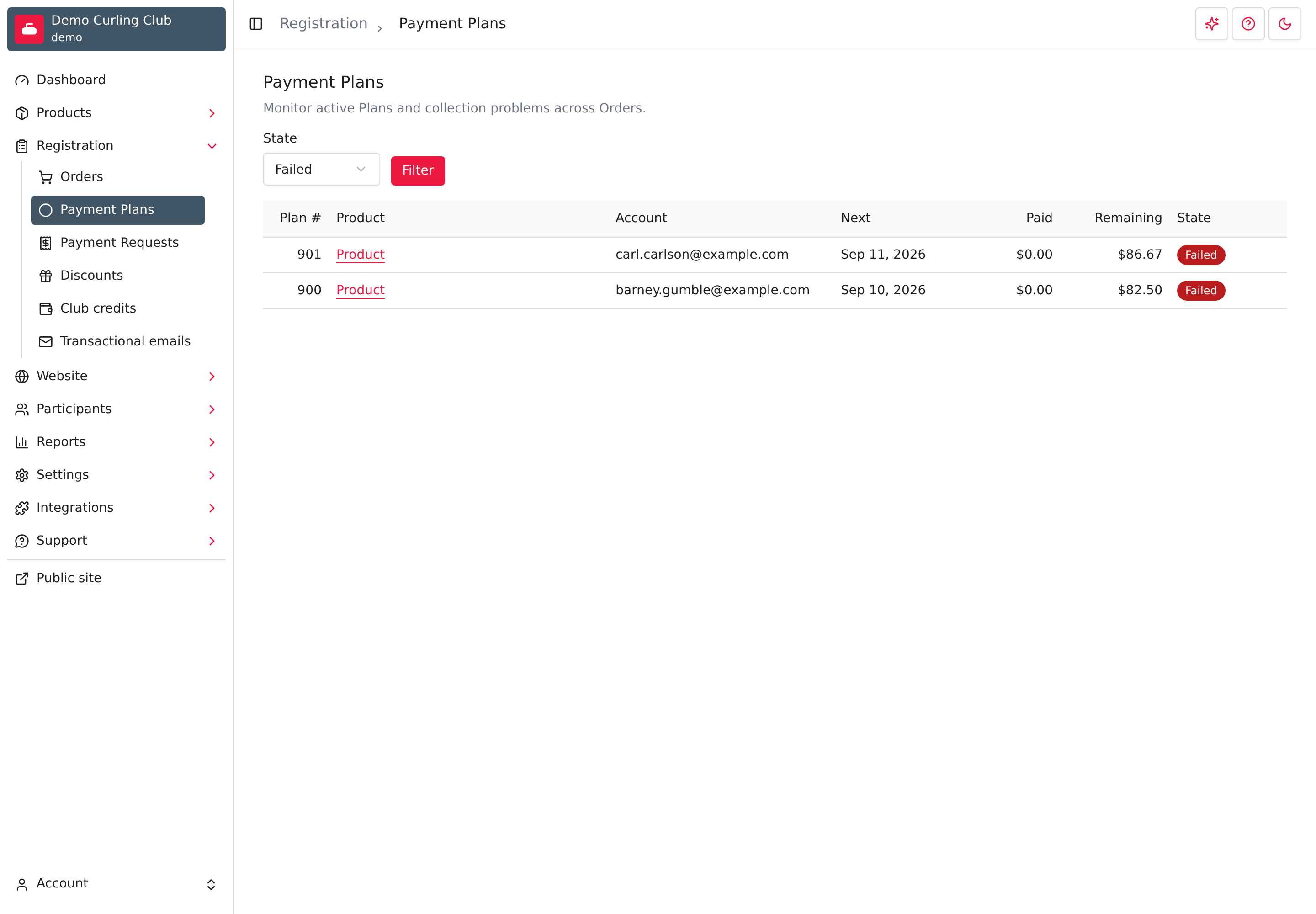
Use Registration > Payment Plans to find members whose installments need your attention. A payment plan splits one product purchase into scheduled payments. The first payment is collected at checkout. Later installments are charged automatically to the saved card. Most plans need nothing from you. This page lists all of your plans, with the ones that need attention first.
You need permission to manage order finances to use this page. Managers and treasurers have it. Being assigned as a product manager is not enough.
To read about the feature before you set it up, see the post Payment plans and installments.
Before members can use a plan
Payment plans work only when all of these are true:
- Your club uses SportsPay, or uses Stripe with payment plans enabled by Curling IO. If you use Stripe, email [email protected] to ask for payment plans to be enabled for your club.
- Online payments is on and your payment processor is fully set up. That also gives you Premium access, so you don't need a separate Premium purchase.
- Both Payment Plan Policies are chosen in Settings > Payments.
- The product has Offer a Payment Plan turned on. See Product Info.
The Product Info editor warns when payment plans aren't available and links to Payment Settings. Saved plan terms stay in place, but members can't choose them until online payments are configured and any required Stripe enablement is complete. Existing purchased plans keep their original provider.
A member who chooses a plan must pay by card at checkout. The offline payment option isn't offered for a cart that includes a plan.
What happens after checkout
If the member sees Your order is being processed, Curling IO is still confirming their checkout payment. They can leave the page and return to the order later. Ask them to wait for the result before trying another payment. An unresolved checkout stays locked while Curling IO checks the payment processor; a timeout alone doesn't mean the payment failed.
- The member chooses the plan, checks the schedule, and pays the first installment with their card.
- Three days before each later installment, Curling IO emails a reminder.
- Curling IO collects Stripe installments during its nightly run, on or after the due date. SportsPay collects through its scheduled processing.
- Curling IO emails the member when an installment is received, declined or needs confirmation from their bank.
If a card is declined or the bank requires authentication, later installments pause. The member can confirm or replace their card. You can retry a declined installment, but only the member can complete their bank's authentication.
The four templates are Upcoming automatic payment, Automatic payment received, Automatic payment failed and Payment authentication required. You can customize them under Registration > Transactional emails.
Read the list
Each row is one plan. The list shows the plans that most need attention first: failed plans, then uncertain, provisioning, overdue and due plans, then the rest.
- Plan # is the plan number.
- Product links to the order.
- Account is the email address of the person who bought it.
- Next is the date of the next installment that hasn't been paid.
- Paid and Remaining show the totals with the currency symbol.
- State shows whether the plan needs attention.
If collection encounters a problem, a message appears directly below the plan. It explains the result without exposing internal provider details. A failed cancellation can still lead to a charge, so read that warning before telling the member their scheduled payments have stopped.
Use State and select Filter to show one state at a time. The list shows 25 plans per page. Use Next and Previous to move between pages.
What each state means
| State | What it means | What to do |
|---|---|---|
| Failed | An installment was declined or needs bank authentication. Later installments are paused. | Ask the member to open Update payment method and confirm the saved card or replace it. Retry when a decline has been resolved. |
| Uncertain | Curling IO can't confirm the processor's result, for example after a payment, cancellation or card change. | Don't repeat the action. Check again later. If it stays uncertain for several days, contact support. |
| Provisioning | A SportsPay plan was just purchased and Curling IO is still setting up its later installments. | Wait. If it doesn't change for several days, contact support. |
| Overdue | An installment is more than 2 days past its due date and hasn't been paid or declined. | Curling IO checks collection each night, including missed SportsPay results. If it stays overdue, contact support. |
| Due | An installment is due today or was due within the last 2 days. | Wait for automatic collection and confirmation. |
| Active | Everything is on schedule. | Nothing. |
| Completed | Every installment was paid. | Nothing. |
| Cancelled | Staff cancelled the remaining installments. | Nothing. |
Some plans can match more than one state. The list shows the most urgent one, in the order Provisioning, Uncertain, Failed, Cancelled, Completed, Overdue, Due, Active.
Open a plan's order
Select the product name in the plan's row. The order opens. The installments are listed under Scheduled payments. Each one shows its due date and its status: Pending, Declined, Paid or Cancelled, with its amount.
Payments that were collected stay in the Payments section above, like any other online payment. If you cancelled installments, a cancelled installment can also show Provider removal with the result: Pending, Failed, Uncertain or Confirmed.
Retry a declined installment
Retry the payment when the member tells you they fixed the problem, for example by adding money to the account.
- Open the plan's order.
- In Scheduled payments, find the declined installment and select Retry.
- Read the amount and due date, then select Confirm. Select Cancel instead to close the question without charging anything.
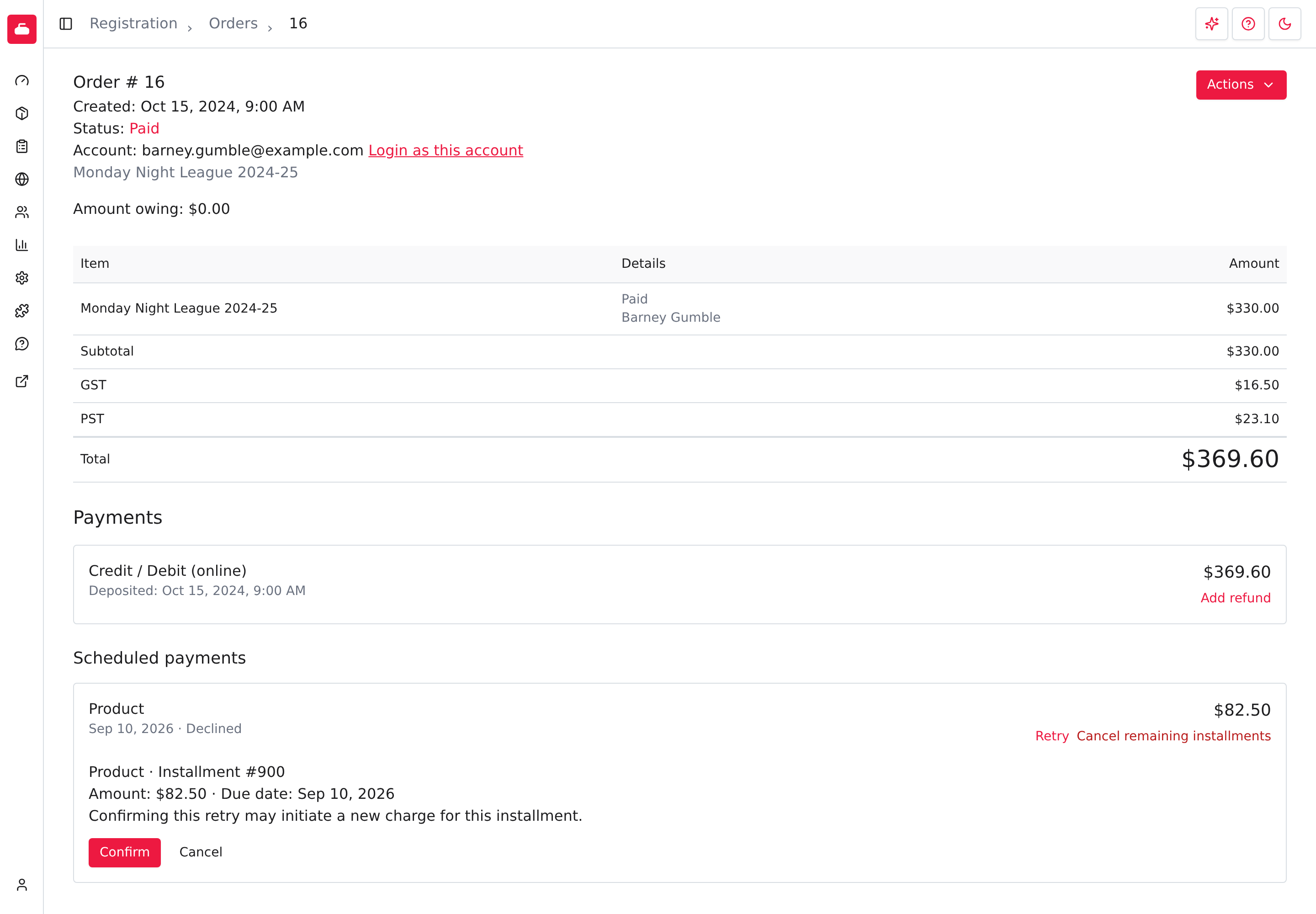
Confirming can start a real charge, so check with the member first. Curling IO shows the result on the order:
- The processor confirmed the payment. The installment becomes Paid.
- The retry is still pending, or Curling IO couldn't confirm the outcome. A charge may have happened. Reload the order and look at the installment before you try again.
- The retry failed or was refused. The installment stays Declined.
You can only retry an installment that is Declined. A member can also fix a declined plan themselves from their account. For Stripe, they can confirm the saved card when their bank asks, or use a different card. That pays the oldest declined installment. A staff retry cannot complete a member's bank authentication.
Refund a collected installment
Refund a collected Stripe installment from its original payment on the order:
- Find the installment under Payments and select Add refund.
- Select the product and the amount to return, then choose a refund to the original card. The first checkout payment can cover several products, so check the selected product and amount.
- Confirm the refund and wait for its result before trying again. If the result is uncertain, contact support.
A Stripe refund still returns to the original payment when the member has since replaced their saved card. Refund later installments separately from their own payments. A refund does not cancel future installments.
SportsPay installments
Later SportsPay installments currently can't be refunded to the card from Curling IO. The collected payment has no stored refund credential for its original card. Updating the plan's card doesn't repair that payment, and support must not substitute the new card for the original one.
Use this staff workaround when your club agrees to return a collected amount:
- Open the order and identify the collected installment under Payments. Confirm the payment and amount before returning money. If an earlier refund is pending or uncertain, contact support before paying anything else.
- Arrange the return with the member by cash or cheque, or agree on club credit.
- Select Add refund on that payment. Select the product and amount being returned, and choose the method you actually used: Cash, Cheque or Club credit. For cash or cheque, record the actual payment date and put the evidence in the notes. Club credit creates the credit in Curling IO; it doesn't return money to the card.
- Check the amount, method and selected product, then confirm the refund. Don't also send a card refund through SportsPay.
If the member needs the money returned to the original card, contact support before doing anything else. A missing gateway reference also requires support. Never record a cash or cheque return unless that money was actually returned.
Refunding a paid installment doesn't stop future installments. If the member is also withdrawing, cancel the remaining installments as described below.
Cancel remaining installments
Cancel the remaining installments when the member won't pay the rest, and your club agrees to let them stop. Your published policy appears at checkout and is set in Settings > Payments. Members can't cancel installments themselves.
- Open the plan's order.
- In Scheduled payments, select Cancel remaining installments on an installment that is Pending or Declined.
- Check the installments and the total reduction.
- Add a Reason if you want a note. It's optional.
- Select Cancel remaining installments.
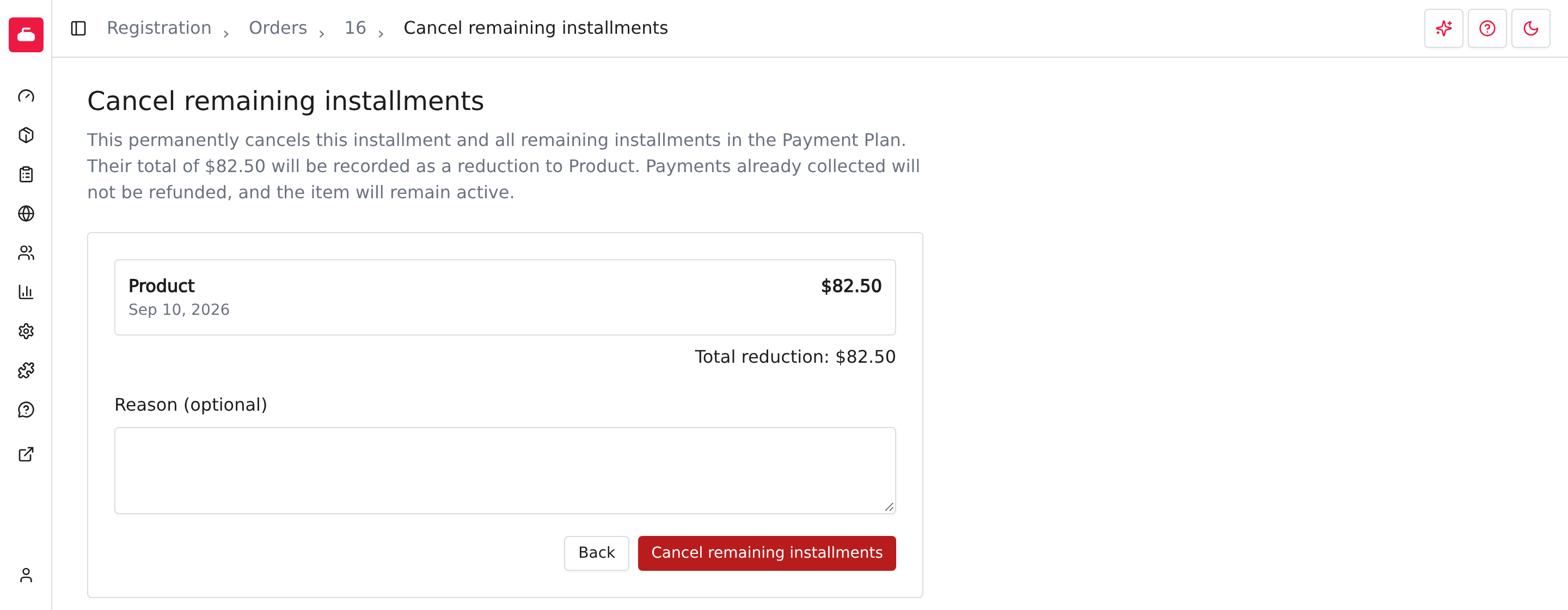
Cancelling is permanent. It cancels the installment you selected and every later one. You can't cancel one installment and keep the ones after it.
Here is what cancelling does and doesn't do:
- It reduces the amount the member owes by the cancelled installments.
- It does not refund payments already collected. To return money, add a refund to the original payment.
- It does not cancel the registration. The member keeps the product they bought. If the registration should end, handle that separately.
- For Stripe, it stops Curling IO from starting charges for the cancelled installments. If a charge is already being confirmed, wait for its result before cancelling.
- For SportsPay, it requests removal of the scheduled charges. If SportsPay doesn't confirm that, a scheduled charge may still happen.
For Stripe, the confirmation says that the remaining installments were cancelled and the amount owing was reduced. The saved card stays available if another active plan still uses it; Curling IO releases it when no plan needs it.
For SportsPay, read the separate provider-removal result:
- Confirmed: SportsPay confirmed removal of the scheduled payments.
- Pending: The installments are cancelled in Curling IO and the amount owing is reduced. SportsPay still has to confirm the removal.
- Uncertain or failed: The installments are cancelled in Curling IO and the amount owing is reduced, but a charge may still occur. Tell the member, and contact support if it isn't resolved.
For SportsPay, Curling IO keeps trying to finish removal in the background. Only the Confirmed removal result means those scheduled charges are stopped.
What members see
For an accepted payment plan, every receipt and invoice email includes a Payment plan section with each installment's date, amount and current status, followed by the exact authorization wording the member accepted. Curling IO adds this section after your template body and before its footer. It stays included even if you empty or customize the template. Members can also read their accepted wording and acceptance date under Account > Payment plans. Changing your policies does not change an agreement already accepted.
Members choose the plan in their cart, see every payment date before they pay, and review their plans under Account > Payment plans. If a card is declined, they confirm or replace it there. See Orders for curlers.
If several installments are overdue when the member updates their card, Curling IO retries only the oldest one right away. If that payment succeeds and the plan returns to Active, the other overdue installments are tried in the next morning run, as separate charges. A plan becomes Completed when its final installment is paid. Warn the member that they may see more than one charge. If the first retry fails, nothing else is charged, and the plan still needs attention.
Troubleshooting
A plan I expected isn't in the list
The list shows plans for your organization only, and a plan exists only after the member's first payment succeeds. If the member's checkout failed, there is no plan. Check Registration > Orders for the order.
The member confirmed or replaced their card but the plan still shows Failed
Reload the page after a few minutes. If the card update or retry didn't go through, the member's Payment plans page offers Update payment method again. For a Stripe authentication request, they must finish the bank's confirmation or use a different card. A staff retry cannot finish that check.
The order shows a plan was cancelled but the member was charged
For a SportsPay plan, cancellation may not have been confirmed by SportsPay. Check the Provider removal line on the cancelled installments. If it isn't Confirmed, wait and check again, then contact support if it doesn't change.
For a Stripe plan, cancellation stops later automatic charges locally. There is no provider-removal step. Check which installment the payment belongs to and contact support if a cancelled installment was charged. Wait for any uncertain payment result before taking another financial action.
Refund a confirmed charge from its original payment on the order if your club agrees. Cancelling remaining installments does not refund an earlier payment.