Send a payment request
Use Registration > Payment Requests to charge one person a custom amount without creating a product. A replacement key fob, a locker charge or a lost equipment fee are good examples. You enter an email address, an amount and a description. The person gets an email, reviews the request in their account, and pays it through your usual checkout. The payment stays connected to an order in Curling IO.
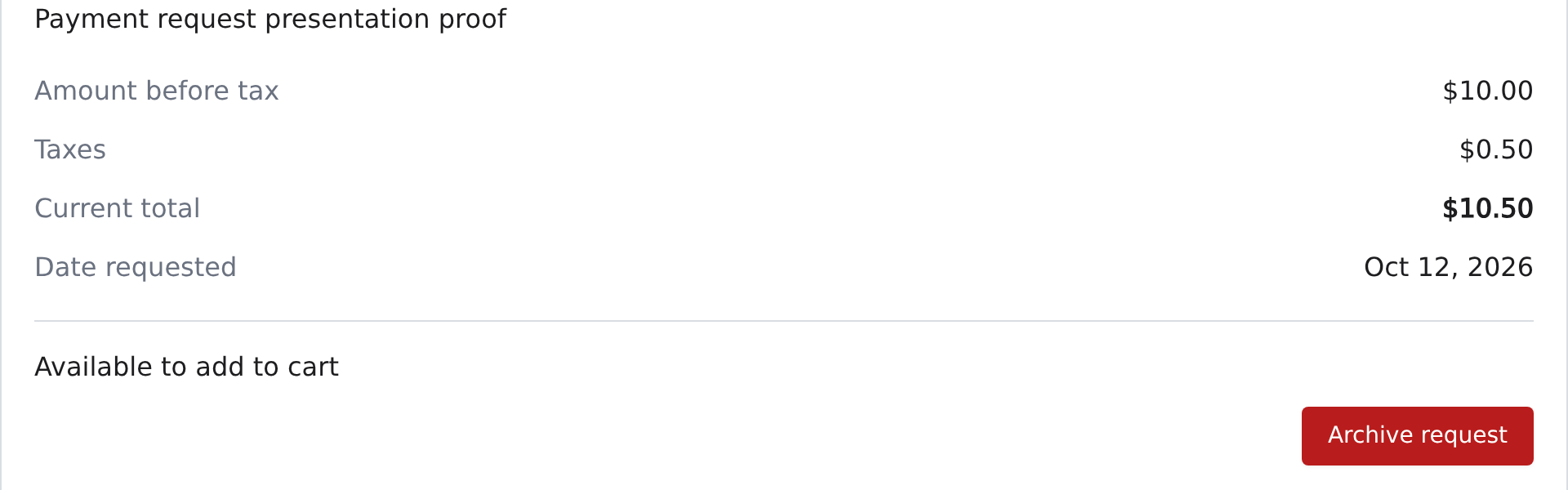
You need to be a manager to use this page. Treasurers and product managers can't send payment requests.
If you want to let members spread a product's price over several payments, use a payment plan instead. A payment request is for a single amount that doesn't belong to a product.
Send a request
- Open Registration > Payment Requests and select New payment request.
- Enter the Recipient email. This is the email address the person uses to sign in to your club's website.
- Enter the Amount before tax. It can be anything from 0.01 up to 999,999.99, in your club's currency.
- Enter a Description. The person sees it in the email, in their account and on their order, so say what the charge is for. It can be up to 1,000 characters.
- Under Taxes, check each tax to add. Leave them all unchecked if the charge isn't taxed. The list comes from Settings > Taxes.
- Select Create payment request.
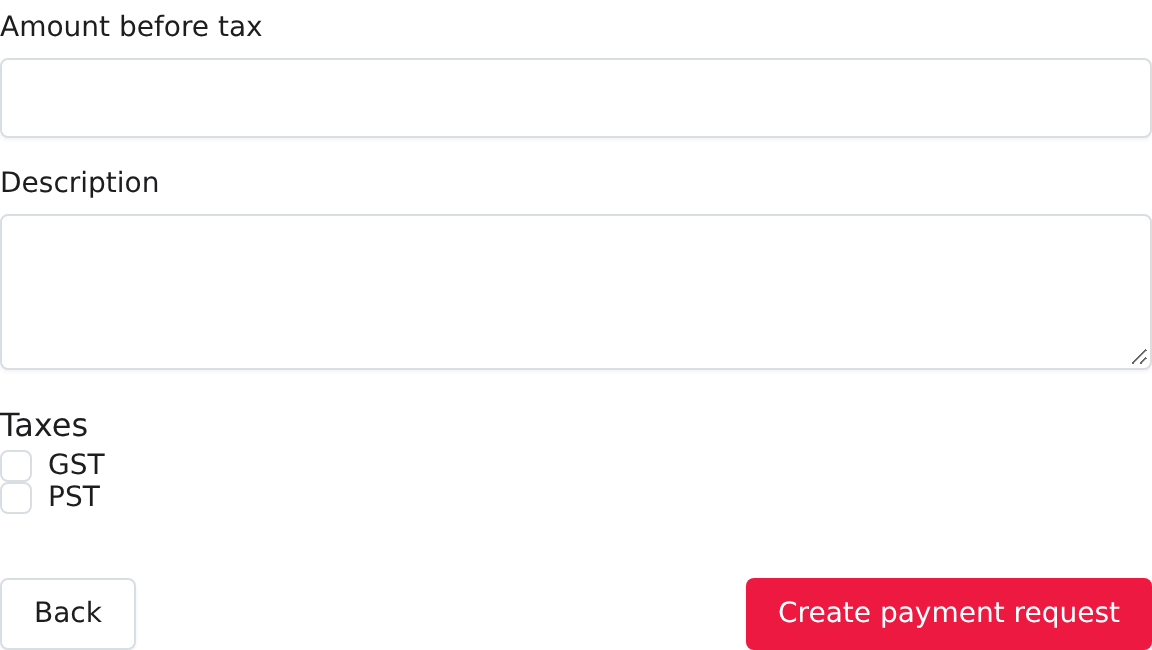
Curling IO shows Payment request created and queues the email, which is sent shortly after. If you see Check the email, positive amount (up to 999,999.99), description and selected taxes, the message doesn't say which field is wrong. Check the email, the amount, the description, and the taxes you selected, then select Create payment request again.
You can't edit a request after you create it. If the amount, description or taxes are wrong, archive it and create a new one.
The email the person gets
The email is plain text. It comes from your club's name, and replies go to your club's contact email address. The subject is Payment request from followed by your club's name. The email says your club sent a payment request, repeats your description, and includes a link to the request:
Sign in with this email address to review the request, current taxes, and total. You can add it to your cart or decline it. Opening this link does not accept the request or charge you.
You can't customize this email, and it isn't listed under Registration > Transactional emails. Curling IO doesn't resend it. If the person loses the email, they can still find the request in their account, as long as they sign in with the same email address. If you archive a request before the email goes out, Curling IO doesn't send it.
What the person sees and does
The person signs in and opens the request. The email address you entered must be a verified address on their account. It doesn't have to be the one they sign in with, and capital letters and extra spaces don't matter. Nobody else's account can see the request. If the address isn't on their account, they can add and verify it, or you can archive the request and send a new one to an address they use.
On the request they see the description, the amount before tax, the taxes, the current total and the date. They can:
- Continue, which puts the request in their cart. Nothing is charged yet. They finish through your usual checkout.
- Reject, which closes the request. Rejecting is final: they can't add it to their cart later. If you still want to be paid, send a new request.
Taxes are calculated when they look at the request and again at checkout, using your current rates for the taxes you selected. They aren't locked in when you create the request. Discounts don't apply to a payment request.
You don't need to do anything else. See Orders for curlers for the steps your members follow.
Accounts that are set up for multiple carts can't use payment requests. Ordinary member accounts aren't affected.
Payment follows your usual checkout
A payment request doesn't need Premium and doesn't need an online payment processor. You can create one whatever your payment settings are.
The person pays the way any other cart is paid, with the options you turned on in Settings > Payments:
- Credit / Debit pays online through your payment processor, if online payments are set up.
- At the club submits the order and leaves the amount owing. You record the money when you receive it. See Record an offline payment.
Any club credit on the person's account is applied to the cart first, like any other purchase.
Sending a request doesn't charge anyone. It's an offer to pay.
Track a request
Each request on the page shows its number and email, the description, the amounts and the date. Newest requests are first. The line under the date is the status:
| Status | What it means | What you can do |
|---|---|---|
| Available to add to cart | The person hasn't acted yet. | Archive request. |
| In cart | The person added it to their cart and hasn't checked out. | Archive request, or View order to see the cart. |
| Checkout in progress | The person has started paying online. | Wait. Archiving isn't possible right now. |
| Part of an order | The request belongs to an order. Open it to check its status and balance. | View order. Archiving isn't possible. |
| Rejected | The person rejected it. | Nothing. Send a new request if you still need the money. |
| Archived | You withdrew it. | Nothing. |
Part of an order doesn't mean the money was collected. Open the order and check its Payments and Amount owing, especially when the person chose At the club.
Archive a request
Archive a request when you no longer want it paid, or when you need to correct the amount, description or taxes. Archiving closes the request. If the request is sitting in the person's cart, Curling IO also takes it out of that cart, so they can't check out with it.
- Find the request and select Archive request.
- Read the warning, then select Confirm on the right. Select Cancel on the left to leave the request alone.
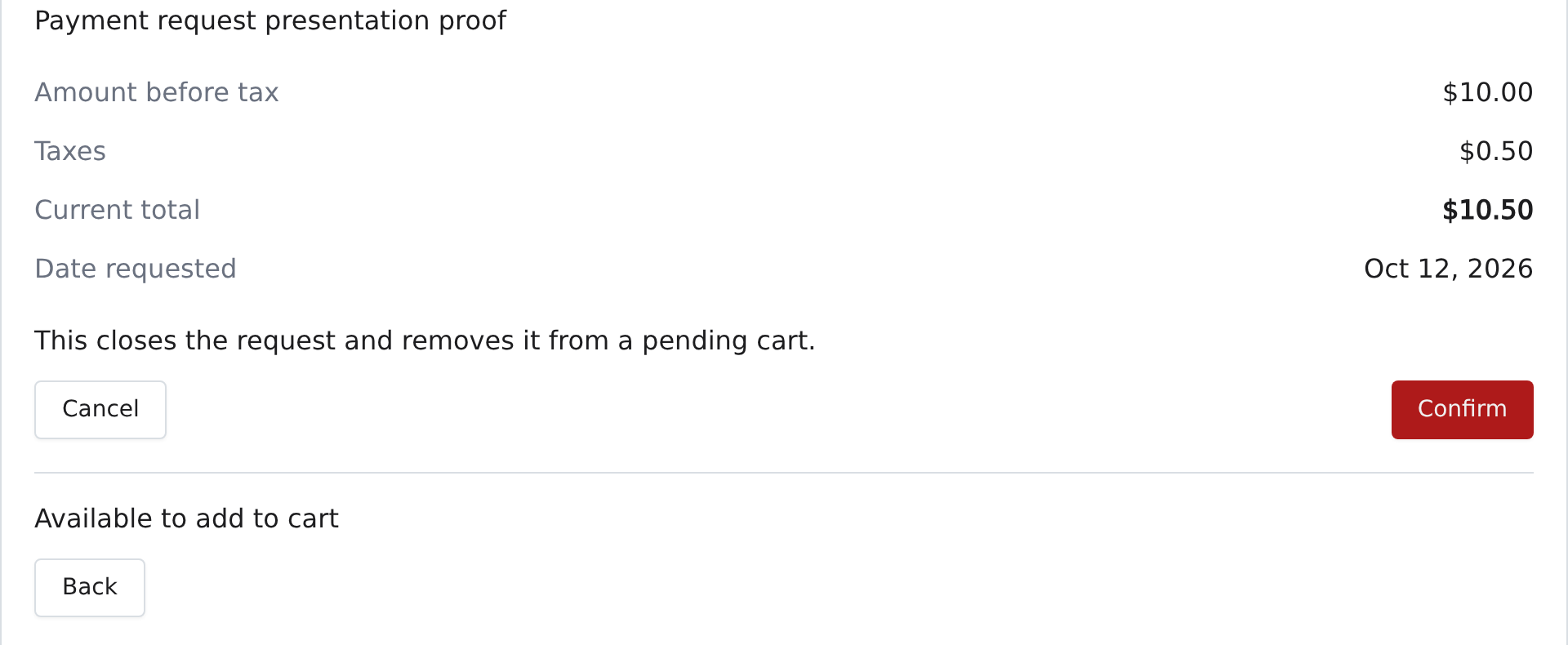
An archived request shows Archived to you and to the person. It can't be reopened. To charge the person after all, create a new request.
You can't archive a request that is:
- Checkout in progress, because the person has started to pay;
- part of an order (Part of an order), because it has been submitted. Use the order's own actions instead. See Registration > Orders; or
- already Rejected.
If another change has already closed the request when you select Confirm, Curling IO says This request can no longer be changed. Refresh the page. Reload the page to see its current status.
How a request appears on an order
When the person checks out, the request becomes its own line on their order. It's named with your description and shows the amount before tax. Payment Request in Details identifies its origin on the order, the member's receipt, and printable copies. The taxes you selected appear by name between Subtotal and Total. The line has no product or participant, so checkout doesn't ask for registration questions or waivers.
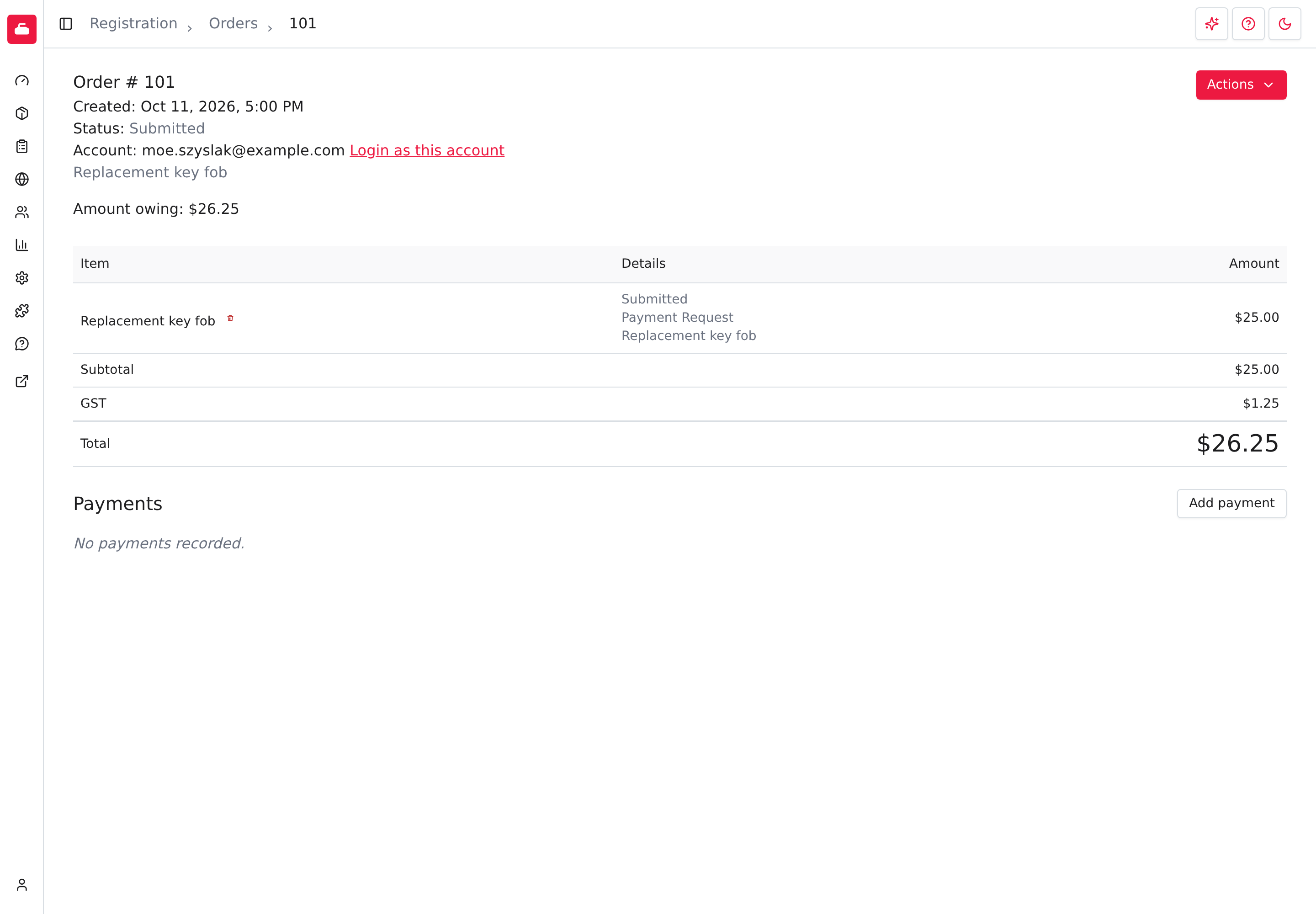
Open the order from View order. If you paid by card, Payments lists the payment. If the person chose At the club, Amount owing stays until you select Add payment.
To find these lines in a report, use Reports > Registration > Line items and set Type to Payment Request.
Archiving closes the request and removes its pending cart line; it keeps the request and its tax history. A request linked to a processing or finalized order cannot be archived. Adding a request to a cart records its claim, but does not finalize the order.