Transactional Emails
Transactional emails are automatic messages sent after a purchase, registration, waitlist change, refund, or other account activity. These are not marketing or blast emails.
Curling IO provides a default subject and body for every transactional email. You can customize those templates to match your organization's voice or add useful instructions. Use Email Broadcasts instead when you want to send an announcement or marketing message to a group of accounts.
Walkthrough video
The following video shows you how to preview and customize a transactional email, use template variables, review the finished message, and reset it to the Curling IO default.
Open Transactional Emails
Go to Registration > Transactional emails.
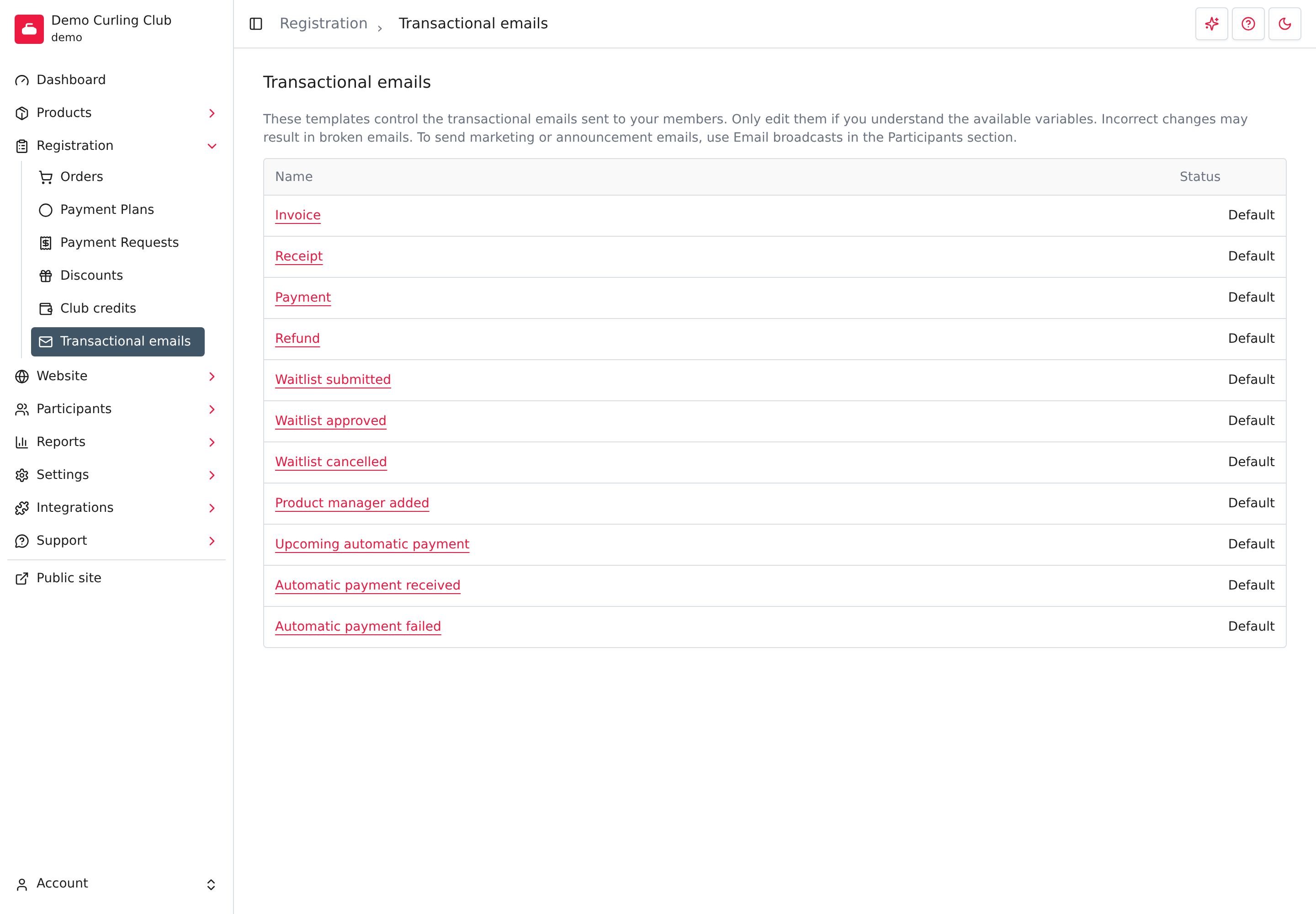
The list includes these templates:
| Template | When it is used |
|---|---|
| Invoice | An order is submitted with an amount still owing |
| Receipt | An order is paid in full |
| Payment | A payment is recorded for an order |
| Refund | A payment is refunded |
| Waitlist submitted | Someone joins a product waitlist |
| Waitlist approved | A waitlisted person is approved to register |
| Waitlist cancelled | A waitlist registration is cancelled |
| Product manager added | Someone is added as a product manager |
| Upcoming automatic payment | A reminder before scheduled payment-plan installments are collected |
| Automatic payment received | A payment-plan installment is collected successfully |
| Automatic payment failed | An automatic payment-plan collection is declined |
| Payment authentication required | A Stripe installment needs the member to confirm the payment with their bank |
Default means the template still uses the content provided by Curling IO. Customized means your organization has saved its own subject or body.
You can preview and customize the four payment-plan templates the same way as the other templates. See Payment Plans for setting up plans and following up on missed installments. The authentication email links to the member's Payment plans page, where they can confirm the saved card or use a different one. It is sent once for that installment, rather than on every attempted follow-up.
Payment plan agreements
Receipt and invoice emails for accepted payment plans always include a Payment plan section after your template body and before the Curling IO footer. It contains every installment's date, amount and current status, plus the exact authorization text the member accepted. You cannot remove or edit this section through a template, and no template variable is needed.
The accepted text stays the same when your policies change. Members can also read it, with its acceptance date, under Account > Payment plans.
Preview an email
Select a template's name to see the email before editing it.
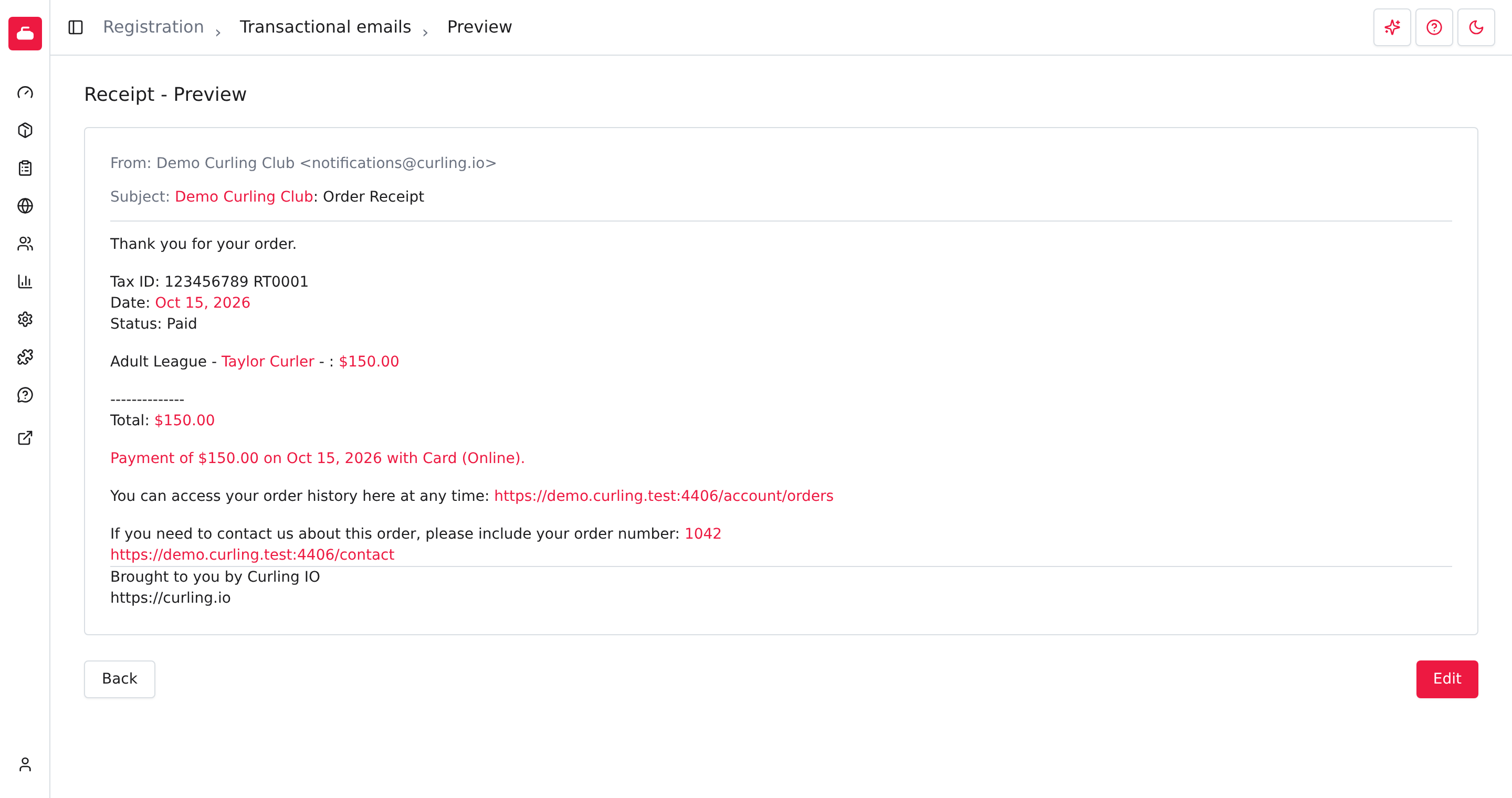
The preview replaces template variables with sample values. This lets you read the message as an account holder would receive it without sending an email. Links, order numbers, amounts, names, and other sample values appear in the preview according to the variables available to that template.
Select Edit to change the template. A customized template also includes Reset to default.
Customize a template
- Select the template's name.
- Select Edit.
- Update its Subject.
- Select Body to open the Markdown editor.
- Keep the variables needed by the message.
- Select Save.
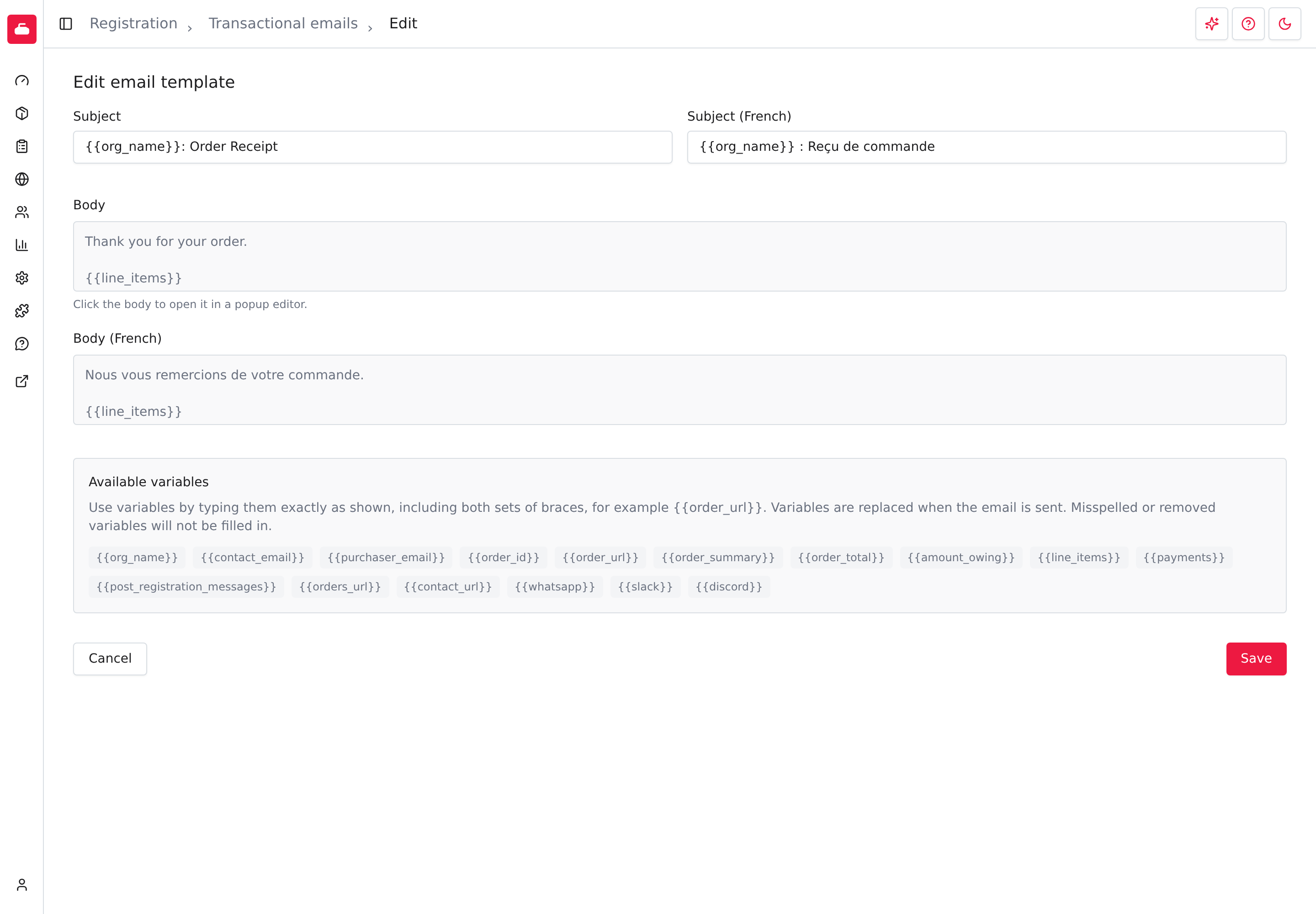
The body supports Markdown formatting. You can use formatting such as bold text, italic text, and links when it helps the recipient scan the message. Keep the message direct. Transactional emails work best when the account holder can quickly see what happened, the important amount or status, and the link that takes them back to Curling IO.
Saving returns you to the preview so you can check the resolved subject, body, links, and amounts. Return to the list to confirm that the template is marked Customized.
Use template variables
Each editor shows the variables supported by that email.
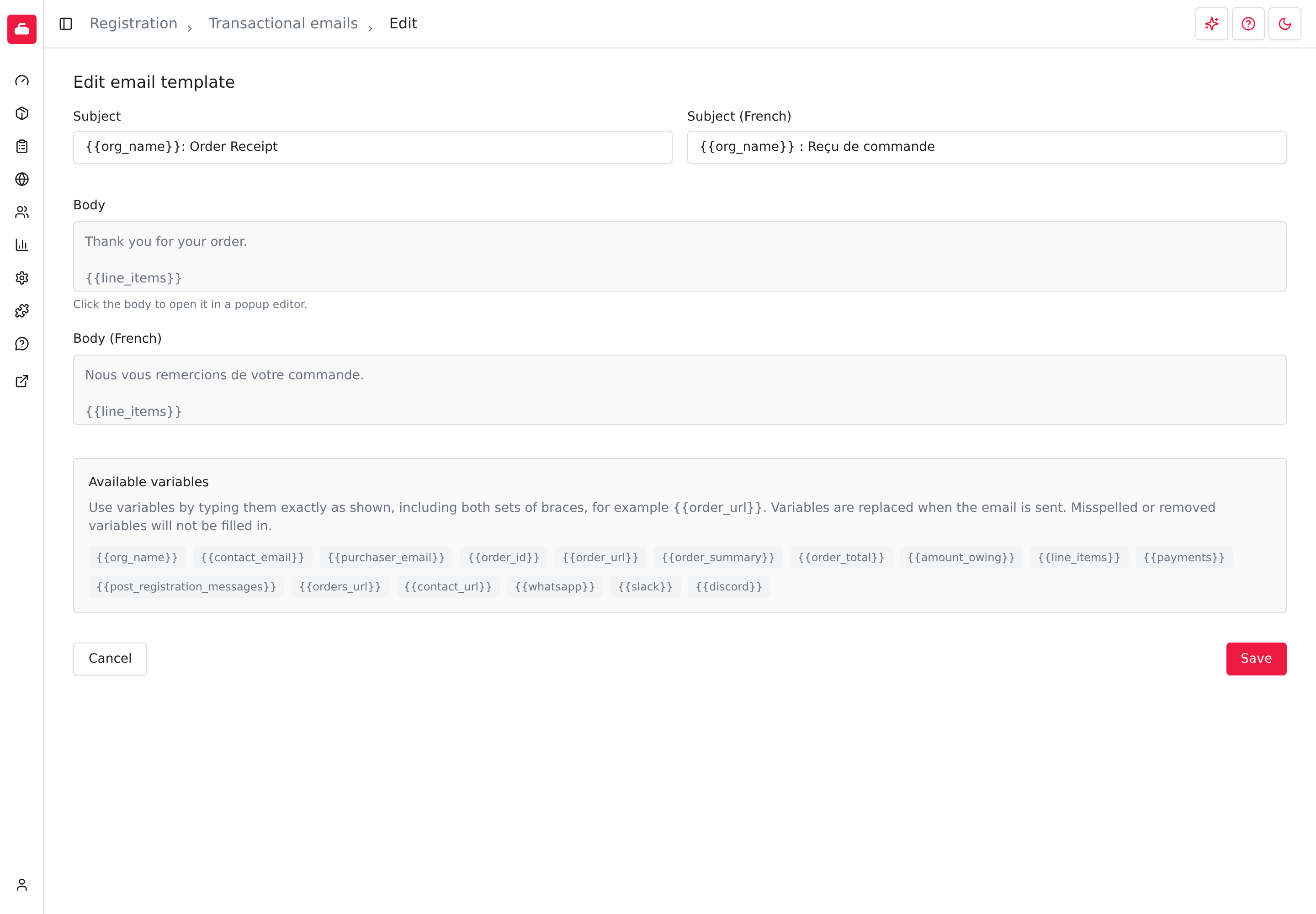
Type variables exactly as shown, including both sets of braces. For example:
{{order_url}}
Curling IO replaces the variable when the email is sent. A misspelled variable will not be filled in, and removing a variable can leave the recipient without an important order number, amount, link, or product name.
The available variables differ by template. Only use variables listed in the editor you are currently changing.
Receipt and invoice details
The default receipt and invoice include the order date, status, items and participant names, successful payments, and links to your order history and contact page. Your Tax ID appears when you save it in Settings > Taxes. Items include their taxes and subtract any reductions. Total shows the original order total; a separate Refunded amount appears after it when a refund has succeeded. An invoice also asks the purchaser to arrange payment for the amount still owing.
Keep {{line_items}} in a customized receipt or invoice to include these item
details and your Tax ID. Use {{payments}} for payment amounts, dates and
methods, and {{post_registration_messages}} for instructions saved on the
purchased products. Repeated product instructions appear once. Curling IO adds
its footer to both default and customized receipts and invoices.
Use {{orders_url}} for the purchaser's order history and {{contact_url}} for
your contact page. {{order_url}} still links to the individual order.
The {{whatsapp}}, {{slack}} and {{discord}} variables include your configured
group links for members and stay blank for other purchasers.
Reset a customized template
Open the customized template and select Reset to default when you no longer want to use your changes. The custom subject and body are removed immediately, and the template resumes using the Curling IO default.
Preview the email again after resetting it so you know what recipients will receive.