Ledger report
Use the Ledger report to review accounting entries created by Curling IO. Each business event can produce several debit and credit rows with the same journal entry group.
Open the report
Go to Reports > Accounting > Ledger.
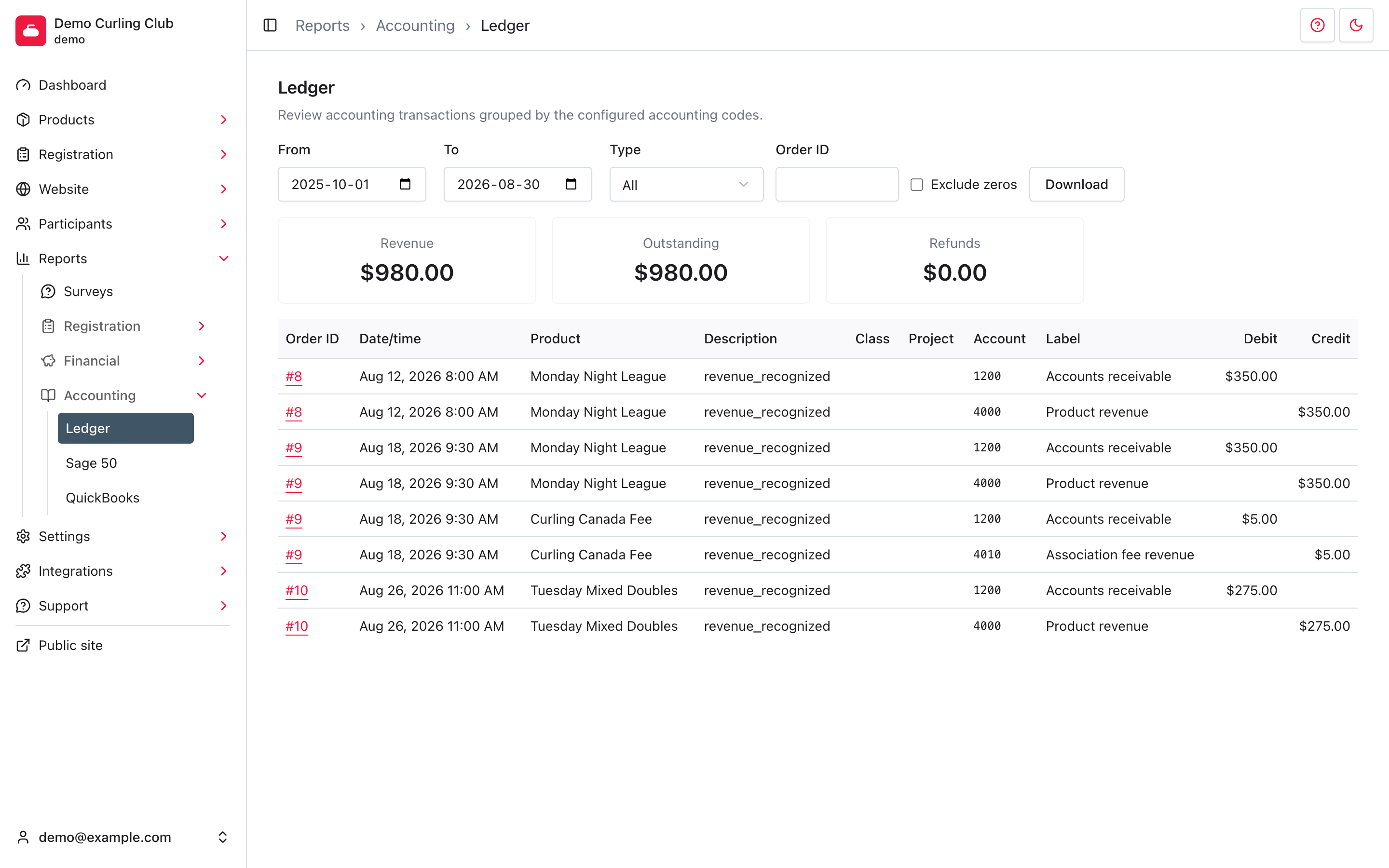
The report opens from the start of your current season through today. Configure your codes under Settings > Accounting Codes before using the report.
Filter the ledger
- From and To filter when the accounting transaction occurred.
- Type limits rows to Revenue, Receipts, Deposits, Refunds, Club credit, Processing fees, or Reversals.
- Order ID finds entries associated with one order. Enter the number without
#. - Exclude zeros removes zero-value rows from the screen and download.
Each page shows up to 12 rows. The summary and download cover every matching row.
Read the entries
The table shows the order, transaction time, product, transaction description, optional class and project, account code and label, and the debit or credit amount. Select an order number to review the underlying commerce record.
Rows sharing a journal entry group belong to the same accounting event. The group ID is included in the CSV even though it is not shown in the table.
Revenue, Outstanding, and Refunds summarize recorded transaction types for the selected dates. They are operational checks, not complete financial statements. Review the individual rows when a total is unexpected.
Download the ledger
Set the filters, then select Download. The accounting.csv file contains
every matching row and includes the journal entry group, order, transaction
type, item details, account mapping, and debit or credit amount.