QuickBooks Desktop export
Use the QuickBooks report to create an IIF general-journal export from Curling IO accounting transactions.
Prepare the export
Configure and verify Settings > Accounting Codes first. The account codes in Curling IO must match accounts in the QuickBooks company file that will receive the import.
Go to Reports > Accounting > QuickBooks and set From and To.
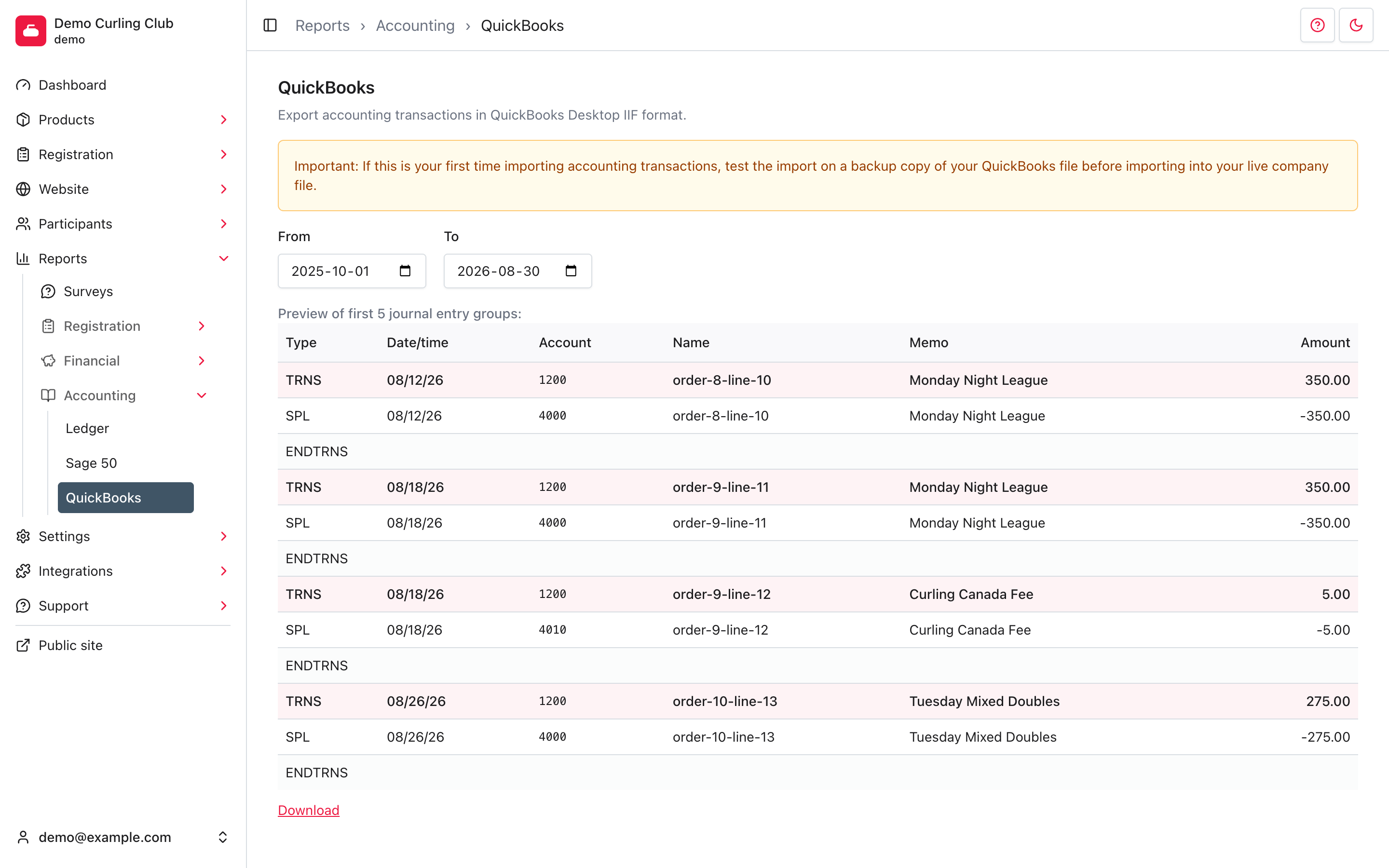
The page previews the first five journal entry groups. Each group begins with a
TRNS row, includes its balancing SPL rows, and ends with ENDTRNS. The
preview is a sample; the download includes every matching group.
Download and test the IIF file
Select Download to save accounting-quickbooks.iif.
Before importing into your live company file:
- Back up the QuickBooks company file.
- Import into a test or backup copy first.
- Confirm the accounts, dates, signs, journal grouping, and totals.
- Resolve missing or incorrect account codes in Curling IO before creating a replacement export.
Downloading does not mark transactions as exported. Record the dates you used so you do not import the same journal entries twice.