Payments report
Use the Payments report to find payments recorded against your organization's orders. It shows how each payment was made, when Curling IO recorded it, whether a deposit date is known, and the amount.
Open the report
Go to Reports > Financial > Payments.
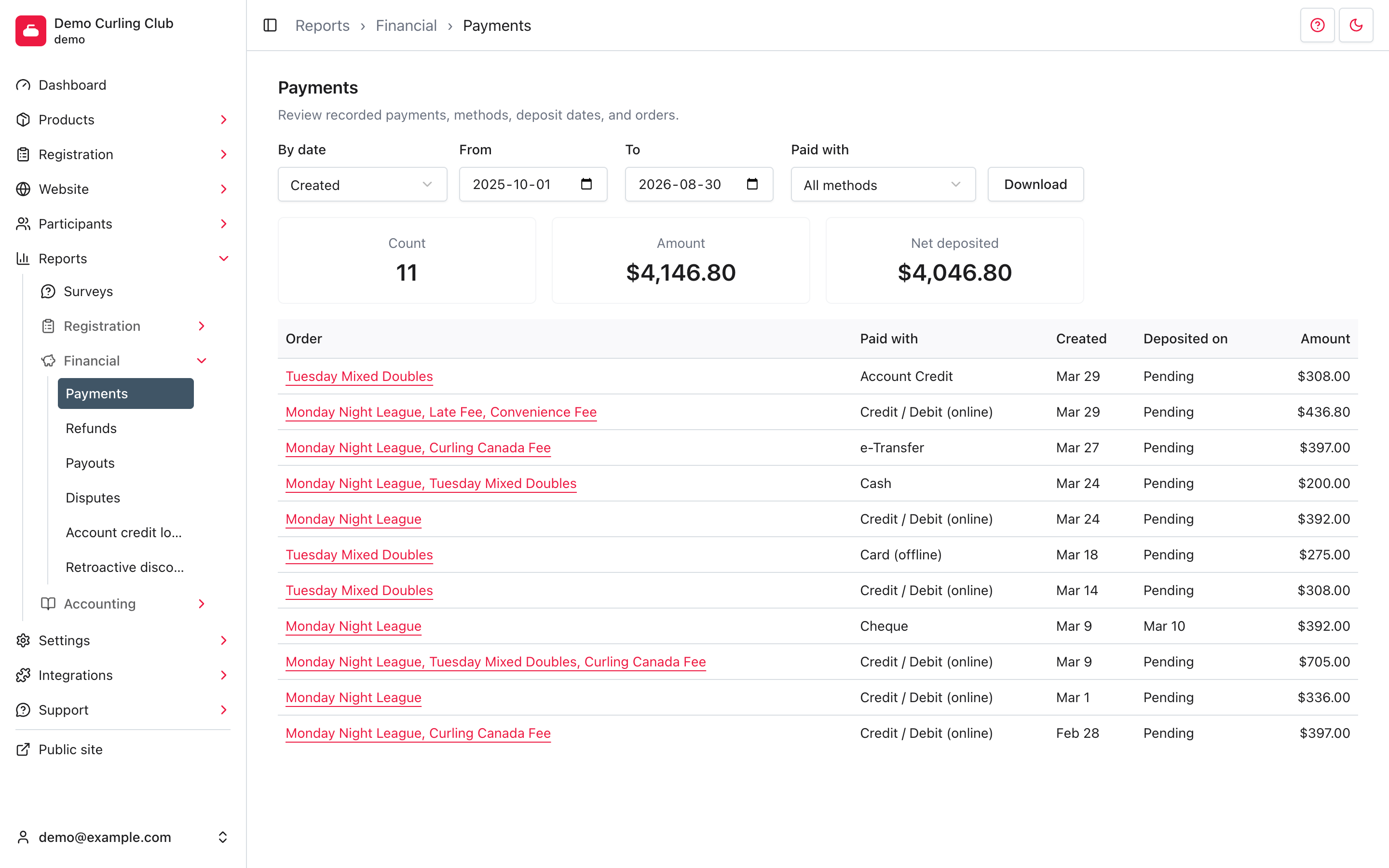
The report opens from the start of your current season through today. Each row links to the related order under Registration > Orders.
Filter the payments
The filters update the report automatically:
- By date chooses whether From and To apply to the payment's Created date or Deposited on date.
- Created includes payments recorded during the selected dates, including payments whose deposit is still pending.
- Deposited on includes only payments with a deposit date in the selected range.
- Paid with limits the report to one payment method. Choose All methods to include every method.
Each page shows up to 12 payments, newest first. The summary covers every matching payment, not only the current page.
Understand the totals
Count is the number of matching payments. Amount is their recorded total. Net deposited is that amount less the matching payments' recorded processing fees and application fees, and successful refunds for those same payments. The date and payment-method filters select payments, not refunds by their own date or the related order's date.
Pending under Deposited on means Curling IO does not have a deposit date for that payment. It does not by itself mean that the order is unpaid or that the provider has failed. Select the order to review its payment and refund history.
Download the results
Set the filters, then select Download. The payments.csv file contains
every matching row and includes the order, payment method, created date,
deposit date, and amount. The file ends with labeled Count, Amount, and Net
deposited totals for all matching payments, even if they span multiple pages.
Downloading the report does not change any payment or order.