Payouts report
Use the Payouts report to match each bank deposit from Stripe or SportsPay to the payments, refunds, fees, and disputes that make it up. A payout is one transfer to your bank account. It is not a single customer payment.
Administrators and treasurers can open this report. Use it when your bank statement shows a deposit and you need to know which orders it covers.
Open the report
Go to Reports > Financial > Payouts.
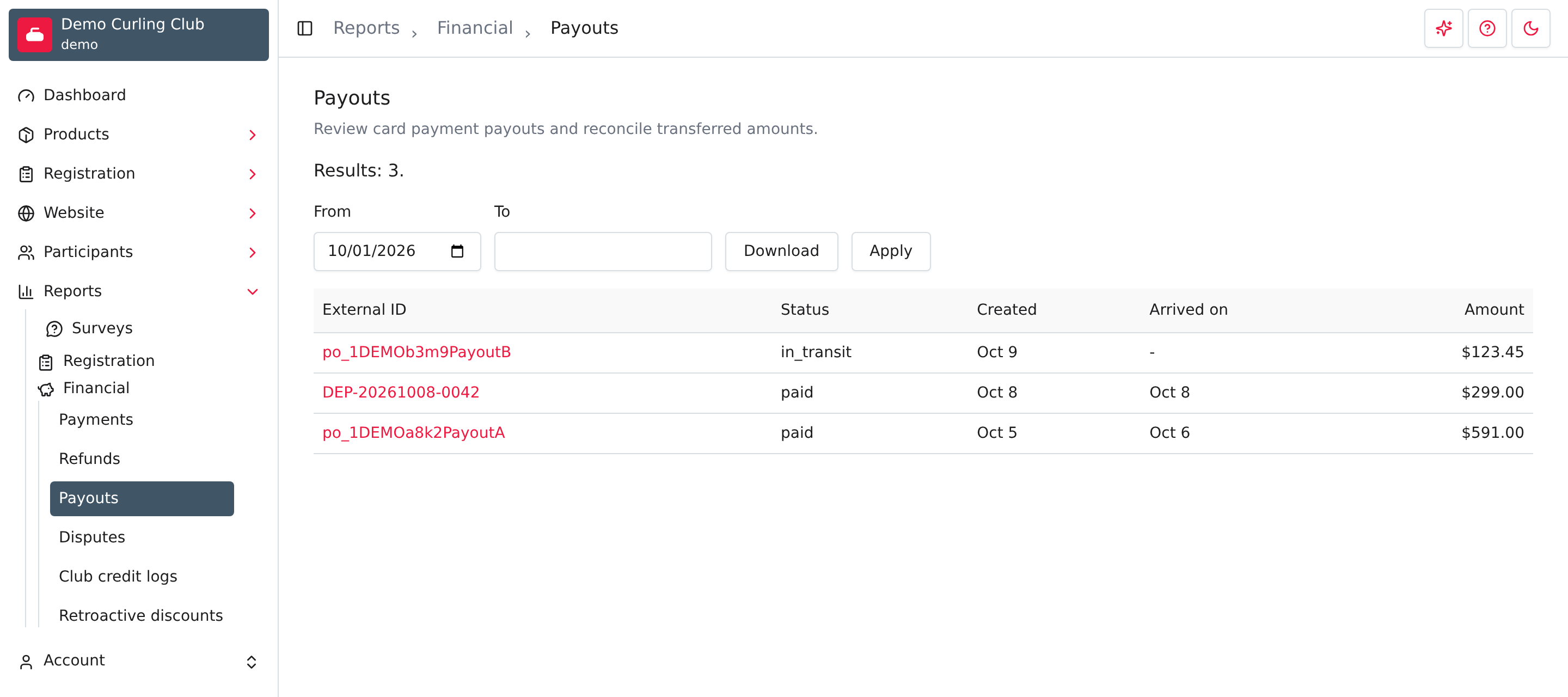
The report lists the newest payout first and shows 12 per page. When you first open it, From is the first day of your current season and To is empty, so you see every payout from the season start onward.
To change the list, set From and To, then select Apply. Both dates are included, and they filter on the Created date. Clear From to see older payouts. If nothing matches, the report says No payouts matching search.
You only see payouts for payments taken through Curling IO with Stripe or SportsPay. A club that has not taken a card payment yet has an empty report. Payments you record by hand, such as cash or cheques, never appear here. See Payments for those.
Read the list
- External ID is the identifier your payment provider gives the payout. For
SportsPay this is the deposit number. Select it to open the payout. If the
provider gave no identifier, Curling IO shows its own number, such as
#42. - Status is the status the provider reported, such as
paidorin_transit. Curling IO shows it as the provider words it. - Created is the date the provider created the payout. For SportsPay it is the deposit date.
- Arrived on comes from the provider. For Stripe it is the date Stripe expects the money to reach your bank, not confirmation that it arrived, so check your bank statement before treating it as received. For SportsPay it is the deposit date. A dash means the provider has not reported a date yet.
- Amount is the amount transferred to your bank, after fees, refunds, disputes, and any adjustments the provider made. Provider adjustments can be positive, so the amount isn't always smaller than the payments it covers.
Dates use your club's time zone.
Reconcile a payout
Select an External ID to open the payout. The breadcrumb ends with that External ID.
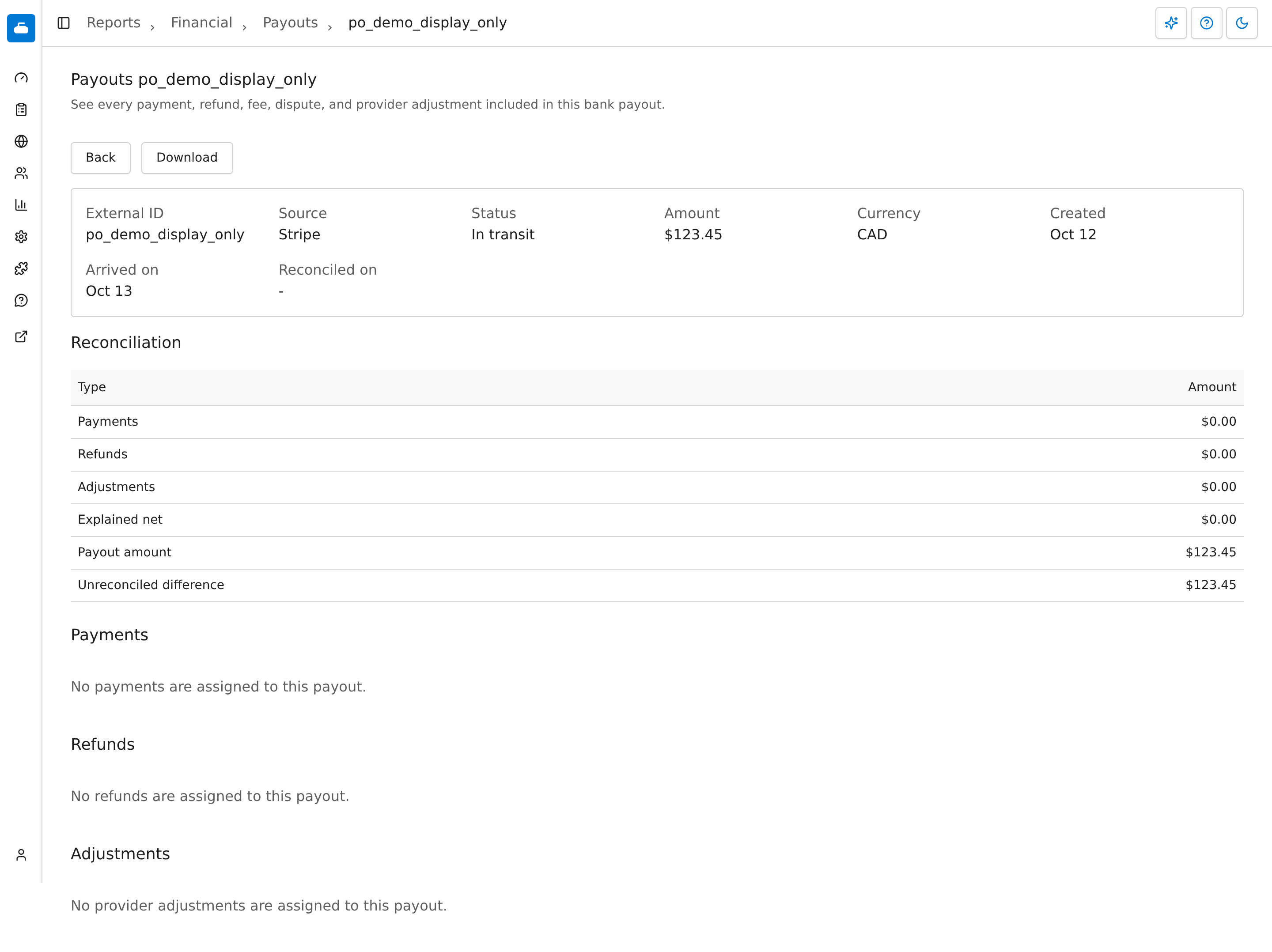
This screenshot uses local sample data. It shows an unreconciled payout, not a real bank transfer.
The top of the page shows the External ID, Source (Stripe or
SportsPay), Status, Amount, Currency, Created, and Arrived
on. The detail page shows Paid or In transit instead of paid or
in_transit; French labels are Payé and En transit. Other provider
statuses retain their reported value.
Reconciled on (Rapproché le in French) is the date Curling IO matched the payout to its transactions. A dash means that hasn't happened yet. The Reconciliation heading below refers to the table, not that date.
The Reconciliation table adds up what is in the payout:
- Payments is the net of every payment in the payout: the amount charged minus the fees shown for it.
- Refunds is the money taken back out for refunds, shown as a negative.
- Adjustments is everything else the provider included, such as dispute fees and corrections.
- Explained net is those three added together.
- Payout amount is what the provider transferred.
- Unreconciled difference is the payout amount minus the explained net.
When every transaction has been matched, Unreconciled difference is
$0.00. A payout that Curling IO hasn't reconciled yet shows empty sections and
a difference equal to the full payout amount. See
When payouts appear below, then check again later. If the difference stays above zero for a payout that has
arrived, contact support with the External ID. Don't change an order to make the
numbers match.
Below the table, three sections list the evidence:
- Payments lists each order with the customer's email, the provider's charge ID, the Amount, the Fees, and the Net. Select the order to open it. See Orders.
- Refunds lists each refunded order with the provider's refund ID and the Reason. Refunds are negative. See Refunds.
- Adjustments lists provider activity that isn't a payment or a refund, with its Type, Description, Amount, Fees, and Net. Dispute fees appear here. See Disputes.
Select Back to return to the list.
When payouts appear
Curling IO records Stripe payouts as Stripe reports them. It matches the payments and refunds when Stripe marks the payout paid or finishes its own reconciliation. SportsPay deposits are fetched overnight, so a deposit from today usually appears tomorrow. A payout that shows no transactions yet is normally waiting on one of these steps.
Curling IO stores each provider item once, so a repeated notification from the provider doesn't count anything twice.
Download the results
Select Download next to the date fields to get payouts.csv for the
payouts in the date range. Select Download on a payout to get a CSV for that
one payout, named after the ID shown for that payout.
These files use the same layout as the Payouts report in earlier versions of Curling IO, so existing spreadsheets keep working. They are more detailed than the screen:
- The file has one row per payment, followed by one row per order item with the participant's name, amounts, discounts, and each tax your club charges.
- Refunds and adjustments follow in their own sections.
- Dates include the time, in your club's time zone.
- The all-payouts file includes a Payout Processor column to tell payouts apart. It doesn't have a Source column.
- In the all-payouts file, the Refunds section's Payout ID contains the refund's own SportsPay reference or Stripe refund ID, not the parent payout's ID.
- In the Adjustments section, Payout ID contains the adjustment's Stripe ID. It is blank for SportsPay adjustments.
- To identify which refunds or adjustments belong to one payout, download that payout's CSV. Its Refunds and Adjustments sections omit the Payout ID column because every row already belongs to that payout.
To compare a deposit with your bank statement, use the payout page. To check your accounting records line by line, use the CSV.