Registration reports
Registration reports help you review registrations, teams, spare lists, and related participant records. Open Reports > Registration in administration to choose a report. Registration is a navigation group, so selecting one of its reports opens the working page.
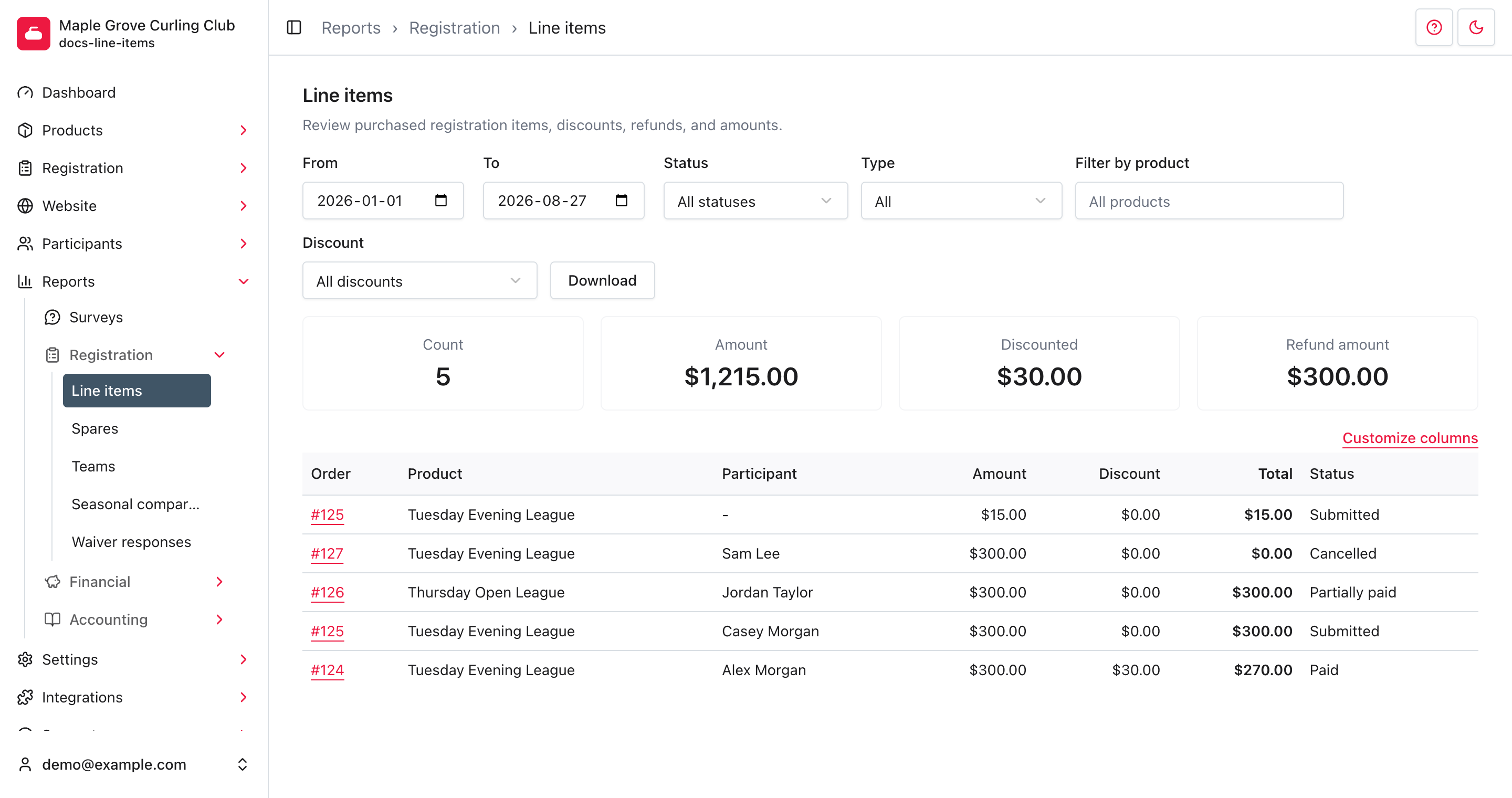
Choose the right report
Use the narrowest report that answers your question:
- Members: review membership records.
- Club Affiliations: review club affiliations. This report appears when your association has an affiliation product.
- Line items: review purchases, discounts, refunds, taxes, and registration answers, then customize the table or CSV columns.
- Spares: find participants who have offered to spare for current-season events and download their details.
- Teams: review saved teams and lineups by season and product, then download the list.
- Seasonal comparison: find participants who registered in one season but not another.
- Waiver responses: find acceptances and declines, review saved wording, and export response details.
- Curling Development Fee claims: review reports of fees paid elsewhere and record or reject external payment evidence. This report appears only for membership associations and for clubs whose association lets them accept those reports.
Use Registration > Orders when you need to inspect one complete order and its payments. Use the financial reports when you need to reconcile payment, refund, payout, or dispute activity rather than registrations.
Work with registration reports
Each registration report has controls suited to its records, but the workflow is consistent:
- Open Reports > Registration, then choose a report.
- Set the season, product, date, status, or other available filters.
- Review the filtered rows and summary values.
- Select a linked order, product, participant, team, or waiver response when you need the underlying record.
- Where the report offers Download, select it to export the current filtered set.
Set the filters before downloading. A report's CSV uses its current filters, so an export can be narrower than the unfiltered screen. The detailed guides explain the fields and report-specific behavior.