Line items
Use the Line items report to review purchases across products, find outstanding registrations, check discounts and refunds, or download registration answers. Each row is one line on an order. A single order or participant can appear on several rows, so the row count isn't a count of people or orders.
Open the report
Go to Reports > Registration > Line items.
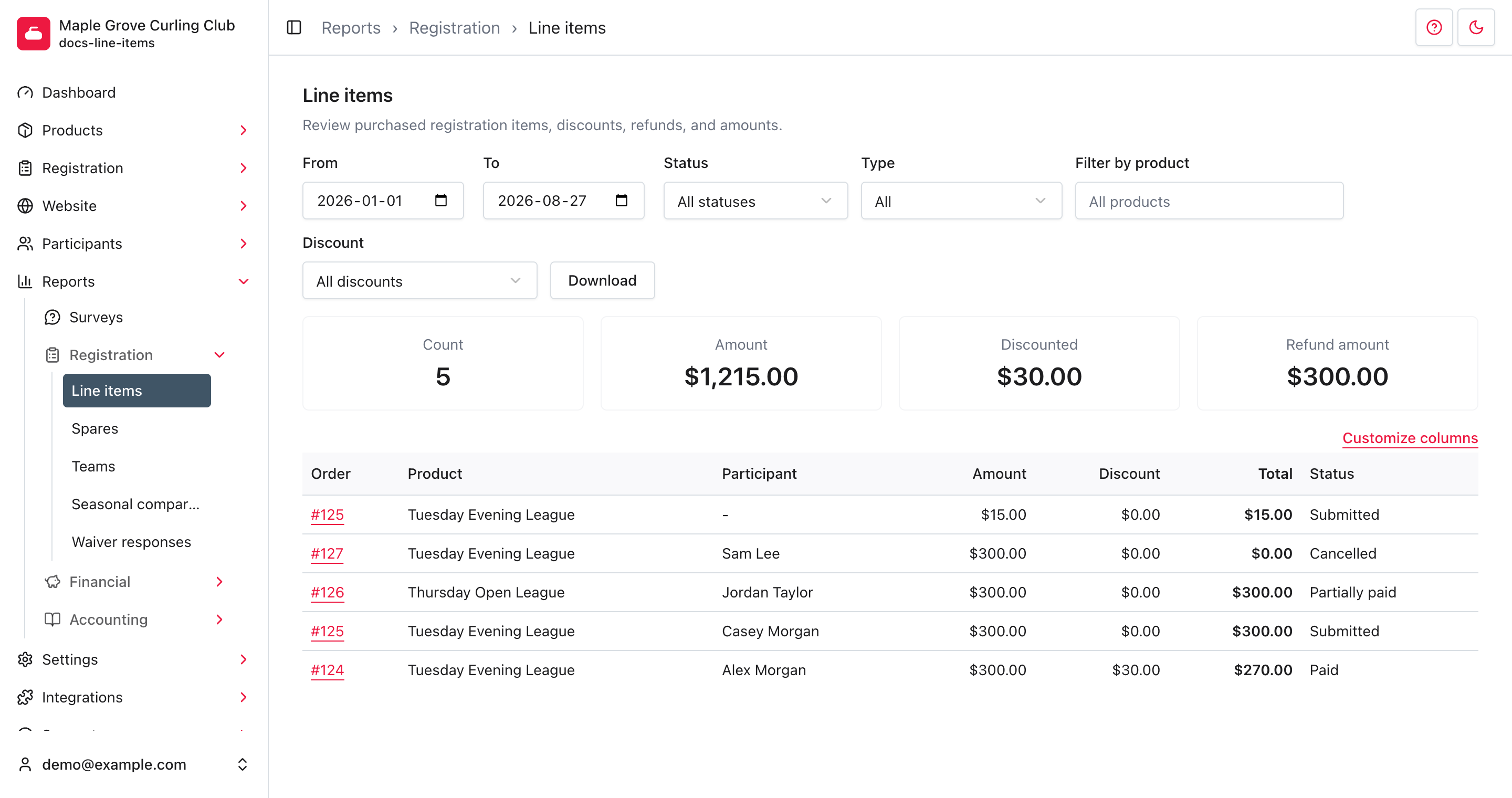
The report opens from the start of your current season through today. It includes submitted, partially paid, paid, overpaid, and cancelled purchases. Pending carts and orders still processing checkout aren't included.
Find the purchases you need
The filters update the report automatically:
- From and To include both selected days, using your organization's time zone. They filter when the line item was created, not the event's start date or the date a payment arrived.
- Status filters the individual line item, not the whole order. Choose Owing for both Submitted and Partially paid rows. Choose Overpaid to review overpaid lines separately from Paid. Choose Cancelled to review cancelled lines, including those with refunds.
- Type limits the report to a product type, such as Leagues, or to Adjustment, Convenience fee, or Late fee rows.
- Filter by product searches product names. Enter at least one nonblank character, then choose a suggestion. Use the × beside the selected product to return to All products.
- Discount finds rows with that discount applied. Choose All discounts to remove the restriction, including purchases without a discount.
Use Next and Previous below the table to move through results. Each page shows up to 12 rows, newest first. The summary always covers every matching row, not just the current page.
Product filters and fees
Selecting a product with Type set to All can also show late fees attached to that product. Choose its product type, such as Leagues, when you only want the product purchases.
When you follow a purchased-count link from a product list, the report arrives with product and type filters already set. A season-specific count also sets the date range. An all-time count opens with blank dates and includes all dates. Check the filters before comparing that view with a report opened from the navigation.
If you're a membership association and select one of your association fee products, the report also includes purchases of that fee through member clubs. The unfiltered report remains scoped to orders placed through your own organization.
Understand the amounts
The summary shows Count, Amount, Discounted, and Refund amount for the matching rows. Amount is the price before discounts, tax, and refunds. Discounted adds up the recorded discounts.
In the table:
- Discount is the discount amount for that line. Discounts lists the applied discount names and amounts.
- Refund amount is the amount already refunded against that line.
- Total is Amount minus Discount, plus Tax, minus Refund amount.
Total is neither money received nor the balance still owing. Unpaid and cancelled rows can be included in these amounts. Use the line's Status and select its Order number to review the actual order and payments under Registration > Orders.
A refund isn't a separate status filter. Review Refund amount alongside Status when checking refunded purchases.
Choose columns for the screen and download
Open Customize columns. Core fields contains the order, product, participant, amount, status, and date columns. Participant fields comes from your participant form. Registration question fields comes from questions assigned to your products' form builders.
- Check Web for each column you want on screen.
- Check CSV for each column you want in the downloaded file. The two selections are independent.
- Set Web order and CSV order to arrange the selected columns. Lower numbers appear first. Use distinct numbers for a predictable order.
- Keep at least one column checked in each output, then select Save.
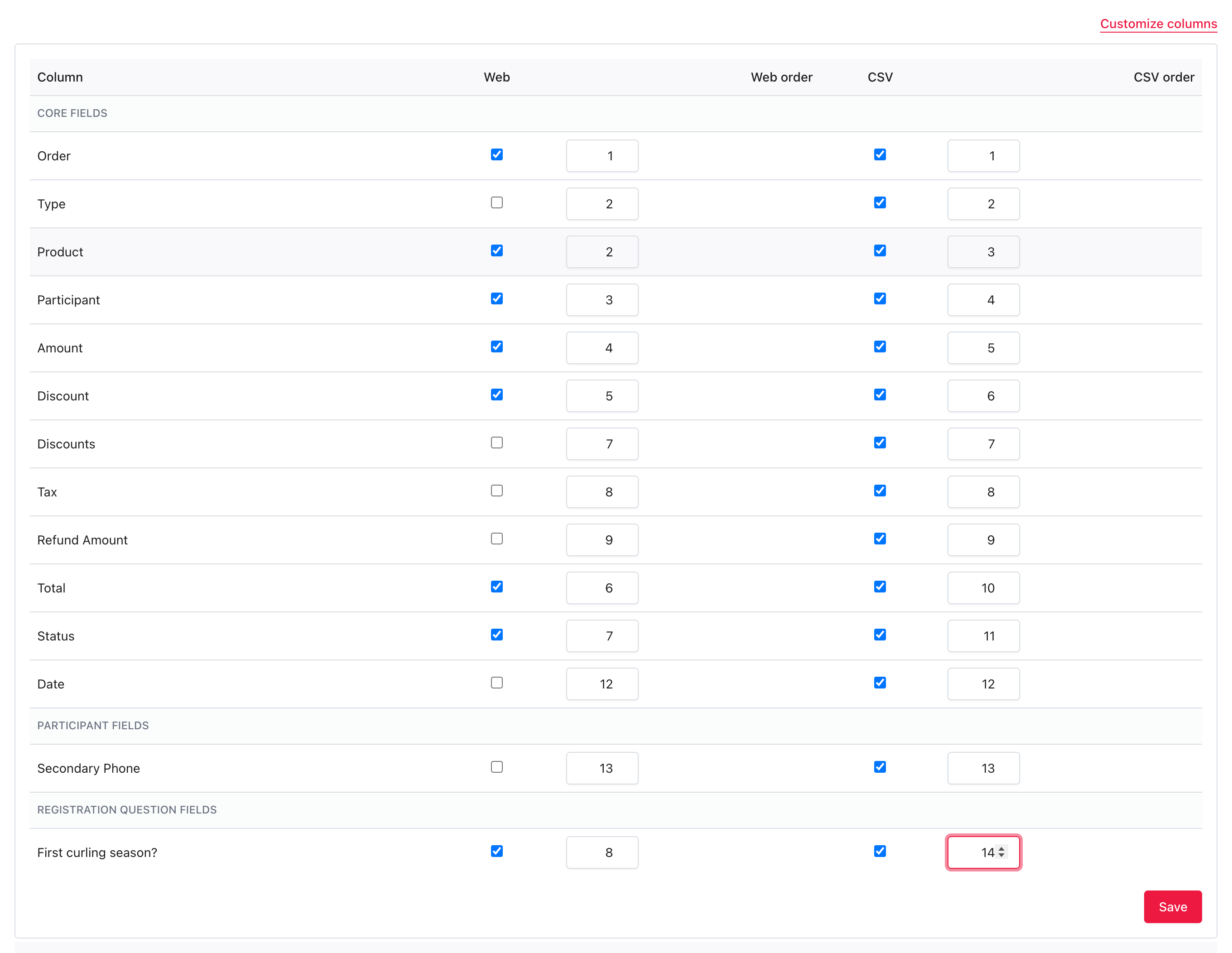
The report shows Report columns saved. and returns to your filtered results. These choices are saved for your organization, not just your sign-in. Other managers will use the same columns.
Selected columns remain available even when the table is wider than the screen. Scroll horizontally to see them.
Participant fields show the participant's current profile values. Registration question fields show answers saved on the line item. A blank cell can mean there is no participant, the question doesn't apply to that product, or no answer was saved. Choosing a column doesn't collect a missing answer.
Download the results
Select Download after setting your filters and saving the CSV columns
you need. The file is named line_items.csv and contains every matching row,
not just the current page. It uses the saved CSV column selection and order.
Check which personal details you include before sharing the file. Participant fields can include contact information that isn't displayed in the on-screen report. Downloading doesn't send messages or change registrations.
For a season-to-season participant comparison, use Seasonal comparison instead. For saved lineups rather than purchases, use Teams.