Seasonal Comparison
Use Seasonal Comparison to find participants who registered in one season but haven't registered in another. It's a follow-up list, not a retention percentage or a comparison of registration totals.
The report compares participants across your whole organization. Someone who registers for any product in the second season is excluded, even if they haven't returned to the same league or program.
Open the report
Go to Reports > Registration > Seasonal comparison.
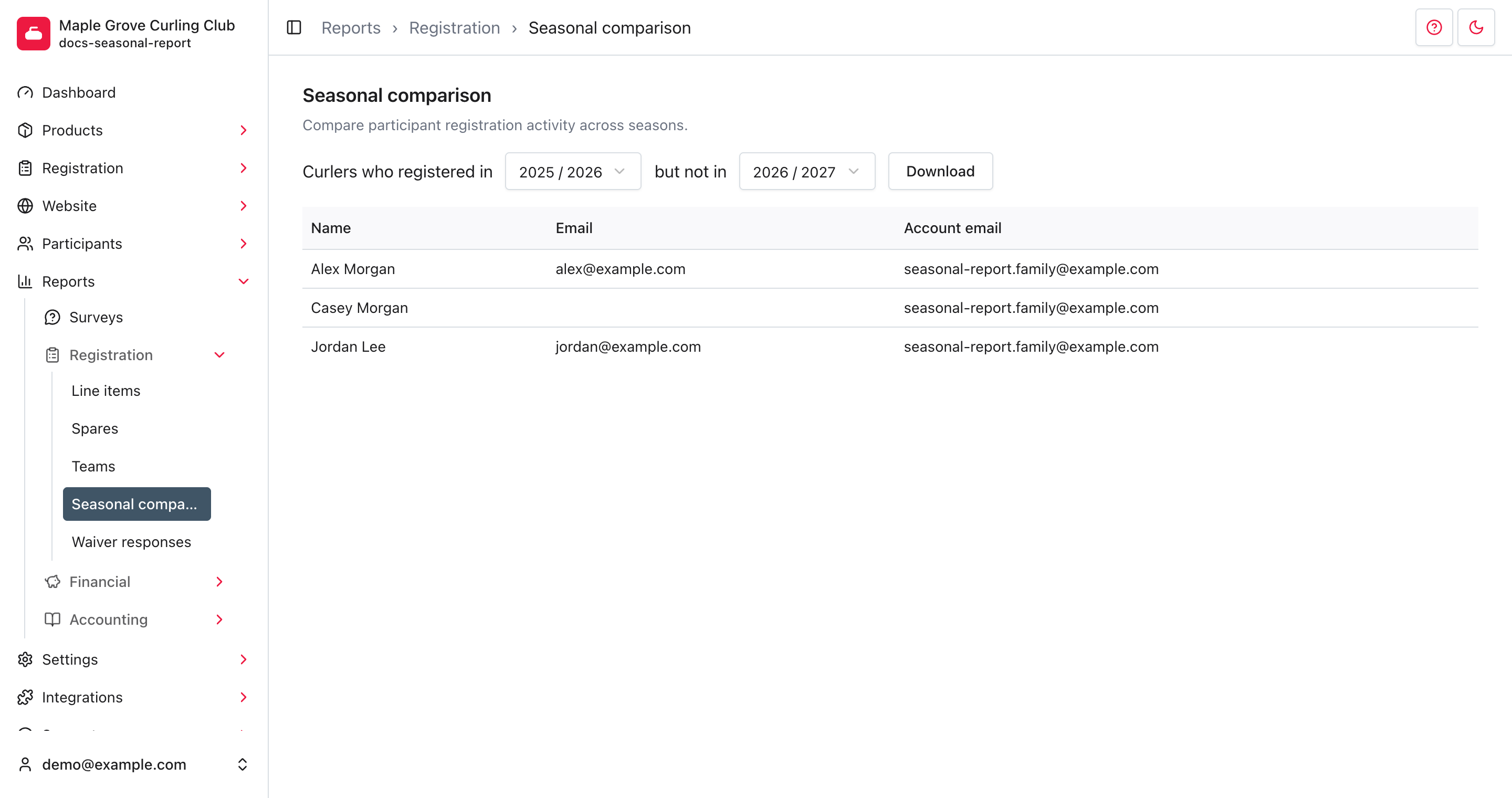
The report starts by comparing the previous season with the current season. Check both selections before using the list.
Choose the comparison
Read the filters as one sentence:
Curlers who registered in the first season, but not in the second.
- Choose the season whose participants you want to check in the first list.
- Choose the season you're checking for their return in the second list.
- Review the matching participants. The table updates automatically.
The order matters. Comparing last season with this season finds people who haven't returned. Reversing those seasons finds people registered this season who weren't registered last season; they may have participated in earlier years.
Choose two different seasons. Selecting the same season twice gives an empty comparison. There isn't a product filter or an all-seasons comparison.

What counts as registered?
The report uses registrations in the season saved with each line item. It doesn't rebuild historical seasons from an event's current start date or the date an order was created.
Pending carts and pending line items do not count. Other statuses can count, including processing orders and cancelled registrations. An unpaid submitted registration can therefore remove someone from the follow-up list.
Each participant appears once, even if they registered for several products. Two participants managed by the same account are still separate people in this report. A duplicate participant profile can make someone look as though they haven't returned, so check their participant records before following up.
Read the contact details
The table shows:
- Name: the participant's name.
- Email: the email saved on that participant's profile.
- Account email: the email of the account that owns the participant.
These addresses can differ. For a junior participant, the account email may belong to a parent or guardian. A blank cell means that address isn't available. Names and addresses are plain text here, not links to edit records.
The list is sorted by first name, then last name, with up to 12 participants per page. Use the page links below the table for more results.
Download the list
Select Download after choosing both seasons. The file is named
seasonal_comparison.csv and includes all matching participants, not just
the current page. Its columns are Name, Email, and Account Email.
Keep the export private. It contains contact details, and several rows may share the same account email. Downloading doesn't send messages or confirm permission to send marketing email.
Troubleshooting
No participants matching search
No participants match both conditions. Check the direction of the comparison and which seasons are selected. An empty list doesn't prove that everyone returned to the same product.
Someone is missing
A qualifying registration for any product in the second season removes them from the list. Check for another league, program, or membership registration, including cancelled registrations.
A season isn't available
The first list starts at 2018 and runs through the current July-based season. The second starts at 2019. These lists include seasons without registration history.