Spares
Use the Spares report to find participants who have offered to spare for an event, review their preferred positions and notes, and download a contact list for your administrators. It doesn't assign anyone to a team or confirm that they're available for a particular game.
Open the report
Go to Reports > Registration > Spares.
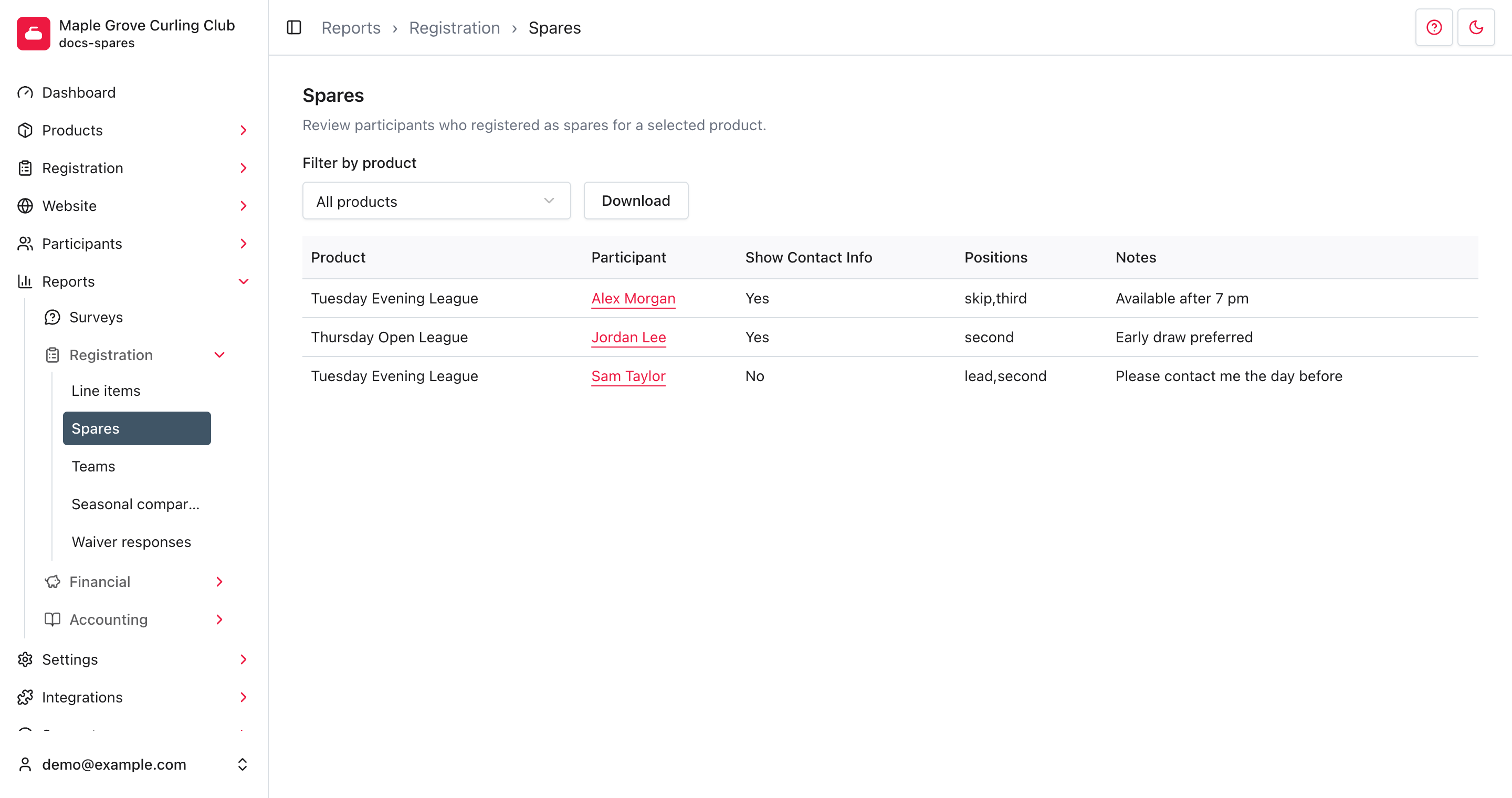
The report includes events whose start date falls in your organization's current season. It uses the event's start date, not the date someone joined its spare list. There isn't a season or date-range selector on this report.
Find spares for an event
- Choose the event under Filter by product. The table updates automatically.
- Read the participant's Positions and Notes to see their preferences and any availability information they've provided.
- Select a Participant name to open their record. For details about that screen, see Participants.
Choose All products to return to the full current-season list. Each row is one participant's spare registration for one event, so someone who offered to spare for two events can appear twice.
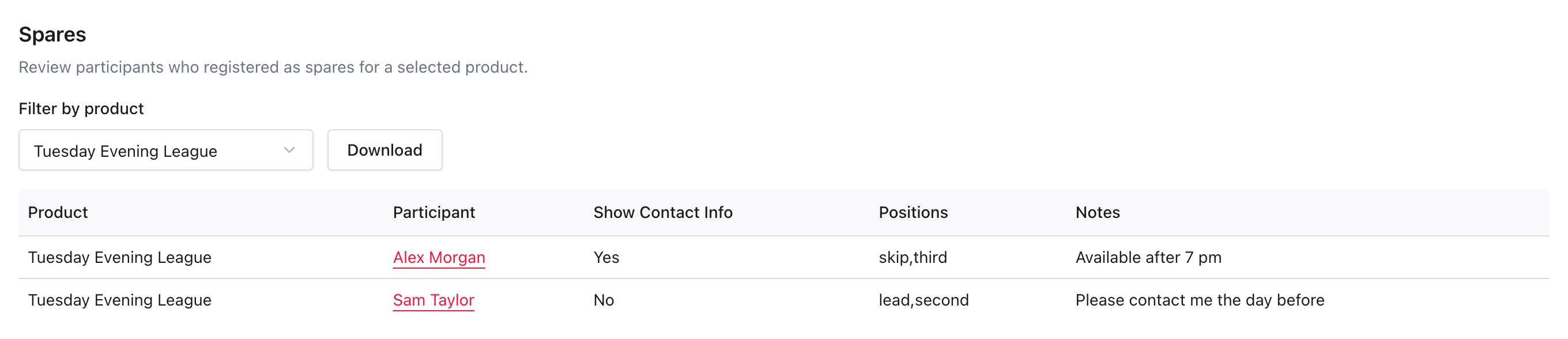
The table is sorted by first name, then last name. It shows up to 12 rows per page; use the page links below it when there are more results. Filtering and browsing don't change anyone's spare registration.
Show Contact Info reflects the participant's contact-sharing setting. It isn't a filter and doesn't control which fields administrators receive in the CSV download.
Download the list
Select Download after choosing your product filter. The file is named
spares.csv and includes every matching row, not just the current page.
The export includes the product, first and last names, phone, email, secondary email, date of birth, gender, contact-sharing setting, positions, and notes. Some of these fields aren't visible in the report table.
Keep this export private. Contact details and birthdates are included when present, even when Show Contact Info says No. Don't publish the CSV as a member-facing spare list. Share it only with staff who need it.
Downloading the report doesn't send messages or invite participants to a game. Contact a suitable spare separately to check their availability.
Troubleshooting
My event isn't in the filter
The filter lists current-season events with Allow spares checked. Check that setting and the event's start date on its Info page. See product information for those settings.
An event with no start date, or a start date outside the current season, won't appear here. This report isn't an archive of earlier seasons.
No spares matching search
No spare registrations match the selected event. Choose All products to check the other current-season events. Enabling Allow spares doesn't add any participants automatically.
Someone appears under All products but their event isn't selectable
Turning off Allow spares removes the event from the filter options, but doesn't remove its existing spare registrations from the current-season report.
I need to add or remove someone
This report is read-only. It doesn't offer actions to add a spare, remove a spare registration, or change someone's preferred positions.